How To Run Background Tasks on HarmonyOS Wearables in 2026
Have you ever opened a smartwatch app, glanced at the weather, and wondered why the number is two hours stale, or worse, why the battery…
How To Run Background Tasks on HarmonyOS Wearables in 2026
Have you ever opened a smartwatch app, glanced at the weather, and wondered why the number is two hours stale, or worse, why the battery dropped 8% overnight from an app you never even opened? Those two problems are actually the same problem wearing different clothes. Fresh data wants a process that runs often. A healthy battery wants a process that runs almost never. On a device with a battery the size of a coin, you cannot have both by brute force.
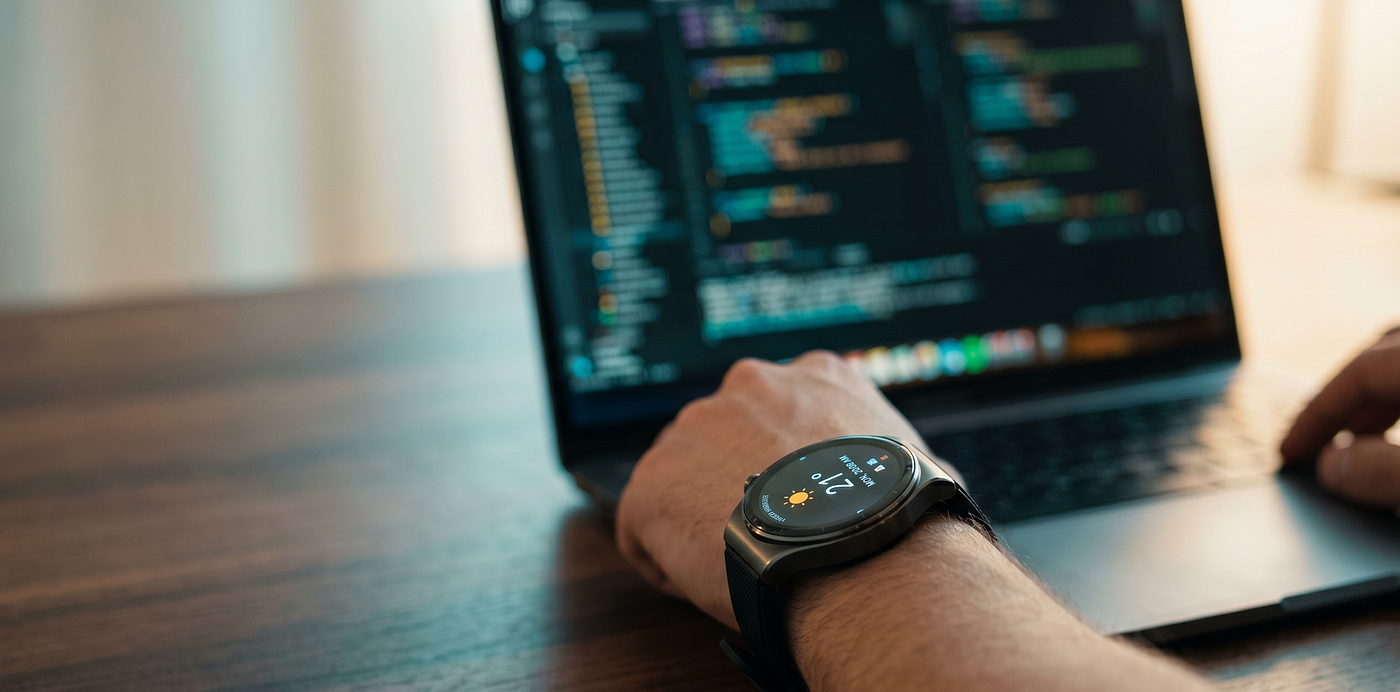
A developer’s desk where a HarmonyOS wearable keeps its weather tile fresh in the background with WorkScheduler (AI Generated).
This is exactly the gap WorkScheduler is built to close. Part of Huawei’s Background Tasks Kit on HarmonyOS, WorkScheduler lets you register deferred work, tasks the system runs on your behalf when conditions are favorable, instead of tasks you keep alive yourself. In this guide I’ll walk through a small but complete example: a wearable weather app that refreshes roughly every two hours in the background, persists the result, and shows it the next time you raise your wrist. Along the way I’ll point out the parts that bit me, the ones that are easy to get wrong, and a couple of constraints the documentation is quiet about.
The stack: ArkTS, the Background Tasks Kit (@kit.BackgroundTasksKit), a WorkSchedulerExtensionAbility, and Preferences for storage. No continuous service, no polling loop.

An actual in-app screenshot showing the location, temperature, appropriate emoji, and metadata.
How WorkScheduler Actually Thinks
The mental model matters more than the API surface here, so it’s worth slowing down for a second.
A foreground task is something you drive. A continuous task keeps your app alive while it works. A deferred task, which is what WorkScheduler manages, is the opposite philosophy: you describe the work and the conditions under which it makes sense, hand that description to the system, and then let go. The system decides when. It will happily wait until the watch is charging, on Wi-Fi, or idle, batching your work with everyone else’s so the radio and CPU wake up fewer times.
That single design decision explains almost every “weird” behavior you’ll hit later. Your task is late? That’s the system batching for battery, not a bug. Your two-hour cycle stretched to three? Same reason. Once you internalize “I requested eventually under these conditions, not exactly now,” the rest falls into place.
The Three Moving Parts
Our app is deliberately small. It has three pieces plus one config file:
**module.json5** — declares the worker as an extension ability and requests the permissions it needs.**EntryAbility** — defines the task and (re)registers it when the app goes to the background.**WeatherWorker** — the extension ability that actually fetches and stores the weather.**Indexpage** — reads the stored value and renders it.
Let’s go through them in the order data actually flows.
Step 1 — Configuration (module.json5)
Two things have to be declared before any of this works: network access for the fetch, and the worker itself as a workScheduler extension ability.
{
  "module": {
    "requestPermissions": [
      {
        "name": "ohos.permission.INTERNET",
        "reason": "$string:reason_for_internet",
        "usedScene": {
          "abilities": ["WeatherWorker"],
          "when": "always"
        }
      }
    ],
    "extensionAbilities": [
      {
        "name": "WeatherWorker",
        "srcEntry": "./ets/workschedule/WeatherWorker.ets",
        "label": "$string:WeatherWorker_label",
        "description": "$string:WeatherWorker_desc",
        "type": "workScheduler"
      }
    ]
  }
}
A note on the scheduling permission. Some samples also add a dedicated task-scheduling permission here. Whether one is required, and its exact string, depends on your SDK and API level, so confirm it against the official permission list for your target (this article targets a wearable build) before you ship. Don’t copy a permission name on faith; declaring a non-existent permission is its own silent failure mode.
Step 2 — Defining and Registering the Task (EntryAbility)
The WorkInfo object is your task's contract with the system. Every field is a condition or a parameter the scheduler reads when deciding what to do.
import { workScheduler } from '@kit.BackgroundTasksKit';
const WEATHER_WORK_INFO: workScheduler.WorkInfo = {
  workId: 1,
  abilityName: 'WeatherWorker',
  bundleName: 'com.example.weatherwearable',
  networkType: workScheduler.NetworkType.NETWORK_TYPE_ANY,
  isPersisted: true,        // survive reboot
  isRepeat: true,           // run on a cycle
  repeatCycleTime: 7200000  // 2 hours, in milliseconds
};
Then, in the onBackground() lifecycle callback,the moment the app leaves the foreground, we register the work. The three-call dance below looks redundant but is intentional:
onBackground(): void {
  // 1. Clear any stale tasks from previous installs/runs
  workScheduler.stopAndClearWorks();
  // 2. Defensively stop a running instance with this workId
  workScheduler.stopWork(WEATHER_WORK_INFO, false);
  // 3. Register a fresh, clean task
  workScheduler.startWork(WEATHER_WORK_INFO);
}*onBackground.ets*
Why call stopWork() before startWork()? Because workId is a key, not just a label. Register twice without clearing and you can end up with duplicate or conflicting entries fighting over the same id. The cheap insurance of clearing first guarantees you always start from a known state.
Pro Tip: Registering in
onBackground()is a clean trigger, but remember it fires every time the app backgrounds. Because we clear-then-register, that's safe and idempotent here, but if your registration logic ever becomes expensive, gate it so you don't redo work on every single background transition.
Step 3 — The Worker (WeatherWorker)
This is the part that runs without your UI. It extends WorkSchedulerExtensionAbility and implements onWorkStart(). The crucial discipline: do the heavy lifting off the main thread.
The worker pushes the network call into taskpool.execute(), pointing at a @Concurrent-decorated fetchWeather() function. That keeps the HTTP request non-blocking. When the response comes back, the temperature and a timestamp are written to local storage via preferences.getPreferences() and put().
@Concurrent
async function fetchWeather(): Promise<WeatherData | null> {
  // HTTP request to your weather API.
  // On failure: log, return null, save nothing.
  // The UI then keeps showing the last good value.
}*WeatherWorker.ets*
The error path here is a feature, not an afterthought. If the API call fails, the function returns null, logs the error, and writes nothing. The last successful value stays on disk, the UI keeps showing it, and the next cycle simply tries again. No spinner of doom, no blank tile, graceful degradation by default.
Step 4 — Reading It Back (Index Page)
Here’s the conceptual jump that trips up newcomers: the worker and the UI do not share memory.
They run in separate processes, in isolated memory spaces. That means AppStorage, LocalStorage, or any in-memory state tool is useless as a bridge between them, the worker writes to its own process's memory, and your UI never sees it. The two halves of your app communicate only through something that outlives a process: persistent storage.
So the UI reads the persisted value in onPageShow():
onPageShow(): void {
  const store = preferences.getPreferencesSync(this.context, { name: 'weather' });
  this.temperature = store.getSync('temp', '--') as string;
  // render based on threshold...
}*Index.ets*
Think of Preferences as a dead-drop. The worker leaves a note; the UI picks it up later. Neither needs the other to be alive at the same time, which is exactly what you want when one of them runs at 3 a.m. while the screen is off.
Constraints and Gotchas
This is where the honest part of the article lives. A few things the happy-path tutorials skip:
System-optimized timing is not a suggestion you can override. Your repeatCycleTime is a floor and a hint, not a guarantee. The system batches deferred work around charging, connectivity, and idle states. Time-critical data is the wrong use case for WorkScheduler, reach for a different mechanism if "exactly on time" matters.
Background runtime is short and enforced. The window a wearable gives a background task is small; long-running or chatty work will be cut off. Keep onWorkStart() lean: one focused fetch, one write, done. (Verify the exact ceiling for your device and API level — see the publish checklist at the bottom — and design well under it regardless.)
Isolated memory, again. Worth repeating because it causes the most confused bug reports: you cannot pass state through AppStorage. Persist it or lose it.
No UI from the worker. The worker can’t touch foreground-only APIs or update the screen. Defer all rendering to when the app is actually in the foreground.
Persistence has a cost. isPersisted: true is what lets the task survive a reboot , genuinely useful on a device people charge overnight but it's a privilege the system grants conditionally, not a magic word. Pair it with the right configuration rather than assuming it always sticks.
A Realistic Use Case
The weather tile is a teaching example, but the pattern generalizes cleanly. Anywhere you have “data that should be reasonably fresh but doesn’t need to be live” , a fitness summary synced from a phone, a calendar’s next-event tile, an exchange-rate or transit widget,WorkScheduler is the right tool. The shape is always the same: register intent on background, fetch-and-persist in the worker, read-on-wake in the UI. Once you’ve built it once, you’ve built it for every glanceable tile you’ll ever ship.
Frequently Asked Questions
Why doesn’t the task run exactly every two hours? By design. The system delays execution to batch work and protect the battery. repeatCycleTime is the minimum interval and a hint, not a promise.
Why Preferences instead of AppStorage for the result? Because the worker and the UI live in separate processes with separate memory. AppStorage is in-memory and process-local, so the worker's changes never reach the UI. Persistent storage is the only bridge.
What happens if the API call fails? fetchWeather() returns null, logs the error, and saves nothing. The UI keeps showing the last good value and the next cycle retries automatically.
Can I make the cycle longer than two hours? Yes, pass a larger repeatCycleTime. Just remember longer intervals mean staler data, which is fine for some tiles and wrong for others.
Can the worker update the UI directly? No. Persist the data; let the UI read it on onPageShow(). There is no direct path from worker to screen.
How do I cancel a task manually? Call workScheduler.stopWork(workInfo, false) for one task, or workScheduler.stopAndClearWorks() to clear everything.
Conclusion
WorkScheduler rewards a change in mindset more than a change in code. The moment you stop asking “how do I run this now?” and start asking “how do I describe this so the system runs it wisely?”, the whole Background Tasks Kit clicks into place. You trade a little control over timing for a large win in battery life, exactly the trade a wearable should make.
The recipe is small enough to memorize: declare the worker and its permissions, define a WorkInfo contract, register it on background with a clear-then-start, do one lean fetch-and-persist in the extension ability, and read the result on wake. Build it once for a weather tile and you've learned the pattern for every glanceable surface on the watch.
Reference
[embed]Document The OpenCms demo, brought to you by Alkacon Software.developer.huawei.com
[embed]Document The OpenCms demo, brought to you by Alkacon Software.developer.huawei.com
[embed]Document The OpenCms demo, brought to you by Alkacon Software.developer.huawei.com
- GitHub — sample repository for this article
메타데이터
- post_id
- c276c2b554c2
- slug
- how-to-run-background-tasks-on-harmonyos-wearables-in-2026-c276c2b554c2
- url
- https://medium.com/huawei-developers/how-to-run-background-tasks-on-harmonyos-wearables-in-2026-c276c2b554c2
- canonical_url
- https://medium.com/huawei-developers/how-to-run-background-tasks-on-harmonyos-wearables-in-2026-c276c2b554c2
- author_url
- https://medium.com/@antelcha
- status
- ok
- fetched_at
- 2026-06-29 01:02:39