How To Politely End a Meeting: AI Agenda Assistant, Time boxes, and Reminders
Client meetings that constantly run overtime don’t just steal time — they steal control of your day.
How To Politely End a Meeting: AI Agenda Assistant, Time boxes, and Reminders
Client meetings that constantly run overtime don’t just steal time — they steal control of your day.
You start with a clear 30-minute slot. Ten minutes in, the discussion jumps to “one quick thing.” Then another. Someone brings up a new topic. Nobody knows what to cut, so you keep going. The call ends late, the next one starts late, and by the afternoon, you’re living in catch-up mode.
And the worst part: even when the meeting was “useful”, it still feels messy — because the conversation turns into a pile of topics instead of a clear path to decisions.
This happened not because you’re bad at meetings. Because this is the default habit when:
- Time isn’t visible to everyone
- The agenda isn’t structured (or doesn’t exist)
- Nobody knows when to wrap or what “done” looks like
The good news: it’s not a personality problem — it’s a system problem. Habits change quickly when the system changes.
That’s exactly what Minute Minder does inside Google Meet: it gives you an AI Agenda Assistant + a agenda timer + active reminders, so the meeting stays on track while you just run it normally.
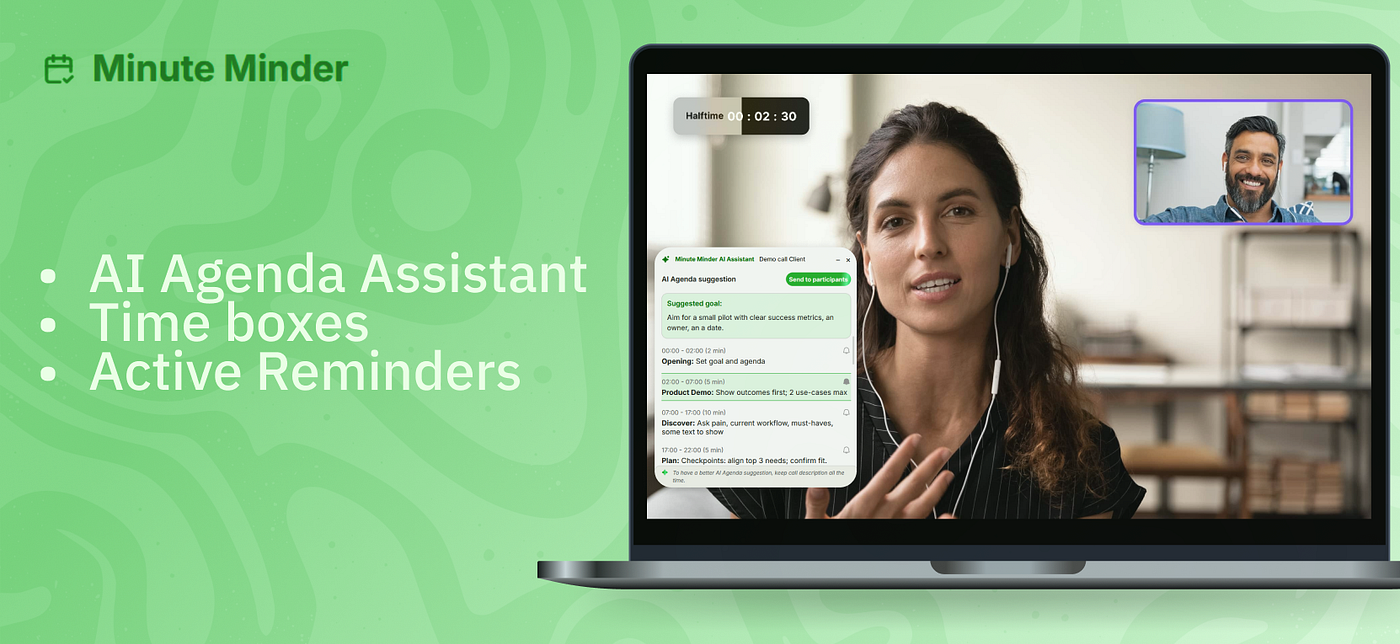
Minute Minder is a meeting timer app that ends the overtime habit by doing the “meeting control” work for you. It generates a time-boxed plan with AI Agenda Assistant from your calendar invite (goal, agenda blocks, realistic durations, small buffer), keeps a google meet timer inside the call, and sends active meeting time reminders (half-time, 5 minutes left, overtime, and custom triggers).
You don’t have to change how you run meetings — you simply start your meeting like usual, and Minute Minder stays beside you, showing what stage you’re in and how much time is left.
Minute Minder ends the overtime habit and chaotic meeting. It generates a time boxed plan with AI Agenda Assistant from your Google calendar and keeps a visible timer inside the call with active reminders to simplify your meeting.
How Does The Google Meet Time Tool Work?
When time and structure are missing, meetings don’t end — they drift. So instead of trying to “be stricter”, you need a setup where structure and time are built into the call.
Think of Minute Minder like an invisible co-host that does two jobs:
1) AI Agenda Assistant: a structured meeting plan in seconds
Before the call (and right as it starts), it creates a clean structure:
- Goal (what outcome we want)
- Topics in order
- Time boxes (how long each part gets)
- A small buffer so you don’t sprint to the finish
You can share that agenda so everyone starts focused — not improvising.

2) Timer + active reminders: “where are we” stays obvious
During the call, time is visible, and the nudges happen automatically:
- “Halfway point”
- “5 minutes left.”
- “Overtime”
- plus optional custom reminders
So you don’t have to check the time or be a moderator. The meeting place becomes a shared reality.
What You Get After Installing (the “magic minder” effect)
Once it’s on, you don’t need to change how you host meetings.
You just join your Meet like always — but now you get:
- Fewer overtimes (teams report ~50–60% fewer on average, based on aggregated user outcomes)
- Less topic chaos (because there’s a timeboxed order)
- Less “we’ll follow up” fog (because the goal + wrap-up becomes visible)
- More value per call (the meeting stays aligned to the purpose, not random threads)
This is what one user told us after a week:
“To be honest, I was skeptical, but after the first week, I felt the full value of the product. It is worth the money because when the team saw that time was running out, they started thinking completely differently! Awesome!
-Mike Hoffman
That “thinking differently” is the key. When time is visible, people naturally prioritize decisions over debate.
If You Want To Get Rid Of Overtime and Chaos, Let Minute Minder Do This Job For You!
No new process to learn. No “meeting discipline workshop”. Just: AI Agenda + Timer + Reminders — right where the meeting happens.
Install steps:
- Go to Minute Minder and Log in
- Download extensions from the Chrome Web Store
- Sign in and schedule your next meeting
That’s it…
메타데이터
- post_id
- c4ff8f0911a0
- slug
- how-to-politely-end-a-meeting-ai-agenda-assistant-time-boxes-and-reminders-c4ff8f0911a0
- url
- https://medium.com/@vlad.y_93354/how-to-politely-end-a-meeting-ai-agenda-assistant-time-boxes-and-reminders-c4ff8f0911a0
- canonical_url
- https://medium.com/@vlad.y_93354/how-to-politely-end-a-meeting-ai-agenda-assistant-time-boxes-and-reminders-c4ff8f0911a0
- author_url
- https://medium.com/@vlad.y_93354
- status
- ok
- fetched_at
- 2026-06-09 15:37:30




