How to Extract Fields and Tables from Documents in Power Automate using AI
Extracting document fields and tables isn’t a new problem. Template-based parsers and OCR tools have handled it for years, and Power…
How to Extract Fields and Tables from Documents in Power Automate using AI
Extracting document fields and tables isn’t a new problem. Template-based parsers and OCR tools have handled it for years, and Power Automate has plenty of connectors for that. The catch, however, is that a lot of them to break when documents deviate from expected formats.
AI field and table extraction doesn’t have that problem. It handles variability much more naturally, pulling key values and line items accurately in a wide range of unique cases. It doesn’t matter if you’re dealing with a clean digital invoice or a scanned form from a vendor who hasn’t updated their template since 2009: AI has it covered.
Implementing Field and Table Extraction in Power Automate
It’s easy to implement AI field and table extraction in Power Automate using the Document AI connector. Let’s walk through a quick and easy example flow now.
We’ll start by building a manually triggered flow with a single file input. This type of flow makes connector tests/POCs really straightforward.
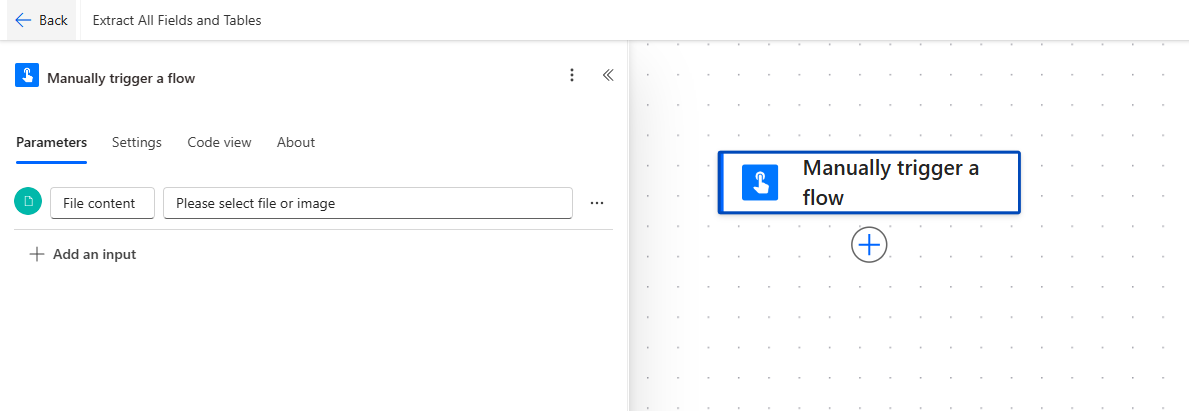
Next, we’ll search for the Document AI connector in the Power Automate connector library. This connector offers a suite of useful AI-powered actions for document automation workflows.

The action we’re looking for is called “Extract All Fields and Tables of Data from a Document using AI”. Once we find it on the actions list, we’ll select it and configure an API key for authorization. We can get a free API key (with no commitments) for testing purposes by creating a free account on the Cloudmersive website.

The action is super simple to configure: we simply pass in our file bytes and file name into the Input document and Input document (file name) parameters respectively, and we’re all done. We also have the option to configure Recognition mode and pre-processing if we want, but it’s best to leave those at their defaults.

At this point, we’re ready to test our flow. Before we do that, however, we’ll first add two quick Compose actions so we can review the JSON output more cleanly in the Power Automate flow editor when we’re done. This JSON lets us do all kinds of fun stuff with the data we extract, such as sharing field/table data in Teams chats, emails, documents, and myriad additional channels, but we aren’t concerned with specific use-cases in this high-level walkthrough.
The body/FieldResults dynamic content contains our field results array:

And the body/TableResults dynamic content contains our tables arrays (this represents tabular data as nested JSON arrays):

Now we’ll run our flow and take a quick look at our outputs. The test document we’ll be using is a simple invoice in Word DOCX format.


Field Extraction Results

Table extraction Results
We just stripped all the field and table data from an invoice document in seconds. Not bad, right? All this data translates to dynamic content we can use downstream in our flow.
메타데이터
- post_id
- c5a534e2ca77
- slug
- how-to-extract-fields-and-tables-from-documents-in-power-automate-using-ai-c5a534e2ca77
- url
- https://medium.com/@cloudmersive/how-to-extract-fields-and-tables-from-documents-in-power-automate-using-ai-c5a534e2ca77
- canonical_url
- https://medium.com/@cloudmersive/how-to-extract-fields-and-tables-from-documents-in-power-automate-using-ai-c5a534e2ca77
- author_url
- https://medium.com/@cloudmersive
- status
- ok
- fetched_at
- 2026-07-09 05:26:43