Mastering AWS Application Load Balancer (ALB): From Basics to Advanced Routing & Security
Learn how to set up and optimize AWS Application Load Balancer (ALB) with EC2, including advanced features like path-based routing…
Mastering AWS Application Load Balancer (ALB): From Basics to Advanced Routing & Security
Learn how to set up and optimize AWS Application Load Balancer (ALB) with EC2, including advanced features like path-based routing, listener rules, security group best practices, and traffic control. Perfect for scalable, microservices-based architectures.
When building scalable applications on AWS, one of the most important components you’ll come across is the Application Load Balancer (ALB). It’s not just another load balancer — it’s designed to handle modern web applications, microservices, and containerized workloads.
Let’s break it down step by step.
What is an Application Load Balancer (ALB)?
- ALB works at Layer 7 (Application Layer) of the OSI model.
- This means it understands HTTP and HTTPS traffic natively.
- Instead of just balancing raw traffic like a network load balancer, it can make intelligent routing decisions based on requests
Key Features of ALB
Advanced Routing
- Route based on URL paths
- Example:
example.com/users→ User serviceexample.com/search→ Search service- Route based on hostnames
api.example.comvsapp.example.com- Route based on query strings & headers
- Example:
?platform=mobile→ Mobile target group
Multiple Applications Behind One ALB
- With Classic Load Balancers, you needed one LB per application.
- ALB allows you to run many apps on one load balancer by using target groups and rules.
Container & Microservices Friendly
- ALB supports dynamic port mapping, making it ideal for ECS or Kubernetes workloads.
- Perfect fit for microservice architectures.
Protocol Support
- Supports HTTP/1.1, HTTP/2, and WebSockets.
- Useful for real-time applications like chat apps or streaming.
Security & Redirects
- Can automatically redirect HTTP → HTTPS.
- Integrates with AWS WAF for advanced security.
What Are Target Groups?
A Target Group is where your ALB sends traffic. Targets can be:
- EC2 Instances (managed with or without Auto Scaling)
- ECS Tasks (containers)
- Lambda Functions (serverless backends)
- Private IP Addresses (even in your own on-premises data center)
💡 Health checks are defined per target group, not per ALB.
Real-World Example
Imagine you’re running two microservices:
- A User Service (
/users) - A Search Service (
/search)
You can configure:
- One ALB (public-facing)
- Two Target Groups (User TG & Search TG)
- ALB rules route requests to the right group based on the path.
This setup keeps infrastructure simple and scalable.
Integration with Hybrid Architectures
ALB isn’t just limited to AWS resources. You can:
- Route some traffic to EC2 in AWS
- Route other traffic to on-premises servers (via private IPs)
Example:
?platform=mobile→ AWS target group?platform=desktop→ On-premises target group
Client IP Handling
Since the ALB terminates the client connection, your application servers don’t see the real client IP directly. Instead, AWS inserts it into special HTTP headers:
- X-Forwarded-For → Client IP
- X-Forwarded-Proto → Protocol used (HTTP/HTTPS)
- X-Forwarded-Port → Port number
Applications must read these headers if they want the original client details.
Why Choose ALB Over Classic Load Balancer?
- Classic Load Balancer (CLB): Works at Layer 4 & 7, but lacks advanced routing. Usually one CLB per app.
- Application Load Balancer (ALB): Supports multiple apps, microservices, containers, and advanced rules. Much more efficient in modern architectures.
When to Use ALB?
✅ You’re building microservices ✅ You’re using containers (ECS/K8s) ✅ You need intelligent routing (paths, hostnames, query strings) ✅ You want serverless (Lambda) integration ✅ You need HTTP/2, WebSockets, or redirects
Till now Final Thoughts
The AWS Application Load Balancer is the backbone of modern cloud-native architectures. Whether you’re running EC2, ECS, Lambda, or even hybrid setups, ALB gives you the flexibility and intelligence you need.
As you dive deeper into ECS and container workloads, you’ll see why ALB is the default choice for many organizations.
👉 Next up: Hands-on with ALB — creating target groups, defining rules, and testing routes in real AWS accounts.
Step-by-Step Guide: Creating an Application Load Balancer in AWS
In this tutorial, we’ll create an Application Load Balancer (ALB) in AWS to distribute traffic across two EC2 instances. By the end, you’ll understand how ALB improves scalability, fault tolerance, and high availability in your architecture.
Step 1: Launch Two EC2 Instances
Go to EC2 > Launch Instances
Configure as follows:
- Name:
My First Instance(launch 2 instances) - AMI: Amazon Linux 2
- Instance Type:
t2.micro - Key Pair: None (use EC2 Instance Connect if needed)
- Security Group: Allow HTTP (80) and SSH (22)
- User Data Script:
#!/bin/bash yum update -y yum install -y httpd systemctl start httpd systemctl enable httpd echo "Hello World from $(hostname -f)" > /var/www/html/index.html
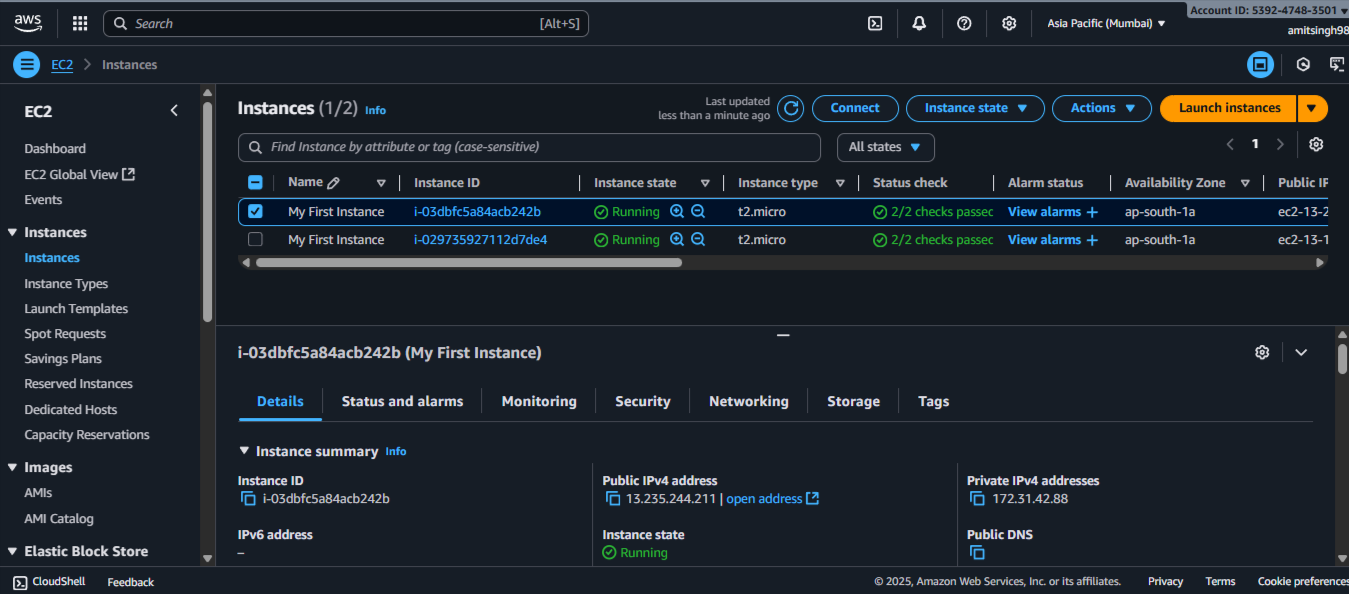

- Wait until both instances are Running.
- Test by visiting each Public IPv4 address in a browser — you should see:
Hello World from ip-xx-xx-xx-xx.ec2.internalStep 2: Create an Application Load Balancer
Go to EC2 > Load Balancers > Create Load Balancer
Select Application Load Balancer
Configure:
- Name:
DemoALB - Scheme: Internet-facing
- IP Address Type: IPv4
- Availability Zones: Select all (for redundancy)

Step 3: Create a Security Group for ALB
Click Create Security Group
Name: demo-sg-load-balancer
Add rule:
- Inbound: Allow HTTP (80) from anywhere
Save and attach this SG to the ALB

Step 4: Create a Target Group
Go to Target Groups > Create Target Group
Select:
- Target Type: Instances
- Name:
demo-tg-alb - Protocol: HTTP, Port 80
- Health Check Path:
/(default)
Register both EC2 instances


Step 5: Connect ALB to Target Group
Back in the ALB setup → under Listeners & Routing
- Listener: HTTP (port 80)
- Default Action: Forward to demo-tg-alb
Create the ALB
Step 6: Test the Load Balancer
Wait until the ALB shows Active state
Copy the ALB DNS name (e.g., DemoALB-123456.us-east-1.elb.amazonaws.com)
Paste into browser → you’ll see Hello World
Refresh multiple times → the response alternates between your two instances 🎉
[screenshot: Browser showing alternating Hello World responses]
Step 7: Health Check in Action
- Stop one EC2 instance
- Go to Target Group > Targets → It will show Unhealthy for the stopped instance
- Test the ALB DNS → Traffic goes only to the healthy instance
- Start the instance again → Once health checks pass, traffic is balanced across both again

✅ How to Fix ALB Health Check Issues with EC2, you might face this issue:
🛡️ Security Groups Rule of Thumb:
🔁 ALB SG ↔ EC2 SG
- EC2 security group must allow:
HTTP (TCP 80)from the ALB's security group
ALB security group must allow:
HTTP (TCP 80)outbound to the EC2's security groupHTTP (TCP 80)inbound from 0.0.0.0/0 (for public access)
Quick Memory Trick:
“EC2 allows from ALB SG. ALB allows to EC2 SG.”
Why This Is Powerful
- One URL (ALB DNS) serves multiple servers
- Traffic automatically rerouted if a server fails
- Scales seamlessly with Auto Scaling Groups
- Secure with HTTPS + AWS Certificate Manager (ACM)
- Flexible with path-based and host-based routing
Key Takeaways
- ALB is a Layer 7 Load Balancer (HTTP/HTTPS)
- Supports advanced routing (path, host, query string)
- Integrates with EC2, ECS, and Lambda
- Provides health checks to ensure only healthy targets receive traffic
Next Steps
- Add HTTPS with ACM SSL certificates
- Try path-based routing for
/usersvs/search - Deploy ALB with ECS Fargate containers for microservices
👉 This hands-on covered the basics. With ALB, you can now build more complex, fault-tolerant architectures on AWS.
Advanced Concepts with Application Load Balancer (ALB) in AWS
Till now, we built a simple Application Load Balancer (ALB) to distribute traffic across two EC2 instances. Now, let’s explore advanced concepts to make your architecture more secure, flexible, and production-ready.
We will see how to allow access to EC2 instance only with ALB URL, and not with EC2 directly!!
We’ll cover:
- Tightening network security (restricting EC2 access only through ALB)
- Listener rules (custom routing logic based on path/host headers)
Step 1: Tightening Network Security
By default, our EC2 instances are accessible directly via their public IP addresses. This isn’t ideal because:
- It bypasses the load balancer
- It can expose your servers to unwanted traffic
Instead, we want only the ALB to be able to talk to the EC2 instances.
Configure Security Groups
- Go to EC2 > Security Groups
- Select the EC2 instance security group (
launch-wizard-1) - Edit Inbound Rules
- Delete the rule that allows HTTP (80) from Anywhere (0.0.0.0/0)
- Add a new rule:
- Type: HTTP
- Source: Security Group → select your ALB Security Group (
demo-sg-load-balancer)

Testing the Restriction
- Try accessing the EC2 instance directly via its public IP → ❌ Times out (blocked)
- Try accessing through the ALB DNS name → ✅ Works perfectly
This ensures all traffic flows through the ALB, improving security and maintainability.
Step 2: Adding Listener Rules
ALB supports advanced routing based on conditions such as:
- Host headers (
app.example.com) - Path (
/api,/error) - HTTP methods (GET/POST)
- Source IPs
- Query strings & headers
This allows you to build rule-based routing for microservices, APIs, or error handling.
Example: Path-based Routing Rule
We’ll add a rule so that requests to /error return a custom 404 response.
Create the Rule
- Go to Load Balancers > DemoALB > Listeners
- Click on the HTTP:80 Listener
- Under Rules, choose Add Rule
- Name:
DemoRule - Condition: Path →
/error - Action: Return Fixed Response →
404 Not Found, Content Type:text/plain, Body:Not found, custom error - Priority:
5(lower numbers = higher priority)


Testing the Rule
- Visit:
http://<ALB-DNS-Name>/error- → Returns 404 Not found, custom error
- Visit:
http://<ALB-DNS-Name>/- → Returns normal Hello World
Usecase: Just in case if some page is getting modified we can show a message to those users, or redirect to any demo page!!

✅ Why This Matters
- Security: Only ALB communicates with your backend
- Flexibility: Different routes can go to different target groups
- Resilience: ALB automatically handles unhealthy targets
- Control: You can return custom responses, redirects, or route traffic based on user requests
Next Steps
- Add host-based rules (e.g.,
api.example.comvsapp.example.com) - Configure redirects (e.g., HTTP → HTTPS)
- Use multiple target groups for microservices
- Combine ALB with WAF (Web Application Firewall) for extra security
👉 With these advanced concepts, your ALB setup is now secure and intelligent, capable of handling complex routing scenarios in production environments.
메타데이터
- post_id
- c62b1376d2f0
- slug
- mastering-aws-application-load-balancer-alb-from-basics-to-advanced-routing-security-c62b1376d2f0
- url
- https://medium.com/@amitsinghh/mastering-aws-application-load-balancer-alb-from-basics-to-advanced-routing-security-c62b1376d2f0
- canonical_url
- https://medium.com/@amitsinghh/mastering-aws-application-load-balancer-alb-from-basics-to-advanced-routing-security-c62b1376d2f0
- author_url
- https://medium.com/@amitsinghh
- status
- ok
- fetched_at
- 2026-06-09 15:37:30