How to Make Bootable Clone of Mac
Why a bootable Mac clone is the fastest way to recover your system
How to Make Bootable Clone of Mac

I didn’t plan to learn how to make a bootable clone of Mac. I was forced into it.
Creating a bootable clone of your Mac is one of those things you don’t think about until you actually need it. It could be a failed update, a corrupted system, or a storage upgrade gone wrong. In all those moments, having a clone that can start your Mac instantly is the difference between continuing your day and losing it completely.
I didn’t fully appreciate this until I opened my Mac one morning expecting everything to just continue as usual. Instead, I got stuck on a loading screen that didn’t move at all. No error message. No warning. Just silence from a system that refused to boot.
At first, I thought a restart would fix it. Then I thought recovery mode would save it. None of that worked.
That’s when it hit me. All the backups I had were technically fine, but practically useless in that moment. Restoring everything would take hours, maybe even the whole day. I didn’t need “data recovery.” I needed my system back immediately.
That was the first time I truly understood the difference between a backup and a bootable clone.
The mistake I made
Before this happened, I genuinely believed I was covered.
I had:
- iCloud syncing
- Time Machine backups
- Manual copies of important files
On paper, that sounds responsible. In reality, none of them helped when my Mac refused to boot.
The problem is simple but easy to miss.
A backup protects your files.
A bootable clone protects your entire working system.
That includes macOS, applications, settings, preferences, everything that makes your Mac feel like “your Mac.”
So when the issue happened, I didn’t just lose access to files. I lost access to my entire working environment.
That gap is what most people only realize when it’s already too late.
What I needed wasn’t backup, it was continuity
After that experience, I changed how I think about system safety completely.
I stopped thinking in terms of “saving files” and started thinking in terms of “continuing work.”
Because what actually matters in real life is not recovering data slowly. It’s not rebuilding your system from scratch.
It’s this:
Plug in a drive → restart → everything is exactly as you left it
That’s what a bootable clone does when it’s set up correctly.
When I finally sat down to figure out how to make a bootable clone of Mac properly, I realized something important. Most guides make it sound technical and fragmented, but the actual workflow is more about discipline than complexity.
You just need the right structure and the right tool.
What you’ll need
Before starting, here is what actually matters:
-
An external SSD or fast external drive (this is important, slow drives make the clone painful to use later)
-
Enough storage space to match your Mac’s internal drive
-
A stable macOS system (even if partially working)
-
A reliable cloning tool that understands macOS structure properly
This last part is where most people run into problems.
You can manually copy files, but that doesn’t create a bootable system. It only creates a storage copy. What you need is a structured clone that includes system-level boot data.
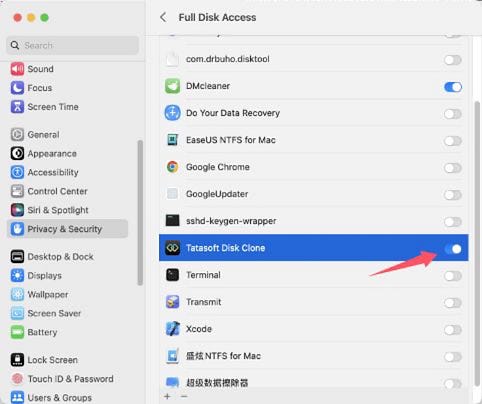
That experience eventually led me to start using **Tatasoft Disk Clone**
What made a difference for me wasn’t just that it copied data. It handled the system layer correctly, meaning the cloned drive could actually boot like a real Mac system, not just store files.
That distinction is what most people miss.
The actual process that worked for me
Once everything was ready, I kept the process simple and consistent.
Step 1: Prepare the external drive properly
I opened Disk Utility and erased the drive using:
• Format: APFS
• Scheme: GUID Partition Map
This step sounds basic, but it’s where many boot issues start. If the drive isn’t prepared correctly, the clone may look fine but won’t start when needed.

Step 2: Use a proper cloning tool instead of manual copy
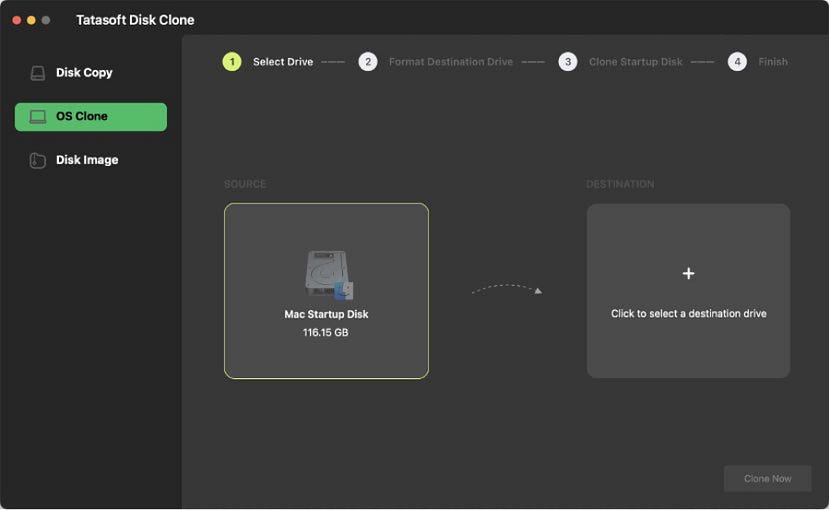
Instead of dragging files manually, I used **Tatasoft Disk Clone** to handle the full system replication.
This is important because macOS isn’t just a folder structure. It has hidden system partitions, boot configurations, and permission layers that need to be copied correctly.
Tatasoft handles that part automatically, which removes a lot of guesswork from the process.

Step 3: Start the cloning process and leave it alone
Once I started the clone:
- I didn’t multitask heavily
- I didn’t disconnect anything
- I let it complete fully
This sounds obvious, but interruptions during cloning can lead to incomplete or unstable bootable drives.
Step 4: Test it immediately after
This step is where confidence is actually built.
I restarted my Mac, held the Option key, and selected the external drive.
It booted exactly like my internal system.
Same layout. Same apps. Same environment.
That was the moment I stopped treating it as a backup and started treating it as a real second system.
What changed after I had a bootable clone
The biggest shift wasn’t technical. It was mental.
I stopped worrying about:
- System crashes
- Failed macOS updates
- Sudden storage corruption
Because I knew I wasn’t starting from zero anymore.
I had a working version of my entire system sitting on an external drive, ready to go at any time.
That changes how you work day to day. You stop hesitating around updates. You stop fearing system issues. You stop treating your Mac like something fragile.
A small habit that makes a big difference
Creating a bootable clone once is not enough.
What actually keeps it useful is updating it regularly.
Now I refresh mine:
- Before major macOS updates
- After installing important apps
- After completing big work cycles or projects
It doesn’t take long, but it ensures the clone always reflects my current system.
An outdated clone is still helpful.
A current clone is what actually saves you when it matters.
If you’re thinking “I’ll do it later”
That was exactly my mindset too.
You don’t think about cloning your Mac when everything is working fine. It feels unnecessary. Optional. Something for later.
Until your Mac stops booting and “later” becomes too late.
Learning how to make a bootable clone of Mac is not really about the process itself. It’s about preparing for the moment when your system doesn’t cooperate anymore.
And that moment doesn’t give you time to prepare.
Final thought
Most people treat backups as insurance.
But a bootable clone is something different.
It’s continuity.
It means your work doesn’t pause when your system does.
For me, tools like Tatasoft Disk Clone made that shift practical instead of theoretical. It turned what used to feel like a complicated system task into something I can actually maintain without stress.
And once you experience that kind of reliability, you stop relying on hope and start relying on structure.
That’s the real difference.
If you’re setting this up for the first time or improving an existing backup routine, you can explore it here:
메타데이터
- post_id
- c6fc0447a80c
- slug
- how-to-make-bootable-clone-of-mac-c6fc0447a80c
- url
- https://medium.com/@adeolajanet579/how-to-make-bootable-clone-of-mac-c6fc0447a80c
- canonical_url
- https://medium.com/@adeolajanet579/how-to-make-bootable-clone-of-mac-c6fc0447a80c
- author_url
- https://medium.com/@adeolajanet579
- status
- ok
- fetched_at
- 2026-06-09 15:37:30