Wireless Android Debug: Plugin to Connect Android Devices Without USB Cables
As Android developers, we spend a lot of time connecting devices to our machines for debugging and testing. Traditionally, this has always…
Wireless Android Debug: Plugin to Connect Android Devices Without USB Cables
As Android developers, we spend a lot of time connecting devices to our machines for debugging and testing. Traditionally, this has always meant keeping a USB cable handy. But let’s be honest — USB cables are not always reliable. They break, they get loose, and sometimes you just don’t have the right one nearby.
That’s why I built the Wireless Android Debug plugin — a simple yet powerful Android Studio plugin that lets you connect your device over Wi-Fi and debug without relying on cables.
Why Wireless Debugging?
- Freedom from cables: No more searching for the right cable every time.
- Work comfortably: Move around without being tethered to your laptop.
- More reliable testing: Especially useful when testing multiple devices.
Features
✨ One-click wireless connection — Connect Android devices easily using your device’s IP address. ✨ Input validation — Ensures the entered IP address is correct. ✨ Error handling — Clear troubleshooting messages when something goes wrong. ✨ ADB availability check — Verifies that ADB is properly configured on your system.
How to Use
Getting started is simple:
🚀 Available now on the Android Studio Marketplace — just search for Wireless Android Debug.
Or
Directly download it from Jetbrains Marketplace. https://plugins.jetbrains.com/plugin/28549-wireless-android-debug/edit
Steps to Connect :
- Connect your device via USB (only for the first time).
- Enable USB debugging in your device’s Developer Options.
- Authorize USB debugging when prompted on your device.
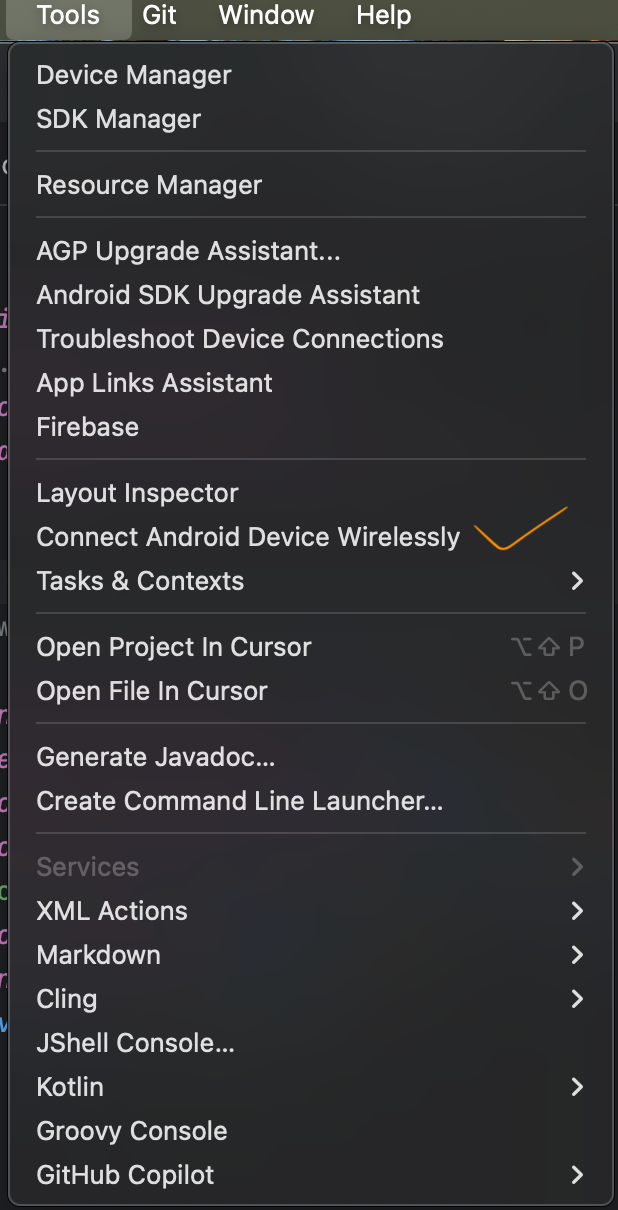
- Open Android Studio and go to Tools > Connect Android Device Wirelessly.
- Enter your device’s IP address.
- Disconnect the USB cable and enjoy wireless debugging!
🔑 Note: The USB connection is only required during the initial setup. After that, you can connect wirelessly anytime.
Requirements
- Android SDK with ADB in your system PATH.
- Both your laptop and device should be on the same Wi-Fi network.
Pro Tip
👉 Keep your Android Studio updated to the latest version. Sometimes this simple step resolves unexpected connection issues and saves you from hours of troubleshooting.
Final Thoughts
The Wireless Android Debug plugin is my initiative to make Android development smoother. It removes small but frequent frustrations developers face with cables and brings a more reliable wireless debugging experience into your workflow.
If you’re ready to simplify your setup and focus more on building apps rather than fighting with USB cables, give it a try!
I’d love to hear your feedback, thoughts, or ideas to make it even better.
메타데이터
- post_id
- c7ec3d5d053f
- slug
- wireless-android-debug-plugin-to-connect-android-devices-without-usb-cables-c7ec3d5d053f
- url
- https://medium.com/@abhimanyu-sde/wireless-android-debug-plugin-to-connect-android-devices-without-usb-cables-c7ec3d5d053f
- canonical_url
- https://medium.com/@abhimanyu-sde/wireless-android-debug-plugin-to-connect-android-devices-without-usb-cables-c7ec3d5d053f
- author_url
- https://medium.com/@abhimanyu-sde
- status
- ok
- fetched_at
- 2026-06-29 22:44:20




