Stop Extracting Blind: Peek Inside ZIP, RAR & 7Z Files First
You download an archive. Maybe it’s a 2GB ZIP from a forum, a RAR a colleague sent over, or a 7Z full of who-knows-what. The next move most…
Stop Extracting Blind: Peek Inside ZIP, RAR & 7Z Files First
You download an archive. Maybe it’s a 2GB ZIP from a forum, a RAR a colleague sent over, or a 7Z full of who-knows-what. The next move most people make? Extract everything. Spread the contents all over their desktop. Then realise they only wanted one file out of the eighty inside.
That’s a bad habit, and it’s been bugging me for fifteen years.
Here’s the better way: preview the contents first. See what’s inside before you commit. Save the one file you actually need, leave the rest in the archive, and keep your Downloads folder from turning into a swamp.
This is the BEST way to handle archives, full stop. You waste no disk space on files you don’t want, you don’t accidentally overwrite anything you care about, and you get to verify the archive isn’t garbage before you bother unpacking it.
What “preview” actually means
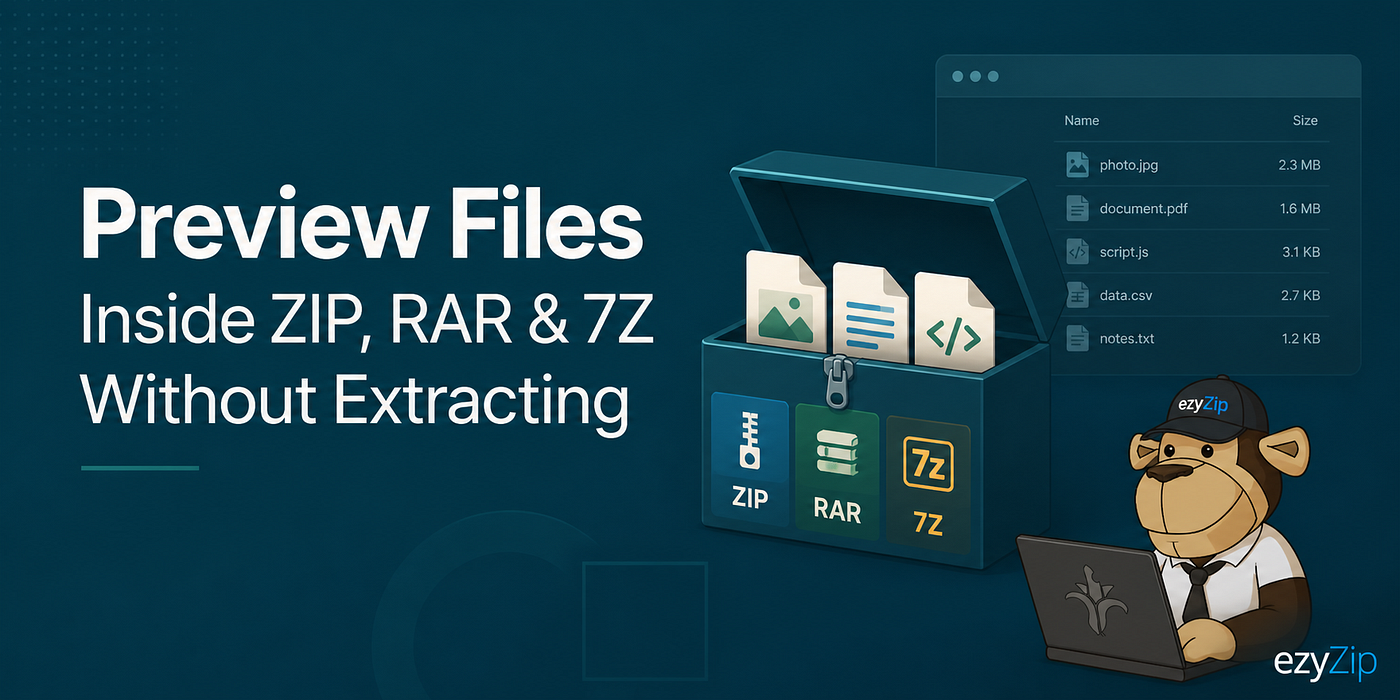
When I say preview, I mean two different things, and ezyZip does both.
The first is browsing the file list. Open the archive and see every file and folder inside, with names, sizes, and folder structure. No extraction needed.
The second is opening files directly in the browser. For images, audio, video, PDFs, and text files, click a button and the file opens in your browser tab. Still no extraction. The decompressed bytes never touch your disk unless you tell them to.
That second one is the trick most people don’t know about. You can listen to an MP3 inside a ZIP without saving it. You can view an image inside a RAR without extracting it. You can read a PDF inside a 7Z and decide whether you even want to keep it. Fuzzy fingers stay clean.
How to do it
Same flow whether you’re working with ZIP, RAR, or 7Z:
- Open the right page: Head to ezyZip and pick the format you’ve got. There’s a dedicated page for ZIP, RAR, and 7Z. If you’re not sure what you’ve got, the universal archive extractor handles all three plus 140+ other formats.
- Drop your file in: Drag the archive onto the page, or click the file selector. Nothing uploads anywhere. The file stays on your machine.
- Wait for the file list: Within a second or two, longer for big archives, you’ll see every file inside.
- Hit “Preview” on any file: The blue Preview button appears next to supported file types. Images, audio, video, PDFs, and text all open straight in the browser. Click and look.

Click the blue preview button to see contents without extracting archive
- Save only what you want: Found your file? Hit the green Save button next to it. Skip everything else. The rest stays exactly where it was, untouched.
That’s it. No software, no installs, no fuss.
Video tutorial
[embed]
Why a browser tool wins for this job
I’ll be honest about the alternatives. 7-Zip, WinRAR, PeaZip, The Unarchiver. They’re all solid desktop apps, and if you’re extracting archives all day they’re worth installing. But for the “I just want to peek inside this thing” moment, installing a desktop app is overkill.
Here’s why ezyZip is the right pick for this specific task:
- Nothing to install. Open the page, do the job, close the tab.
- Files stay local. Despite running in your browser, ezyZip processes everything on your machine using WebAssembly. You can literally turn off your WiFi mid-extraction and it’ll keep working. Try that with a typical “online ZIP extractor” and watch it fall over.
- No file size limits. We use the File System Access API and OPFS to stream directly to disk, plus a Memory64 WebAssembly build for archives larger than 4GB. Most browser tools choke at a few hundred megabytes. We don’t.
- No upload, no waiting. Other “online” tools upload your archive to a server, extract it there, then send it back. That’s slow, it’s a privacy hole, and it’s pointless when your browser can do the job.
- Free, no signup, no account, no ads getting between you and the tool.
- Been doing this since 2009. Back when my fur had fewer gray patches, I was already running ezyZip. Fifteen years of refinement. It works.
The whole point is to handle the file without leaving your browser, without trusting some random server with your data, and without cluttering your machine with software you’ll forget about. That’s the BEST tradeoff for the “peek inside” use case, and it’s why I keep telling people to stop extracting blind.
Off to inspect a banana shipment without unpeeling a single one, Ezriah
메타데이터
- post_id
- c8da4b91cc04
- slug
- stop-extracting-blind-peek-inside-zip-rar-7z-files-first-c8da4b91cc04
- url
- https://medium.com/@ezyZip/stop-extracting-blind-peek-inside-zip-rar-7z-files-first-c8da4b91cc04
- canonical_url
- https://medium.com/@ezyZip/stop-extracting-blind-peek-inside-zip-rar-7z-files-first-c8da4b91cc04
- author_url
- https://medium.com/@ezyZip
- status
- ok
- fetched_at
- 2026-06-20 20:29:01