How To Connect Mobaxterm To Your VM Using SSH
When working with Linux virtual machines, you’ll often want to access them using SSH (Secure Shell). Instead of relying only on the…
How To Connect Mobaxterm To Your VM Using SSH
When working with Linux virtual machines, you’ll often want to access them using SSH (Secure Shell). Instead of relying only on the VirtualBox window, MobaXterm provide a much better experience.
What You’ll Need
-
Virtual Machine.
-
MobaXterm downloaded inside your windows
Step 1: Enable SSH on Your VM
-
Open a terminal inside your VM.
-
Run the following commands:
sudo apt update sudo apt install openssh-server -y sudo systemctl enable ssh sudo systemctl start ssh
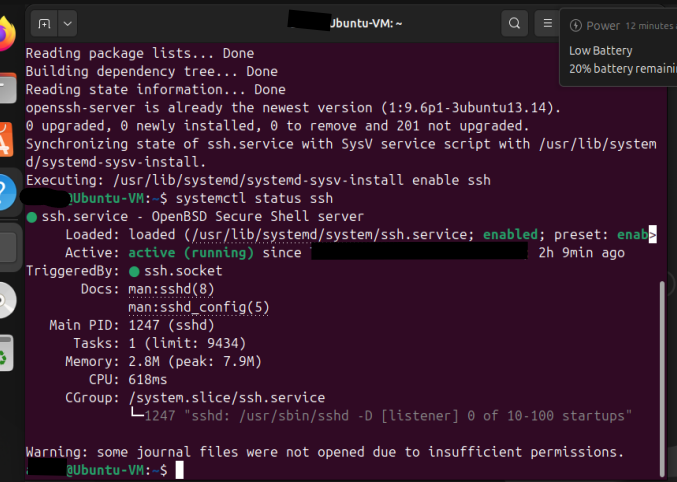
- Verify SSH is running:
systemctl status ssh
Step 2: Configure VirtualBox Network
To connect from MobaXterm, your VM needs to be reachable.
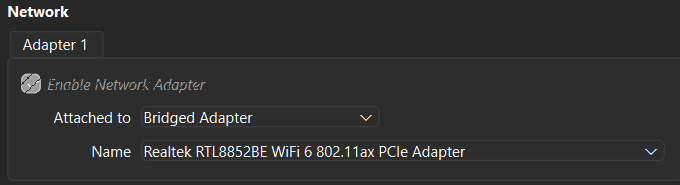
Bridged Adapter (direct LAN access)
Select Bridged Adapter in network settings.
Your VM will get its own IP from your router.
You can connect using that IP directly.
Step 3: Connect from MobaXterm
-
Open MobaXterm.
-
Click Session → SSH.
-
Enter:
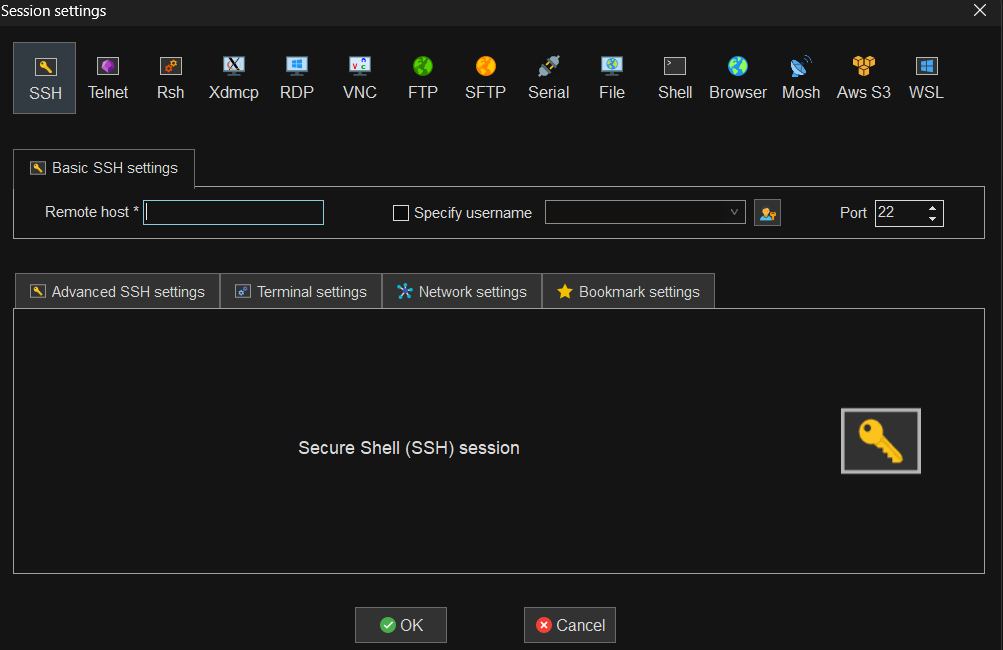
Remote host: VM_IP_Address (e.g., 192.168.1.105)
you can get VM ip address by typing “ip a” in command terminal inside your VM
Port: 22
specify username: check the box and click on create or manage credentials
click on new enter your name, username and password and click ok
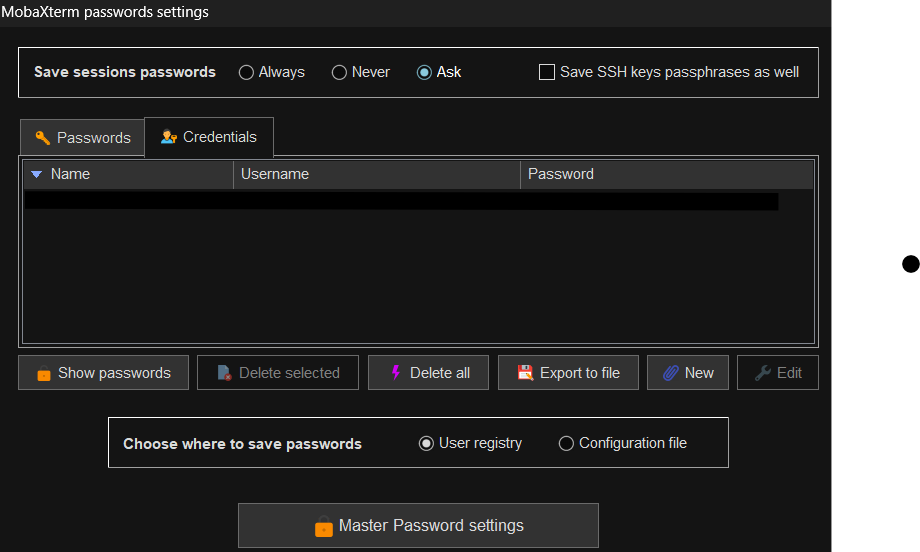
after connection click ok.
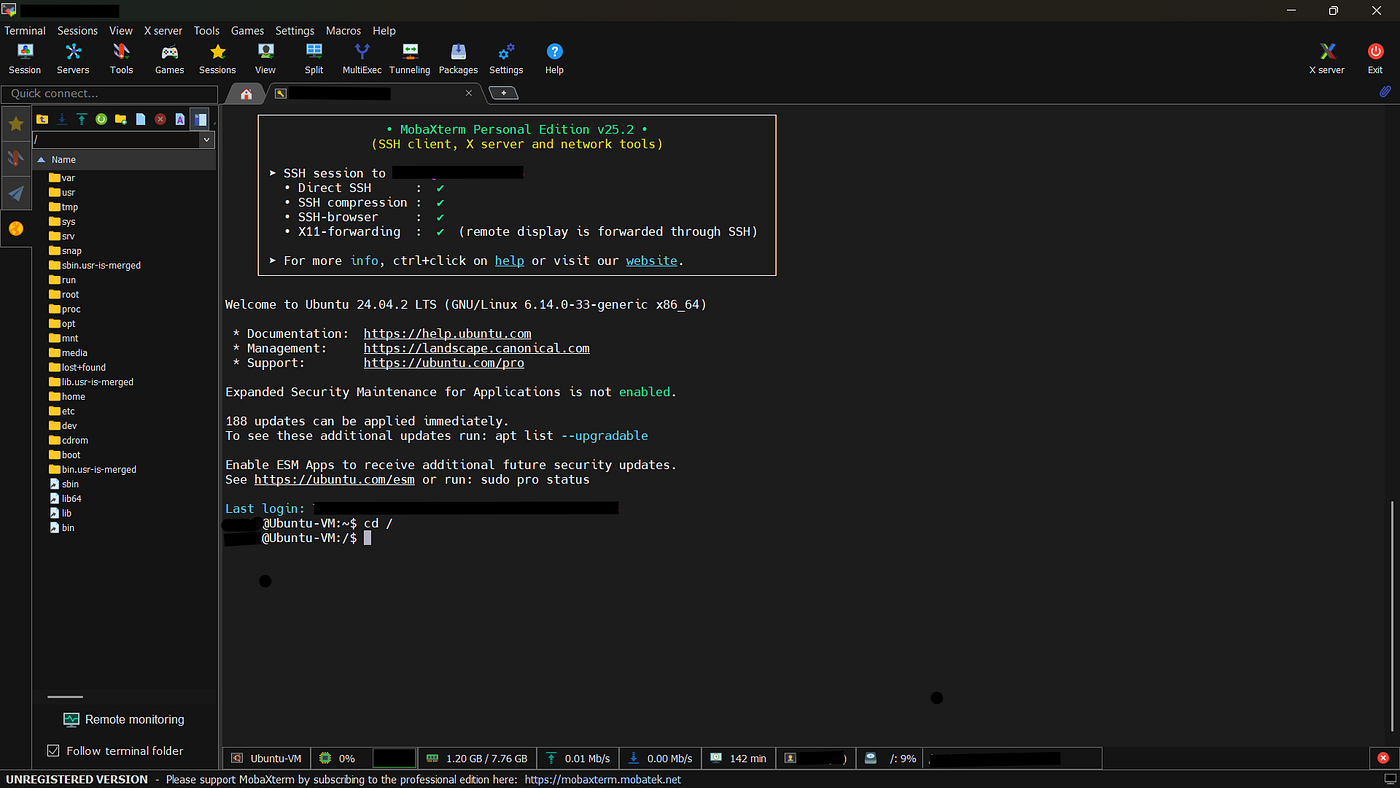
You’ve now connected your Virtual Machine to MobaXterm using SSH.
From here, you can:
Run commands remotely.
Transfer files easily.
Even manage multiple VMs from one place.
메타데이터
- post_id
- c8ea01faad45
- slug
- how-to-connect-mobaxterm-to-your-vm-using-ssh-c8ea01faad45
- url
- https://medium.com/@austinantoignatius/how-to-connect-mobaxterm-to-your-vm-using-ssh-c8ea01faad45
- canonical_url
- https://medium.com/@austinantoignatius/how-to-connect-mobaxterm-to-your-vm-using-ssh-c8ea01faad45
- author_url
- https://medium.com/@austinantoignatius
- status
- ok
- fetched_at
- 2026-08-02 09:23:06


