Detecting and Notifying on AWS KMS CMK Deletion Events
Setting up email notifications to be triggered when customer managed keys are disabled or scheduled for deletion
Detecting and Notifying on AWS KMS CMK Deletion Events
Setting up email notifications to be triggered when customer managed keys are disabled or scheduled for deletion
Photo by Jaye Haych on Unsplash
Introduction
AWS Key Management Service (KMS) is a service offered by AWS to generate and manage the cryptographic keys utilised to protect your data.
AWS KMS keys are the primary resource in AWS KMS and are used to encrypt, decrypt and re-encrypt data. An AWS KMS key is a logical representation of a cryptographic key.
A KMS key created by the user is a customer managed key (CMK). CMKs are commonly used to safeguard highly sensitive data. Unlike AWS managed keys or AWS owned keys, CMKs allow the user to both view KMS key metadata and manage the KMS key.
Since CMKs are employed for encryption and decryption of data in the AWS account, disabling or deletion of a CMK would pose a security risk. An email notification could be triggered whenever a CMK is disabled or is scheduled for deletion, the process of which will be explained in this article.
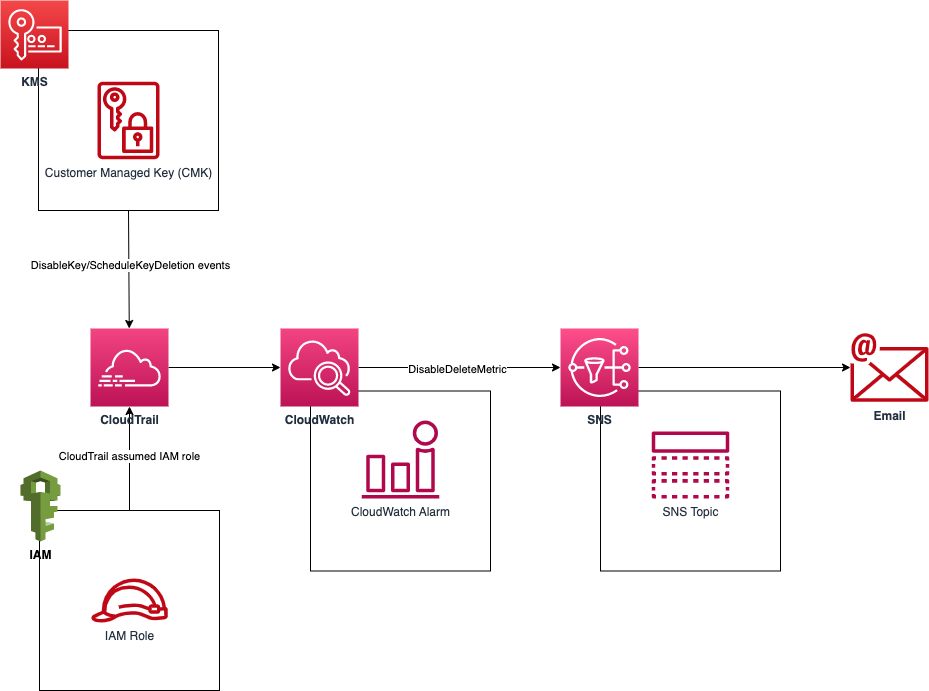
Architecture diagram
Implementation
As can be seen in the architecture diagram, the following AWS services were used:
- IAM
- SNS
- CloudWatch
- CloudTrail
Part 1: IAM
Create an IAM role that can be assumed by CloudTrail.
The following steps are taken in the IAM Management Console:
- Choose Roles from the sidebar.
- Choose Create role.
- For Trusted entity type, choose AWS service.
- For Use case, from the dropdown list under Use cases for other AWS services, choose CloudTrail.
- Choose Next.
- Choose Next.
- Choose Create role.
- Take note of the role name.
Part 2: SNS
Create and subscribe to an SNS topic
The following steps are taken in the SNS console:
- On the SNS dashboard, select Topics, and then choose Create Topic.
- Choose Standard.
- Enter a name for the topic (eg. cmk-notif-topic).
- Choose Create Topic.
- Note the topic’s ARN (eg. arn:aws:sns:eu-west-2:123123123123:cmk-notif-topic).
- On the SNS dashboard, select Subscriptions, and then choose Create subscription.
- For Topic ARN, enter the ARN from Step 5.
- For Protocol, choose Email.
- For Endpoint, enter an email address to receive the notifications.
- Choose Create subscription.
An email to confirm the subscription will be sent to the email address specified in Step 9. After you confirm the subscription, the email address receives notifications when the SNS topic is triggered.
Part 3: CloudWatch
Part 3.1: Create a CloudWatch metric filter
The following steps are taken in the CloudWatch console:
- On the dashboard, choose Logs, then select Log groups.
- Choose Create log group.
- Enter a name for the log group (eg. cmk-logs).
- Choose Create.
- Take note of the log group name.
- On the list of Log groups, choose the log group created in Step 4.
- Choose Actions, then select Create metric filter.
- For Filter pattern, use the following value: { ($.eventSource = kms.amazonaws.com) && (($.eventName = “DisableKey”) || ($.eventName = “ScheduleKeyDeletion”)) }
- Choose Next.
- Enter a name for the filter (eg. cmk-disable-delete-filter).
- For Metric namespace, ensure the slider is on Create new, and enter your metric namespace (eg. cmk-metrics).
- Enter a name for the metric (eg. cmk-disable-delete-metric).
- Take note of the metric name.
- For Metric value, enter 1.
- Choose Next.
- Choose Create metric filter.

Example CloudWatch metric filter
Part 3.2: Create a CloudWatch alarm
The following steps should be taken in the CloudWatch console:
- On the dashboard, choose Logs, then select Log groups.
- Choose the log group created in Part 3.1 Step 4.
- Choose Metric filters.
- In the metric filters tab, choose the box for the metric filter that you want to base your alarm on.
- Choose Create alarm.
- For Threshold type, choose Static.
- For Whenever <metric name> is …, choose Greater/Equal.
- For than …, enter 1.
- Choose Additional configuration.
- For Data points to alarm, choose 1 out of 1.
- For Missing data treatment, choose Treat missing data as good (not breaching threshold).
- Choose Next.
- For Send a notification to…, choose the SNS topic created in Part 2.
- Choose Next.
- Enter a name for the alarm (eg. cmk-disable-delete-alarm).
- Choose Next.
- Choose Create alarm.
Do note that the filter pattern can be edited to specify a particular KMS key, with the filter pattern being shown below:
{ ($.eventSource = kms.amazonaws.com) && ($.resources[0].ARN = "<key ARN>") && (($.eventName = "DisableKey") || ($.eventName = "ScheduleKeyDeletion")) }
Example CloudWatch alarm
Part 4: CloudTrail
Create a CloudTrail trail that logs API calls from EC2
The following steps are taken in the CloudTrail console:
- Select Create trail.
- Enter a name for the Trail name (eg. cmk-notif-trail).
- For Storage location, you can choose either Create new S3 bucket or Use existing S3 bucket.
- For CloudWatch Logs, choose Enabled.
- For Log group, choose Existing.
- For Log group name, copy-paste the log group name from Part 3.1 Step 5.
- For IAM Role, choose Existing.
- For Role name, copy-paste the IAM role name from Part 1 Step 8.
- Leave the remaining settings as default and choose Next.
- For Event type, choose Management events.
- Leave the remaining settings as default and choose Next.
- Choose Create trail.
Upon implementation. the relevant individuals will receive a notification each time the CloudWatch alarm enters the ALARM state. If a notification is received for this alarm, it means that a KMS key is scheduled for deletion or disabled.
Conclusion
This article presents a suggested architecture that would help you to set up email notifications triggered by KMS CMK deletion or disabling events. This architecture uses the following AWS services: CloudTrail, CloudWatch, IAM, and SNS.
It is easy to get started using the AWS Management Console, however, there are other improved ways to implement this solution, such as using Terraform, Cloudformation or AWS CLI.
Hope this was a helpful start! Please leave a clap if you liked this article, thank you.
You can get full access to every story on Medium for just $5/month by signing up through this link.
More content at **PlainEnglish.io**.
Sign up for our **free weekly newsletter. Follow us on [Twitter](https://twitter.com/inPlainEngHQ)**, ***LinkedIn, YouTube, and [Discord](https://discord.com/invite/GtDtUAvyhW).***
Build awareness and adoption for your tech startup with Circuit.
메타데이터
- post_id
- c8f487cf7a79
- slug
- detecting-and-notifying-on-aws-kms-cmk-deletion-events-c8f487cf7a79
- url
- https://aws.plainenglish.io/detecting-and-notifying-on-aws-kms-cmk-deletion-events-c8f487cf7a79
- canonical_url
- https://aws.plainenglish.io/detecting-and-notifying-on-aws-kms-cmk-deletion-events-c8f487cf7a79
- author_url
- https://medium.com/@tysiew
- status
- ok
- fetched_at
- 2026-08-23 04:13:11