Why Is Chrome Using So Much RAM? The Brutal Truth (And How to Fix It)
Stop blaming your computer. The problem is the browser, and here’s the science behind the memory leak — plus a one-click solution.
Why Is Chrome Using So Much RAM? The Brutal Truth (And How to Fix It)
We’ve all been there. You’re juggling a dozen tabs, a spreadsheet, and a Spotify stream. Suddenly, your cursor turns into a spinning beach ball of death. You open Task Manager, and there it is: Chrome using so much RAM that your system is gasping for air.
You scream internally: Why is Google Chrome using so much memory?
Before you throw your laptop out the window, understand this: Chrome isn’t broken. It’s working exactly as designed. But that design is a double-edged sword. In this deep dive, we’re going to explain the technical reason behind the memory hogging, why “high RAM usage” is actually the price of stability, and how you can immediately reclaim your speed using a tool I recommend at the end.
The Tab Hoarder’s Dilemma: Multi-Process Architecture
To understand the “Chrome using so much RAM” phenomenon, you have to forget everything you know about older browsers.
In the old days, browsers ran on a single thread. If one tab crashed, the whole application went down. Google changed the game with a multi-process architecture. Here is the simplest way to visualize it:
- Every Single Tab is a Standalone App: When you open a tab, Chrome doesn’t just open a page; it launches a new RAM process.
- Extensions Get Their Own Slice: Every ad-blocker, grammar checker, or dark mode extension you run operates in its own process.
- GPU and Plugins are Isolated: Even the rendering of video is separated.
The Keyword Reality: Why Chrome uses so much RAM Because your browser is essentially running 20, 30, or 50 miniature operating systems simultaneously. If a rogue script on a news site freezes, it only kills that tab, not your 20-page research paper. That isolation is the “why.” Chrome trades memory for stability. The more you do, the more RAM it consumes.
Pre-Rendering: The Speed Illusion
There’s another silent culprit behind the “why does Google Chrome use so much memory” mystery: pre-rendering.
Chrome tries to be smart — too smart. It predicts which link you might click next and starts loading that page in the background RAM before you even touch it. If you search “best running shoes,” Chrome might pre-load the top three results. You see instant loading; your RAM sees a hostage crisis.
The Hidden Memory Leaks (Extensions & Fragmentation)
Not all memory usage is intentional. Sometimes, it’s a classic memory leak.
Have you ever closed a tab, but Task Manager showed Chrome’s memory footprint didn’t shrink? That’s fragmentation.
- Bad Extensions: An outdated extension can request memory and not release it properly.
- Cluttered Cache: Holding onto old versions of images and scripts in the active memory pool causes bloat.
- DOM Intricacy: Modern web apps (Gmail, Notion, Figma) are massive JavaScript beasts. They act like full software programs, demanding hundreds of megabytes just to render a single dashboard.
So, when people panic about “Chrome high memory usage,” they are actually seeing a combination of useful isolation, predictive loading, and digital garbage accumulation.
Is It Normal? Yes. Is It Good? No.
A common question is: “I have 16GB RAM, why is Chrome using so much RAM even with half of that free?”
Chrome borrows a philosophy from the OS playbook: Unused RAM is wasted RAM. Windows and macOS will cache frequently used data to make things faster. Chrome does the same. It will eat whatever you give it unless a system resource conflict arises. The problem occurs when you hit 90–100% utilization, and the hard drive starts swapping. That’s when speed nosedives.
The Quick Manual Fixes (The Band-Aids)
If you search for fixes, you’ll find the usual advice. They work temporarily:
- Open Chrome Task Manager: Hit
Shift + Esc. Sort by memory footprint and manually kill the bloated tabs. You’ll usually find Facebook or YouTube eating a gigabyte like it’s an afternoon snack. - Disable Background Apps: In Settings, turn off “Continue running background apps when Google Chrome is closed.” This prevents Chrome from lingering in your RAM after you click the X.
- The Extension Purge: Remove or disable extensions you haven’t used in a month. That coupon finder extension from 2018? It’s likely selling your data and eating your RAM.
But let’s be honest: manual management is a chore. You shouldn’t have to be a software engineer just to check your email without lag. This is where we need to talk about the “why” not of the problem, but of the permanent solution.
Stop Fighting Chrome’s Mess; Clean It Automatically
Here is the hard truth I’ve learned after years of fiddling with browser flags: Chrome’s RAM problem is rarely just a Chrome problem. It’s a system hygiene problem.
Chrome leaves behind a trail of temporary files, cached web assets, downloaded update packages, and cookies that silently corrupt or bloat over time. Manually clearing these is like sweeping a beach. You need a bulldozer, not a broom.
This is exactly why I rely on Awzware PC Cleaner . Instead of just telling you why Chrome high memory usage occurs, I want to give you a tool that fixes the root cause across your entire machine.
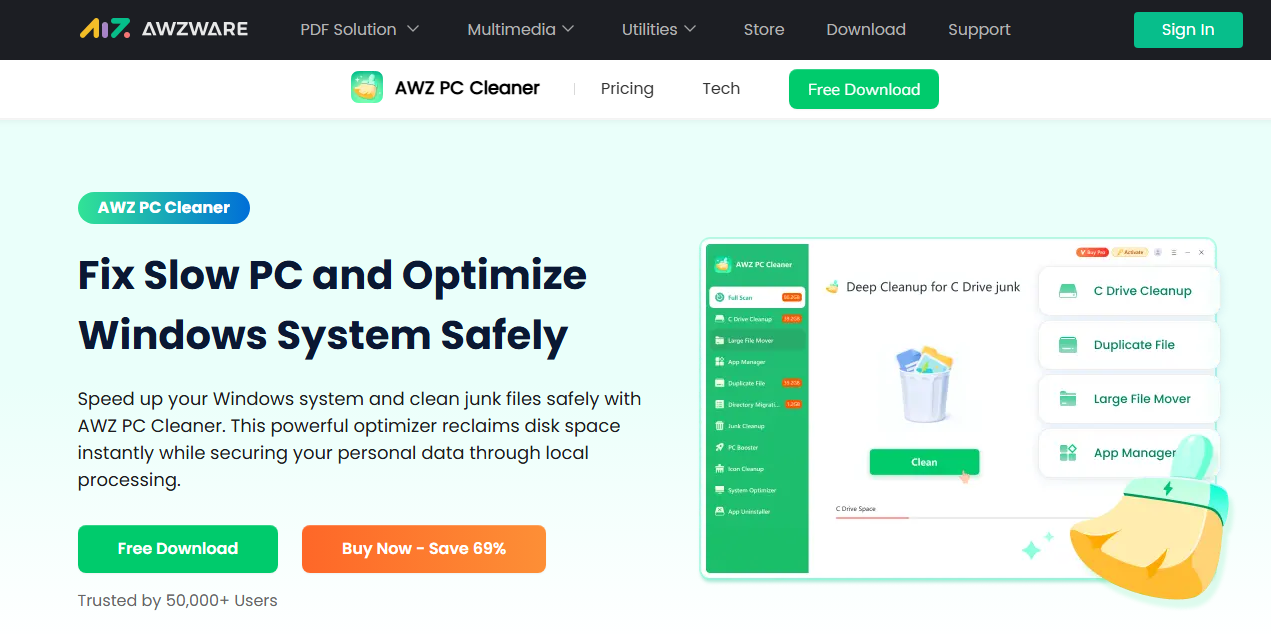
Why Awzware PC Cleaner is the Antidote to Chrome Bloat
You might think a PC cleaner is just for old Windows junk, but Awzware specifically targets the core pathologies causing Google Chrome using so much memory:
- The “Browser Junk” Deep Dive Windows’ native disk cleanup doesn’t dig into the intricate SQLite databases of Chrome’s history and cache. Awzware does. It flushes the accumulated privacy residues (tracking cookies, supercookies, and cached scripts) that bloat Chrome’s RAM allocation at startup. A lean cache means less memory mapping.

-
Registry Entanglement Modern browsers integrate deeply with the OS registry for default protocol handlers and file associations. Broken keys cause Chrome to repeatedly poll the system, spiking CPU and RAM. Awzware’s registry scanner identifies these broken links, reducing the background noise that forces Chrome to allocate extra memory.
-
Unwanted Programs (PUPs) The top reason Chrome using so much RAM spikes unexpectedly is a silently installed toolbar or a browser hijacker living in the background. Awzware’s startup manager and uninstall center let you rip out malicious PUPs that standard security software often ignores. Less background noise = more RAM for your actual tabs.

- Idle Optimization
Rather than a complex, manual
chrome://flagstweak that might break your browser, Awzware optimizes your overall system resource scheduling. By clearing out system-level temp files and defragmenting the registry, it gives Chrome a "clean room" to run in, reducing memory leak accumulation dramatically.
The Verdict
The answer to “why is Chrome using so much RAM” is that Chrome prioritizes speed and stability over resource conservation. It’s a beast that needs taming. You can disable pre-rendering, purge extensions, and babysit the internal task manager, but these are temporary timeouts, not cures.
The sustainable solution is software that works at the system level. Get Awzware PC Cleaner here to automatically purge the junk that makes Chrome’s high memory usage fatal to your productivity. Stop worrying about “Chrome high memory usage” and start enjoying a fast, stable, quiet machine again.
Have you checked your Task Manager recently? What’s your Chrome memory record? Let me know in the comments.
메타데이터
- post_id
- c9ae0a43e8fd
- slug
- why-is-chrome-using-so-much-ram-the-brutal-truth-and-how-to-fix-it-c9ae0a43e8fd
- url
- https://medium.com/@anna_10018/why-is-chrome-using-so-much-ram-the-brutal-truth-and-how-to-fix-it-c9ae0a43e8fd
- canonical_url
- https://medium.com/@anna_10018/why-is-chrome-using-so-much-ram-the-brutal-truth-and-how-to-fix-it-c9ae0a43e8fd
- author_url
- https://medium.com/@anna_10018
- status
- ok
- fetched_at
- 2026-07-08 21:20:17