YSYS Azure SQL series (part2)
Importing Microsoft SQL Database to Azure SQL
YSYS Azure SQL series (part2)
Importing Microsoft SQL Database to Azure SQL
Import requires converting your SQL database from a .bak backup to a .bacpac backup file, the only format supported by Azure SQL Database. This is a one-way process. Below is a streamlined workflow using the sqlpackage CLI tool.
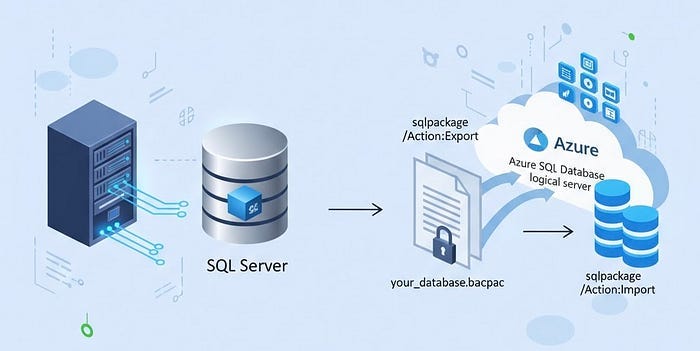
Image generated with Google’s Gemini.
Prerequisites
- Install the
**sqlpackagecommand-line tool** (official Microsoft docs). - Have admin access credentials for your source SQL Server database.
Step 1: Export the Database to .bacpac
To create a .bacpac backup file from your source SQL database, use sqlpackage with the Export action. This command connects to your source server and exports the database schema and data into a single .bacpac file.
Command
sqlpackage /Action:Export /TargetFile:your_database.bacpac /SourceConnectionString:"Server=your_server_host;Database=your_database_name;User ID=your_username;Password=your_password;TrustServerCertificate=True;Connection Timeout=60;"/Action:Export: Specifies the operation to export a database./TargetFile: The path and name for the output .bacpac file./SourceConnectionString: The connection string for your source SQL database. Ensure you replace the placeholder values with your actual server, database name, and credentials.
Step 2: Import into Azure SQL
With the .bacpac file created, the next step is to import it into your target Azure SQL database using the *sqlpackage* utility. This process effectively builds a new database from the schema and data contained within your file.
‼️ Critical Prerequisite: Permissions
The import operation requires high-level permissions. The user account performing the import must be the Microsoft Entra admin for the logical server or a member of the server-level Entra admin group.
Why is this necessary? The import process is destructive; it first drops all existing objects, users, and permissions within the target database before rebuilding them from the .bacpac file. Standard database-level permissions (like db_owner) are insufficient because they are dropped at the very beginning of the process, causing the operation to fail immediately.
Command
sqlpackage /Action:Import /SourceFile:your_database.bacpac /TargetConnectionString:"Server=your_azure_server.database.windows.net;Database=your_azure_database;Authentication=Active Directory Default;Encrypt=True;TrustServerCertificate=True;"Parameter Descriptions:
/Action:Import: Specifies the operation to import a database./SourceFile: The path to your.bacpacfile./TargetConnectionString: The connection string for your target Azure SQL database. Use your Azure server’s fully qualified domain name (FQDN) and Active Directory authentication.
Post-Migration Notes and Best Practices
Note on Reversibility
Once a database is imported into Azure SQL using this method, direct reversal or simple rollback isn’t supported. The recommended practice for making changes or reverting to a previous state is to delete the Azure database and re-import the .bacpac file to a fresh Azure SQL database.
Common Import Issues
When importing to Azure SQL Database v12, you may encounter schema or user-related errors due to differences between on-premises SQL Server and the Azure SQL environment.
- Orphaned logins: Some objects reference logins not supported in Azure SQL. Remove or remap orphaned logins.
Error message —
Error SQL71564: Error validating element [user]: The element [user] has been orphaned from its login and cannot be deployed. - Authentication issues: Azure SQL does not support Windows Authentication. Use Azure AD authentication or SQL authentication. Update users accordingly.
Error message —
Error SQL71627: User [DOMAIN\user] has AuthenticationType not supported
Infrastructure as Code (IaC) Integration
For consistent and repeatable deployments, it is recommended to use Terraform to define and manage Azure SQL resources. Terraform is well-suited for provisioning infrastructure such as servers, databases, and networking components.
However, it is still recommended to use **sqlpackage for database imports**. While Terraform can handle this use case, it typically requires significantly more effort and complex configuration — a well-scripted sqlpackage command can be more efficient.
Additionally, SQL users and group roles cannot be managed directly through Terraform resources. These should be configured post-deployment using the **sqlcmd** command-line tool.
Secure Backup Storage
Although optional, using an Azure Storage Account to host the .bacpac backup file is strongly recommended.
A Storage Account provides a secure and private location to store and access the backup file without exposing it over the internet or sharing it externally.
The import process can directly reference the .bacpac file from the Storage Account using private endpoints or VNet integration for enhanced security.
Authentication Configuration
While the primary examples utilize Microsoft Entra ID Authentication, you can use traditional SQL Authentication by defining the credentials within the TargetConnectionString using the format: User ID=your_sql_user;Password=your_password.
Troubleshooting
If the import fails, add the /Diagnostics:True parameter to the command. This will generate a detailed log file that is invaluable for troubleshooting the root cause of the issue.
Summary
In summary, moving from an on-premises MS SQL Server to Azure SQL Database offers a compelling blend of cost savings, simplified management, and enhanced security. The sqlpackage tool provides a clear and efficient pathway for this importation. By following the steps — exporting your database to a .bacpac file and importing it into Azure — you can successfully transition your data and begin leveraging the benefits of a fully managed cloud database.
YSYS Azure SQL series
- Part1: https://blog.ysys.hu/ysys-azure-sql-series-part1-fcd0478e6642
- Part2: https://blog.ysys.hu/ysys-azure-sql-series-part2-ca21d4bc652e
The content was written by David Artur Kovacs, DevOps engineer at Ypsilon Systems
메타데이터
- post_id
- ca21d4bc652e
- slug
- ysys-azure-sql-series-part2-ca21d4bc652e
- url
- https://medium.com/@ysys-hu/ysys-azure-sql-series-part2-ca21d4bc652e
- canonical_url
- https://medium.com/@ysys-hu/ysys-azure-sql-series-part2-ca21d4bc652e
- author_url
- https://medium.com/@ysys-hu
- status
- ok
- fetched_at
- 2026-07-16 17:10:13