Unity Particle System Collision: Enabling Gameplay Dependencies
Learn how to create a Unity particle collision system with purpose using OnParticleCollision()
Unity Particle System Collision: Enabling Gameplay Dependencies
Learn how to create a Unity particle collision system with purpose using OnParticleCollision()
A puzzle relies on dependencies between events and one of the most engaging ways to design interaction in Unity is by linking separate systems together to create dependencies. Imagine a valve that can only rotate after being sprayed with oil. Up until this point, I haven’t create a game mechanic that uses a particle system to actually have a function besides VFX; I’ve only used them in a superficial way.
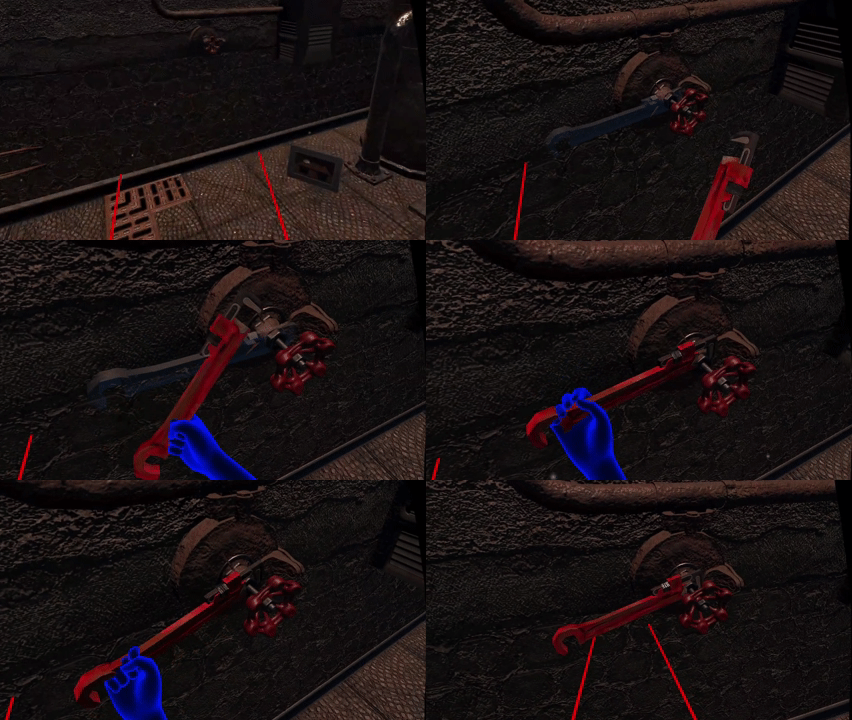
figure 1. SocketRotator.cs disabled due to a collision dependency on the Particle System
In this story, I’ll explain how I connected a Particle System collision with a gameplay script to unlock a type of interaction at just the right moment giving it role and functionality in the overall outcome of solving the puzzle. This creates a dependency chain that adds both logic and believability to Unity development.
More Than VFX: A Particle System with Purpose
The mechanic is straightforward: particles from an Oil Spray hit the collider of a valve, and only after this collision does the SocketRotator.cs script activate. The result is a natural “repair before functioning” workflow where one action enables another. Instead of every object being immediately usable, the player needs to complete a step first creating a cause-and-effect relationship in gameplay.
The approach to the oil dependency system:
- Collision Detection Script — A new script on the HL_valve will detect particle collisions
- Socket Rotator Modification — Add enable/disable functionality to the Socket Rotator so that script starts disabled until oiled
- Enable Script Component after Single Collision Event — After the HL_Valve is oiled it should become “permanently oiled” so it does not need continuous oiling.
- Independent of Event Sequence — The activation of the SocketRotator behavior should occur regardless of when the wrench is attached (i.e., timing)
Many of the GameObjects, Particle System, Collision Module, Colliders have already been setup. Interested in the details? Find these stories and more:
[embed]Unity XR Grabbable Objects: XR Toolkit Setup Guide for Beginners medium.com

figure 2. Oil_Spray object in Scene hierarchy (left) Oil_Stream Particle System Collision module (right)

figure 3. HL_Valve with Box Collider (child object) (left) and Box Collider settings (right)
How the Collision System Works
The Unity Particle System Collision Module allows individual particles to interact with colliders in the scene. When configured with Send Collision Messages, Unity can pass collision events to scripts through OnParticleCollision(). This means particles can behave like tiny messengers, triggering state changes in other scripts.
In practice, the ValveOilDetection.cs script that will be attached to the HL_Valve listens for collisions and, after the first collision, activates the rotation system by setting socketRotator.enabled = true;. From that point onward, the valve remains permanently “oiled.”
Configure Particle System Collision Detection
The Particle Systems Collision detection is enabled but needs some configuration adjustments.
- In the Oil_Stream particle system, find to the Collision module

figure 4. Oil_Stream contains the Particle system and its Collision module is enabled
- Change the “Collides With” attribute from “Everything” to “Nothing”
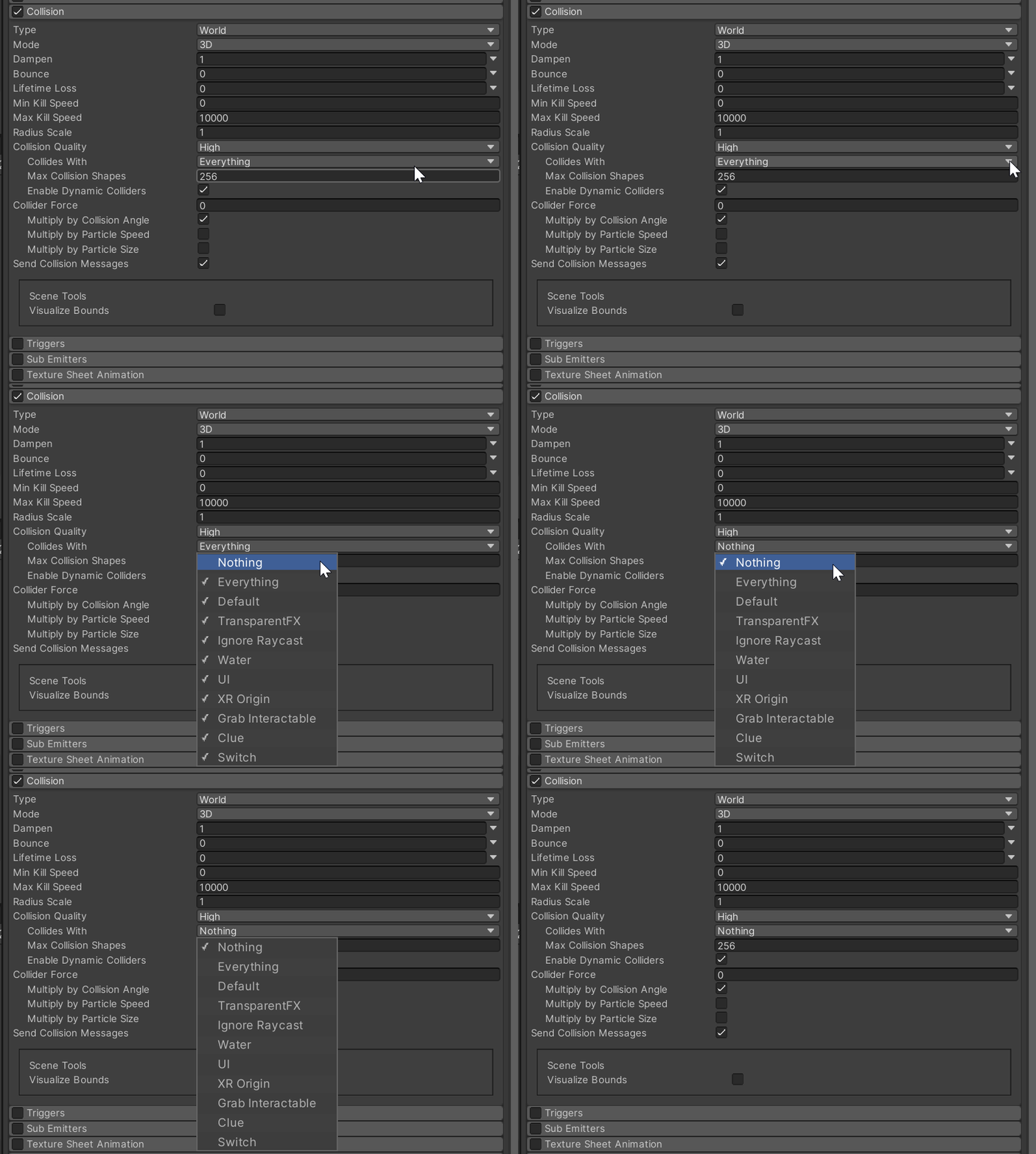
figure 5. changing the Collision With attribute to “Nothing”
- Select the object that needs to detect the collision, i.e., HL_Valve > In its inspector find “Layer” attribute > left-click and select “Add Layer” > Select a User Layer and name it after the object that will be affected by the collision, in my case, its “HL_valve”

figure 6. Add Layer and name it after the GameObject that will be effected by the Collision with the Particle System
- Check the box next to “Send Collision Messages” is ticked; this enables collision events > Set “Type” to “World”

figure 7. Set Type to World and enable Send Collision Messages
Update Particle System Collision Settings
Back in the Oil_Stream particle system’s Collision module:
- Set “Collides With” to only target the “HL_Valve” layer that was just created

figure 8. Change the Collides WIth attribute from “Nothing” to the GameObject that will be effected by the Collision (i.e., HL_Valve)
Create Valve Oil Detection Script
A Script will detect when particles collide with the valve and enable the SocketRotator.cs component. In the Assets Window, right-click on the Scripts folder:
- Select “Create” > C# script > name the script after the GameObject and the Particle system that will interact, i.e., “ValveOilDetection”
Inside ValveOilDetection.cs, a SerializeField reference links to the SocketRotator.cs script.

figure 9. SerializeField provides a reference to connect the detection system to the SocketRotator script
An OnParticleCollision(GameObject other) method checks if the incoming collision belongs to the “Oil” tag. Once confirmed, a boolean flag called isOiled prevents repeat triggers and then flips the switch on the socket rotator.

figure 10. OnParticleCollision() is called when a particle hits the Box Collider on the HL_Valve
Conceptually, this transforms particle impacts into a conditional gateway. The script doesn’t manage visuals or physics itself, but instead acts as a decision-maker: “Has the valve been oiled? If yes, allow rotation.” This abstraction keeps responsibilities separate and maintains the clarity of Single Responsibility in the project structure (see fig.1).
Add the Script to HL_valve and Configure References
- In the hierarchy, select the GameObject that the Particle System will collide with, i.e., HL_valve

figure 11. add the Script component to the GameObject
- Drag and drop the script component into the ValveOilDetection.cs component’s reference slot, i.e., “SocketRotator”

figure 12. assign the referenced script component to the detection system script
Particle Test System Dependency
Back in thhe Unity editor, I enter Play Mode in, grab the wrench and place it in the valve socket.
- The Socket Rotator is disabled, so the wrench won’t rotate even when socketed
SocketRotator.cs disabled due to a collision dependency on the Particle System
Find and pick up the Thumbpress Oil Sprayer, head back to the Valve and spray oil particles onto the valve’s Box Collider. Once the Particles appear to “dissolve”, its time to rotate the plumber’s wrench. Press the grip button and moving my hand in a counter-clockwise direction, the wrench rotates — success! The valve requires oiling before the Socket Rotator becomes active.

Dependency on the Particle System for wrench rotation is fully functional

particles colliding with valve’s box collider
Unity Particle Collision Sequence of Interactions
After multiple tests, I confirm several gameplay scenarios mechanic’s logic flexible, accommodating different player choices in the possible sequence in which events could occur:
- Attach the wrench before oiling: the wrench fits but cannot rotate. Once sprayed, the valve activates and rotation becomes possible.
- Oil first, then attach: spraying triggers the system immediately, so the wrench rotates as soon as it is connected.
This flexibility is great for gameplay — it doesn’t force players into a specific sequence and feels more natural.
The HL_Valve now requires lubrication before it can be operated, creating a realistic maintenance workflow where a “repair” of machinary using tools can be simulated.
If you found this story helpful to your own XR/VR/MR/AR development practice, please clap, comment, follow or subscribe. Make these insights into game development your own!
Further Reading on XR & Metaverse Topics
[embed]Metaverse Archives - Bitcoin News Bitcoin News - Articles from Metaverse tagnews.bitcoin.com
메타데이터
- post_id
- ca3b7a3b3aee
- slug
- unity-particle-system-collision-enabling-gameplay-dependencies-ca3b7a3b3aee
- url
- https://medium.com/@Brian_David/unity-particle-system-collision-enabling-gameplay-dependencies-ca3b7a3b3aee
- canonical_url
- https://medium.com/@Brian_David/unity-particle-system-collision-enabling-gameplay-dependencies-ca3b7a3b3aee
- author_url
- https://medium.com/@Brian_David
- status
- ok
- fetched_at
- 2026-07-28 05:13:04