Why Google Translate Breaks Your Material Icons (And How to Fix It)
Have you ever opened your beautifully designed website through Google Translate, only to find your icons replaced by random translated…
Why Google Translate Breaks Your Material Icons (And How to Fix It)
Have you ever opened your beautifully designed website through Google Translate, only to find your icons replaced by random translated words like “speed”, “dashboard”, or “settings”?
If you’re using Google Material Symbols (or Material Icons), you’ve likely run into this frustrating issue.
The problem is subtle: icon fonts that use ligatures look like normal text to translation engines. When the browser translates the page, those icon names get translated too — and your icons break.
Let’s look at why this happens and how to fix it properly.
The Root Cause: Ligatures
Material Symbols render icons using ligatures. Instead of referencing an icon with a Unicode codepoint, you place the icon name directly in the HTML. Example: <span class=”material-symbols-outlined”>speed</span> <span class=”material-symbols-outlined”>dashboard</span> <span class=”material-symbols-outlined”>settings</span> The icon font maps these words to icon glyphs. For example: speed → speedometer icon dashboard → dashboard icon settings → gear icon However, translation engines interpret these words as normal text.
What Happens During Auto-Translate
When Google Translate processes the page, it scans the DOM and translates text nodes. Example translations: speed → velocidad (Spanish) dashboard → gösterge paneli (Turkish) settings → Einstellungen (German) Because the icon font only supports the original English ligature words, the translated words no longer match any glyph. Instead of icons, users see broken text.
Common Fixes That Don’t Work
Many developers try logical fixes that unfortunately fail.
CSS translate property
.material-symbols-outlined {
 translate: no;
}
This property controls CSS transforms, not browser translation. It has zero effect on Google Translate.
Forcing the font
.material-symbols-outlined {
   font-family: 'Material Symbols Outlined' !important;
}
This ensures the correct font loads, but it does not stop the text from being translated.
JavaScript after DOMContentLoaded
document.addEventListener('DOMContentLoaded', () => {
 document.querySelectorAll('.material-symbols-outlined')
   .forEach(el => el.setAttribute('translate', 'no'));
});
This sometimes fails because translation engines may start processing the page before DOMContentLoaded fires.
The Reliable Fix
The safest solution is to mark icon elements as non-translatable. Use both: -translate=”no” -notranslate class
Example:
<script>
document.querySelectorAll('.material-symbols-outlined').forEach(function(el) {
 el.setAttribute('translate', 'no');
 el.classList.add('notranslate');
});
</script>
Why Both?
Different translation engines respect different signals.
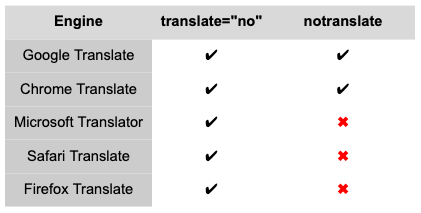
Using both provides maximum compatibility.
The Best Long-Term Approach
If possible, add the attributes directly in the HTML.
<span class="material-symbols-outlined notranslate" translate="no">speed</span>This ensures the element is protected from the moment it is parsed. No JavaScript timing issues.
메타데이터
- post_id
- ca875b681ee3
- slug
- why-google-translate-breaks-your-material-icons-and-how-to-fix-it-ca875b681ee3
- url
- https://medium.com/@canyigiterol/why-google-translate-breaks-your-material-icons-and-how-to-fix-it-ca875b681ee3
- canonical_url
- https://medium.com/@canyigiterol/why-google-translate-breaks-your-material-icons-and-how-to-fix-it-ca875b681ee3
- author_url
- https://medium.com/@canyigiterol
- status
- ok
- fetched_at
- 2026-07-11 13:11:35