Extracting I-frames (Keyframes) from a Video Using ffmpeg
Tarun Wadhwani, AI Team
Extracting I-frames (Keyframes) from a Video Using ffmpeg
Tarun Wadhwani, AI Team
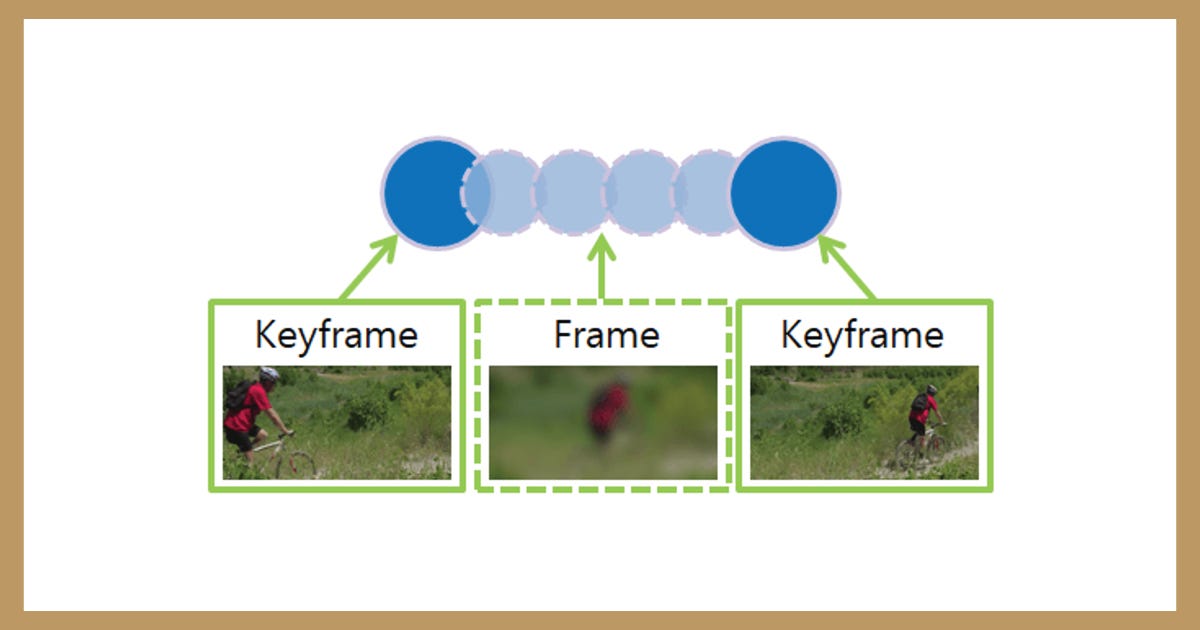
What is I-frame
In video coding, I-frame or Intra frame (also known as keyframe) is a picture/frame that is coded independently of all other pictures/frames i.e. it is the full frame of the image in a video. Subsequent frames, the delta frames, only contain the information that has changed.
In simple words, keyframes are the anchor points or locations on a timeline that marks the beginning or end of an action/transition. The frames between the start and stop points are interpolated over time between those points to create motion. A keyframe is a frame where a change occurs in the timeline.
Using ffmpeg
One can use filters mentioned in the ffmpeg filters documentation (https://ffmpeg.org/ffmpeg-filters.html) for the required task. We have used Video Filters for keyframes extraction.
Extracting All Keyframes

What follows -vf in a ffmpeg command line is a Filtergraph description. The select filter selects frames to pass in output. The constant of the filter is “pict_type” and the value “PICT_TYPE_I”. In short, we are only passing key frames to the output.
-vsync vfr prevents ffmpeg to generate more than one copy for each keyframe. Alternatively, we can use 2 in place of vfr for the same result.
-f image2 writes video frames to image files. The output filenames (i.e. imgFilenames) are specified by a pattern, which can be used to produce sequentially numbered series of files.
Some More Commands for frames extraction
Periodic Extraction
Using the following command, we can extract 1 frame or image every 60 seconds. Note that only the highlighted part in the below image is different from the command for keyframes extraction.

In the above command, we are using fps filter followed by setting extraction fps to 1/60 i.e. 1/60 frames per second or 1 frame per 60 seconds.
Capturing Scene Change
Using the select filter again, the following command selects only frames that have more than x% (like 50%) of changes compared to previous scene and generates pngs. Here we can input x as per our requirement.

Helpful links
메타데이터
- post_id
- cb7f2ae3add1
- slug
- extracting-i-frames-keyframes-from-a-video-using-ffmpeg-cb7f2ae3add1
- url
- https://medium.com/@publiciscommerce/extracting-i-frames-keyframes-from-a-video-using-ffmpeg-cb7f2ae3add1
- canonical_url
- https://medium.com/@publiciscommerce/extracting-i-frames-keyframes-from-a-video-using-ffmpeg-cb7f2ae3add1
- author_url
- https://medium.com/@publiciscommerce
- status
- ok
- fetched_at
- 2026-07-15 19:43:36




