Auto-Rename Swiss QR Payment Slip PDFs in Make (via Dropbox + PDF4me)
Got a Dropbox full of invoices and payment slips? Instead of renaming them by hand, build a five-module Make scenario that reads the Swiss…
Auto-Rename Swiss QR Payment Slip PDFs in Make (via Dropbox + PDF4me)
Got a Dropbox full of invoices and payment slips? Instead of renaming them by hand, build a five-module Make scenario that reads the Swiss QR code on each PDF and renames the file using the data inside it — creditor name, IBAN, reference, whatever you need.
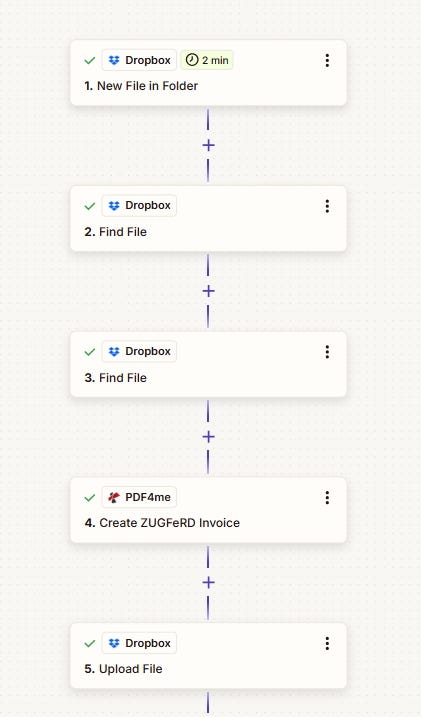
The flow: Watch Files → Download a File → Read SwissQR Code → Parse JSON → Upload a File

What You’ll Need
- A Make account with the PDF4me app added via Make.com
- A **PDF4me API key** (free to start) — follow the “Connect PDF4me to Make” guide for first-time setup
- Dropbox (or swap in Google Drive / OneDrive — the logic stays identical)
Step 1: Watch Files (Dropbox)
This is your trigger. The scenario runs whenever a new file lands in the watched folder.
- Add Dropbox → Watch Files
- Connection → select your Dropbox account
- Folder Search Method → Select from List
- Folder Path → e.g.
/Blog Data/ - Watch also subfolders →
No(orYesif needed) - Limit → how many files to process per run (e.g.
2) - Save. Any new or updated file in that folder will kick off the scenario.

Step 2: Download a File (Dropbox)
Pulls the actual PDF so it can be sent to PDF4me and re-uploaded later.
- Add Dropbox → Download a File
- Connection → same Dropbox account as Step 1
- Way of selecting files →
Map a file path - File Path → map the path output from Step 1 (e.g.
1. Path display) - Save. This module outputs Data (file bytes), File Name, and File Size. You’ll use Data in both Step 3 and Step 5.

Step 3: Read SwissQR Code (PDF4me)
Sends the PDF to PDF4me and gets back all the Swiss QR-bill data — creditor name (cr_Name), IBAN, amount, currency, reference, and more — as a JSON string called Barcode Text.
- Add PDF4me → Read SwissQR Code (listed under Barcode)
- Connection → your PDF4me connection (add your API key if creating for the first time)
- File → select
Dropbox - Download a Fileto pull from Step 2 - Save and run. The output fields from this module are what you’ll use to build the new filename.

Step 4: Parse JSON
The Barcode Text from Step 3 is a raw JSON string. This module breaks it into individual, mappable fields like cr_Name, IBAN, and reference.
- Add JSON → Parse JSON
- JSON string → map to
3. Barcode Textfrom the Read SwissQR Code module - Data structure → optional; leave empty and Make will infer it on the first run
- Save. After this, individual fields are available to use in the next step.

Step 5: Upload a File (Dropbox)
Takes the same PDF from Step 2 and saves it with a brand new name built from the Swiss QR data.
- Add Dropbox → Upload a File
- Connection → same Dropbox account
- Folder → target folder path, e.g.
/Blog Data/ - File → select
Map - File Name → build using the
add()function, e.g.:add(3.'Barcode Text'.cr_Name, 3.'Barcode Text'.IBAN, '.pdf')You can swap in other fields (reference,amount) or add separators like'_'inside the expression. - Data → map to
2. Datafrom the Download step — this is the actual PDF content. Don't map from Step 3 or 4 here. - Overwrite existing file →
Noto auto-rename on conflict;Yesto replace - Save and run. Your PDF will appear in the folder under its new name (e.g.
CompanyName_CH93....pdf).

Quick Answers
Which field should I use for the filename? Whatever suits your workflow — cr_Name, IBAN, reference, or a mix using add().
What if no QR code is found? Read SwissQR Code will return empty or error. Add a router so only valid QR files reach the Upload step, or set a fallback filename.
Can I use Google Drive instead of Dropbox? Yes — swap the Dropbox modules for Drive equivalents. The core flow (Watch → Download → Read SwissQR → Parse JSON → Upload) doesn’t change.
Next Steps
- Get an API key — Open the PDF4me API key dashboard (free to start). Use it in Make after you add the PDF4me module.
- New to Make + PDF4me? — Connect PDF4me to Make shows how to create the connection and add your first PDF4me module. To add the app in Make, open the PDF4me integration on Make.com.
- Build the scenario — Add the five modules (Dropbox Watch Files → Dropbox Download a File → PDF4me Read SwissQR Code → JSON Parse JSON → Dropbox Upload a File) and map the fields as in Steps 1–5. In Upload, set Data to 2. Data and File Name to your add() expression with 3. Barcode Text fields.
- Full module reference — Read SwissQR Code — Make for all parameters and options.
메타데이터
- post_id
- cba4a0df1cfb
- slug
- auto-rename-swiss-qr-payment-slip-pdfs-in-make-via-dropbox-pdf4me-cba4a0df1cfb
- url
- https://medium.com/@pdf4me.ani/auto-rename-swiss-qr-payment-slip-pdfs-in-make-via-dropbox-pdf4me-cba4a0df1cfb
- canonical_url
- https://medium.com/@pdf4me.ani/auto-rename-swiss-qr-payment-slip-pdfs-in-make-via-dropbox-pdf4me-cba4a0df1cfb
- author_url
- https://medium.com/@pdf4me.ani
- status
- ok
- fetched_at
- 2026-06-28 14:26:31