The Lazy Way to Web Browse (and Why I Love It)
Let’s be real — sometimes we’re just too lazy to pick up the mouse and click on that button. But what if I told you there was a way to…
Vimium: The Lazy Way to Web Browse (and Why I Love It)
Let’s be real — sometimes we’re just too lazy to pick up the mouse and click on that button. But what if I told you there was a way to browse the web without ever touching your mouse? Enter Vimium, my favourite browser extension that has changed the way I browse the internet.
As someone who spends way too much time on the web (I mean, who doesn't?), I'm always looking for ways to ̶s̶o̶u̶n̶d̶ ̶l̶i̶k̶e̶ ̶a̶ ̶s̶n̶o̶b̶b̶y̶ ̶e̶l̶i̶t̶i̶s̶t̶ optimise my workflow and be more productive. Vimium does just that by allowing me to use my keyboard for almost all actions, from scrolling to clicking buttons and opening links.
I’ve been using Vimium for almost two years now, and I can’t believe how many people still don’t know about it. It’s like some secret which only a select few of the population knows about and wants to keep it that way. And the best part? It feels so fast and efficient (almost as if the few seconds you save makes a difference 😉).
Let’s get into some of the keybindings, shall we? You don’t need to be a Vim expert (or even know what Vim is) to use Vimium. Here are some of the most useful keybindings:
- j: scroll down (hold down for continuous scrolling)
- k: scroll up (hold down for continuous scrolling)
- d: page down
- u: page up
- gg: scroll to the top of the page
- G or shift + g: scroll to the bottom of the page
- i: enter insert mode to access website shortcuts (e.g., press / to focus on the YouTube search bar)
- f: show letters for accessing buttons/links
- o: open a link in the same tab
- O or shift + o: open a link in a new tab
- t: open a new tab
(Note: all keybindings are case sensitive)
A neat feature of this extension is the search bar which shows up on pressing o/shift + o (you can customize the search engine). Here is it in action.
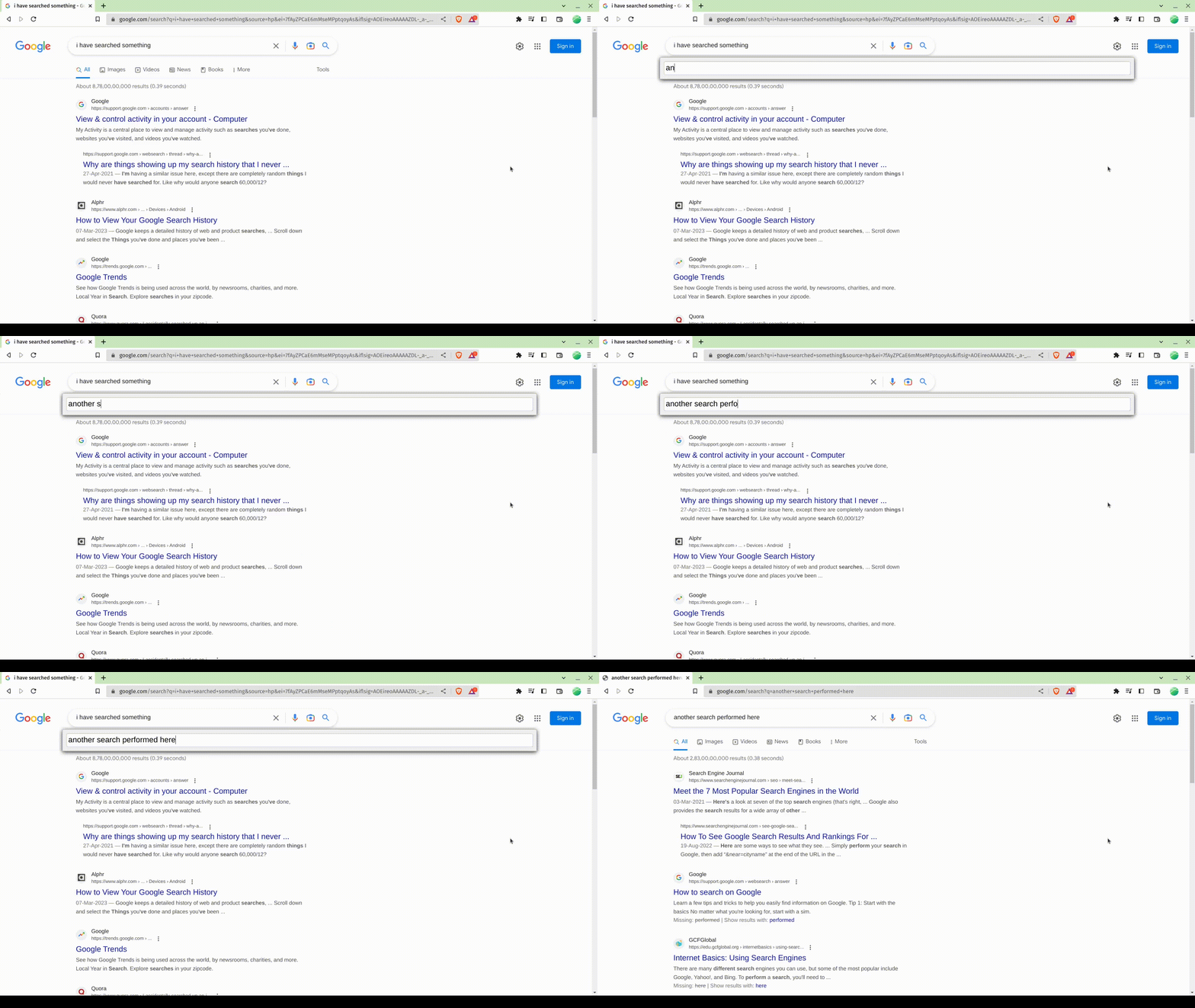
search bar feature in vimium demonstration
But wait, there’s more! Vimium is also open source, which is a huge plus in my books.
Of course, not all websites are Vimium-friendly. I’ve disabled it on YouTube because, let’s be honest, most of us are already keyboard shortcut masters when it comes to YouTube. But for most other websites, Vimium is a lifesaver.
So, if you’re feeling a bit lazy (or just want to feel more productive), give Vimium a try. It’s the lazy way to browse the web, and I love it. And if you don’t love it, well, you can always go back to your trusty mouse (but where’s the fun in that?).
Get Vimium here! https://vimium.github.io/
P.S. If you have any other lazy web browsing tips, feel free to share them in the comments. Let’s embrace our ̶i̶n̶n̶e̶r̶ ̶l̶a̶z̶i̶n̶e̶s̶s̶ productivity together!
메타데이터
- post_id
- cbfbbdeed934
- slug
- the-lazy-way-to-web-browse-and-why-i-love-it-cbfbbdeed934
- url
- https://medium.com/@veejayts/the-lazy-way-to-web-browse-and-why-i-love-it-cbfbbdeed934
- canonical_url
- https://medium.com/@veejayts/the-lazy-way-to-web-browse-and-why-i-love-it-cbfbbdeed934
- author_url
- https://medium.com/@veejayts
- status
- ok
- fetched_at
- 2026-07-25 22:12:05




