See Your Git Hook Output Directly in VS Code — No More Silent Failures
The problem every developer hits
See Your Git Hook Output Directly in VS Code — No More Silent Failures
The problem every developer hits
You set up Husky. You write careful pre-commit and pre-push hooks — lint checks, type checks, security audits. You click the Commit button in VS Code’s Source Control panel.
Nothing. Or worse: a vague red notification that says the commit failed, with no explanation of why.
You open the terminal, run git commit -m "..." manually, and suddenly you see exactly what went wrong — a lint error, a type mismatch, a circular dependency. It was there all along. VS Code just never showed it to you.
This isn’t a Husky bug. It isn’t a VS Code bug either. It’s an architectural gap.
Why VS Code hides hook output
When you click Commit or Sync in the Source Control panel, VS Code runs git as an internal background process — completely disconnected from any terminal panel. That subprocess captures stdout and stderr from your hooks and routes them to VS Code's internal Git output channel (View → Output → Git). If the hook fails, you get a modal with a generic message. If it succeeds, the output is discarded silently.
There is no VS Code setting to change this behaviour. A GitHub issue tracking it (microsoft/vscode#132778) was opened in 2021 and has since been closed — without a native fix being shipped. The underlying behavior remains unchanged as of today.
You might notice VS Code does expose a setting called git.commandsToLog (Settings → search "git commands to log"). It lets you log specific git command output to the Git output channel (View → Output → Git). Add "commit" or "push" to it, and VS Code will log those operations there.
But it doesn’t solve this problem. git.commandsToLog captures the git process output — not the output of hook scripts, which run as separate child processes. Their stdout and stderr never flow back into that channel. On top of that, the Output panel is passive: you have to know to open it, switch to the Git channel, and look after the fact. It gives you nothing in real time, and nothing from inside your hooks.
The workaround most developers land on is: stop using the Source Control panel for commits, and use the terminal instead. That works — but it means giving up the convenience of VS Code’s SCM UI.
The deeper problem: nested scripts
It gets worse when your hooks call other scripts. Here’s a typical monorepo setup:
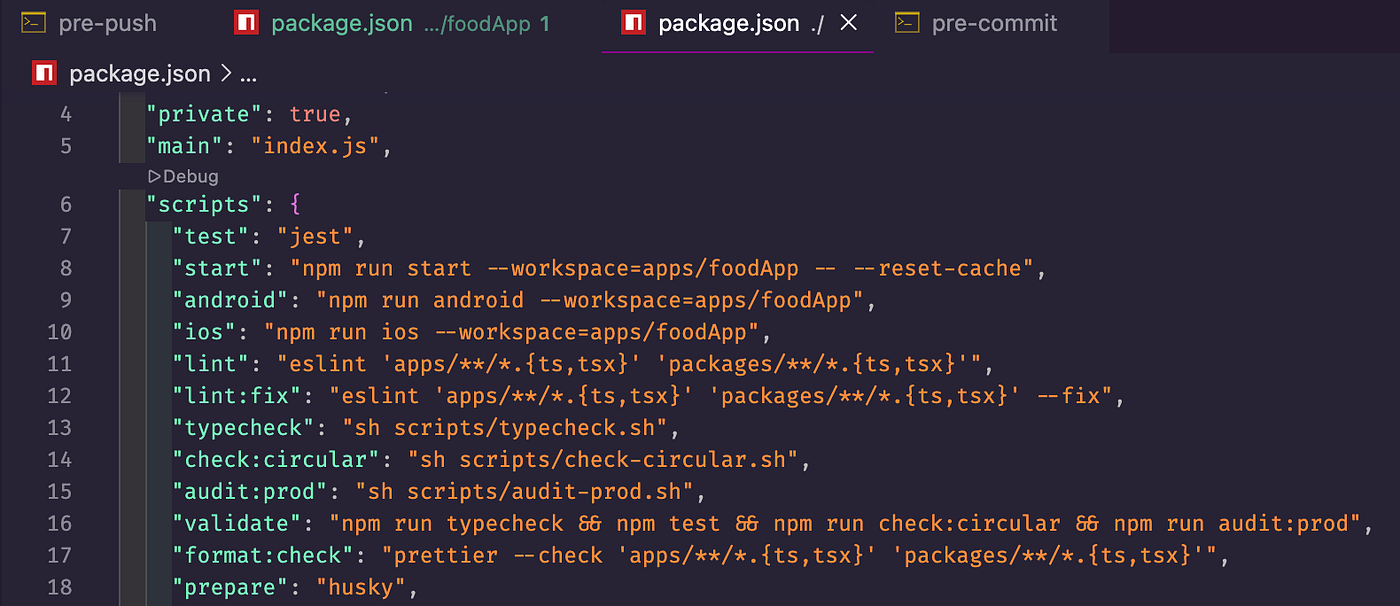
The npm scripts chain —
audit:prodcallsaudit-prod.sh,typecheckcallstypecheck.sh,check:circularcallscheck-circular.sh
Each of those scripts has its own output. And here’s the pre-push hook that calls them:
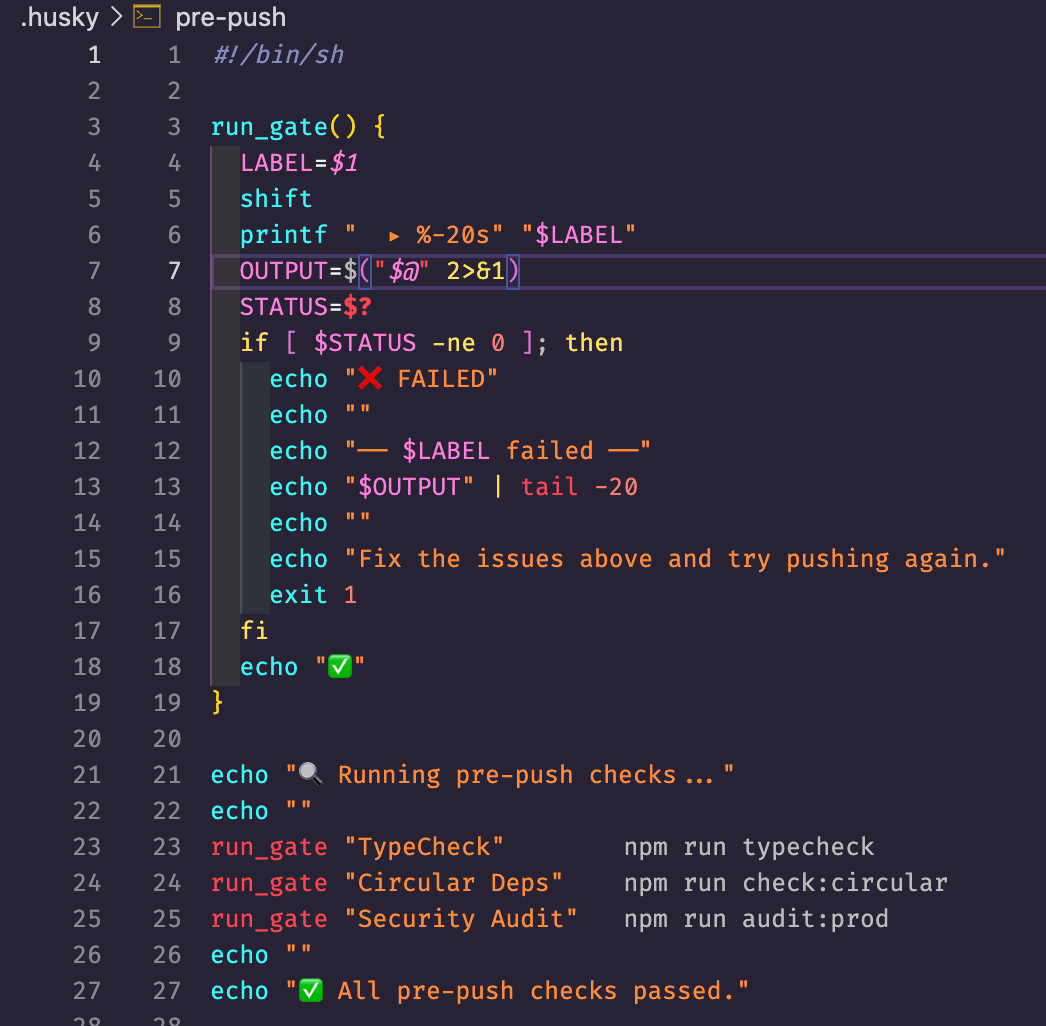
The original
run_gatefunction:OUTPUT=$("$@" 2>&1)captures all inner script output into a variable — it only prints on failure, silently swallows everything on success
And here’s one of those inner scripts:
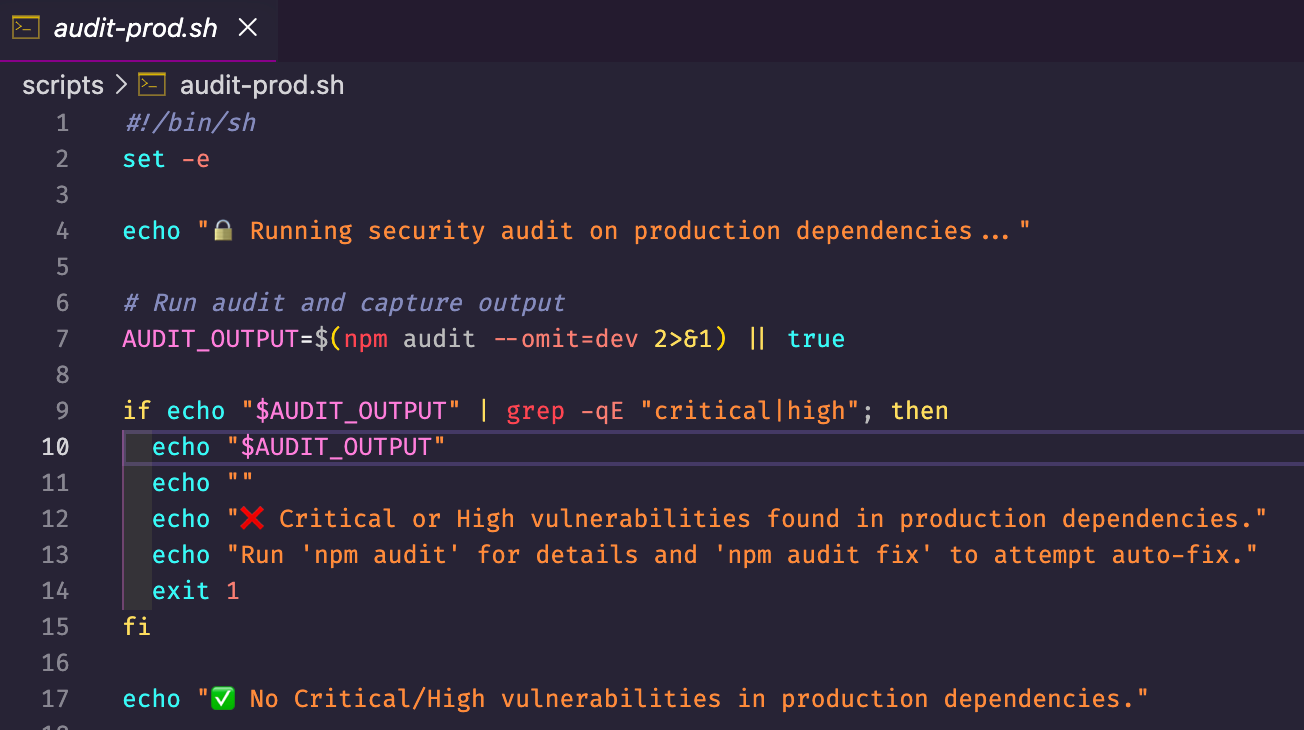
audit-prod.shhas meaningful output — "🔒 Running security audit..." and "✅ No Critical/High vulnerabilities" — butrun_gateswallows all of it via$()subshell capture
So even if you committed from the terminal, you’d only ever see:
▸ Security Audit ✅…and never know what actually ran inside.
Building a fix as a VS Code extension
I wanted to keep the SCM panel workflow but surface the hook output properly. The solution: intercept the commit and push actions and re-run them inside an integrated terminal, where hook output streams naturally.
The extension — Git Hook Output — adds two buttons to the Source Control title bar. Here’s what they look like and what happens when you hover:
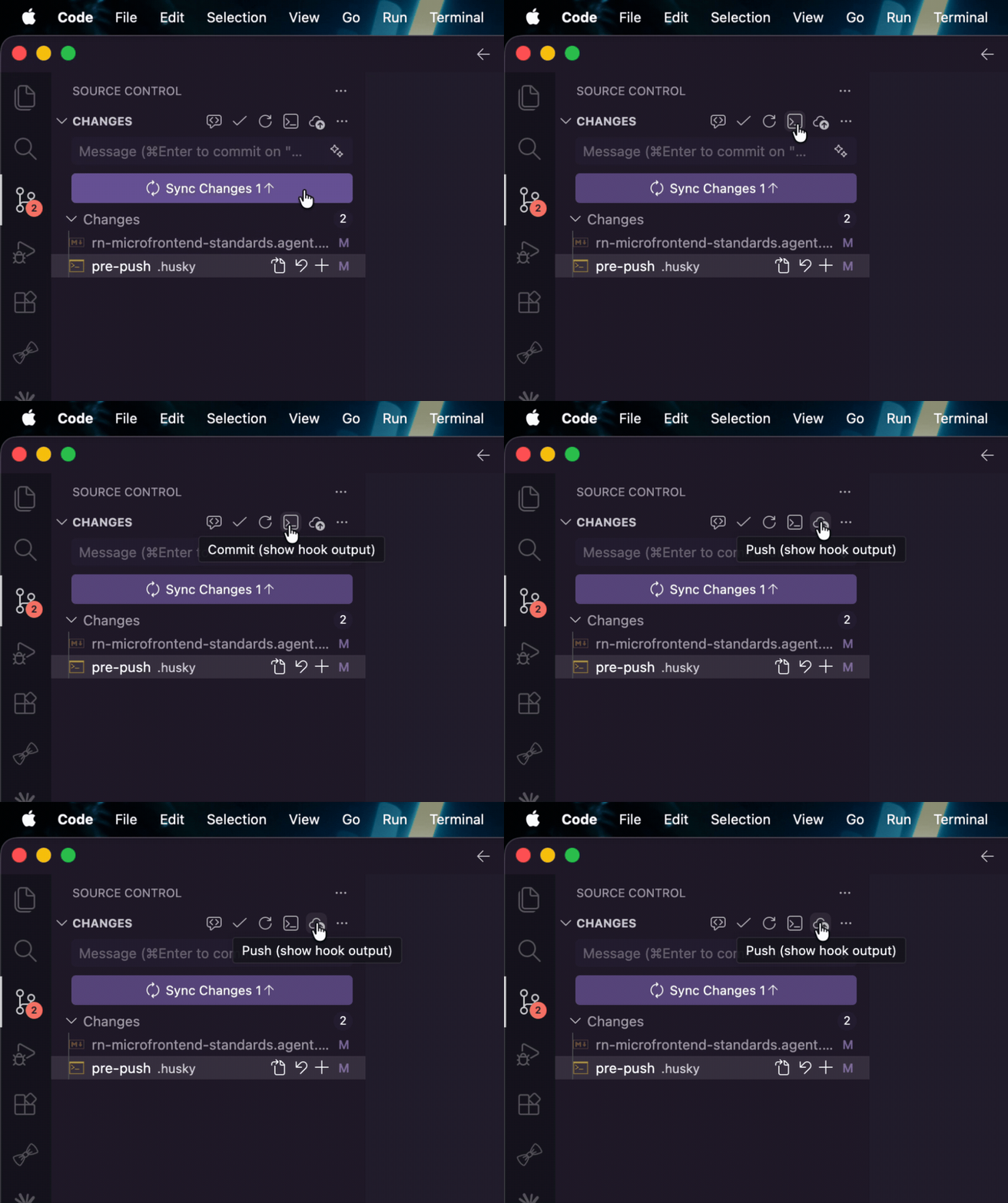
The two new icon buttons in the SCM title bar — terminal icon for “Commit (show hook output)” and cloud-upload icon for “Push (show hook output)” — with hover tooltips visible
How it works
Hook detection
The extension only activates its UI when the workspace actually uses git hooks. On startup it checks for:
.husky/— Huskylefthook.yml— Lefthook.pre-commit-config.yaml— pre-commit framework.git/hooks/pre-commit— raw git hooks
If none are found, the buttons stay hidden. The check re-runs automatically when hook config files are created or deleted.
Safe commit message passing
Passing a multi-line commit message through a terminal shell is tricky — special characters, newlines, and quoting all become hazards. Instead of shell-escaping the message, the extension writes it to a temp file and passes it via git commit -F <file>:
const tmpFile = path.join(os.tmpdir(), `vscode-commit-msg-${Date.now()}.txt`);
fs.writeFileSync(tmpFile, message, 'utf8');
terminal.sendText(
  `git commit -F ${JSON.stringify(tmpFile)}; _s=$?; rm -f ${JSON.stringify(tmpFile)}; (exit $_s)`
);
The temp file is cleaned up immediately after the commit, whether it succeeds or fails. The shell’s $? reflects git's actual exit code so your prompt indicators stay accurate.
Terminal reuse
By default, the extension reuses a single terminal tab named “Git Hook Output” across all operations. If you close it, a new one is created on the next commit.
What you see now
Before this extension, a failing pre-push hook in VS Code looked like this:
❌ Git: push failed
After:
🔍 Running pre-push checks... ▸ TypeCheck
Typechecking apps/foodApp/tsconfig.json...
All typechecks passed.
✅ TypeCheck passed ▸ Security Audit
🔒 Running security audit on production dependencies...
❌ Critical or High vulnerabilities found in production dependencies.
Run 'npm audit' for details and 'npm audit fix' to attempt auto-fix.❌ Security Audit failed — fix the issues above and try pushing again.Every line from every inner script — including nested .sh files called by your hook — streams live to the terminal.
On commit
Here’s a pre-commit hook running lint on staged files — a warning is surfaced directly in the terminal, visible before the commit completes:
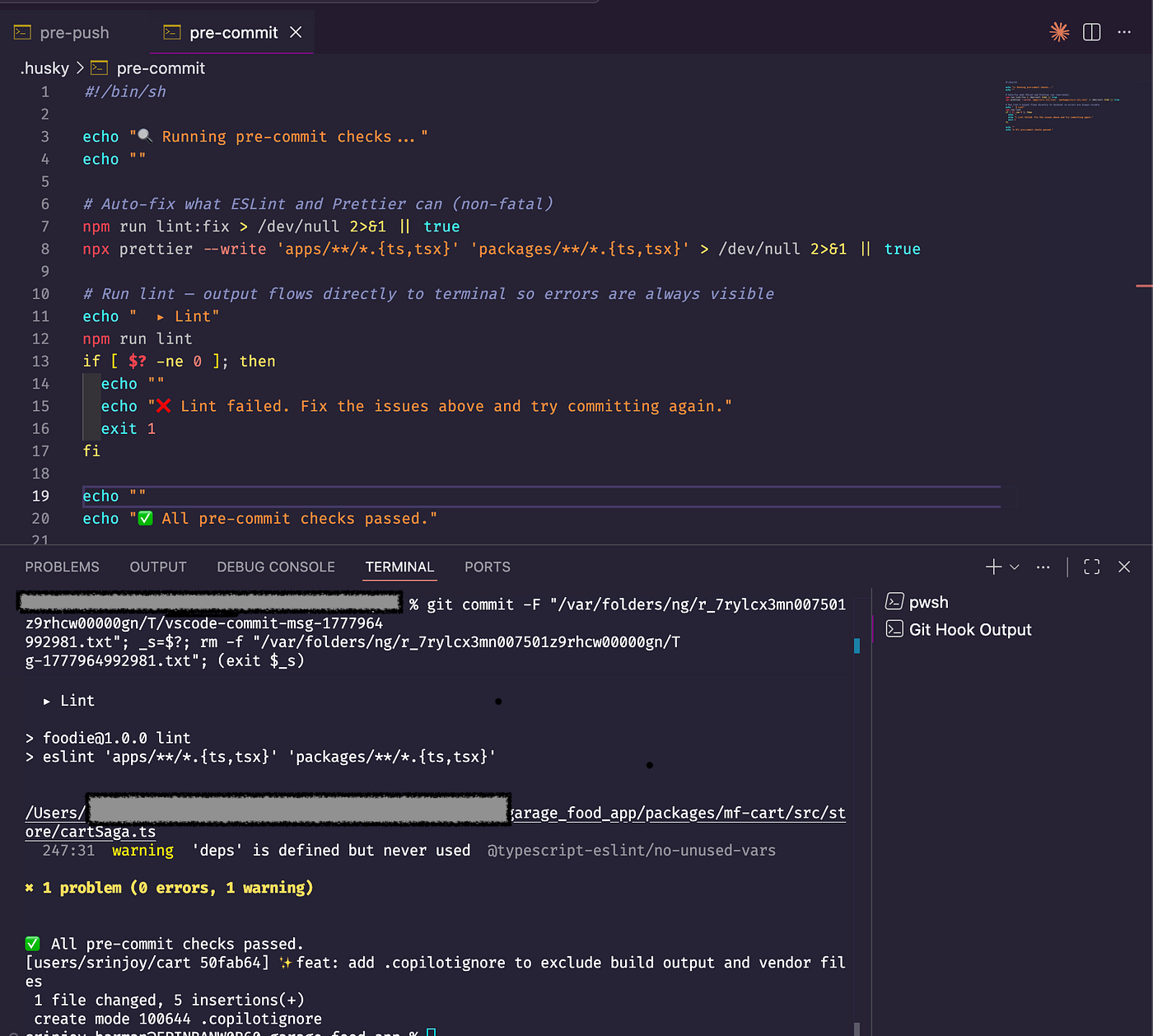
The “Git Hook Output” terminal showing
npm run lintoutput — the ESLint warning incartSaga.tsis fully visible, followed by "✅ All pre-commit checks passed." and the commit hash
On push
And here’s a pre-push hook running three gates — TypeCheck, Circular Deps, and Security Audit — all streaming live:
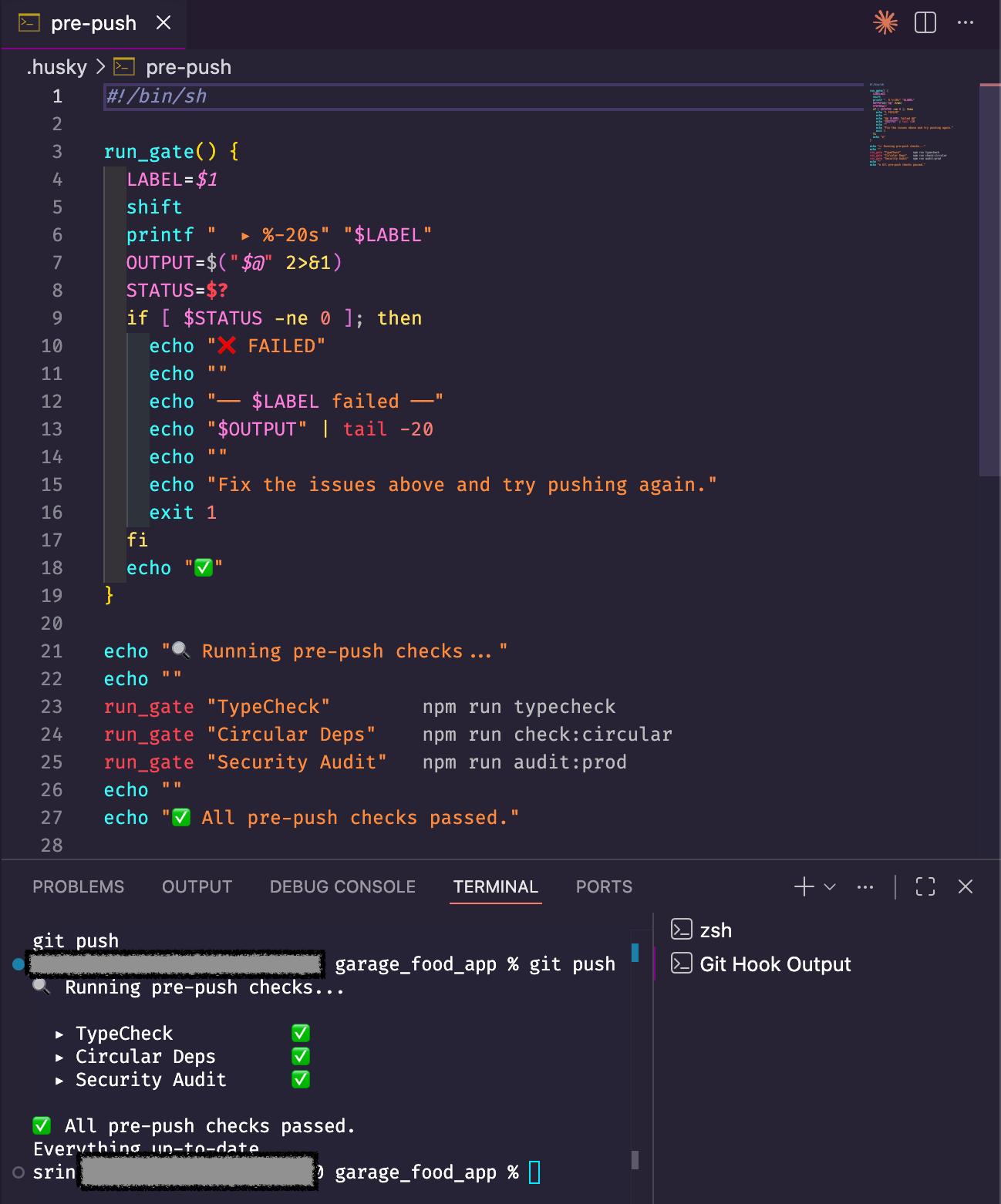
git pushrunning in the "Git Hook Output" terminal, showing TypeCheck ✅, Circular Deps ✅, Security Audit ✅, and "✅ All pre-push checks passed."
One more fix: making inner scripts visible
The problem
Even with the extension routing git push through the terminal, you might still notice that some hook output is missing. Here's why.
Many teams write their pre-push hooks using a run_gate helper pattern that looks like this:
run_gate() {
  LABEL=$1
  shift
  printf "  ▸ %-20s" "$LABEL"
  OUTPUT=$("$@" 2>&1)   # ← the problem
  STATUS=$?
  if [ $STATUS -ne 0 ]; then
    echo "❌ FAILED"
    echo "$OUTPUT" | tail -20
    exit 1
  fi
  echo "✅"
}
The intent is clean: run a command, show a compact one-line result, and only dump the full output if something fails. On the surface, it looks like good UX.
But OUTPUT=$("$@" 2>&1) opens a subshell and captures everything the command writes — stdout and stderr — into a variable. That capture happens entirely inside the hook process, before any output ever reaches the terminal. Our extension has no visibility into it. Nobody does.
So when run_gate "Security Audit" npm run audit:prod runs, the full execution chain is:
pre-push hook
  └── run_gate (captures into $OUTPUT)
        └── npm run audit:prod
              └── sh scripts/audit-prod.sh
                    └── npm audit --omit=dev   ← actual work happens here
Every line that audit-prod.sh writes — "🔒 Running security audit...", the vulnerability table, "✅ No Critical/High vulnerabilities" — gets swallowed into $OUTPUT. On success, run_gate discards it. You see ▸ Security Audit ✅ and nothing else.
This matters more than it might seem. If a vulnerability is found and the push is blocked, you get the last 20 lines via tail -20 — but by then the output has already been buffered, formatted weirdly, and stripped of any colour. In a monorepo with slow typechecks, you also have no idea whether the check has started, is halfway through, or is hanging.
The fix
Replace the capturing sub-shell with direct streaming:
run_gate() {
  LABEL=$1
  shift
  echo "  ▸ $LABEL"
  "$@" 2>&1
  STATUS=$?
  if [ $STATUS -ne 0 ]; then
    echo ""
    echo "❌ $LABEL failed — fix the issues above and try pushing again."
    exit 1
  fi
  echo "  ✅ $LABEL passed"
  echo ""
}
"$@" 2>&1 runs the command directly — no subshell, no capture. Output streams to the terminal line by line as it's produced. $? immediately after captures the exit code correctly, so the failure detection still works exactly as before.
The tradeoff is the compact ▸ TypeCheck ✅ one-liner is gone — each gate now prints its label, then all its output, then a result line. But that's precisely the point. In a terminal, you can scroll. You cannot scroll through output that was never printed.
What it looks like after
On a clean push, instead of three silent checkmarks, you now see the full story:
🔍 Running pre-push checks... ▸ TypeCheck
Typechecking apps/foodApp/tsconfig.json...
All typechecks passed.
✅ TypeCheck passed ▸ Circular Deps
🔄 Checking for circular dependencies...
✅ No circular dependencies found.
✅ Circular Deps passed ▸ Security Audit
🔒 Running security audit on production dependencies...
✅ No Critical/High vulnerabilities in production dependencies.
✅ Security Audit passed✅ All pre-push checks passed.And on a failure, the exact error from the inner script appears right there — no tail truncation, no colour loss, no guessing which file or line caused it.
The extension gets the output to the terminal. This fix gets the output out of the hook.
Windows support
The extension works on Windows with caveats. Git hooks on Windows require a Unix-compatible shell to execute — this is typically provided by Git for Windows (Git Bash) or WSL.
- Git for Windows: Hooks must use Unix line endings (
LF, notCRLF). Make sure yourPATHincludes the Git Bash bin directory so shell scripts resolve correctly. - WSL: Works transparently if your VS Code is connected to WSL via the Remote — WSL extension.
- Native PowerShell hooks: Not currently supported. If your hooks are
.ps1files, the extension will not execute them correctly.
If you’re on a mixed team (Mac/Linux + Windows), the safest approach is to author hooks as POSIX shell scripts with LF line endings — Git for Windows handles these without issues.
Install it
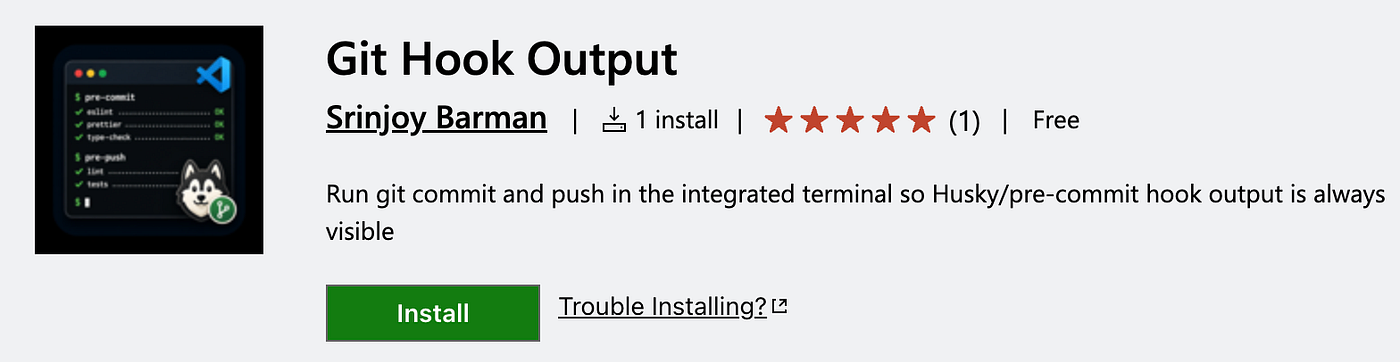
Search Git Hook Output in the VS Code Extensions panel, or install directly:
ext install SrinjoyBarman.git-hook-outputSource code: github.com/SrinjoyBarman/vscode-git-hook-output
What’s next
The one gap that remains: the Commit button dropdown (Commit, Commit & Push, Commit & Sync) is not extensible by third-party extensions — only VS Code’s built-in Git extension can contribute to it. The title bar buttons and context menu are the closest integration points available within the public API.
Two scenarios that are explicitly out of scope for the current version and worth being aware of:
Git worktrees: Git worktrees share the hook directory of the main worktree (.git/hooks), but each worktree has its own .git file pointer. The extension has not been tested in multi-worktree setups — behaviour there is undefined and not guaranteed. If this is a workflow you use, open an issue on the repo.
Monorepos with per-package hook configs: The extension detects hooks at the workspace root. Standard monorepos (single root, shared hooks) work fine. If your setup uses per-package Husky configs with different root paths or nested .git directories, hook detection may not behave as expected. This is on the roadmap to investigate.
If you use Husky, Lefthook, or any other git hook manager and have felt the pain of silent failures in VS Code’s Source Control panel — give it a try. And if you run into issues or want to contribute, the repo is open.
Credits
This extension was developed by the help of Claude Code.
Happy committing. 🔧
메타데이터
- post_id
- cd2bfc28fd67
- slug
- see-your-git-hook-output-directly-in-vs-code-no-more-silent-failures-cd2bfc28fd67
- url
- https://medium.com/mobilepeople/see-your-git-hook-output-directly-in-vs-code-no-more-silent-failures-cd2bfc28fd67
- canonical_url
- https://medium.com/mobilepeople/see-your-git-hook-output-directly-in-vs-code-no-more-silent-failures-cd2bfc28fd67
- author_url
- https://medium.com/@barmansrinjoy1997
- status
- ok
- fetched_at
- 2026-06-24 04:09:36