Accessibility on Your Wix Website — 3 Tips on How to Make the Best First Impression
In the modern era, business is done online just as much as it is in person. Times have changed, and having a website is no longer an…
Accessibility on Your Wix Website — 3 Tips on How to Make the Best First Impression
In the modern era, business is done online just as much as it is in person. Times have changed, and having a website is no longer an optional side venture; it’s a prerequisite to success. Oftentimes, your website is the first thing potential customers see, and making a good impression can be the difference between a sale and a swift exit.
This is where Online Accessibility comes into play. Online Accessibility is ensuring that a website is fully usable by anyone, regardless of what impairments they have. Its inclusion on an internet wide scale. Beyond the simple fact that it’s a good thing to be inclusive (duh), it’s also a fantastic business decision.
Why Does Online Accessibility Matter?
Say a viewer comes to your website, fully interested in your product, but as soon as they click on, they discover they can’t use your website. Maybe they have a physical impairment that makes it impossible to scroll through it. Maybe they have vision or hearing problems that your website never accounted for. Maybe they’re just bad at using technology and find your website too confusing to use.
Regardless of the reason, you just lost a sale — and the lack of online accessibility is to blame.
Introducing WCAG!!!
Fortunately, there are resources that show us how to make our websites fully accessible. Introducing WCAG! Standing for Web Content Accessibility Guidelines, WCAG is an online initiative to make the web a friendly place for everyone. It’s made up of 13 standards that cover a wide variety of topics to maximize the number of people who can use your website. These standards all fall into 1 of 4 categories
- Perceivable — Everything must be findable and viewable by all users who visit the website. (Sensory accessibility)
- Operable — Users should be able to utilize the full functionality of the website with the technology/skills they already have. (Usability accessibility)
- Understandable — Content and UI should be easy to understand for people of all abilities. (Informational accessibility)
- Robust — All content must be usable across new and old technologies. (Adaptability)
The more of these you follow = your business having a larger positive impact and receiving more consumers who are able to use your webpage = more cash in your bank account. It’s simple math.
In this post I’ll be showing you 3 easy tips to make your Wix website more accessible; however first, we need to discuss what the hell Wix even is.
What is Wix?
Wix is an online tool for creating websites, providing intuitive tools to make the creation process so easy that anyone can do it. Their main user base is small business owners (you!!!) and people who think their computer mouse is a rodent (hopefully not you!!!)
The Many Pros (and Some Cons) of Wix
Wix offers a ton of tools for website creation, including hundreds of templates, drag-and-drop customization, custom domains, business analytics, secure commerce, and Java support. Many of the tools are business-oriented, there to help small business owners make the most of the website.
That being said, Wix is not without its drawbacks. While the free version is still better than most of its competitors, many of its fancy tools are locked behind a paywall. Being forced to pick between your website and your Netflix account is a choice NO ONE should have to make. Another noticeable con is Wix’s immense focus on small businesses. While it’s fantastic for smaller projects and companies, it won’t be able to handle larger businesses, meaning your website might be unable to scale with your growth.
The TLDR? If you’re a small business owner looking for an intuitive and simplified website builder with business-oriented features, then Wix is the perfect option.
Now that we’ve decided on Wix, we can learn 3 tips to make your Wix websites more accessible!
Colors and Contrast
Tip 1: To ensure your content is easy to understand, always use colors that contrast one another! Use free online tools to ensure your contrast ratio is at least 4.5 to 1 (although going even higher is always a great choice!!!)
WCAG standards code 1.4.3 gives all the tea on contrast. It says that any and all text (including images of text) has a contrast ratio of at least 4.5:1. This means the colors of the text and text’s background are visually distinct from one another.
While 4.5:1 is the minimum contrast ratio, there are some scenarios with slightly different standards:
- All large text (including images of large text) needs a minimum contrast ratio of at least 3:1.
- Text that’s purely for decoration, doesn’t have any minimum contrast (although there's no reason not to add it!)
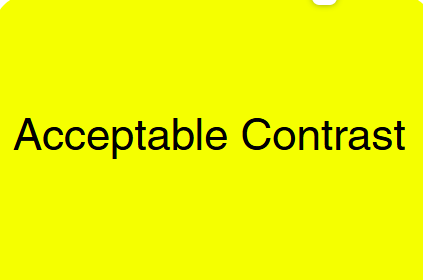
Compared to
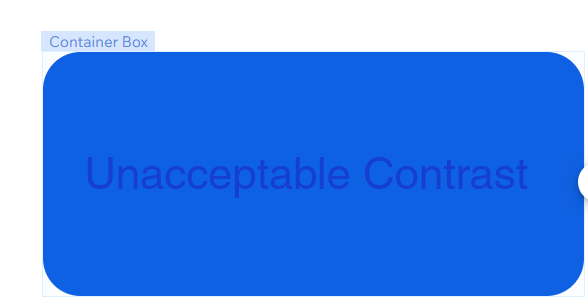
This standard directly helps viewers who have forms of visual impairment which make it difficult or impossible to read faint text.
How Do I Do This?
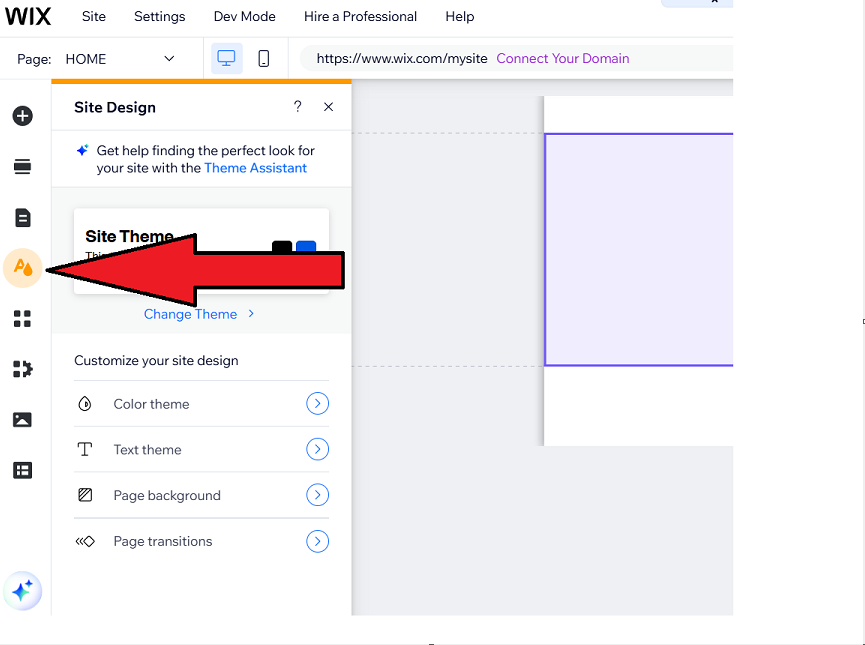
On Wix you can control the text size, text color, and background colors from the Site Design section.
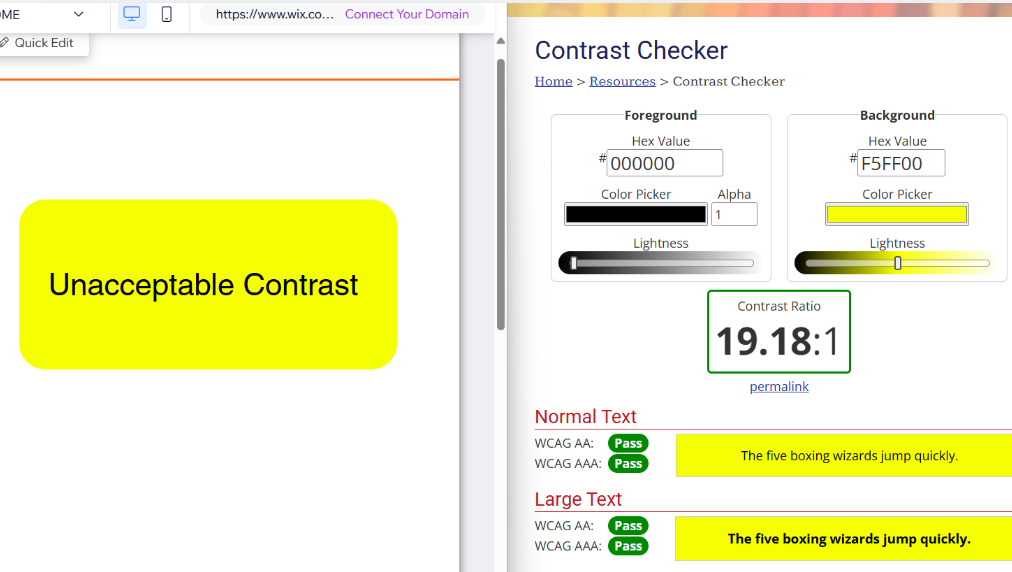
Now you may be wondering how to check contrast… there's a website for that!!! The WebAim Contrast Checker. This website allows you to select the colors for both the text and background and learn their contrast level, along with whether they pass the required minimums.
Consistent Navigation
Tip 2: Always make sure your navigation tools are in the same spot on each page! Keeping things like the navigation headings, next page button, and footer links in the same spot makes navigating your website easy for everyone!
WCAG standards code 3.2.3 gives clear yays and nays to ensure your website is consistent. It requires that if a navigation button is repeated on multiple web pages within a website, it should be in roughly the same spot each time it appears, unless a change to its location is initiated by the user.
This standard help users who have any form of cognitive or visual disability which could make finding sporadic navigation difficult.
How Do I Do This?
Wix lets you accomplish this easily, as any and all buttons placed in the page’s header or footer automatically stay in the same spot. To add a button, click the Add Elements tab.
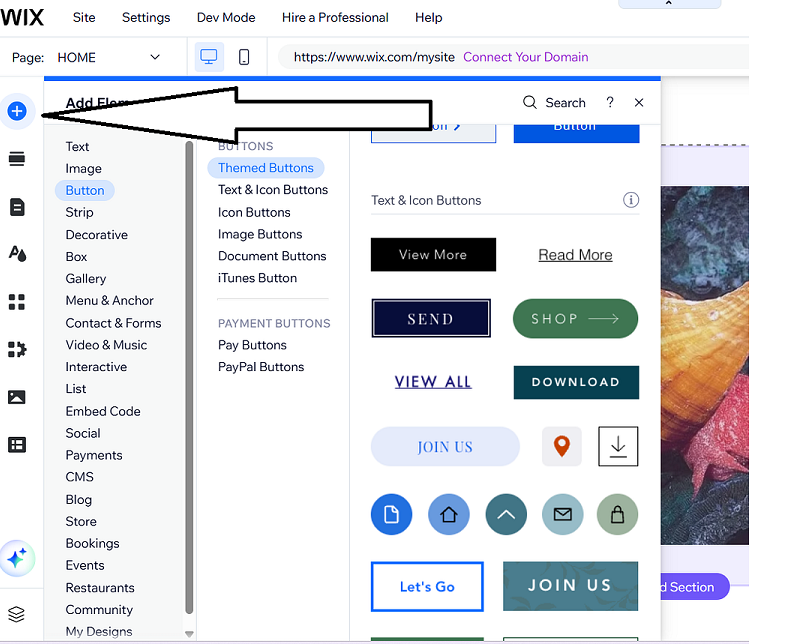
Now select the button that best fits your design!!
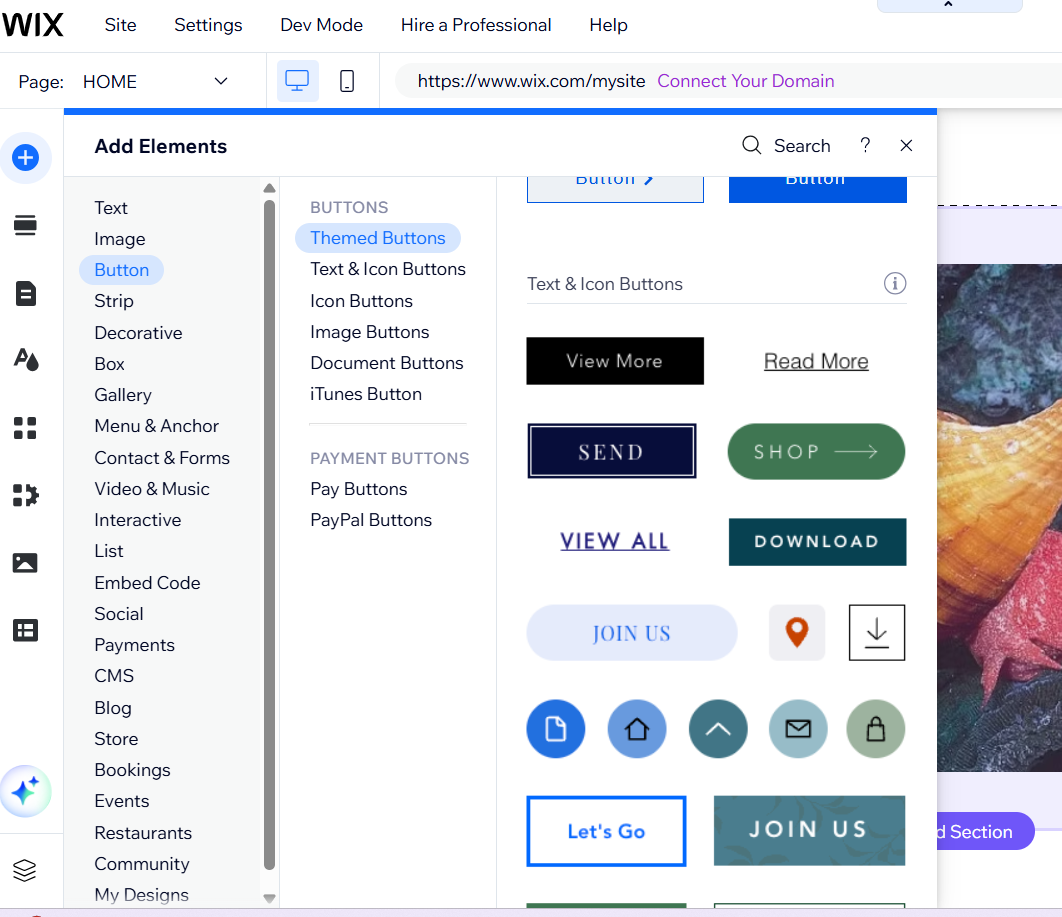
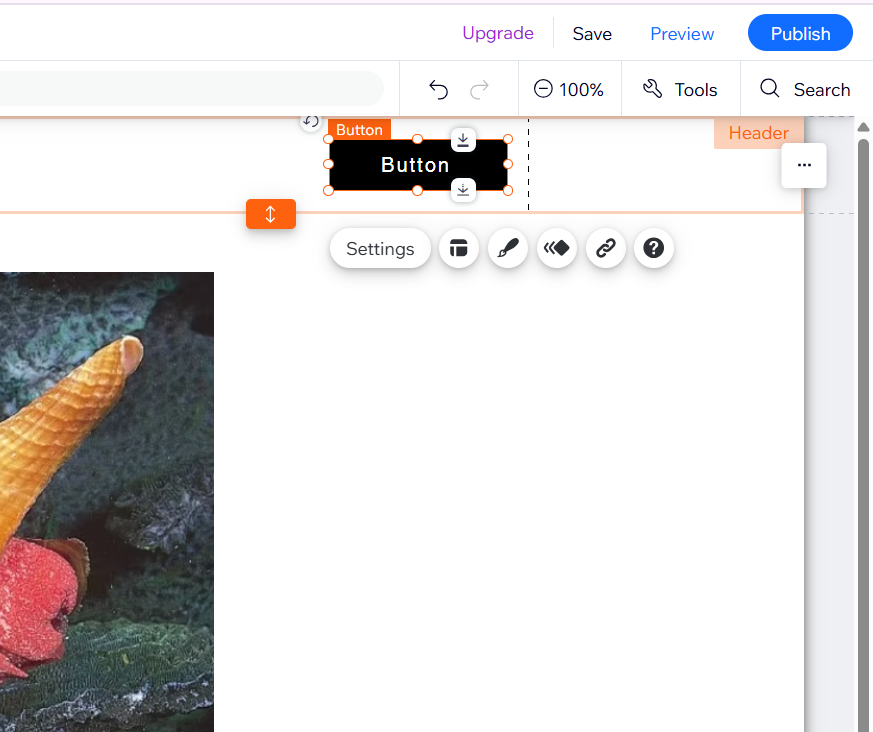
You can then drag the button to the top of Wix’s workshop to add it to the header! Voila! Just like that your website is up to code!
Alt Text
Tip 3: Images should always have descriptive alt text so that everyone can enjoy them!
WCAG standards code 1.1.1 tells us all about alt text! It says that all non-text content (including images and videos) that is visible to the user needs a text alternative that holds the same information. This usually means describing the element in detail.

A good example of alt text for this image would be: “a cone snail with an orange shell and red body climbs some blue coral in its natural ocean habitat.”
A bad example of alt text for this image would be: “a snail crawling.”
The first example lets the user know what type of snail it is, its colors, habitat, and activities. Meanwhile, a viewer could read the second example and not even learn it’s an aquatic snail.
This standard helps any users who have a visual disability which restricts them from properly seeing an image.
How Do I Do This?
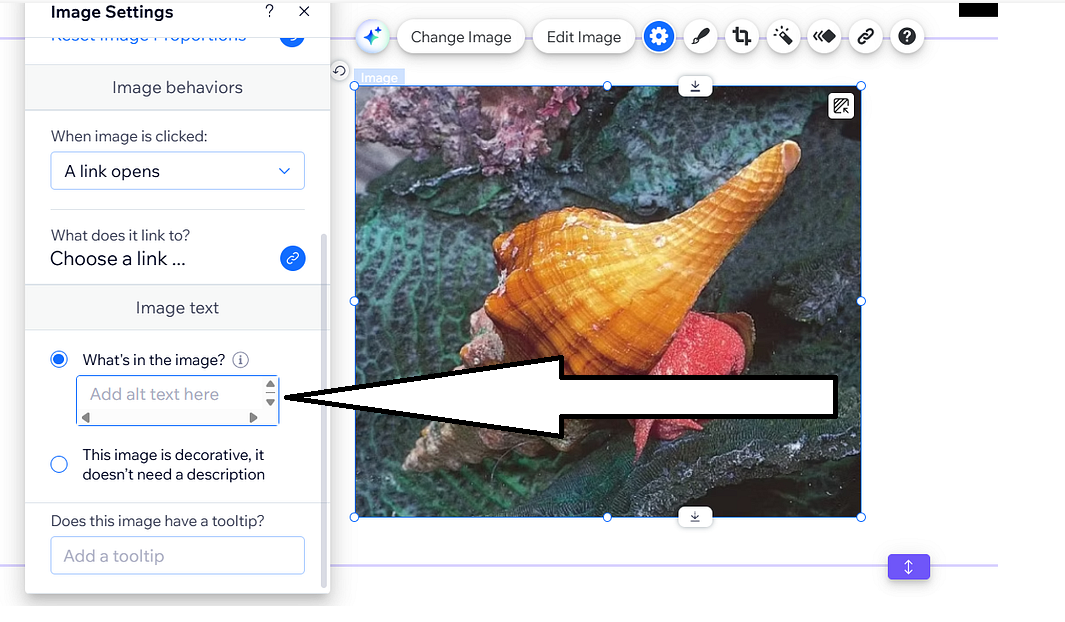
Wix makes adding alt text easy. First, click the desired image to pull up its content menu. Then click the settings button within that menu
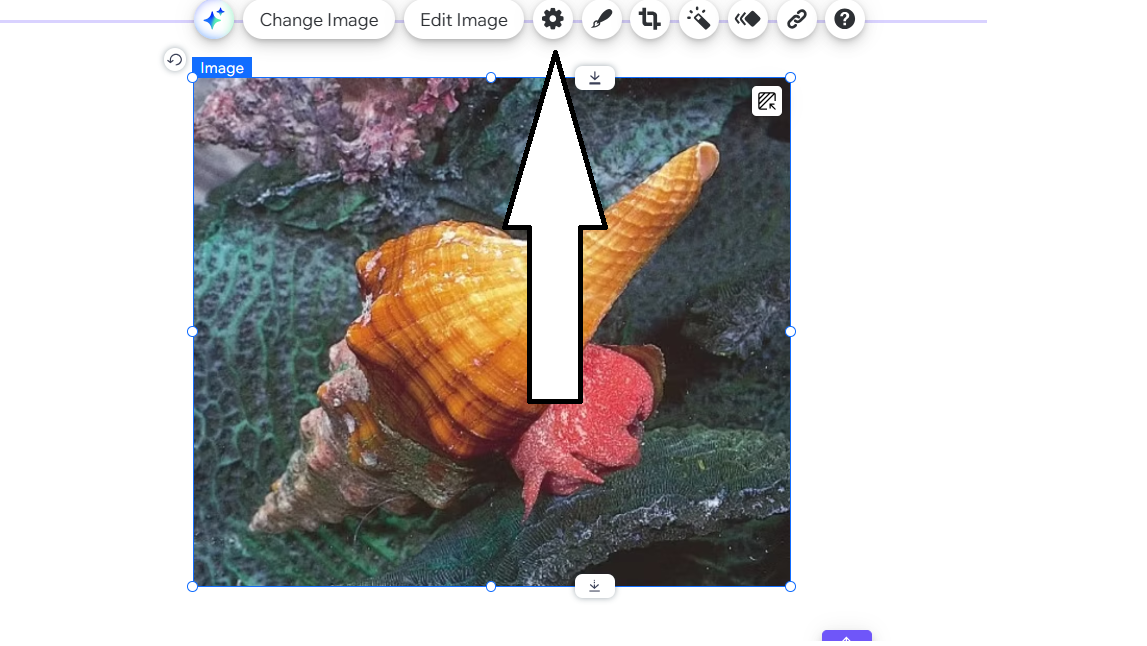
Next simply click the box labeled “Image Text” and add your alt text! Like I said it’s super easy!
Wrapping Up
Creating websites can be hard, but in the modern day it’s a necessary evil all small business owners have to endure. Ensuring your website isn’t just functional, but fully accessible is an absolute must for maintaining solid customer relationships. Using tools like Wix to build your website while keeping online accessibility at the forefront of the design is the key to success in the modern era.
While this article went over 3 specific accessibility standards, it’s important to remember that there are still dozens more to include. For a detailed guide of these standards, just click this link, and for information on how to implement these standards into your Wix webpage, follow this link! By implementing online accessibility we can make the internet a better place for everyone!
메타데이터
- post_id
- cd31bedf5cd8
- slug
- accessibility-on-your-wix-website-3-tips-on-how-to-make-the-best-first-impression-cd31bedf5cd8
- url
- https://medium.com/@petersn931/accessibility-on-your-wix-website-3-tips-on-how-to-make-the-best-first-impression-cd31bedf5cd8
- canonical_url
- https://medium.com/@petersn931/accessibility-on-your-wix-website-3-tips-on-how-to-make-the-best-first-impression-cd31bedf5cd8
- author_url
- https://medium.com/@petersn931
- status
- ok
- fetched_at
- 2026-06-22 00:13:37