Coding with Local LLMs vs. Cloud LLMs & How Much VRAM You Need
No subscriptions, no rate limits, no breaches — yet achieving all three may be harder than it seems
Coding with Local LLMs vs. Cloud LLMs & How Much VRAM You Need
No subscriptions, no rate limits, no breaches — yet achieving all three may be harder than it seems
Key Takeaways:
- Adding an expensive GPU to your old computer doesn’t make it an AI workstation automatically.
- Buy a new machine with optimzed parts (GPU/NPU, memory, power supply, etc.) for AI tasks.
- Don’t use small AI models for vibe coding.
I have a lot of legacy codes that are quite old. Old they may be, but they include some very powerful features. Additionally, some of my codes are enormously big. They would be well over a million tokens. It would cost me a lot of money if I used cloud LLMs to refactor. So, I wanted to use local LLMs to save cost and prevent security breaches.
Installing an NIVIDA GPU
I installed RTX 5060 Ti 16GB GDDR7 (VRAM) on my mini tower HP PC with Intel i7 CPU and 16GB DDR4 (RAM). I chose this model because it offers the best performance for the buck.
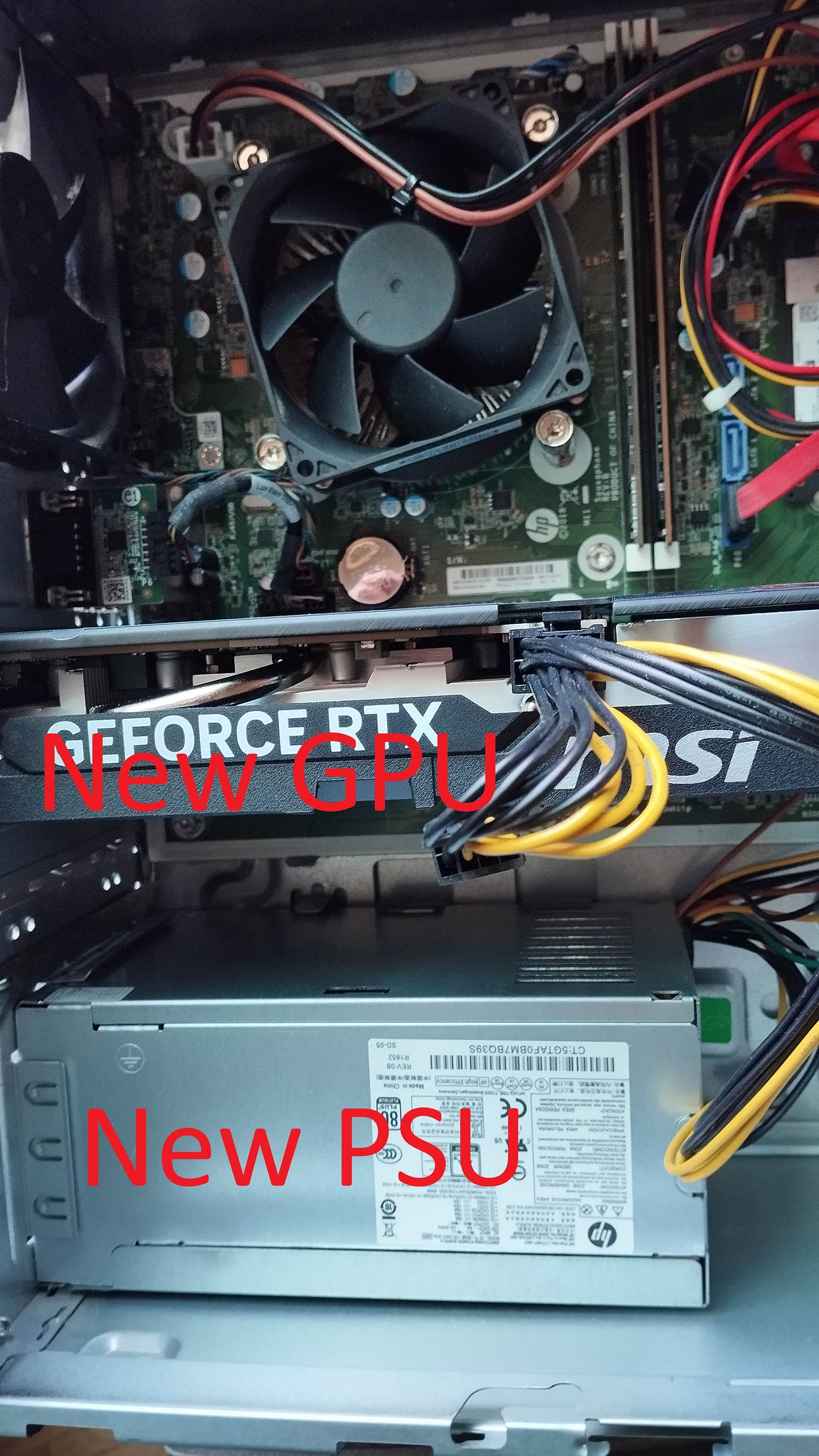
Photo by author
This is one of the most affordable graphic cards with NVIDIA’s Blackwell chips. I had to order a new HP-compatible power supply from China, because this graphic card draws a lot of power and nobody sells this particular power supply in South Korea. I used a 500w PSU despite the warning from ChatGPT that it may be a little bit too small. It worked fine. The only downside of using this card on my PC was that I had to give up the DVD drive as there was not enough space in my mini tower PC case.

ODD not fitting in the case anymore after the GPU was installed (video by author)
The following is a program I made for this setup. I decided to use only local models because almost all the images to be processed have private information. The primary reason for me to assemble this small setup was to build a searchable vector index of 2TB of documents and images which might have costed a lot of money if I used cloud service APIs.

Readme.md from my project using only local AI models
You can see models like Qwen3-VL, Bge-m3, and PaddleOCR. However, PaddleOCR didn’t support the newest version of the CUDA library for my very new graphics card. So, I let it use CPU mode for now. It can be difficult to make programs run on GPU if your GPU is too new. Many programs will fall back to CPU even if you installed a GPU, causing you an enormous amount of agony. Vibe Coding can’t help here either because, once again, they can’t do anything without a set of questions and answers online.
Local LLM Interface
I’m using Ollama as the local LLM gateway and the GUI chat program. The GUI looks like this. (I also use llama.cpp as a backup for API calls)
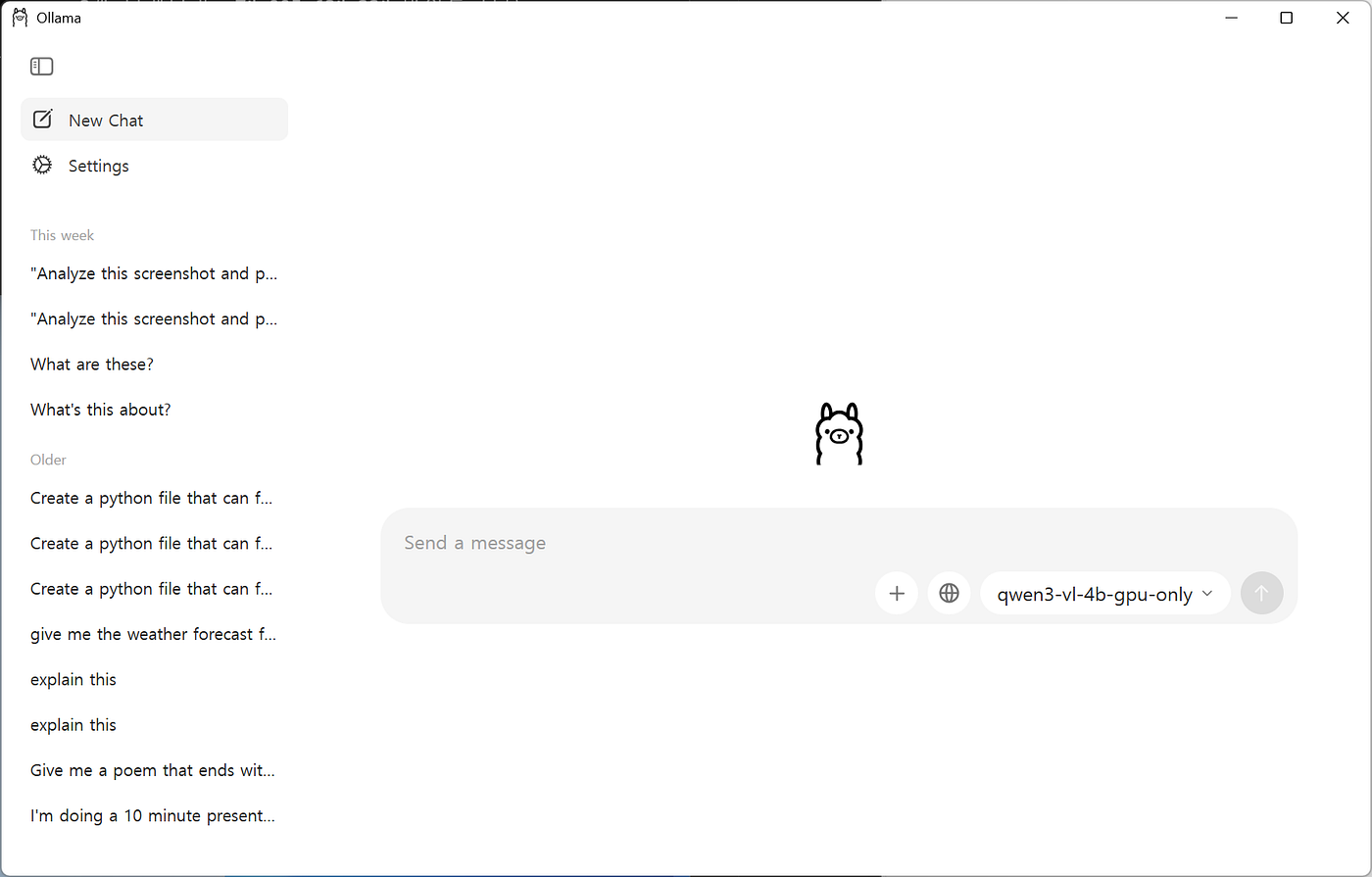
A screenshot of Ollama (image by author)
Anyone can download Ollama for free to try different models. Even if you don’t have a GPU, you can try Phi3 mini which is only around 2GB. It’s from Microsoft and is very good in everyday purpose tasks including summarization, sentiment assessment, proofreading, and RAG (using online/offline documents as context). However, you may have to write out details of your intention and the context surrounding your request. It may not be able to figure out implicit elements not expressed in the prompt like big cloud LLMs.
If you try bigger models like on your CPU-only computer, it may be in-cre-di-bl-y sl-o-w. It could be slower than your typing speed. If you wanted to use some serious LLM performance, you might have to wait for a while before small models can be as good as some cloud versions.
How Much VRAM Do You Really Need for AI?
The most important thing about your AI PC is the size of the VRAM. This is going to determine the size of the model (and therefore its smartness) you can use. If you have 16GB VRAM on your GPU, you cannot easily run AI models with higher numbers of parameters than 10b (10 billion parameters). You also have to allow some room for KV cache and the context window.
So, if you want to run smart AI models like a 70b model, you would need a group of graphic cards with minimum 96GB VRAM on your computer. Some new mini computers have memory called LPDDR that are shared by the CPU and GPU. The shared memory design can save you some money while speeding up AI operations.
However, while VRAM size does determine the maximum model size you can run easily without optimization, modern techniques (like quantization and offloading) can allow you can run much larger models on less VRAM than traditional assumptions.
Apple M-series & Mini PCs
M-series chips (M1/M2/M3) are excellent for light inference (7B–13B models in 4-bit) through Apple Silicon’s Neural Engine (NPU). They’re great for chat, summarization, or basic RAG. However, this is not suitable for training or heavy coding. M-series lack dedicated VRAM. Their system RAM is called LPDDR and this is not as powerful as GDDR or HBM used in high end GPUs.
Mini PCs like ASUS PN60 and Lenovo ThinkStation P6 with AMD Ryzen AI Max or NVIDIA RTX GPUs can run 13B–24B models with 16GB–24GB VRAM. They’re budget-friendly for inference but again not for training.
If you wanted to use your old PC with a graphic card with 16GB VRAM which is an absolute minimum for any local AI operations, you can run:
- Phi-3-mini (2GB) for summerization, sentiment assessment, proofreading, RAG (using online/offline documents as context)
- Qwen 3-VL-4B (image+text) for tasks like image analysis and OCR
- Devstral 24B (Q3 quantized) for coding — but expect very frequent corrections.
Practical Recommendations
- For inference only (chat, summaries, RAG): → 16GB VRAM (e.g., RTX 5060 Ti 16GB) can work. With 4-bit quantization (e.g., GGUF), you can run 7B–13B models (like Llama 3 8B, Qwen 2.5 7B) comfortably on 16GB VRAM which you might get for $500.
- For coding (local models): → Priced at around $3,500, 24GB+ VRAM (e.g., RTX 4070 Ti/4080) is the minimum for 24B–30B models (e.g., Qwen 2.5-Coder 14B). Avoid “agentic” models — they’re still unreliable for production. This is for minimal coding assistance like auto-complete or very simple refactoring or debugging with a very detailed rules. For summarizing docs or explaining code, local Phi-3-mini on CPU could work.
- For training or 70B+ models: → 4x RTX 4090 (24GB each) or AMD MI300X (192GB HBM3). Apple/Mac mini are not viable. Llama 3 70B (4-bit) runs on 3 GPUs with 24GB each (total 72GB VRAM). This kind of setup can cost you in the realm of $10,000 per worksation.
- 70B models require at least 24GB–48GB VRAM (even with heavy quantization). 96GB is typically needed for unquantized 70B models or large context windows, but not for standard inference.
If you are not an experienced developer, do not use graphic cards from Intel or AMD as popular programs like Ollama won’t support. Most programs support only CUDA-based GPUs. Even NVIDIA GPUs can be hard to set up for many developers depending on the version. Imagine how hard it will be to use Intel or AMD GPUs for personal use, let alone commercial use.
Coding with Small Language Models
I tried using Qwen2.5-coder-14b and Devstral-small-2–24b for coding. Qwen2.5-coder wasn’t bad, but Devstral-small-2 was a little more agentic. Nevertheless, I ended up abandoning both for coding as they still required a lot of corrections. If you are going to use local LLMs for coding, I think you would probably need a very large VRAM capacity, such as minimum 96GB. If coding is your main AI work, forget about using a graphics card priced at less than several thousand dollars. 16GB or 32GB VRAM is only going to be able to handle non-precision tasks like creative writing, summarizing, translating, and consulting documents.
For coding, you must use state-of-the-art cloud models. You won’t get productivity from local LLMs for coding.
IDE for Local LLMs
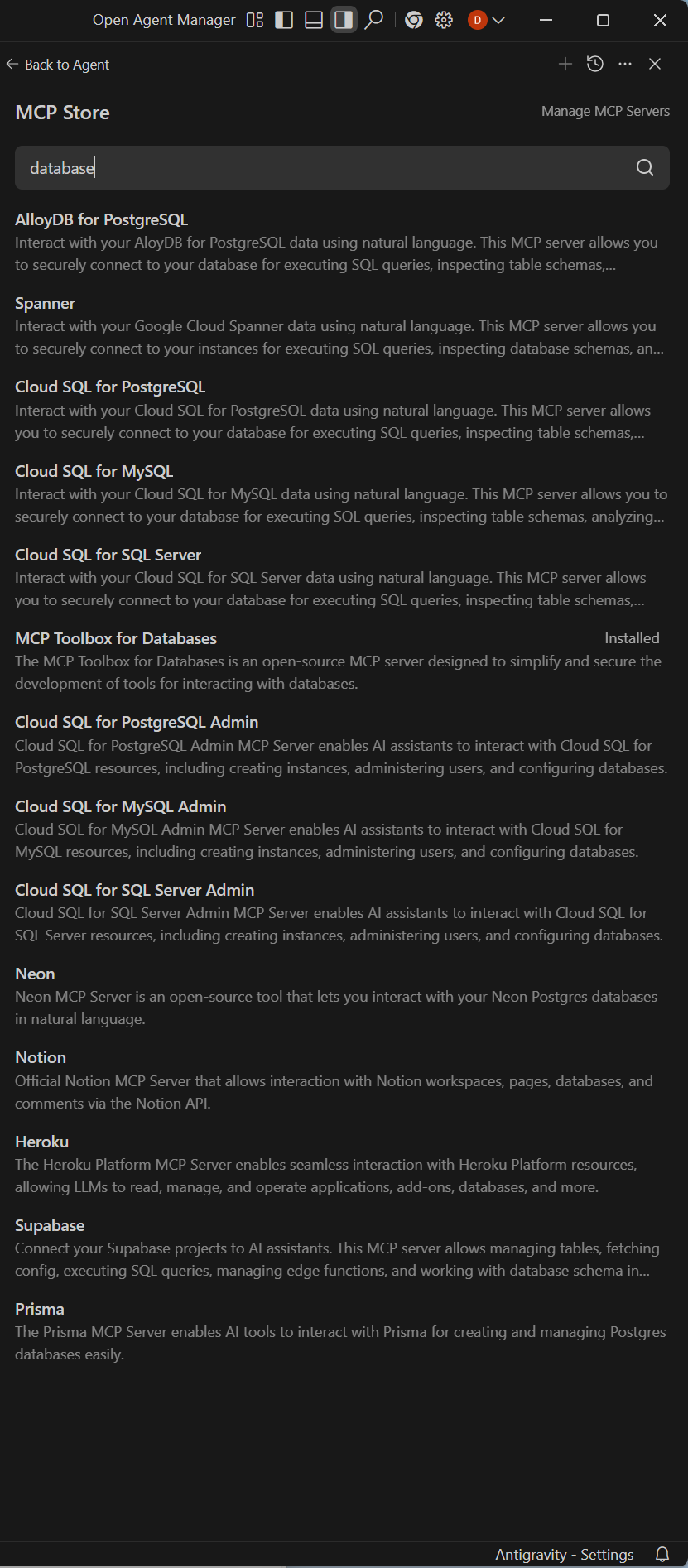
IDE (Integrated Development Environment) is a software development tool. There are not so many IDEs that support local LLMs as of January 2026. More and more IDEs are dropping supports for local models and require subscription models. Antigravity certainly doesn’t support local LLMs. They only offer seven state of the art cloud models.
There are some extensions of VS Code. Cursor may offer a support for local LLMs. CLI tools like Aider may offer a local LLM support. Things change so often that you would have to investigate every time you need one.
How to Mitigate Privacy Concerns with Cloud Coding Assistant
I think the only way we can prevent private information from getting leaked outside your closed system is to come up with a custom preprocessor and a policy engine as below:
- Preprocessor plugin for IDEs: Automatically anonymizes code before sending to the cloud.
- Policy engine: Configurable rules that block sensitive terms from leaving your environment.
Then your local LLM or conventional algorithms can preprocess and postprocess the communcations in this way:
- Local anonymizer strips sensitive info.
- Cloud LLM processes anonymized input.
- Local postprocessor restores original context.
Here are some strategies for using cloud AI models without leaking sensitive information:
1. Data Minimization
- Only send the necessary code snippets or context to the cloud model.
- Strip out comments, credentials, API keys, and proprietary identifiers before sending.
Example: Instead of pasting an entire config file, send only the function signature or error trace.
2. Anonymization Tools
- Use preprocessing scripts that replace sensitive names (e.g., customer IDs, table names, proprietary function names) with placeholders.
Example: CustomerAccount → EntityA, SSN → FieldX.
- After receiving the model’s output, map placeholders back to real names locally.
- This can be automated with regex-based anonymizers or custom tokenizers.
3. Blacklists / Guardrails
- Maintain a blacklist of sensitive files, database tables, or keywords that must never be sent to the cloud.
Example: Block anything containing password, secret, confidential, or specific schema names.
Tools like CodeLLM (open-source) or Tabnine support custom privacy pipelines.
Conclusion
Local LLMs for coding are currently impractical on consumer-grade hardware (equals or less than 24GB VRAM), but hybrid cloud-local approaches with strict privacy controls may offer a path for highly private code refactoring. Prioritize model size, quantization, and workflow design over raw VRAM alone. RTX 4090 (24GB) priced at about $3,500 is the absolute minimum for intermediate models (e.g., Qwen 2.5-Coder 14B).
$500 GPU such as RTX 5060 (16GB) can handle docstrings, comments, and simple code restructuring. This relatively affordable setup can be used for summarizing or explaining code with no issue, but it’s best for textual tasks like document summary, explanation of codes, sentiment assessment, and RAG tasks. If security is your priority, cloud LLMs with a custom privacy layer are the only viable option today. Local LLMs won’t be replacing them for complex coding for now.
BUT, small models are becoming increasingly smart. Today’s 2 billion parameter model can be as good as 200 billion parameter models from two years ago. If we discover a breakthrough beyond transformer architectures, the business model of cloud AI providers — which relies heavily on scaling massive models — could face serious disruption.
Contact me if you have trouble in setting up local GPUs or need to build a development environment with strong privacy control. I’ll be glad to help.
Like, subscribe, or share if you want to support content like this!
메타데이터
- post_id
- cdcee1fdb5d5
- slug
- coding-with-local-llms-vs-cloud-llms-how-much-vram-you-need-cdcee1fdb5d5
- url
- https://pub.towardsai.net/coding-with-local-llms-vs-cloud-llms-how-much-vram-you-need-cdcee1fdb5d5
- canonical_url
- https://pub.towardsai.net/coding-with-local-llms-vs-cloud-llms-how-much-vram-you-need-cdcee1fdb5d5
- author_url
- https://medium.com/@don-lim
- status
- ok
- fetched_at
- 2026-06-13 09:11:36