Self-Hosting Llama 3.1 with NVIDIA NIM & DGX Spark: A Complete Guide
Deploy production-ready LLM inference on your own hardware in under 30 minutes
Self-Hosting Llama 3.1 with NVIDIA NIM & DGX Spark: A Complete Guide
Deploy production-ready LLM inference on your own hardware in under 30 minutes

What You’ll Build
By the end of this guide, you’ll have:
- ✅ Llama 3.1 8B running on your GPU
- ✅ OpenAI-compatible API endpoint
- ✅ Beautiful web UI for chatting with your model
- ✅ Complete control over your AI infrastructure
Hardware Used: NVIDIA DGX Spark with GB10 GPU (but works on any NVIDIA GPU with sufficient memory)
Part 1: Understanding NVIDIA NIM
NIM (NVIDIA Inference Microservices) packages everything you need to run LLMs in production:
- Container image: Pre-configured runtime environment
- Inference engine: vLLM or TensorRT-LLM
- Model weights: Downloaded separately at runtime
- OpenAI-compatible API: Drop-in replacement for OpenAI
- Optimizations: GPU-specific performance tuning
Think of it as: Docker container (infrastructure) + Model weights (the AI brain) + API server (how you talk to it)
Part 2: Getting Access
Step 1: Join NVIDIA Developer Program
- Go to build.nvidia.com
- Click “Get API Key”
- Sign up with your email
- Navigate to the Deploy tab
- Select “Self-Hosted”
- Generate your NGC API key
Important: The key starts with nvapi- and grants you access to download NIMs.
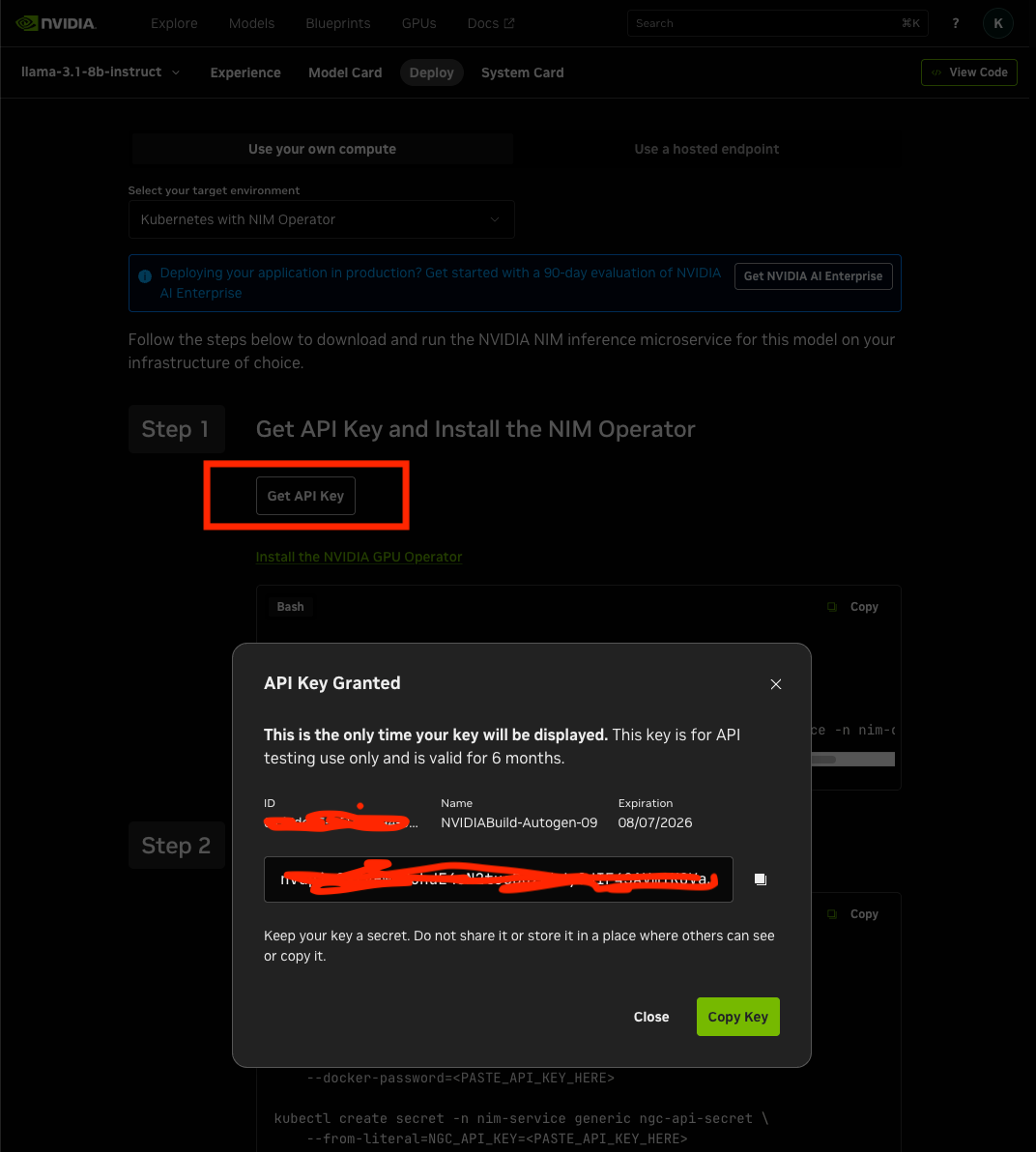
generating api key for the container
Step 2: Authenticate Docker
export NGC_API_KEY=nvapi-your-key-heredocker logout nvcr.io
echo "$NGC_API_KEY" | docker login nvcr.io --username '$oauthtoken' --password-stdinPart 3: Deploy Your First NIM
Pull the Container
docker pull nvcr.io/nim/meta/llama-3.1-8b-instruct:latestThis downloads ~10GB of infrastructure (not the model yet).
Run the NIM
docker run -d \
  --name llama-3.1-8b-nim \
  --gpus all \
  --shm-size=16GB \
  -e NGC_API_KEY=$NGC_API_KEY \
  -p 8000:8000 \
  nvcr.io/nim/meta/llama-3.1-8b-instruct:latest
What happens:
- Container starts
- Detects your GPU and selects optimal profile
- Downloads ~16GB of model weights from NGC
- Loads model into GPU memory
- Starts API server on port 8000
Monitor Progress
docker logs -f llama-3.1-8b-nimWait for:

Application startup complete.
Uvicorn running on http://0.0.0.0:8000
Once the Container is started , your DgX dashbor will look like this :)
Part 4: Test Your NIM
List Available Models
http://localhost:8000/v1/models
if you are running in your DgX Spark and usign tailscail , use your sparks tailscale ip insted of local host. Som thing lik e http://100.132.99.3:8080/
Send Your First Request
curl -X POST http://localhost:8000/v1/chat/completions \
  -H "Content-Type: application/json" \
  -d '{
    "model": "meta/llama-3.1-8b-instruct",
    "messages": [
      {"role": "user", "content": "Write a haiku about GPUs"}
    ],
    "max_tokens": 100
  }'
Response:
{
  "choices": [{
    "message": {
      "content": "Silicon chips dance\nLightning-fast, with mode of force\nGraphic dreams unfold"
    }
  }]
}
🎉 It works!
Part 5: Add a Beautiful UI
Deploy Open WebUI
docker run -d \
  --name open-webui \
  -p 8080:8080 \
  -v open-webui:/app/backend/data \
  ghcr.io/open-webui/open-webui:main
Connect to Your NIM
- Open
http://YOUR-SERVER-IP:8080in browser - Create an account (first user becomes admin)
- Click Settings (gear icon)

- Go to Admin Settings → Connections


- Under OpenAI API, click + to add:
- URL:
[http://YOUR-SERVER-IP:8000/v1](http://YOUR-SERVER-IP:8000/v1) - Auth: None
- Save
Start Chatting!
Go to the chat interface, select meta/llama-3.1–8b-instruct from the dropdown, and start chatting with your self-hosted AI!
Understanding the Architecture
┌─────────────────┐
│   Open WebUI    │  (Port 8080 - Chat Interface)
└────────┬────────┘
         │ HTTP Requests
         ↓
┌─────────────────┐
│   NIM API       │  (Port 8000 - OpenAI Compatible)
└────────┬────────┘
         │
         ↓
┌─────────────────┐
│  vLLM Engine    │  (Inference Runtime)
└────────┬────────┘
         │
         ↓
┌─────────────────┐
│  Model Weights  │  (Llama 3.1 8B - FP8 Quantized)
└────────┬────────┘
         │
         ↓
┌─────────────────┐
│   GPU (CUDA)    │  (Hardware Acceleration)
└─────────────────┘
Useful Commands
Check Running Containers
docker psView Logs
docker logs -f llama-3.1-8b-nimStop/Start
docker stop llama-3.1-8b-nim
docker start llama-3.1-8b-nim
Test Streaming Responses
curl -X POST http://localhost:8000/v1/chat/completions \
  -H "Content-Type: application/json" \
  -d '{
    "model": "meta/llama-3.1-8b-instruct",
    "messages": [{"role": "user", "content": "Tell me a story"}],
    "stream": true,
    "max_tokens": 200
  }'
What’s Next?
Now that you have a working setup, you can:
Deploy More Models:
# Mistral 7B
docker pull nvcr.io/nim/mistralai/mistral-7b-instruct-v0.3
# NVIDIA Nemotron
docker pull nvcr.io/nim/nvidia/nemotron-4-340b-instructBuild Applications:
- RAG pipelines with LangChain
- Custom chatbots
- Code assistants
- Data analysis tools
Optimize Performance:
- Try different quantization levels (FP8, INT4)
- Multi-GPU deployment
- Fine-tune with LoRA adapters
Troubleshooting
“Permission denied” when pulling:
- Verify you’re using the API key from build.nvidia.com
- Make sure you clicked “Get API Key” in the Deploy → Self-Hosted section
“Out of memory” errors:
- Reduce
gpu_memory_utilizationin docker run - Try a smaller model (e.g., Mistral 7B)
- Use quantized versions (FP8, INT4)
Can’t connect to Open WebUI:
- Check firewall settings
- Verify port 8080 is accessible
- Use server IP, not
localhostif accessing remotely
Cost Analysis
Hardware: Self-hosted on your own GPU (one-time investment) Software: FREE (NVIDIA Developer Program) API Calls: UNLIMITED Data Privacy: Complete control — nothing leaves your infrastructure
For high-volume use cases, self-hosting pays for itself quickly.
Conclusion
You’ve just deployed a production-ready LLM inference system with:
- ✅ Enterprise-grade performance
- ✅ OpenAI-compatible API
- ✅ Beautiful web interface
- ✅ Complete data privacy
- ✅ Unlimited usage
Total setup time: ~30 minutes Result: Your own AI infrastructure!
Resources
Questions? Drop them in the comments! Happy self-hosting! 🚀
메타데이터
- post_id
- cddd06560d7e
- slug
- self-hosting-llama-3-1-with-nvidia-nim-dgx-spark-a-complete-guide-cddd06560d7e
- url
- https://medium.com/@kodoth/self-hosting-llama-3-1-with-nvidia-nim-dgx-spark-a-complete-guide-cddd06560d7e
- canonical_url
- https://medium.com/@kodoth/self-hosting-llama-3-1-with-nvidia-nim-dgx-spark-a-complete-guide-cddd06560d7e
- author_url
- https://medium.com/@kodoth
- status
- ok
- fetched_at
- 2026-06-26 21:52:29