The Local AI Coding Setup Everyone Asked For
My laptop specs, Ollama setup, Qwen model, VS Code workflow, and what actually runs well locally
The Local AI Coding Setup Everyone Asked For
My laptop specs, Ollama setup, Qwen model, VS Code workflow, and what actually runs well locally
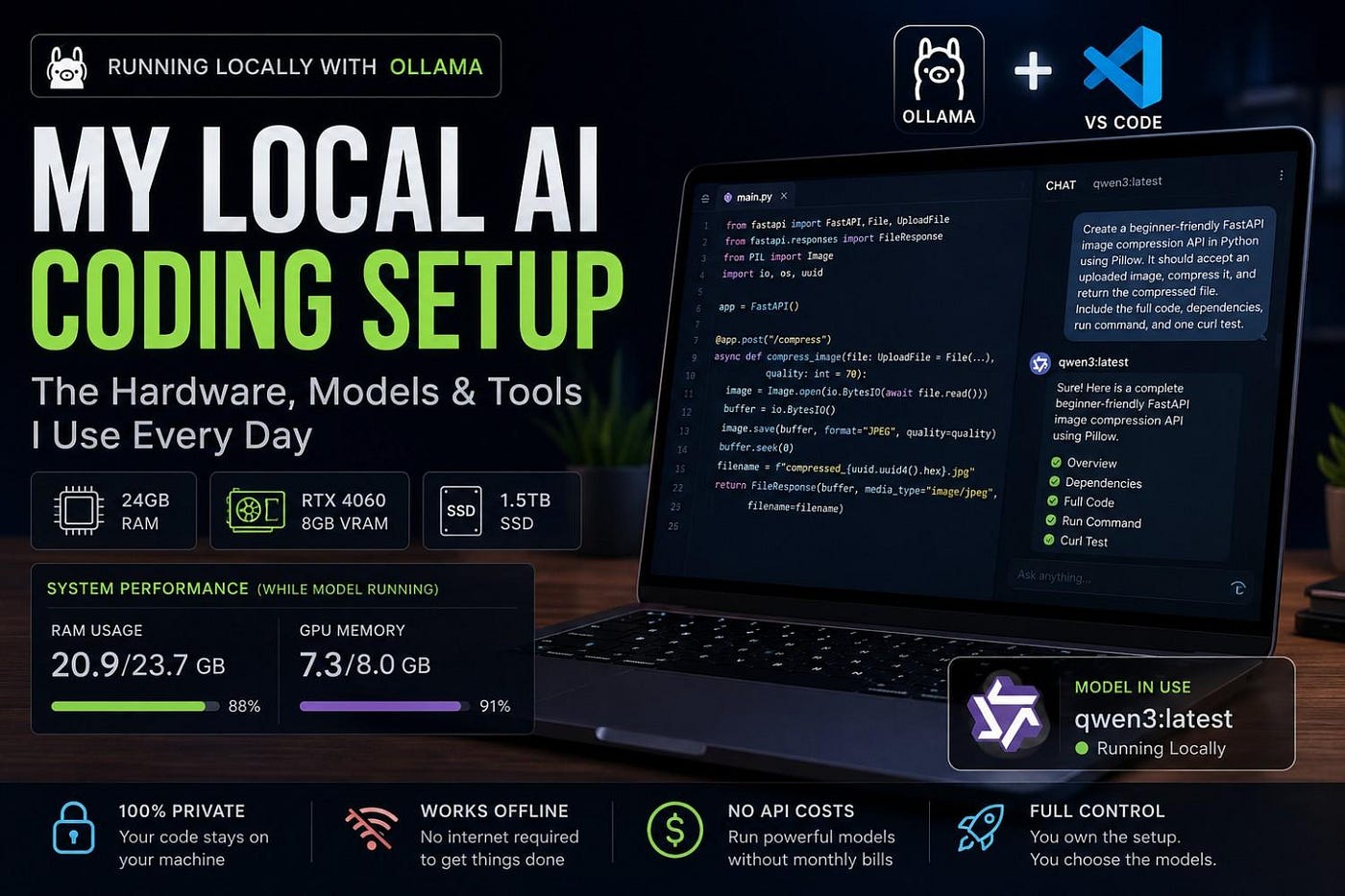
After I published my article about replacing Cursor, Claude Code, and Copilot with a local AI coding agent for 7 days, the article got a much stronger response than I expected.
A lot of people understood the main point immediately. Local AI is not only about speed. It is about privacy, control, cost, offline access, and having another option when you do not want every piece of code going to the cloud.
But there was also one fair criticism.
Several readers asked the same question in different ways:
What hardware did you use?
Which model did you run?
Was this on a normal laptop or some expensive workstation?
How much RAM, VRAM, CPU, and SSD do we actually need?
And honestly, they were right to ask. Without hardware details, any local AI article feels incomplete. Local AI depends heavily on the machine you are using. A 3B model on a normal laptop and a 70B model on a workstation are not the same thing. Both may be called “local LLMs,” but the real-world experience is completely different.
So this article is the missing technical part of my previous experiment.
This is not a fantasy benchmark. This is not a sponsored hardware guide. This is my practical experience running a local AI coding setup on my own laptop, checking the system usage, using Ollama, selecting Qwen locally, and connecting the model inside VS Code for coding work.
My Actual Laptop Specs
The machine I used was not an RTX 6000 workstation. It was not a custom AI server. It was a good developer and gaming-style laptop with enough power to run practical local models.
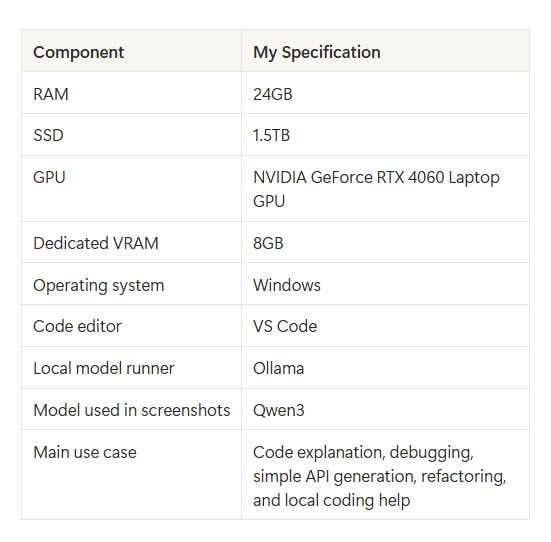
Here is my exact setup in simple form.
Component My Specification RAM 24GB SSD 1.5TB GPU NVIDIA GeForce RTX 4060 Laptop GPU Dedicated VRAM 8GB Operating system Windows Code editor VS Code Local model runner Ollama Model used in screenshots Qwen3 Main use case Code explanation, debugging, simple API generation, refactoring, and local coding help
This setup is good enough to run local AI coding models, but it is not unlimited. That is the most honest way to say it.
It can run 7B and 8B models well. It can try 12B or 14B models with some compromise. It is not the right machine for 32B or 70B models if you want a smooth daily coding workflow.
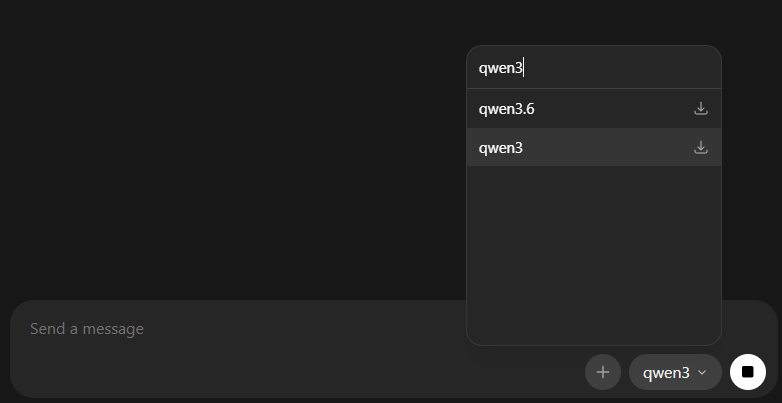
In my Ollama interface, I selected Qwen3 as the local model. I also saw Qwen3.6 available, but for this test and screenshots, I used Qwen3. The main point here is simple: the model was running locally on my machine, not as a cloud model.
This is the part many people misunderstand. When you use a local model through Ollama, the model is downloaded and executed on your own system. Your laptop’s RAM, VRAM, CPU, and GPU become the real limit.
That is why hardware specs matter so much.
If your machine has enough memory, the experience feels useful. If your machine does not have enough memory, the same model can feel slow, stuck, or completely impractical.
My Real Performance While the Model Was Running
I also captured Task Manager while the local model was running. This was important because I did not want to write only theory. I wanted to see what the machine was actually doing.
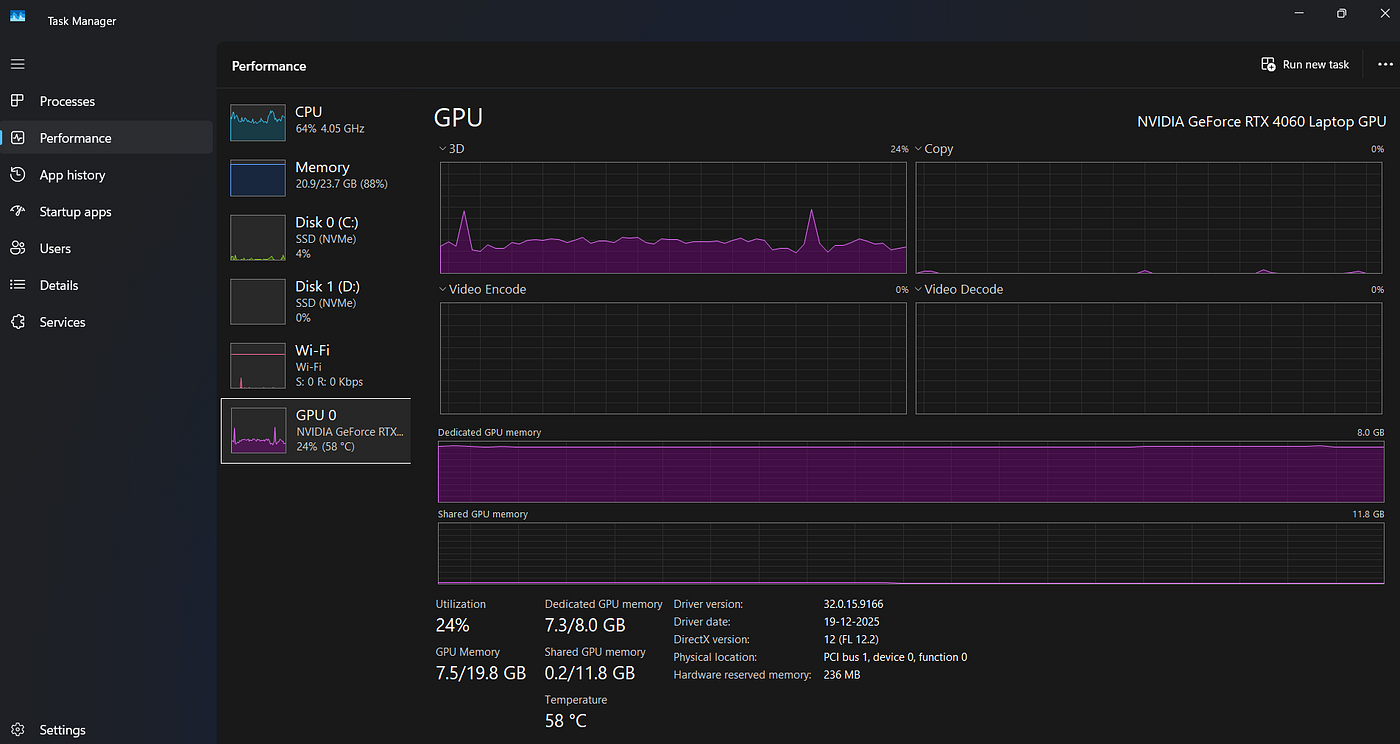
While the model was active, my system was using around 20.9GB out of 23.7GB RAM. That means almost 88% of my system memory was already in use. The GPU section showed my NVIDIA RTX 4060 Laptop GPU, and the dedicated GPU memory usage was around 7.3GB out of 8GB.
That tells the full story.
The model was not just “running lightly.” It was using the machine seriously. On an 8GB VRAM GPU, a local model can quickly get close to the memory limit, especially when the context size increases or when the model is larger.
This is why I say 8GB VRAM is useful, but it is not huge. It is good for 7B and 8B models. It is not a magic ticket for every large model.
The Most Important Spec Is Memory
When people ask about local AI hardware, they often start with the CPU.
They ask:
Do I need i7?
Do I need Ryzen 7?
Do I need i9?
Do I need the latest processor?
The CPU matters, but for local LLMs, memory is usually more important. You need to think about two types of memory: system RAM and GPU VRAM.
System RAM is your normal laptop memory. GPU VRAM is the memory inside your graphics card. For local AI, VRAM is extremely important because if the model fits properly inside GPU memory, it can run much faster. If it does not fit, part of the work may move to system RAM and CPU, and the experience becomes slower.
This is where many people make mistakes. They buy a GPU only by looking at the GPU name, but for local AI, VRAM capacity matters a lot. An RTX 4060 with 8GB VRAM is good for practical local AI, but it has limits. A GPU with 12GB, 16GB, or 24GB VRAM gives much more breathing room for larger models.
For coding, this matters even more because coding assistants often need context. You may want to paste a function, an error message, a route file, a schema, or a longer code block. Longer context means more memory pressure.
What My RTX 4060 8GB Laptop Can Actually Run
On my laptop, the best local AI experience is with smaller and mid-size models. The most practical range is 7B to 8B models.
This is the range where the model feels useful without becoming painfully slow. These models are not as powerful as the best cloud models, but they are good enough for real coding support.
They can explain code, rewrite functions, create simple FastAPI routes, generate SQL examples, help with Python utilities, write small tests, and debug clear error messages. They are especially useful when the task is focused and the prompt is not too large.
For example, asking a local model to “create a beginner-friendly FastAPI image compression API using Pillow” is a realistic task. In my VS Code screenshot, I asked exactly that kind of prompt, and the local model started planning the FastAPI setup, dependencies, image processing logic, compression flow, and test approach.
This is the kind of work where local AI feels practical.
But asking the same setup to understand an entire large codebase, refactor 20 files, design production architecture, and reason deeply across multiple systems is not realistic. That is still where stronger cloud models win.
My VS Code Workflow With Ollama and Copilot Chat
One of the most useful parts of the setup was using the local model inside VS Code.
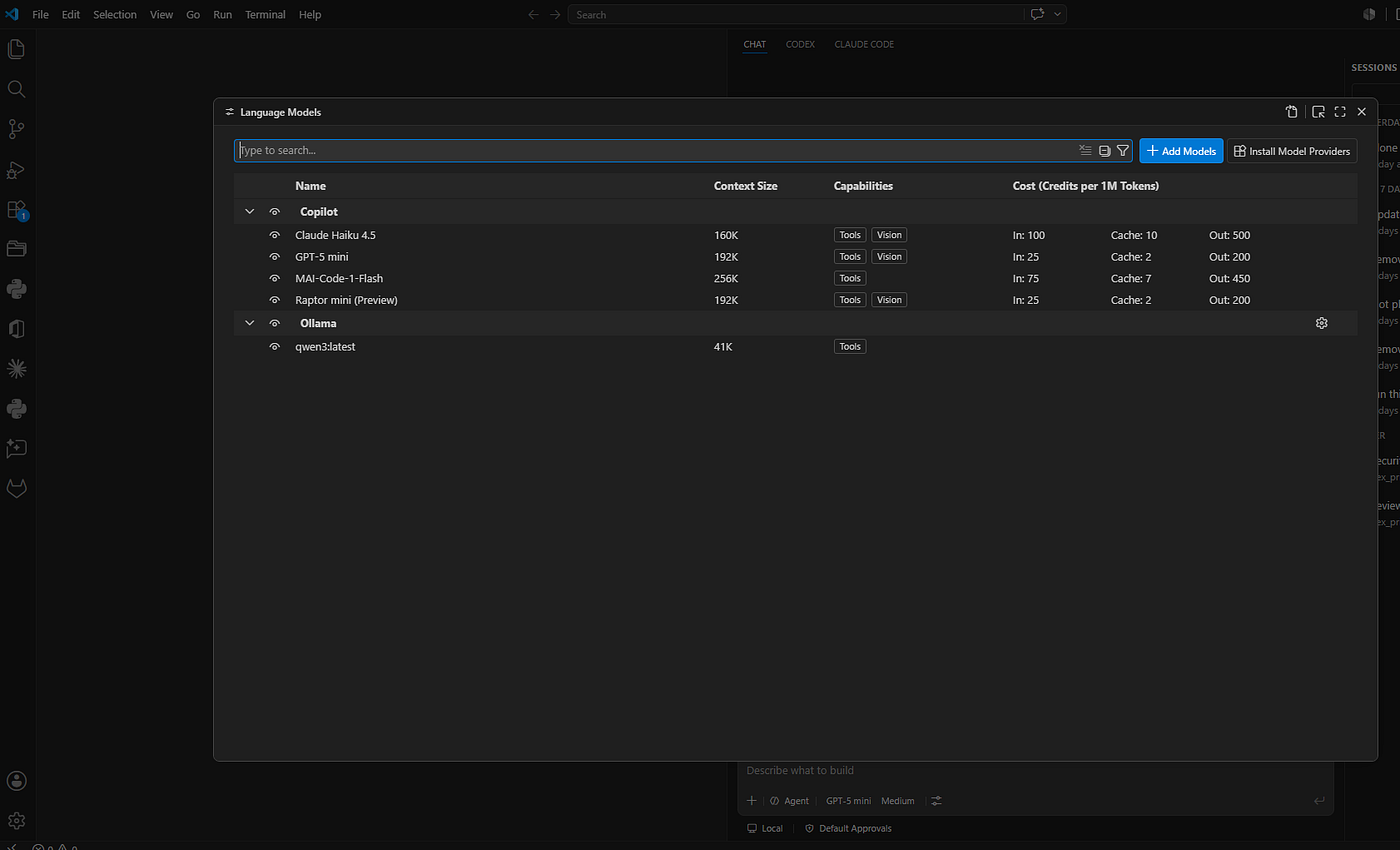
In the VS Code model selector, I had cloud models like Claude Haiku, GPT-5 mini, MAI-Coder Flash, and others available through Copilot. But under Ollama, I also had my local model available as qwen3:latest.
That is a very important difference.
I was not just chatting with the model in a terminal. I could use a local Ollama model inside the coding environment, where I actually write code. This makes the workflow much better because developers do not want to copy code between five different windows all day.
In VS Code, the local model could respond to prompts like:
Create a beginner-friendly FastAPI image compression API in Python using Pillow. It should accept an uploaded image, compress it, and return the compressed file. Include the full code, dependencies, run command, and one curl test.
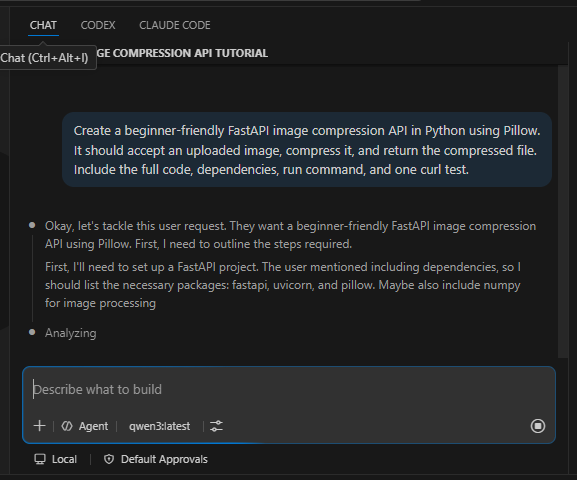
This is a simple but real developer task. It is not just “Hello World.” It includes dependencies, API structure, file upload handling, image processing, and a test request. For this type of focused task, a local model is useful.
It may not give perfect production code every time, but it gives a strong starting point. That is the real value.
The Tools I Used to Run Local LLMs
The model is only one part of the setup. You also need software to run the model.
For my experiment, the main tool was Ollama. Ollama made it easy to download, run, and use local models without building a complex AI setup manually. I could select Qwen3, run it locally, and then connect it with my coding workflow.
The basic idea is simple. Ollama runs the model locally. VS Code becomes the editor where I use the model. Copilot Chat or an Ollama-supported VS Code workflow can show the local model in the model picker. From there, I can ask coding questions inside the editor.
Here is the kind of command you can use to run a model with Ollama.
ollama run qwen3For a coding-focused model, I would also test models like Qwen2.5-Coder.
ollama run qwen2.5-coder:7bThe exact model you choose depends on your hardware. On my laptop, I prefer 7B and 8B models because they give the best balance of speed and quality.
Local LLM Tools Table
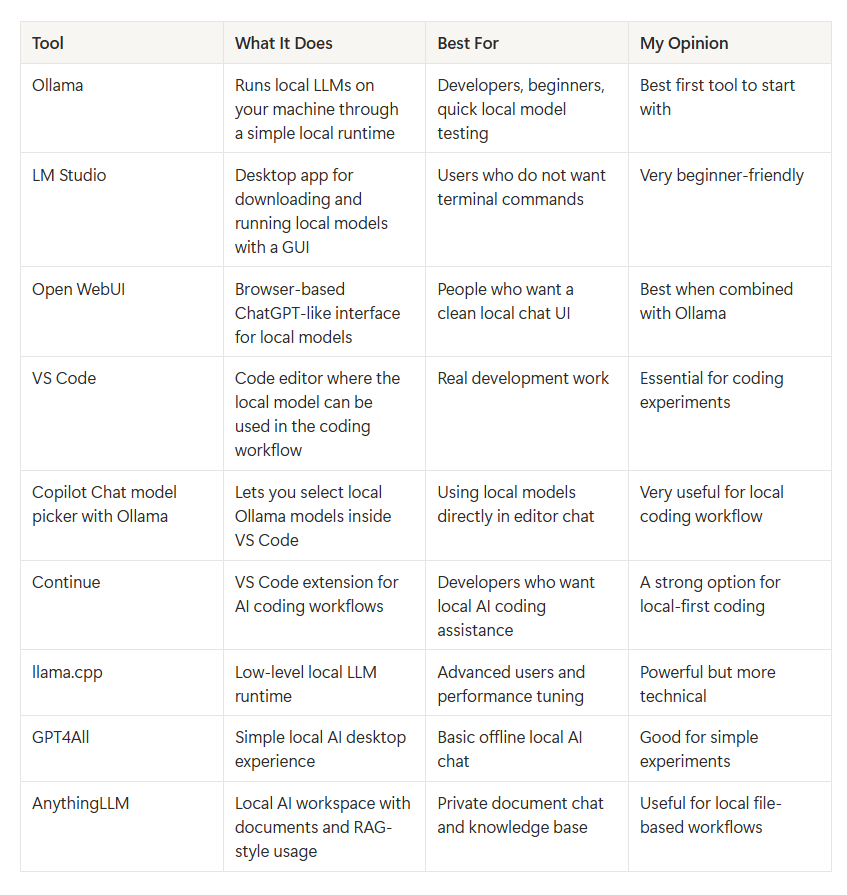
For most developers, I would not recommend starting with too many tools. Start with Ollama first. Run one model. Test it. Then connect it with VS Code. After that, add Open WebUI or LM Studio only if you want a better chat interface.
My practical stack is simple:
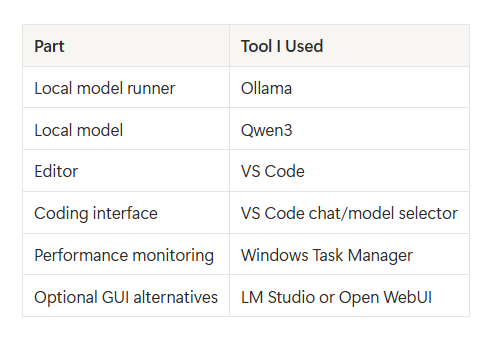
This is enough to test local AI seriously.
You do not need a complicated AI lab on day one.
What Qwen3 Felt Like Locally
Qwen3 was useful for local coding assistance, but I would not describe it as a full replacement for the best cloud coding tools.
For simple prompts, it was good. It could understand the task, structure an answer, explain the plan, and generate usable code. For API examples, Python functions, beginner-friendly code, and debugging explanations, it felt practical.
Where it struggled was large context and deep multi-step reasoning. If I gave it too much code or asked it to behave like a senior architect across a full project, the limits became clear. This is not only a Qwen3 issue. This is the reality of running local models on normal laptop hardware.
The best local AI experience comes when the task is small and clear.
Instead of asking:
Build my full SaaS application.
Ask:
Create one FastAPI route for image upload and compression using Pillow.
Instead of asking:
Understand my complete backend and fix all issues.
Ask:
Explain this error and check this function for possible bugs.
That small change makes local AI much more useful.
What Model Size Should You Use?
This is the most important practical section.
Model size matters a lot. A 3B model, 7B model, 14B model, 32B model, and 70B model will not behave the same. Bigger models usually need more memory and stronger hardware.
On my laptop with 24GB RAM and 8GB VRAM, the sweet spot is 7B to 8B. That is where local AI feels fast enough and useful enough for daily coding support.
A 14B model can sometimes run, but it is slower and less comfortable. A 32B model is not something I would recommend for daily coding on this setup. A 70B model is not practical for a normal laptop like mine.
Here is the honest model reality.
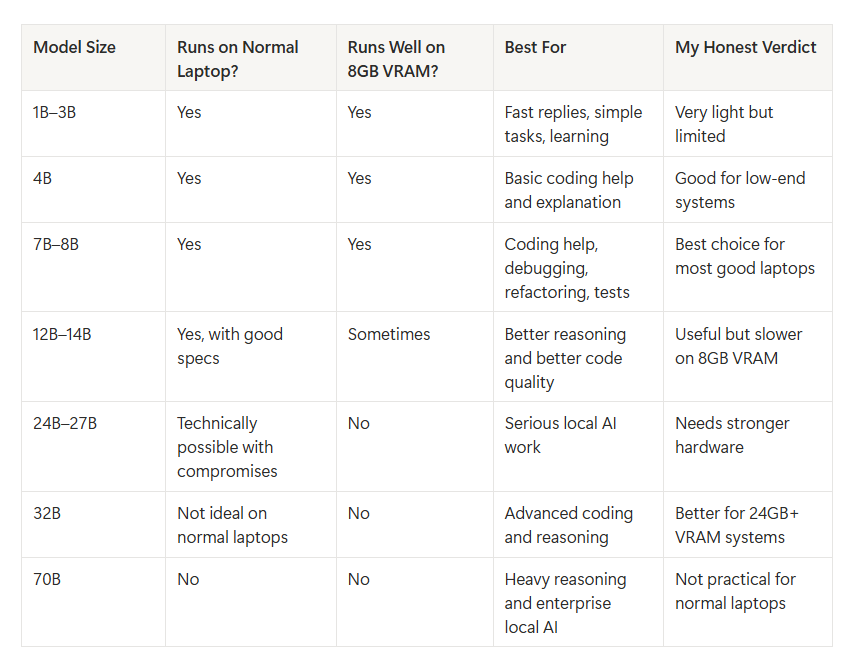
This is why I tell people not to start with the biggest model. Start with the model your machine can run smoothly.
A smooth 7B model is often more useful than a 32B model that makes you wait too long.
Final Hardware Table: What Can Run What?
Here is the simplest way I would explain local AI hardware. This is not a perfect scientific benchmark. It is a practical developer guide based on real local AI usage, model size, RAM, VRAM, and daily coding comfort.
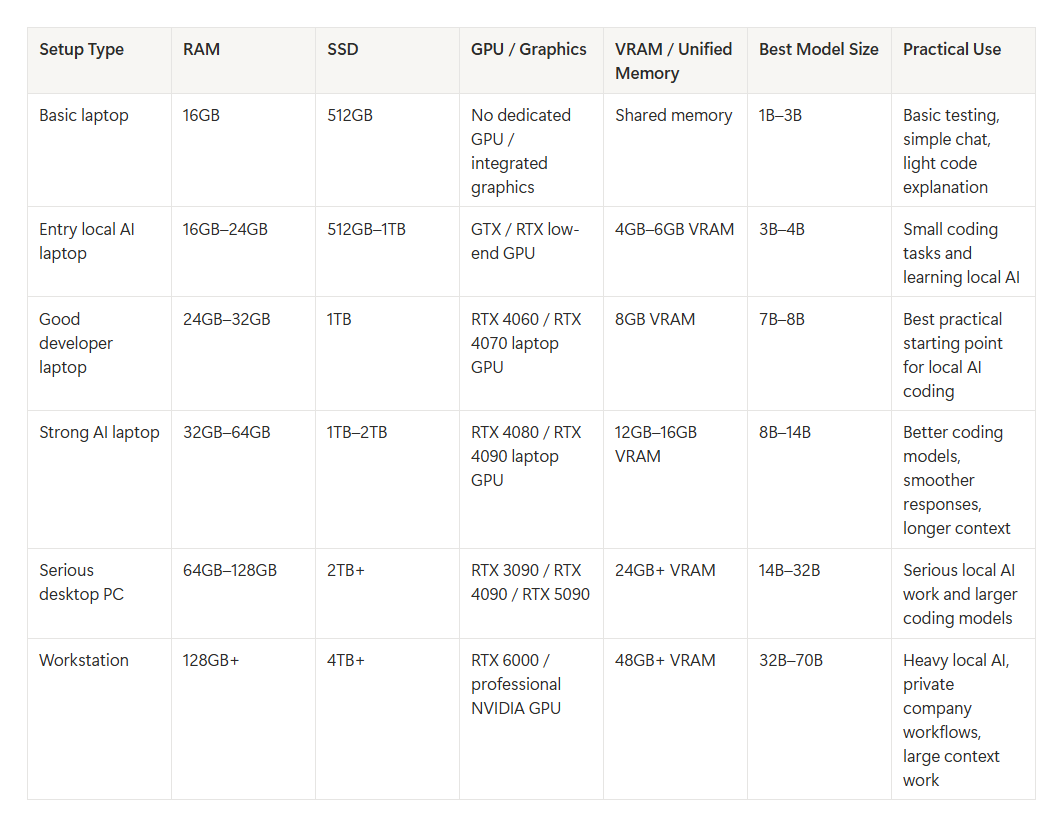
My Laptop Result Table
This is how I would summarize my own machine after testing.
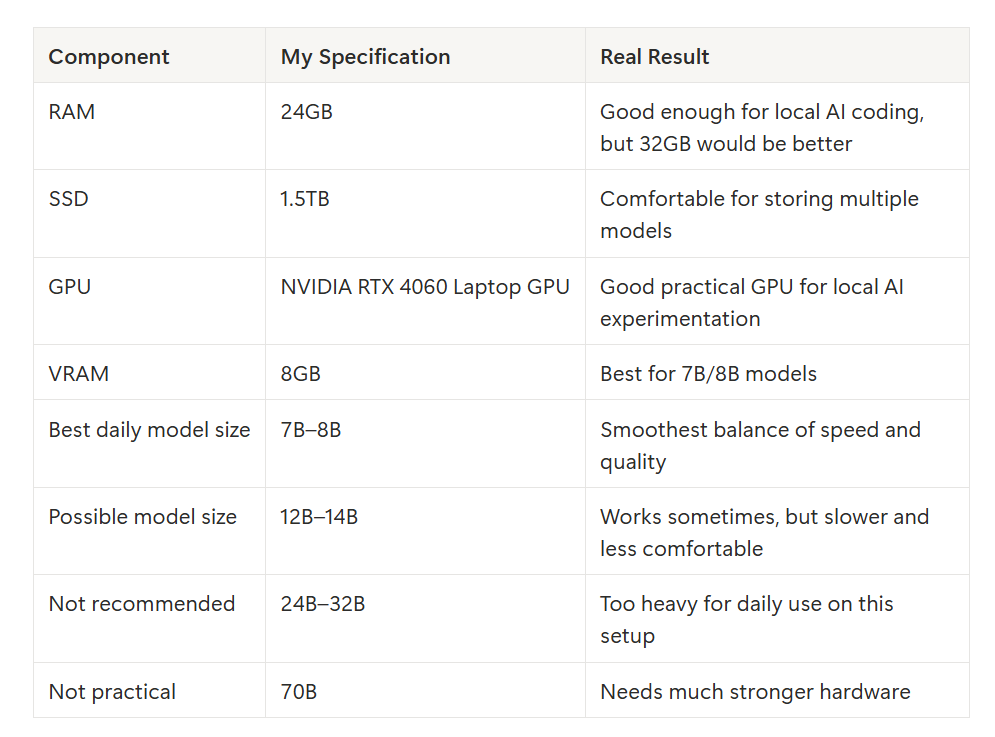
This is the honest result.
My laptop can run local AI coding models seriously, but the best daily experience is not with the biggest model. It is with the model that fits the machine well.
NVIDIA GPU Guide for Local AI
If you are buying a laptop or desktop with an NVIDIA GPU, do not only look at the GPU name. Look at the VRAM.
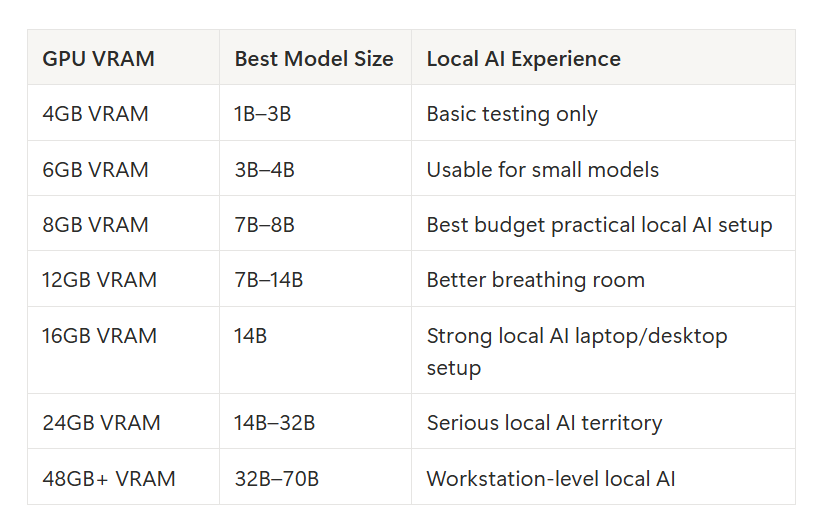
This is why many local AI users care about GPUs like the RTX 3090. It is not only about raw GPU speed. It is because 24GB VRAM gives much more room for local models.
For AI, VRAM is freedom.
Apple Silicon Guide for Local AI
Apple machines are a little different because they use unified memory. The CPU and GPU share the same memory pool. This can be useful for local AI, but it does not mean every Mac is automatically perfect for large models.
The most important thing on Apple silicon is unified memory. If local AI is your serious goal, do not buy the lowest-memory version and expect workstation-level performance.
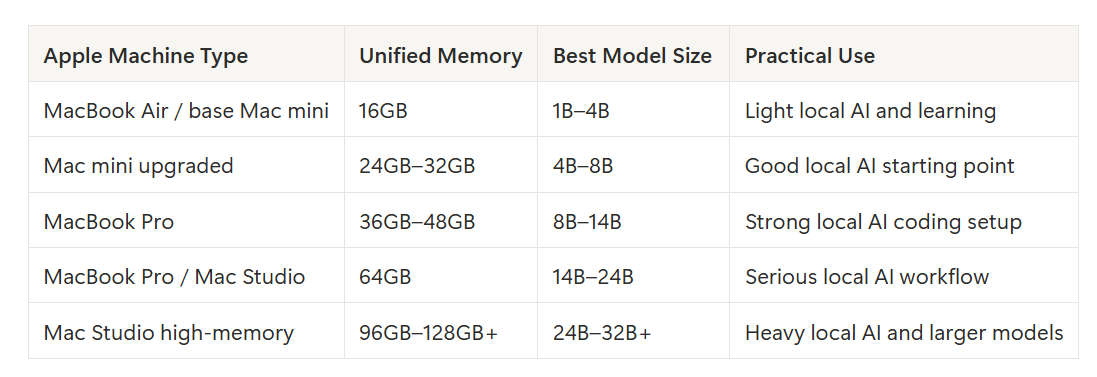
If I were buying a Mac specifically for local AI, I would care more about memory than storage. SSD stores the model, but memory runs the model.
What About Lenovo LOQ Type Laptops?
A Lenovo LOQ-style laptop with RTX 4060 8GB VRAM, 24GB RAM, and SSD storage is actually a practical local AI starter machine.
It is not a monster workstation, but it is enough to run useful models. If your goal is local coding help, debugging, explanation, and small feature generation, this kind of laptop is a realistic starting point.
I would treat it like this:
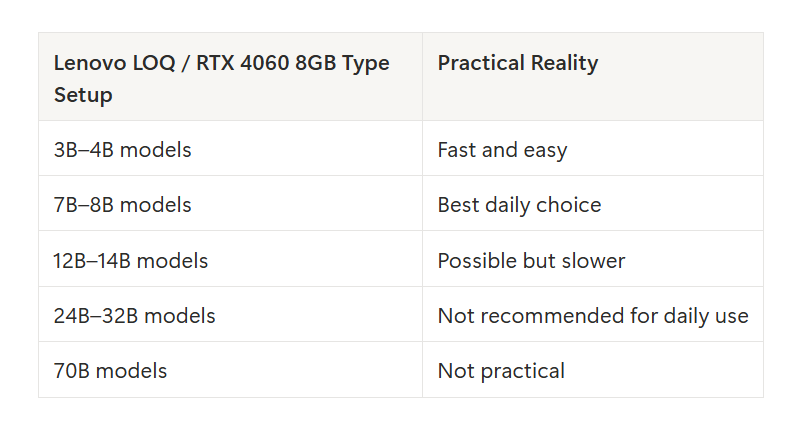
If you already have this kind of machine, do not think it is weak. It is good enough to start local AI seriously. Just do not expect it to behave like a 24GB VRAM desktop GPU.
Best Models to Try First
For developers, I would not start with a random giant model. I would start with coding-focused or strong general models that fit the hardware.
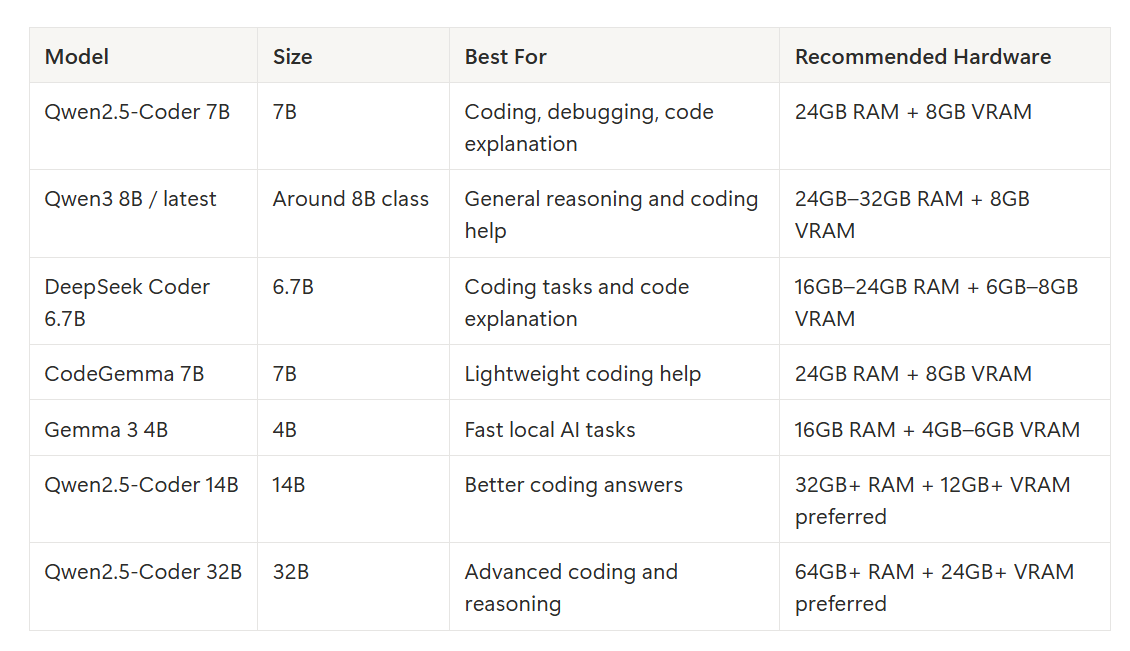
For my own machine, I would stay mostly in the 7B/8B range. That is the most practical daily zone.
Simple Buying Recommendation
If you are buying a machine today for local AI coding, this is how I would think.
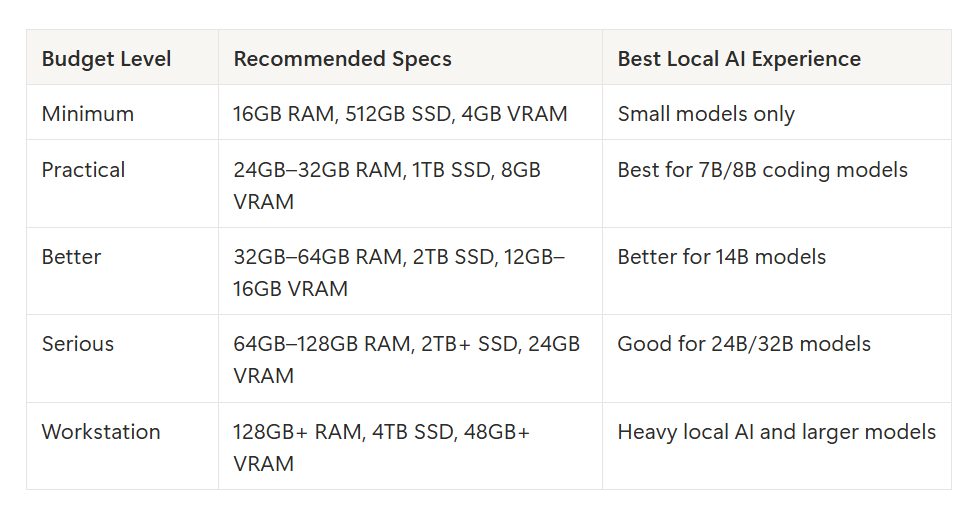
My advice is simple. Do not overspend before testing local AI. If you already have a good laptop, start there. Try Ollama. Try a 7B model. Try it with your real coding work. After that, decide whether you need stronger hardware.
Do not buy an expensive GPU just because local AI sounds exciting. Buy better hardware only when you know exactly what problem it solves for you.
What Local AI Is Actually Good For
On my machine, local AI is good for focused development tasks. It is useful when I ask clear questions and give it manageable context.
It works well for explaining code, writing utility functions, creating simple FastAPI routes, generating basic tests, converting logic, reviewing one function, writing SQL examples, and understanding error messages.
This is enough to be valuable.
I do not need local AI to replace every cloud tool. I need it to reduce friction in daily coding, especially when I want privacy or when the task is small enough to run locally.
What Local AI Is Still Not Good At
Local AI on a normal laptop is still not ideal for large project understanding, deep architecture decisions, multi-file refactoring, advanced debugging across services, security-heavy production review, or long agentic workflows.
That does not mean local AI is useless. It means we should use it correctly.
The future is not local AI replacing everything. The future is hybrid.
Cloud AI for maximum intelligence and large context.
Local AI for privacy, control, offline access, and focused coding help.
That is the most realistic view.
My Final Verdict
After sharing my first article, I understood why people wanted hardware specs. Local AI without hardware details is incomplete.
So here is the real answer.
My laptop has 24GB RAM, 1.5TB SSD, and an RTX 4060 Laptop GPU with 8GB VRAM. I used Ollama to run Qwen3 locally. I monitored performance in Windows Task Manager while the model was active. I also used the local model inside VS Code through the model selection workflow, where qwen3:latest appeared under Ollama.
The machine handled local AI coding tasks seriously, but it also showed clear limits. RAM usage went high. VRAM usage came close to the 8GB limit. That is normal for local LLMs.
The best practical model size for this setup is 7B to 8B. That is where the balance of speed, quality, and usability feels right.
14B models are possible, but slower.
24B and 32B models need stronger hardware.
70B models are not realistic for normal laptops.
So no, you do not need an RTX 6000 to start local AI coding. But you do need realistic expectations.
A good RTX 4060 laptop can run useful local coding models. It can help with real development work. It can explain code, generate APIs, debug errors, and reduce cloud dependency.
But it will not magically beat Claude Code, Cursor, or Copilot in every task.
That is not the point.
The point is that local AI has become useful enough to become part of a real developer workflow.
Not perfect.
Not magical.
But useful.
And for developers, that is already a big deal.
Final Simple Answer
If you only remember one table from this article, remember this.
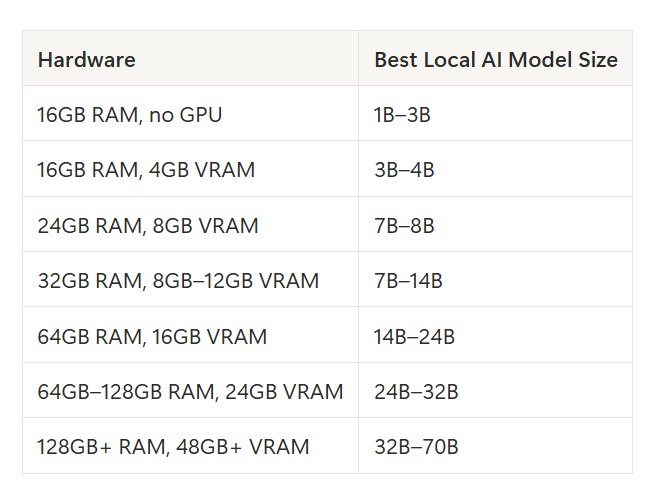
For my own laptop, the honest result is simple:
I can use them seriously.
But the sweet spot is 7B or 8B.
That is where local AI feels useful, fast enough, and realistic for daily coding.
메타데이터
- post_id
- ce0252d2301e
- slug
- the-local-ai-coding-setup-everyone-asked-for-ce0252d2301e
- url
- https://medium.com/@krtarunsingh/the-local-ai-coding-setup-everyone-asked-for-ce0252d2301e
- canonical_url
- https://medium.com/@krtarunsingh/the-local-ai-coding-setup-everyone-asked-for-ce0252d2301e
- author_url
- https://medium.com/@krtarunsingh
- status
- ok
- fetched_at
- 2026-06-20 20:29:01