Microsoft Scout: The AI Agent That Works While You’re Not Looking
I’ve been in IT support for years. Nothing prepared me for watching an AI run PowerShell, clear gigabytes of junk files, and draft a…
Microsoft Scout: The AI Agent That Works While You’re Not Looking
I’ve been in IT support for years. Nothing prepared me for watching an AI run PowerShell, clear gigabytes of junk files, and draft a follow-up email — all before I finished my coffee.
Published by NerdyWithAI · Production AI Engineer Series · June 2026
Let me tell you something about most AI tools.
You open them. You type something. You wait. You get a response. You close them. And then tomorrow, you do the whole thing again.
That’s not an assistant. That’s a very fast Google search with better grammar.
Microsoft just shipped something fundamentally different. And I think a lot of people are going to sleep on it because the announcement was buried under 40 other Build 2026 announcements. I almost did too.
It’s called Microsoft Scout. And the thing that makes it different isn’t a feature. It’s a philosophy shift.
Scout doesn’t wait for you.
First, a Quick Reality Check on the AI Ladder
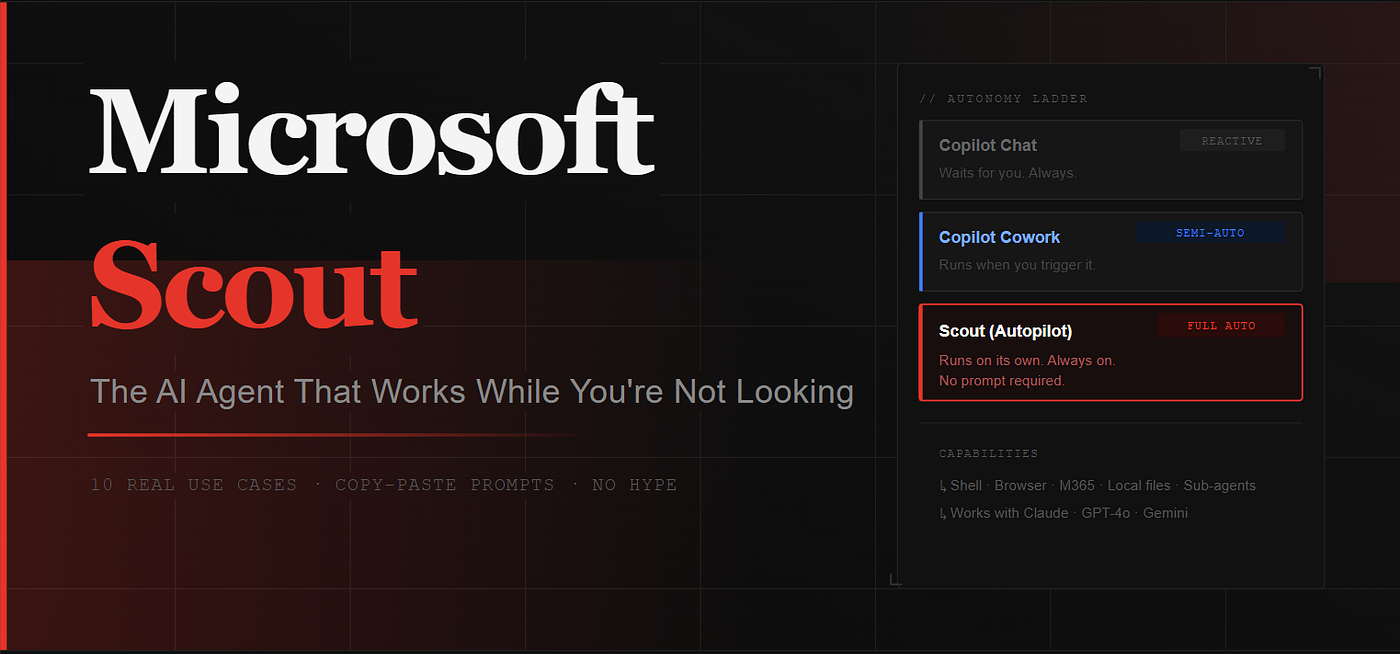
Before we get into the use cases, you need to understand one thing Microsoft quietly introduced at Build: a three-tier model for AI agents. Most coverage skipped this entirely, but it’s the whole point.
Copilot Chat — You open it. You ask. It answers. It goes idle. That’s it.
Copilot Cowork — You trigger it. It runs a defined recipe. It stops. Still waiting on you.
Autopilots (Scout) — Runs in the background. Continuously. No prompt required. Takes action based on signals from your calendar, inbox, files, and Teams channels — while you’re in a meeting, asleep, or doing literally anything else.
That last tier is genuinely new. Not “new feature” new. New category new.
Microsoft VP Omar Shahine put it simply: “They’re a totally new way to reduce toil and get you back to what you love.”
I’ll save the hype check for later. Let’s talk about what Scout actually does.
10 Real Ways to Use Microsoft Scout to Get Your Time Back
These aren’t hypothetical scenarios I made up. Every capability below is either documented in Microsoft Learn, shown live during Build 2026 hands-on sessions, or covered by MVPs who got early access. I’ve included the actual prompt format for each one so you can copy it directly when you get access.
1. Automatic Meeting Prep — Before Every Call
Here’s a thing I genuinely hate: opening a meeting invite 3 minutes before a call and realizing I have no idea what the agenda is, can’t find the last email thread about the project, and definitely haven’t read the doc they attached two weeks ago.
Scout solves this without you asking.
Set a morning automation, and every day it scans your upcoming calendar, pulls the related emails, files, and Teams messages for each meeting, drafts a 3-point agenda, and blocks a 30-minute prep window in your schedule before critical calls. All of it. Before you’re even awake.
Prompt example:
“Every weekday at 7:30 AM, review my calendar for today. For each meeting, pull the related files and emails, draft a 3-point agenda, and block 30 minutes before any call with more than 4 attendees.”
Mode: Heartbeat / Automation
2. Inbox Triage While You’re Actually Focused
The average knowledge worker checks email 74 times a day. I don’t have that stat handy but I know it’s embarrassingly high because I’m one of them.
Set Scout on a 30-minute Heartbeat during work hours. Every half hour, it reads your inbox, flags action items from leadership, separates the noise from the signal, and delivers a structured priority list. You stop reacting to your inbox in real-time. You check a curated list twice a day instead.
Prompt example:
“Every 30 minutes (9AM–6PM weekdays), check my inbox. Identify emails requiring a response from me in the next 4 hours. List them with sender, subject, required action, and urgency level.”
Mode: Heartbeat
3. The Stalled Decision Hunter
This one is my favorite capability and I think it’s the most underrated thing Scout does.
Every team has that decision. The one that’s been sitting in a Teams thread for four days. Everyone saw it. Nobody answered. The project is quietly blocked. Nobody called it out.
Scout scans your channels for exactly this. Using its Work IQ semantic layer — which builds a live graph-based understanding of your communications — it identifies threads where a decision was requested but left unanswered, drafts a context-heavy follow-up, and shows it to you for review before sending anything.
In the Build demo, it caught decisions bottlenecked for 4+ days automatically.
Prompt example:
“Every Monday at 9 AM, scan all Teams channels I’m in. Identify threads where a decision has been requested but unanswered for more than 3 days. Draft a polite follow-up for each and show them to me for review before sending.”
Mode: Automation
4. Local Disk Cleanup Without Writing a Single Line of PowerShell
I have IT support roots. I have spent way too many hours of my life running cleanup scripts on machines. It’s not hard — it’s just tedious and time-consuming.
At Build, someone told Scout to find old installer files on a local drive. Scout wrote and ran a PowerShell script, found gigabytes of old .exe and .msi files, listed them for the user to review, and cleared them after a single approval click.
The user didn’t write a single line of code. They described the outcome. Scout figured out the how.
Important note: Scout shows you the exact command before running it. Nothing executes without your approval on shell commands. That’s baked into the architecture.
Prompt example:
“Find all installer files (.exe, .msi) on my local drive older than 90 days and larger than 50MB. List them for my review, then delete the ones I approve.”
Mode: Interactive / Automation
5. Build, Test, Debug — All From Plain English
If you’re a developer, this one will make you feel weird in a good way.
Scout runs your build pipeline, executes test suites, lints source directories, creates git branches, commits code, opens GitHub PRs, and debugs failing tests. Not through a UI wrapper. Natively, using git, gh, curl, and PowerShell.
You say “run the tests and explain what’s failing.” Scout runs the tests, reads the verbose output, understands the error, explains what it likely means, and suggests a fix.
Prompt example:
“Run the full test suite. For any failing tests, show me the verbose output, explain the likely cause, and suggest a fix.”
Mode: Interactive / CI Automation
6. Web Scraping That Doesn’t Give Up
Most browser automation tools fail the moment a site puts up any kind of friction. Scout doesn’t give up.
When standard scraping gets blocked, Scout escalates. It writes custom Python locally. It downloads open-source packages via npm — the demo at Build showed it installing yt-dlp to pull a YouTube transcript when the normal approach hit a wall. It kept trying different approaches until it got the transcript and saved it to a working folder.
Microsoft called this “tenacity.” I call it the agent actually behaving like a competent junior engineer instead of a tool that errors out and waits for you to fix it.
Prompt example:
“Every day at 4 PM, check our competitor’s blog for new posts. If any are found, summarize each one in 3 bullets and add them to the competitive-intel.xlsx in my OneDrive.”
Mode: Automation
7. Turn Messy Notes Into Clean Documents
This is probably the most immediately useful thing for most people.
Feed Scout unstructured input — a raw meeting transcript, a brain dump of notes, a messy email thread — and tell it what format you want the output in. Word doc. Excel spreadsheet. PowerPoint. It uses built-in skills to create and edit these natively.
The killer workflow: attach a meeting recording transcript and tell Scout to write the summary doc with action items, owners, and open questions, then email it to all attendees for review.
Prompt example:
“Read the meeting recording transcript in my Downloads folder. Create a Word doc with: executive summary (3 bullets), full action item list with owners, and open questions. Email it to all attendees for review.”
Mode: Interactive
8. Protecting Your Deep Work Time (Without Having to Think About It)
Calendar management is one of those things that takes real cognitive effort to do well. Most people don’t do it well. They let meetings fill every slot and then wonder why they never shipped anything.
Scout’s Work IQ layer reads your emails, files, and deadlines — not just your calendar — to understand what you’re actually working on. It identifies overloaded days, suggests which meetings to move, and proactively blocks focus time before deadlines start closing in.
It treats your schedule like an active optimization problem, not a static list.
Prompt example:
“Every Sunday at 6 PM, review my upcoming week. Identify deliverables mentioned in recent emails. Block 2-hour deep-work sessions for each. Flag any days with more than 5 hours of meetings and suggest which to reschedule.”
Mode: Automation
9. Saving What Scout Figures Out as a Reusable Skill
This one is more of a workflow habit than a use case, but it’s important.
When Scout successfully figures out a complex, multi-step task — especially one it had to troubleshoot — you can save that entire execution sequence as a “Skill.” It stores as a SKILL.md file. Next time the same task comes up, Scout loads the skill and runs it without burning tokens reinventing the solution.
Think of it as teaching your agent once and having it remember permanently. The transcript scraping workflow from use case 6? Save it as a skill. Your weekly competitive intel automation? Skill. Anything you find yourself repeating: skill.
Prompt example:
“Save the workflow you just used to pull YouTube transcripts and generate summaries as a reusable skill called ‘video-summary’.”
Mode: Skill Saving
10. Run Two Complex Things at Exactly the Same Time
The last capability is the one that makes Scout feel like an actual coworker rather than a tool.
For complex tasks, Scout can spawn specialized sub-agents that run in parallel and report back when finished. You can trigger this explicitly mid-conversation. “Research how other teams handle this — while you start setting up the configuration.”
Two workstreams. Same time. No waiting for the first to finish before starting the second.
Prompt example:
“Research the top 5 companies using Redis for session management AND simultaneously set up the initial Redis config for our project. Report both back when complete.”
Mode: Sub-Agents / Interactive
The Part Everyone’s Ignoring: What Keeps It From Going Rogue
I work in IT. My first reaction to “always-on AI agent with shell access to your local machine” was not excitement. It was a very specific kind of dread.
So I dug into the governance architecture. Here’s what’s actually in place.
Scout has its own identity. It doesn’t borrow your session token. It has a dedicated, governed Entra Agent ID inside your Microsoft 365 tenant. Every document it reads, every link it clicks, every script it runs — there’s a permanent, auditable cryptographic trail. Your security team can see exactly what it did and when.
Every shell command needs your approval. Scout shows you the exact command before executing anything on your machine. There’s a three-tier permission system: auto-approve, prompt for confirmation, and permanently blocked. You decide which commands fall into which bucket.
Heartbeat has stricter permissions than interactive mode. Because you’re not sitting there when it runs, the background mode operates under a more restrictive policy. It won’t send emails with private data. It treats tentative calendar events as busy. Anything that would normally ask for approval gets skipped instead of auto-approved.
Data doesn’t leak to third-party training sets. When Scout routes requests to outside models — and yes, it supports Claude 4.7/4.6, GPT-4o, and Gemini 3.0 Pro as the reasoning backend — enterprise deployment requires a “Data Bubble Waiver” and Intune policy enforcement to keep your organizational data out of public training.
That’s a real governance stack. It’s not marketing.
The One Warning You Need to Hear
I’m going to say the quiet part out loud here, because I’ve watched this pattern play out in IT environments for years.
Scout will amplify whatever data governance problems you already have.
If your SharePoint permissions are a mess — folders shared with half the company that shouldn’t be, old project sites nobody cleaned up, sensitive files accessible to everyone — Scout will surface that. It might access something it technically has permission to access but shouldn’t, because the permissions were set up wrong three years ago and nobody noticed.
Every security analyst covering the preview is saying the same thing: clean up your tenant before you activate any autonomous agent. Audit your permission models. Map out which processes should never be touched by an AI. Make that list before you need it.
It’s not a reason to avoid Scout. It’s a reason to do the permission hygiene work you’ve been putting off.
7 Practical Tips Before You Start
Based on Microsoft’s own documentation and hands-on coverage from Build:
1. Start with Heartbeats, not Automations. Heartbeats are one prompt, one interval. Get comfortable with how Scout actually behaves before building multi-step conditional automations.
2. Watch your credit burn. Scout runs on GitHub Copilot Business or Enterprise credits — not your M365 Copilot license. A Heartbeat every 15 minutes around the clock adds up fast. Start with 1-hour intervals.
3. Be specific in your prompts. Microsoft’s own FAQ says it plainly: “Simpler, more specific tasks complete with higher accuracy.” Don’t say “manage my email.” Say exactly what you want flagged, from whom, and what format you want the output in.
4. Lock down sensitive directories first. Go to Settings > Permissions and mark folders that always require explicit approval before Scout can touch them. Do this before running your first automation.
5. Principle of least privilege applies to AI too. If an automation doesn’t need file system access or the ability to run code, don’t grant those permissions. Only give Scout what each specific task actually requires.
6. Save every hard-won solution as a Skill. The moment Scout successfully completes something complex, save it. It cuts token cost on every future run and means you never have to solve the same problem twice.
7. Always review before Scout sends anything externally. Email. Teams messages. Calendar invites. Review everything before it goes out. This isn’t just best practice — it’s Microsoft’s official guidance. The human stays in the loop on outbound communication.
Who Can Actually Use This Right Now
Scout is currently in Private Preview, restricted to enterprise organizations enrolled in Microsoft’s Frontier program.
A few details that most articles got wrong:
- You don’t need a Microsoft 365 Copilot license for Scout
- You do need GitHub Copilot Business or Enterprise credits (that’s the billing model)
- It requires Windows 11, Microsoft 365, and an Intune configuration
- Setup is not trivial — it involves Frontier enrollment, an opt-in attestation, and MCP server configuration
- The reasoning backend is your choice: Claude 4.7/4.6, GPT-4o, or Gemini 3.0 Pro
Broader rollout is coming. Microsoft said Frontier users can try it now and they’ll expand the platform over the coming months.
The Real Shift
Here’s what I keep coming back to.
Every AI tool before Scout operated on the same implicit assumption: the human initiates, the AI responds. Even the best ones — even the ones that could do impressive multi-step tasks — needed a person to start the chain.
Scout breaks that assumption. It doesn’t wait for you to remember to ask. It runs on its own schedule, reads its own signals, and surfaces problems you didn’t know to look for.
Whether that’s exciting or slightly terrifying probably depends on how much you trust your own organization’s data hygiene.
But the direction is clear. The AI layer is moving from a tool you pick up and put down, to a coworker that keeps working when you’re not looking.
That’s it for this one. If this was useful, follow NerdyWithAI for more production-level AI content — real problems, real solutions, no fluff.
Tags: Microsoft Scout · AI Agents · Microsoft Build 2026 · Productivity · Autopilot · Enterprise AI · Microsoft 365
메타데이터
- post_id
- cf9928f93e4b
- slug
- microsoft-scout-the-ai-agent-that-works-while-youre-not-looking-cf9928f93e4b
- url
- https://medium.com/@shubhamreddy9172/microsoft-scout-the-ai-agent-that-works-while-youre-not-looking-cf9928f93e4b
- canonical_url
- https://medium.com/@shubhamreddy9172/microsoft-scout-the-ai-agent-that-works-while-youre-not-looking-cf9928f93e4b
- author_url
- https://medium.com/@shubhamreddy9172
- status
- ok
- fetched_at
- 2026-07-13 22:13:33



