How to Turn Simple PowerShell Scripts into Reusable Automation Tools
Most PowerShell learners start the same way.
How to Turn Simple PowerShell Scripts into Reusable Automation Tools
Most PowerShell learners start the same way.
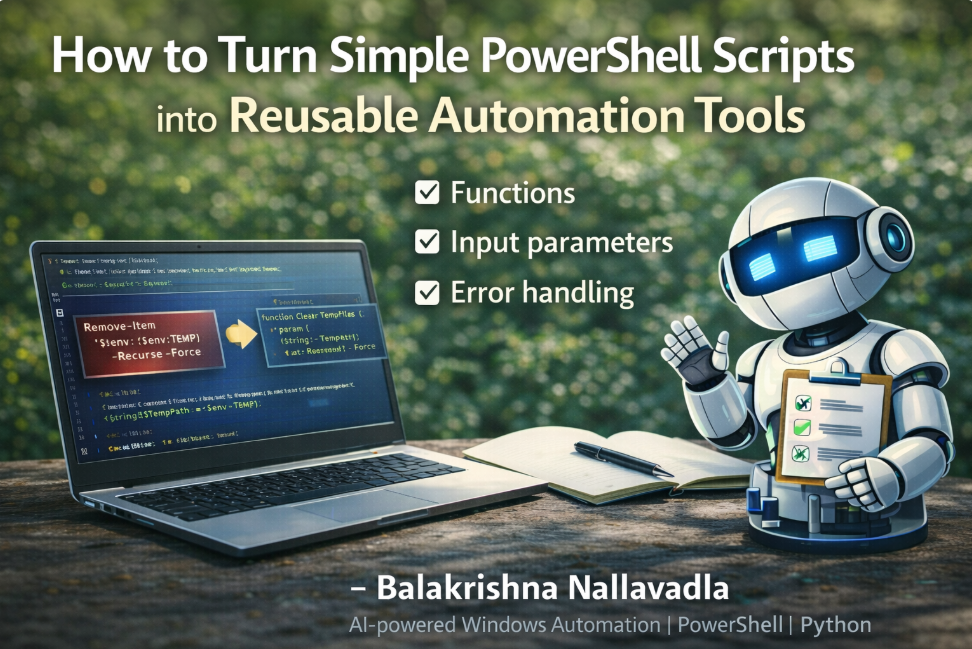
How to Turn Simple PowerShell Scripts into Reusable Automation Tools
Please read till the end — in the next article, I’ll share:
How to Package PowerShell Automation for Real Users
You write a small script to solve a problem. It works. You move on.
A few days later, you face the same problem again — and you write another script.
This article is about breaking that cycle.
I’ll show you how simple PowerShell scripts can slowly become reusable automation tools, without making things complicated or scary.
When I started with PowerShell, I believed tools were something only experts built.
I thought:
“I’m just writing scripts. Tools are different.”
That belief was wrong.
Every automation tool you’ve ever used started as one small script.
This article is written to help beginners see that transition clearly and confidently.
If you are:
- New to PowerShell
- Automating Windows tasks
- Rewriting the same scripts often
- Curious about building reusable solutions
This article is for you.You don’t need advanced knowledge. You just need a better way of thinking.
If you feel nervous while running scripts, you’re not alone.
Most beginners worry:
- “What if this breaks something?”
- “What if I run the wrong command?”
That fear is normal.
The good news is — reusable tools are actually safer than random scripts when built correctly.
Let’s walk through it slowly.
Everything starts with a simple script.
Maybe you wrote this to check disk space:
Get-PSDrive -PSProvider FileSystemThis is not a tool yet. It’s just a command.
And that’s perfectly fine.
The turning point comes when you notice repetition.
You run this command often. Someone else asks for it. You copy-paste it again and again.
That repetition is your signal.
Your script is asking to become something more.
The first step toward a reusable tool is clarity.
Instead of thinking:
“This script shows disk space”
Think:
“This tool checks disk space and helps me understand storage usage quickly”
A tool always has one clear purpose.
Not five. Not ten. Just one.
Next, remove hard-coded values.
Beginners often write scripts that only work for them.
Example:
"C:\Windows\Temp"That’s fine at first.
But to make your script reusable, allow input.
param (
    [string]$Path
)
Now your script works for:
- You
- Your teammate
- Any system
This one change makes a huge difference.
Now comes one of the most important steps — functions.
Functions turn scripts into tools.
Instead of loose code, wrap your logic:
function Get-DiskSpaceInfo {
    Get-PSDrive -PSProvider FileSystem
}
Why this matters:
- Functions are reusable
- Functions are readable
- Functions feel intentional
This is where scripts start to feel professional.
Real tools also handle mistakes gracefully.
Beginner scripts often assume everything will work.
But tools expect problems.
Add simple checks:
if (-not (Test-Path $Path)) {
    Write-Host "Path not found"
    return
}
This doesn’t make your script complex. It makes it safe.
Another small but powerful improvement is friendly output.
Instead of silent execution, speak to the user.
Write-Host "Checking disk space on this system..."These small messages help:
- Beginners
- Future you
- Anyone else using your tool
Good tools communicate clearly.
Also, separate logic from execution.
Don’t mix everything together.
Keep:
- One function for logic
- One place to call it
This makes testing easier and reuse natural.
Naming also matters more than people think.
Instead of:
cleanup.ps1Use:
Clear-TempFiles.ps1Good names tell the story before reading the code.
Let’s look at a real example.
Many beginners start with this:
Remove-Item "$env:TEMP\*" -Recurse -ForceIt works. But it’s risky.
A safer, reusable version looks like this:
function Clear-TempFiles {
    param (
        [string]$TempPath = $env:TEMP
    )
if (Test-Path $TempPath) {
        Get-ChildItem $TempPath -Recurse -ErrorAction SilentlyContinue |
        Remove-Item -Recurse -Force -ErrorAction SilentlyContinue
        Write-Host "Temporary files cleaned successfully."
    }
}
Now this is:
- Reusable
- Safer
- Easier to extend
That’s how tools are born.
The same applies to software inventory.
Instead of a one-time script, build a function:
function Get-InstalledSoftware {
    Get-ItemProperty HKLM:\Software\Microsoft\Windows\CurrentVersion\Uninstall\* |
    Where-Object { $_.DisplayName } |
    Select-Object DisplayName, DisplayVersion, Publisher
}
Later, you can:
- Export results
- Filter data
- Add logging
The tool grows with you.
This approach applies everywhere:
- IT support
- System maintenance
- Windows health checks
- Automation learning
- Personal productivity
Most real-world tools started small — just like this.
A common beginner mistake is trying to build a perfect tool on day one.
Don’t.
Let tools grow naturally.
Other common mistakes include:
- Over-engineering simple scripts
- Not allowing inputs
- Mixing logic and execution
- Giving unclear names
Keep it simple. Clarity beats cleverness.
If you want to start today, do this:
- Take one working script
- Wrap it in a function
- Add one parameter
- Add one friendly message
- Save it with a proper name
That’s enough.
Small improvements compound fast.
Thanks for reading till the end 🙂
If this article helped you see your scripts differently, that’s a big win.
Turning scripts into tools is not about writing more code. It’s about writing better-thought-out code.
In the next article, I’ll share:
How to Package PowerShell Automation for Real Users
We’ll talk about:
- Folder structure
- Basic documentation
- Sharing tools safely
If you want more beginner-friendly PowerShell and Windows automation content, follow me for the next article.
— Balakrishna Nallavadla AI-powered Windows Automation | PowerShell | Python
메타데이터
- post_id
- cfa7a17263f3
- slug
- how-to-turn-simple-powershell-scripts-into-reusable-automation-tools-cfa7a17263f3
- url
- https://medium.com/write-a-catalyst/how-to-turn-simple-powershell-scripts-into-reusable-automation-tools-cfa7a17263f3
- canonical_url
- https://medium.com/write-a-catalyst/how-to-turn-simple-powershell-scripts-into-reusable-automation-tools-cfa7a17263f3
- author_url
- https://medium.com/@balakrishna0106
- status
- ok
- fetched_at
- 2026-08-18 19:19:32