Unity Editor Tooling: Creating a Missing Script Finder
Today I’m going to show you how to create a useful editor tool for Unity that will save you tons of headaches — a Missing Script Finder!
Unity Editor Tooling: Creating a Missing Script Finder
Create a useful editor tool for Unity that will save you tons of headaches — a Missing Script Finder!
If you’ve worked with Unity for any length of time, you’ve probably encountered those dreaded missing script references. You know what I’m talking about — those components with that scary “Missing (Mono Script)” message. They can cause all sorts of issues in your project, from broken functionality to console errors.
I’ll first explain the basics of Unity editor tooling and then we’ll build this missing script finder tool from scratch. By the end, you’ll not only have a useful tool for your projects, but you’ll also understand how to create your own custom editor tools.
Prefer a video tutorial watch here: https://youtu.be/B3ZIP8GZaTY
The Basics of Unity Editor Tooling
Before we dive into our specific tool, let’s talk about what Unity editor tools are and why they’re so powerful.
Unity’s editor is incredibly extensible — almost every aspect of it can be customized and enhanced using C# code. This allows us as developers to create tools that fit our specific workflows and solve our unique problems.
Editor scripts in Unity typically use the UnityEditor namespace, which gives us access to all of the editor's functionality. The key classes we often work with include:
EditorWindow: For creating custom windows in the editorEditor: For customizing how components appear in the InspectorPropertyDrawer: For customizing how specific properties are drawnScriptableWizard: For creating wizard-style popup windows
For our Missing Script Finder, we’ll be using an EditorWindow because we want a dedicated window where we can scan for, display, and fix missing script references.
Editor scripts require a special folder structure in Unity. They must be placed in a folder named “Editor” somewhere in your Assets folder. This tells Unity that these scripts should only be compiled for the editor and not included in your game builds.
Understanding the Missing Script Problem
So what are “missing scripts” and why do they happen?
Missing script references occur when Unity can’t find the script class that a component is supposed to use. This can happen for several reasons:
- You deleted or renamed a script file
- You moved a script to a different namespace
- You changed the class name within a script
- Source control conflicts deleted or corrupted files
- You imported assets with dependencies that aren’t included
When Unity can’t find the script, it keeps the component on the GameObject but marks it as “Missing,” which can cause errors and break functionality in your game.
Finding these missing references manually is tedious, especially in large projects with hundreds or thousands of objects. That’s why we’re building a tool to automate this process.
Planning Our Missing Script Finder
Before we start coding, let’s plan what our tool should do:
- Scan the current scene for objects with missing script references
- Optionally scan prefabs in the project
- Display a list of all objects with missing scripts
- Allow selecting these objects for inspection
- Provide options to remove missing scripts from individual objects or all at once
With this plan in mind, let’s start implementing our tool.
Creating the Missing Script Finder
First, let’s create a new C# script in an Editor folder. I’ll name it “MissingScriptFinder.cs”.
using UnityEngine;
using UnityEditor;
using System.Collections.Generic;
/// <summary>
/// Editor window that finds and removes missing script references in the scene hierarchy
/// </summary>
public class MissingScriptFinder : EditorWindow
{
    // Window state
    private Vector2 scrollPosition;
    private bool scanComplete = false;
    private List<GameObject> objectsWithMissingScripts = new List<GameObject>();
    private bool showSceneObjectsOnly = true;

    // Add menu item to open this window
    [MenuItem("Tools/Missing Script Finder")]
    public static void ShowWindow()
    {
        // Get existing or create new window
        GetWindow<MissingScriptFinder>("Missing Script Finder");
    }
}
Let’s look at what we have so far:
- We’re inheriting from
EditorWindowto create a custom editor window - We’re setting up some basic state variables to track our scan results and UI state
- We’re adding a menu item using the
[MenuItem]attribute so we can open our window from Unity's menu bar - The
ShowWindowmethod usesGetWindowto either focus an existing window or create a new one if it doesn't exist
Now, let’s implement the GUI for our window:
/// <summary>
/// Draw the editor GUI
/// </summary>
private void OnGUI()
{
    GUILayout.Label("Find Objects with Missing Script References", EditorStyles.boldLabel);

    EditorGUILayout.Space();

    // Option to include prefabs in Project or just scan scene objects
    showSceneObjectsOnly = EditorGUILayout.Toggle("Scene Objects Only", showSceneObjectsOnly);

    if (GUILayout.Button("Scan for Missing Scripts"))
    {
        scanComplete = false;
        FindMissingScripts();
        scanComplete = true;
    }

    EditorGUILayout.Space();

    // Display results if scan has been completed
    if (scanComplete)
    {
        DisplayResults();
    }
}
The OnGUI method is called every frame to draw our window's interface. We're:
- Adding a title label
- Adding a toggle to control whether we scan just scene objects or include prefabs
- Adding a button to trigger the scan
- Calling
DisplayResultsto show the results if a scan has been completed
Now let’s implement the actual scanning functionality:
/// <summary>
/// Finds all objects with missing script references
/// </summary>
private void FindMissingScripts()
{
    objectsWithMissingScripts.Clear();

    if (showSceneObjectsOnly)
    {
        // Find all root GameObjects in the current scene
        GameObject[] rootObjects = UnityEngine.SceneManagement.SceneManager.GetActiveScene().GetRootGameObjects();

        foreach (GameObject rootObject in rootObjects)
        {
            // Check the root object and all its children recursively
            CheckGameObjectAndChildren(rootObject);
        }
    }
    else
    {
        // Get all GameObjects in the project, including those in scenes and prefabs
        string[] guids = AssetDatabase.FindAssets("t:GameObject");

        foreach (string guid in guids)
        {
            string path = AssetDatabase.GUIDToAssetPath(guid);
            GameObject prefab = AssetDatabase.LoadAssetAtPath<GameObject>(path);

            if (prefab != null)
            {
                CheckGameObjectForMissingScripts(prefab);
            }
        }

        // Also check scene objects
        GameObject[] rootObjects = UnityEngine.SceneManagement.SceneManager.GetActiveScene().GetRootGameObjects();

        foreach (GameObject rootObject in rootObjects)
        {
            CheckGameObjectAndChildren(rootObject);
        }
    }

    Debug.Log($"Found {objectsWithMissingScripts.Count} objects with missing script references");
}
This method does the actual scanning. If we’re only scanning scene objects, it gets all root objects in the current scene and checks them and their children recursively. If we’re including prefabs, it also scans all prefabs in the project using the AssetDatabase.
Now let’s implement the helper methods for checking objects:
/// <summary>
/// Recursively checks a GameObject and all its children for missing scripts
/// </summary>
/// <param name="gameObject">GameObject to check</param>
private void CheckGameObjectAndChildren(GameObject gameObject)
{
    // Check the current GameObject
    CheckGameObjectForMissingScripts(gameObject);

    // Check all children
    foreach (Transform child in gameObject.transform)
    {
        CheckGameObjectAndChildren(child.gameObject);
    }
}
/// <summary>
/// Checks if a GameObject has any missing script references
/// </summary>
/// <param name="gameObject">GameObject to check</param>
private void CheckGameObjectForMissingScripts(GameObject gameObject)
{
    // Get all components on the GameObject
    Component[] components = gameObject.GetComponents<Component>();

    // Check if any of the components are null (missing script)
    for (int i = 0; i < components.Length; i++)
    {
        if (components[i] == null)
        {
            // If this is the first missing script on this GameObject, add it to the list
            if (!objectsWithMissingScripts.Contains(gameObject))
            {
                objectsWithMissingScripts.Add(gameObject);
            }
            break;
        }
    }
}
These methods work together to check for missing scripts:
CheckGameObjectAndChildrenrecursively traverses the hierarchyCheckGameObjectForMissingScriptschecks a specific GameObject for null components, which indicate missing scripts
Now let’s implement the method to display results and provide options to fix missing scripts:
/// <summary>
/// Displays the scan results and provides options to fix missing scripts
/// </summary>
private void DisplayResults()
{
    EditorGUILayout.LabelField($"Found {objectsWithMissingScripts.Count} objects with missing scripts", EditorStyles.boldLabel);

    EditorGUILayout.Space();

    // Group actions
    if (objectsWithMissingScripts.Count > 0)
    {
        EditorGUILayout.BeginHorizontal();

        if (GUILayout.Button("Remove All Missing Scripts"))
        {
            RemoveAllMissingScripts();
        }

        if (GUILayout.Button("Select All Objects"))
        {
            Selection.objects = objectsWithMissingScripts.ToArray();
        }

        EditorGUILayout.EndHorizontal();
    }

    EditorGUILayout.Space();

    // Display the list of GameObjects with missing scripts
    scrollPosition = EditorGUILayout.BeginScrollView(scrollPosition);

    // Create a copy of the list to avoid modification during iteration
    List<GameObject> objectsToDisplay = new List<GameObject>(objectsWithMissingScripts);

    foreach (GameObject obj in objectsToDisplay)
    {
        if (obj == null)
        {
            // Skip null objects (might have been deleted)
            continue;
        }

        EditorGUILayout.BeginHorizontal();

        // Allow selecting the GameObject
        if (GUILayout.Button("Select", GUILayout.Width(60)))
        {
            Selection.activeGameObject = obj;
        }

        // Show object name and path
        EditorGUILayout.ObjectField(obj, typeof(GameObject), true);

        // Allow removing missing scripts from this specific GameObject
        if (GUILayout.Button("Remove Scripts", GUILayout.Width(120)))
        {
            RemoveMissingScriptsFromObject(obj);
            objectsWithMissingScripts.Remove(obj);
        }

        EditorGUILayout.EndHorizontal();
    }

    EditorGUILayout.EndScrollView();
}
This method creates a scrollable list of all objects with missing scripts, with buttons to select individual objects or remove their missing scripts. It also provides buttons to remove all missing scripts or select all affected objects.
Finally, let’s implement the methods to actually remove the missing scripts:
/// <summary>
/// Removes all missing script references from all identified GameObjects
/// </summary>
private void RemoveAllMissingScripts()
{
    int totalRemoved = 0;

    // Create a copy of the list to avoid modification during iteration
    List<GameObject> objectsToProcess = new List<GameObject>(objectsWithMissingScripts);

    foreach (GameObject obj in objectsToProcess)
    {
        if (obj != null)
        {
            int removed = RemoveMissingScriptsFromObject(obj);
            totalRemoved += removed;
        }
    }

    // Clear the list since we've processed everything
    objectsWithMissingScripts.Clear();

    Debug.Log($"Removed {totalRemoved} missing script references");

    // Re-scan to ensure we got everything
    FindMissingScripts();
}
/// <summary>
/// Removes all missing script references from a specific GameObject
/// </summary>
/// <param name="gameObject">GameObject to clean up</param>
/// <returns>Number of missing scripts removed</returns>
private int RemoveMissingScriptsFromObject(GameObject gameObject)
{
    // We need to use SerializedObject to remove missing scripts
    SerializedObject serializedObject = new SerializedObject(gameObject);
    SerializedProperty componentsProperty = serializedObject.FindProperty("m_Component");

    int removedCount = 0;
    int componentCount = componentsProperty.arraySize;

    // Iterate backwards through the components to safely remove elements
    for (int i = componentCount - 1; i >= 0; i--)
    {
        SerializedProperty componentProperty = componentsProperty.GetArrayElementAtIndex(i);
        SerializedProperty componentReference = componentProperty.FindPropertyRelative("component");

        // If the component reference is null (missing script), remove it
        if (componentReference.objectReferenceValue == null)
        {
            componentsProperty.DeleteArrayElementAtIndex(i);
            removedCount++;
        }
    }

    // Apply changes if any scripts were removed
    if (removedCount > 0)
    {
        serializedObject.ApplyModifiedProperties();
        EditorUtility.SetDirty(gameObject);
    }

    return removedCount;
}
These methods handle the actual removal of missing scripts:
RemoveAllMissingScriptsiterates through all objects and removes their missing scripts, then re-scans to ensure we didn't miss anythingRemoveMissingScriptsFromObjectmethod usesGameObjectUtility.RemoveMonoBehavioursWithMissingScript(), It handles all the complexities of safely removing missing script references .
The real magic happens in RemoveMissingScriptsFromObject. We can't simply call a method like "RemoveComponent" because the component reference is already missing.
Demonstrating the Tool
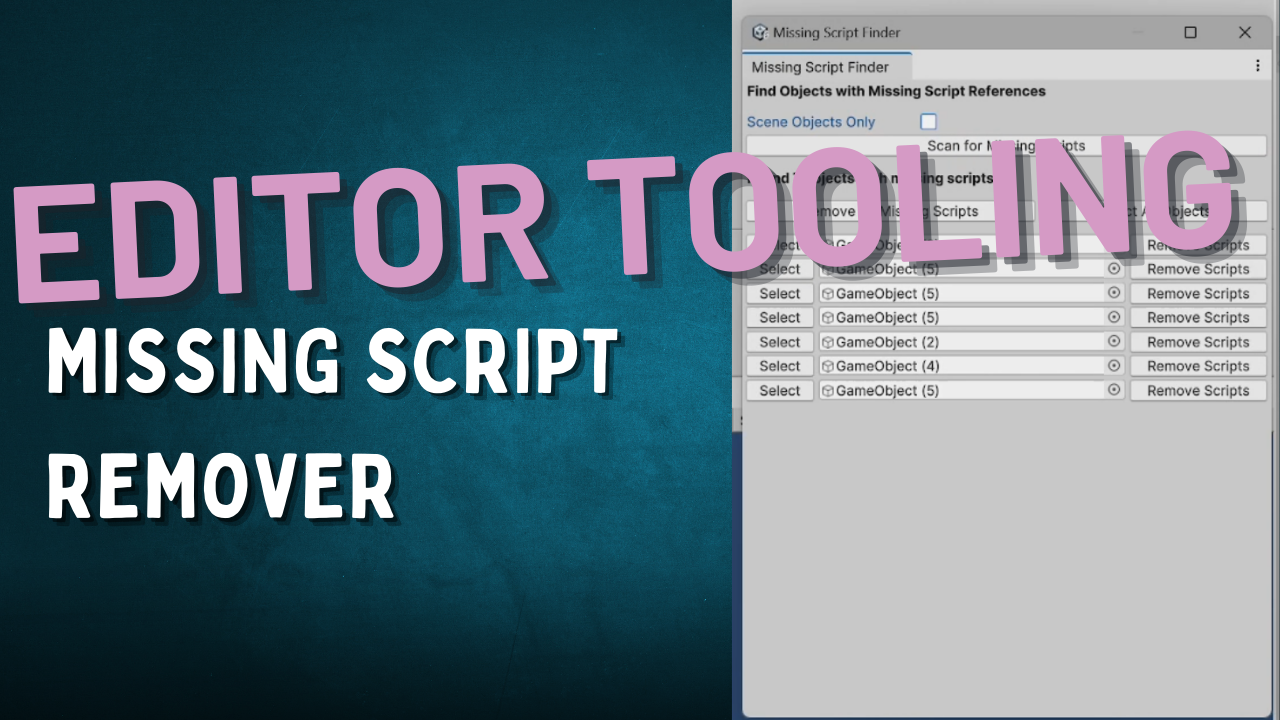
Now let’s see our tool in action! After saving this script in an Editor folder, we can open it by going to “Tools > Missing Script Finder” in Unity’s menu bar.
When we click “Scan for Missing Scripts,” the tool will search through our scene or project and list all objects with missing script references. We can then:
- Click “Select” to focus on a specific object in the hierarchy
- Click “Remove Scripts” to remove missing scripts from a single object
- Click “Remove All Missing Scripts” to clean up all objects at once
- Click “Select All Objects” to select all affected objects in the hierarchy
This makes it super easy to find and fix those problematic missing script references!
Extending the Tool
Now that we have a basic version working, here are some ideas for how you could extend this tool:
- Add an option to scan specific folders instead of the entire project
- Add a progress bar for large projects
- Add options to fix missing scripts by assigning the correct scripts
- Save and load scan results
- Add filters to the results (by name, path, etc.)
Conclusion
That’s it! We’ve created a useful editor tool that helps solve a common problem in Unity development. This demonstrates the power of Unity’s editor scripting capabilities and how you can create custom tools to improve your workflow.
Remember, editor tools like this can save you tremendous amounts of time, especially as your projects grow in size and complexity. I hope this inspires you to create your own tools to solve your specific development challenges.
메타데이터
- post_id
- d05e1d94fbfb
- slug
- unity-editor-tooling-creating-a-missing-script-finder-d05e1d94fbfb
- url
- https://medium.com/@Code_With_K/unity-editor-tooling-creating-a-missing-script-finder-d05e1d94fbfb
- canonical_url
- https://medium.com/@Code_With_K/unity-editor-tooling-creating-a-missing-script-finder-d05e1d94fbfb
- author_url
- https://medium.com/@Code_With_K
- status
- ok
- fetched_at
- 2026-06-21 07:44:09