Setting Up Navigation in React Native: Stack, Drawer, and Bottom Tabs
Setting Up Navigation in React Native: Stack, Drawer, and Bottom Tabs
Setting Up Navigation in React Native: Stack, Drawer, and Bottom Tabs
Introduction
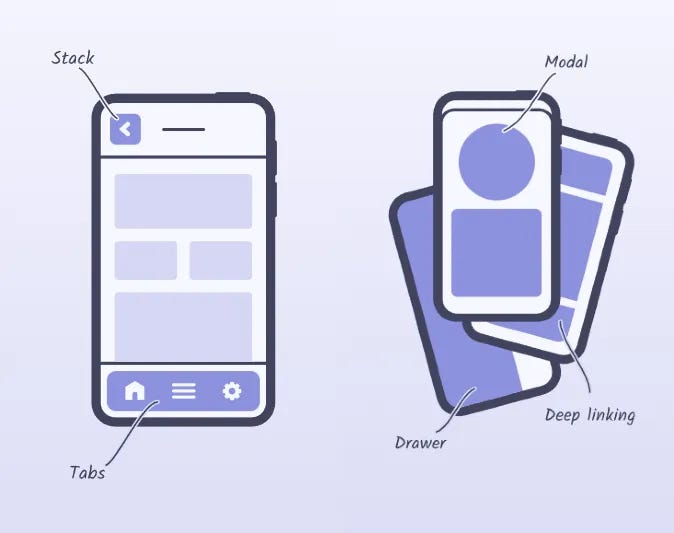
React Native provides a seamless way to create mobile applications using JavaScript and React. One of the key aspects of mobile app development is navigation. In this article, we will set up navigation in a React Native app using react-navigation library, incorporating stack navigation, drawer navigation, and bottom tabs navigation.
Prerequisites
Before we start, ensure you have the following installed on your machine:
- Node.js (v12 or higher)
- npm (v6 or higher) or yarn (v1.22 or higher)
- React Native CLI
- Expo CLI (for easier setup and testing)
Step 1: Setting Up the React Native Project
First, let’s set up a new React Native project using Expo. Open your terminal and run the following command:
expo init navigation-app
cd navigation-app
Choose a template (e.g., blank) and wait for the setup to complete.
Step 2: Installing React Navigation
We need to install react-navigation and its dependencies. Run the following commands to install them:
npm install @react-navigation/native
npm install @react-navigation/stack
npm install @react-navigation/drawer
npm install @react-navigation/bottom-tabs
npm install react-native-screens react-native-safe-area-context
Then, install the following dependencies for gesture handling and animations:
npm install react-native-gesture-handler react-native-reanimatedMake sure to link these libraries (only for bare React Native projects):
npx react-native link react-native-gesture-handler
npx react-native link react-native-reanimated
Step 3: Configuring Navigation
In your App.js file, set up the basic navigation structure. We'll start by creating a stack navigator.
Stack Navigation
Create a file StackNavigator.js in the src/navigation directory:
// src/navigation/StackNavigator.js
import React from 'react';
import { createStackNavigator } from '@react-navigation/stack';
import HomeScreen from '../screens/HomeScreen';
import DetailsScreen from '../screens/DetailsScreen';
const Stack = createStackNavigator();const StackNavigator = () => {
return (
<Stack.Navigator initialRouteName="Home">
<Stack.Screen name="Home" component={HomeScreen} />
<Stack.Screen name="Details" component={DetailsScreen} />
</Stack.Navigator>
);
};export default StackNavigator;Drawer Navigation
Create a file DrawerNavigator.js in the src/navigation directory:
// src/navigation/DrawerNavigator.js
import React from 'react';
import { createDrawerNavigator } from '@react-navigation/drawer';
import StackNavigator from './StackNavigator';
import ProfileScreen from '../screens/ProfileScreen';
const Drawer = createDrawerNavigator();const DrawerNavigator = () => {
return (
<Drawer.Navigator initialRouteName="Home">
<Drawer.Screen name="Home" component={StackNavigator} />
<Drawer.Screen name="Profile" component={ProfileScreen} />
</Drawer.Navigator>
);
};export default DrawerNavigator;Bottom Tabs Navigation
Create a file TabNavigator.js in the src/navigation directory:
// src/navigation/TabNavigator.js
import React from 'react';
import { createBottomTabNavigator } from '@react-navigation/bottom-tabs';
import HomeScreen from '../screens/HomeScreen';
import SettingsScreen from '../screens/SettingsScreen';
const Tab = createBottomTabNavigator();const TabNavigator = () => {
return (
<Tab.Navigator>
<Tab.Screen name="Home" component={HomeScreen} />
<Tab.Screen name="Settings" component={SettingsScreen} />
</Tab.Navigator>
);
};export default TabNavigator;Step 4: Setting Up Screens
Create the necessary screens in the src/screens directory.
HomeScreen
// src/screens/HomeScreen.js
import React from 'react';
import { View, Text, Button } from 'react-native';
const HomeScreen = ({ navigation }) => {
return (
<View>
<Text>Home Screen</Text>
<Button title="Go to Details" onPress={() => navigation.navigate('Details')} />
</View>
);
};export default HomeScreen;DetailsScreen
// src/screens/DetailsScreen.js
import React from 'react';
import { View, Text } from 'react-native';
const DetailsScreen = () => {
return (
<View>
<Text>Details Screen</Text>
</View>
);
};export default DetailsScreen;ProfileScreen
// src/screens/ProfileScreen.js
import React from 'react';
import { View, Text } from 'react-native';
const ProfileScreen = () => {
return (
<View>
<Text>Profile Screen</Text>
</View>
);
};export default ProfileScreen;SettingsScreen
// src/screens/SettingsScreen.js
import React from 'react';
import { View, Text } from 'react-native';
const SettingsScreen = () => {
return (
<View>
<Text>Settings Screen</Text>
</View>
);
};export default SettingsScreen;Step 5: Integrating Navigation in App.js
Now, integrate all navigators in the App.js file.
// App.js
import React from 'react';
import { NavigationContainer } from '@react-navigation/native';
import DrawerNavigator from './src/navigation/DrawerNavigator';
const App = () => {
return (
<NavigationContainer>
<DrawerNavigator />
</NavigationContainer>
);
};export default App;Step 6: Running the Application
Finally, let’s run our application to see it in action. Open your terminal and run the following command:
expo startThis will start the development server and open the Expo client. You can test the application on an emulator or a physical device.
Conclusion
In this article, we set up a React Native application with stack navigation, drawer navigation, and bottom tabs navigation using the react-navigation library. This setup provides a robust and flexible navigation structure for your mobile applications. Happy coding!
I hope you find this article helpful for setting up navigation in your React Native project!
메타데이터
- post_id
- d15d01fa0756
- slug
- setting-up-navigation-in-react-native-stack-drawer-and-bottom-tabs-d15d01fa0756
- url
- https://medium.com/@priyanshut98283/setting-up-navigation-in-react-native-stack-drawer-and-bottom-tabs-d15d01fa0756
- canonical_url
- https://medium.com/@priyanshut98283/setting-up-navigation-in-react-native-stack-drawer-and-bottom-tabs-d15d01fa0756
- author_url
- https://medium.com/@priyanshut98283
- status
- ok
- fetched_at
- 2026-06-28 10:39:35





