How to Convert Image to Text Online in Seconds (No Typing Required)
A beginner-friendly guide to using OCR tools to extract text from images quickly and accurately.
How to Convert Image to Text Online in Seconds (No Typing Required)
A beginner-friendly guide to using OCR tools to extract text from images quickly and accurately.
Typing text from images manually is a very slow, unreliable, and hectic process.
It feels slow.
It feels pointless.
And it takes you away from real work.
Now imagine this instead. You upload the image. You click one button. The text appears ready to edit. No typing. No rewrites. Just your words.
This guide will show you how to turn any image into editable text in seconds. You will learn what the process is, why it matters, and multiple ways to do it. You will also see a clear example using a real tool, with steps that anyone can follow.
Let’s dive in.
Why do I Need to Convert the Image into Editable Text?
You might not think about it until you need it. But converting text from images is useful in many situations.
- You are scanning paper notes after a long lecture.
- You took pictures of receipts for accounting.
- You need to extract text from screenshots.
- You want to archive text without typing.
Typing from images feels unavoidable, but it’s actually inefficient and prone to mistakes.
Every keystroke adds up, and hours spent on this could be used more productively.
This is where image to text conversion comes in.
This process is possible by using a technology called OCR (**Optical Character Recognition).**
Don’t worry if that term sounds technical.
It just means the computer reads letters in an image and turns them into real text you can edit.
Best Ways to Convert Images Into Editable Text
There are plenty of free and paid options available to turn images into text. Let’s look at some options.
Each method has its own benefits and may suit different situations. You do not have to stick with one.
1. Using Online OCR Tools — Fast and Convenient
Online tools are great when you need something quick and accessible on any device. This is fast and easy. You open a website, upload your file, and get text back. No installation, no setup.
Why it works well
Because you do not install anything. You can use it on any device. Most websites support common file types like JPG, PNG, and PDF.
Example tools:
- ImagetoTextOCR.com
- OCR.space
- OnlineOCR.net
Pro tip: Always check the output. Even the best OCR can misread unusual fonts or messy handwriting. You might try a couple and see which one works best for your image quality.
2. Using Mobile Apps
There are many apps for phones and tablets that do OCR. These are great when you are on the go. It’s good for Class notes, receipts, and quick extracts.
Why use an app Your phone camera becomes the scanner. You open the app, take a picture, and the text appears.
How it works:
- Take a photo in the app
- The app reads the text and converts it
- Copy or save the text
Popular apps: Microsoft Lens, Google Keep, Adobe Scan
Friendly reminder: Lighting matters. A dimly lit or blurry photo can confuse the OCR tool.
3. Using Desktop Software
If you have many files or large documents, desktop OCR programs can help.
Features:
- Batch processing multiple images at once
- Preserves tables, headings, and formatting
- Multi-language support
Examples: ABBYY FineReader, Readiris
Why choose this:
- Best for businesses, schools, or people who regularly digitize large volumes of text
- Slight learning curve, but once set up, extremely efficient
Tip: Even with desktop software, review the converted text for errors. It’s always easier to correct small mistakes early.
4. Using Browser Extensions
If you work inside a browser, extensions can extract text from images you see on the web. It lets you copy text from images directly on websites without downloading anything.
How it works:
- Install the extension in Chrome or Firefox
- Hover over an image or screenshot
- Select “Extract Text”
Examples: Copyfish, Project Naptha
Note: Only install extensions you trust. They often need permission to access webpage content.
Step-by-Step Guide: Convert an Image to Text
Now let’s walk through a real example. For this example, we will use a simple online image-to-text converter.
Follow each step and see how it works.
Step 1: Upload Your Image
Open your browser and search for **Image to text converter**.
Head to the tool section and click the Browse button. Choose the file you want to convert.

The image must be clear. Blurry or low‑contrast pictures make the text harder to recognize.
Step 2: Start the Conversion
Once your file is loaded, click the Convert button.
The tool will analyze the text in the image and transform it into an editable format.

Step 3: Copy or Download Your Text
After the conversion finishes, you will see the text appear on the screen.
Now you have choices. You can copy the text directly and paste it into your document.
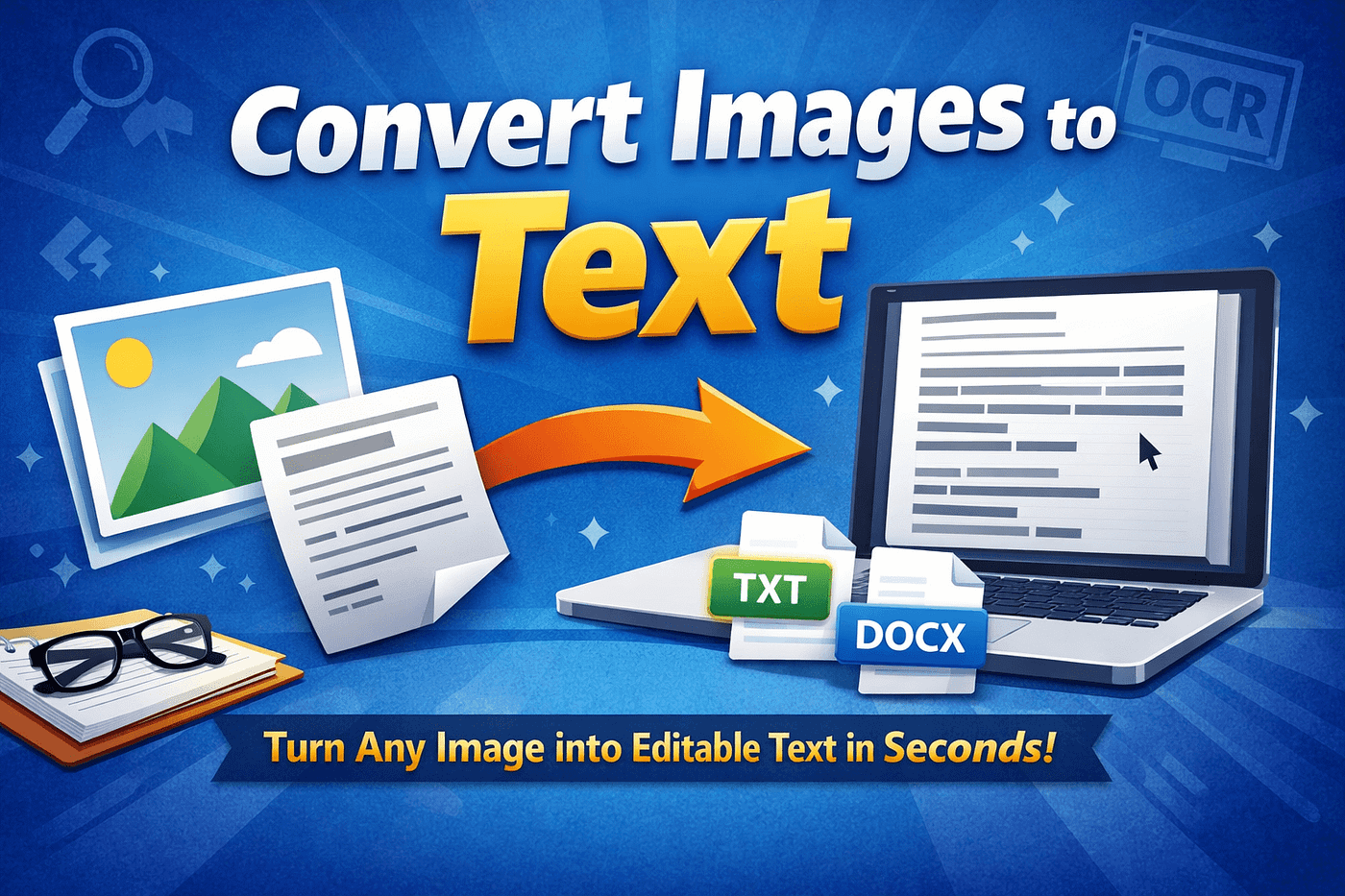
Or you can download it as a TXT or DOCX file.

Always review the result. OCR is good, but small errors can happen. Especially with unusual fonts or blurry lines.
Practical Tips to Get Better Results
Even though OCR tools are powerful, the quality of the text you get depends a lot on the source image and how you use the tool.
Here are practical tips to ensure your results are accurate and ready to use:
1. Use Clear, High-Quality Images
Blurry or low-resolution images are the most common reason OCR fails. Make sure your image is sharp, with text that is easy to read.
OCR software relies on recognizing the shapes of letters. If the letters are unclear, the software may misread them or miss some words entirely.
Practical tip: If you are scanning documents, scan at a higher DPI (300+). For photos, make sure the text is in focus and well-lit.
2. Keep Text Straight and Aligned
Text that is tilted, rotated, or upside-down can confuse OCR software. Most OCR engines work best with horizontal text. Misaligned text can lead to garbled output or skipped lines.
Practical tip: Before uploading, rotate your image so the text is upright. If you have multiple pages, keep them consistently aligned.
3. Check Language Settings
Some OCR tools allow you to select the language of the text in your image. Selecting the correct language improves recognition accuracy, especially for accented characters or non-English text.
Practical tip: If your document contains multiple languages, pick the primary language first and proofread the rest manually.
4. Avoid Cluttered Backgrounds
Text over patterns, images, or busy backgrounds can confuse OCR engines. The software may mistake background elements for text or misinterpret letters.
Practical tip: Crop out unnecessary areas and make sure the text contrasts clearly with the background. Dark text on a light background works best.
5. Review the OCR Output
Even the best OCR tools can make small errors, especially with unusual fonts, handwriting, or tables. Reviewing your text ensures that formatting is correct and no important information is missing.
Practical tip: Quickly scan for missing words, formatting issues, or misread characters. This step usually takes much less time than typing everything from scratch.
6. Use Batch Conversion for Multiple Files
If you have many images to convert, some tools allow batch processing. It saves time and keeps your workflow consistent.
Practical tip: Upload multiple files together, then check the output for each image. Minor edits are easier when done in batches rather than individually.
7. Keep Practicing and Adjusting
Every image is different, so you might need to experiment a bit. Over time, you’ll learn which lighting, angles, and image formats work best for your OCR tool.
Practical tip: Try different tools for tricky images and compare results. You’ll get faster and more accurate results as you practice.
Frequently Asked Questions
Can I convert many images at once? Yes. Some tools support batch uploads. You select multiple files and process them together.
Can I convert handwritten notes? It depends on clarity. Some handwriting is easy for OCR. Some is not. Try these handwriting to text converters and see which reads it best.
Which file types are supported? Most tools handle images like JPG and PNG. PDF is also common. Check the tool’s list if you are unsure.
Conclusion
Typing text from pictures is tiring and outdated. Today, you can extract text fast using OCR. Online tools, apps, desktop software, and browser extensions all make this simple.
You learned what image to text conversion is. You saw several ways to convert images to text. You walked through the steps that turn a picture into editable text.
You can use these methods for notes, screenshots, receipts, and documents. All you need are clear images and the right tool.
If you regularly work with screenshots, scanned PDFs, or handwritten notes, bookmarking a reliable image-to-text converter can save you hours.
메타데이터
- post_id
- d2decf71b17b
- slug
- how-to-convert-image-to-text-online-in-seconds-no-typing-required-d2decf71b17b
- url
- https://medium.com/@ImagetoTextOCR/how-to-convert-image-to-text-online-in-seconds-no-typing-required-d2decf71b17b
- canonical_url
- https://medium.com/@ImagetoTextOCR/how-to-convert-image-to-text-online-in-seconds-no-typing-required-d2decf71b17b
- author_url
- https://medium.com/@ImagetoTextOCR
- status
- ok
- fetched_at
- 2026-06-09 15:37:30