mpv Player vs VLC: Which Media Player Wins in 2026?
If you’ve ever downloaded a video only to have it not play right, you know the importance of a solid media player. Two of the most…
mpv Player vs VLC: Which Media Player Wins in 2026?

If you’ve ever downloaded a video only to have it not play right, you know the importance of a solid media player. Two of the most talked‑about options in 2026 are mpv and VLC. Both are powerful, open‑source, and used by millions worldwide — but which one is right for you? After years of using both (I still open VLC for quick clips and mpv for heavy‑duty projects), I’ll walk you through a friendly, expert comparison so you can decide with confidence.
Whether you’re watching anime, editing video projects, or building a custom media center, this comparison will help you choose the best tool for your workflow.
What Are mpv and VLC?
What Is mpv?
mpv is a minimalist media player that prioritizes performance and precision. It started as a fork of MPlayer and mplayer2 and has since grown into a highly scriptable, lightweight player. If you love tweaking settings and integrating with tools like FFmpeg or mpv.net, mpv shines.
What Is VLC?
VLC (VideoLAN Client) is one of the most popular cross‑platform media players ever made. It’s known for its ability to play nearly any format out of the box, rich GUI, and strong support on Windows, macOS, Linux, Android, and iOS. You’ve probably used it, even if just once.
Interface and Ease of Use
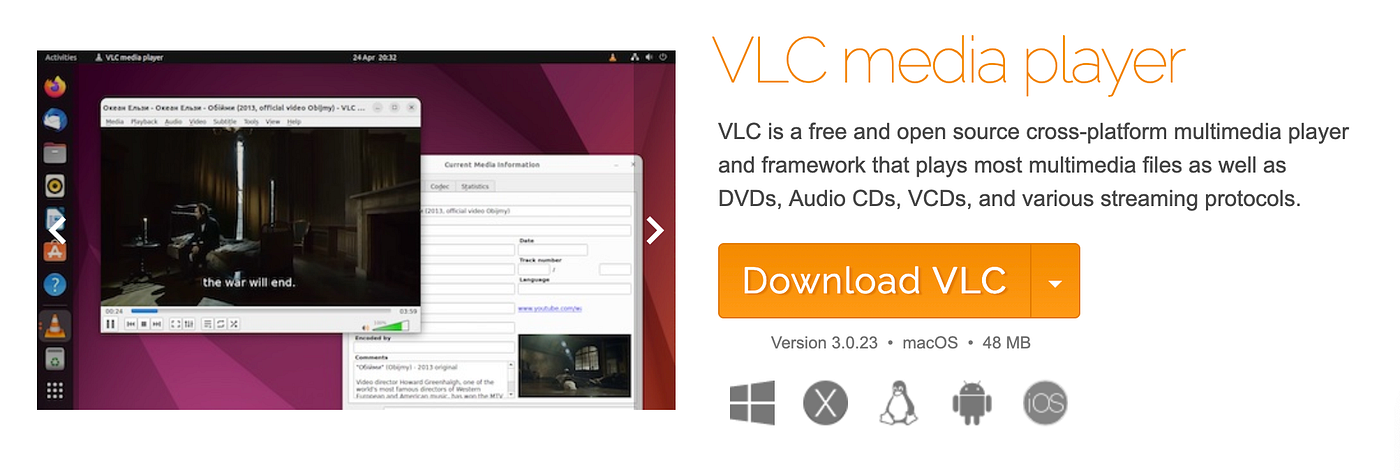
VLC: User‑Friendly and Accessible
VLC wins points for being intuitive. I’ve handed it to friends and family who don’t use computers much, and they figure it out fast. The menus, playback controls, and options are all visible and clickable.
Key features:
- Standard buttons for play/pause/seek
- Settings screens with toggle switches
- Subtitle synchronization tools
mpv: Minimalist But Powerful
mpv’s default interface is minimal — sometimes too minimal for casual users. Many controls live in a command bar or are triggered with keyboard shortcuts.
For example, to toggle subtitles you press s, and to zoom you press 9 or 0. Once you know these, mpv is fast and distraction‑free.
Customization and Extensions
mpv: Script It Yourself
mpv’s strength is its configurability. You can write Lua scripts, tweak every parameter, and automate deep tasks. I use mpv with the Lua script lua‑deliver to auto‑load episode playlists and skip intros.
Advanced features:
- Custom keybindings
- Shader support for color correction
- Embedded scripting (Lua, JavaScript)
mpv.net is a popular Windows frontend that adds a GUI on top of mpv without losing custom control.

VLC: Plugins and Add‑Ons
VLC also supports plugins. You can find extensions for streaming subtitles, integrating with YouTube links, and more. The plugin ecosystem isn’t as deep as mpv’s scripting, but it’s much easier to install.
Useful VLC add‑ons:
- VLSub (for automatic subtitles)
- Input‑Sync (improved audio/video sync)
Performance and Format Support
Both players excel at formats, but with nuances.
Format Support: VLC’s Breadth
VLC is known for playing almost anything. Whether it’s HEVC, AV1, MKV, or AVI from 20 years ago, VLC usually handles it without extra codecs. For someone who just wants videos to work, this is huge.
Performance: mpv’s Efficiency
mpv is lighter on system resources. On older machines or low‑power hardware (like a Raspberry Pi media server), mpv often plays high‑bitrate content more smoothly. I switched my home server’s default to mpv because it dropped CPU usage by roughly 30%.
Tip: Pair mpv with hardware decoding (e.g., VAAPI or NVDEC) for the best performance on modern GPUs.
Features in 2026: What’s New
VLC in 2026
VLC introduced:
- AI‑enhanced upscaling (better video quality using machine learning)
- Cloud streaming (play videos directly from cloud storage)
- Improved Chromecast and DLNA support
External link: See VLC’s 2026 roadmap.
mpv in 2026
mpv development focused on:
- Better AV1 and future codec support
- Plugin managers for easier script installation
- Tighter integration with FFmpeg 6+
mpv doesn’t have an official roadmap page, but community activity is visible on GitHub.
Real‑World Scenarios
Scenario 1: Casual Watching
If all you want is plug‑and‑play, VLC is your best choice. Open nearly any file without thinking and load subtitles with a couple clicks.
Scenario 2: Power User Workflow
If you edit videos, build custom media servers, or want keyboard‑centric control, mpv is superior — once you invest time in configuration.
I use VLC on my laptop for travel videos, and mpv on my desktop for long viewing sessions and automation.
FAQ
Is mpv better than VLC? It depends on your needs. VLC is more user‑friendly and supports more formats out of the box. mpv is lighter and more customizable.
Can mpv play DVDs and Blu‑rays? Yes, but it may need additional configuration. VLC usually handles these media types more directly.
Which player uses less CPU? Typically mpv, especially with hardware acceleration enabled.
**Are there good alternatives? **Yes. PotPlayer (Windows) and IINA (macOS frontend for mpv) are strong choices.
Conclusion and Recommendations
Both mpv and VLC remain relevant in 2026. VLC is ideal for users who want a reliable, full‑featured player with minimal setup. mpv is perfect for power users who value performance and customization.
If you’re still undecided, try both for a week and see which fits your daily use better.
For more on media player workflows, check out our article on custom home media servers and the best tools for streaming in 2026.
메타데이터
- post_id
- d2eabd4d4fef
- slug
- mpv-player-vs-vlc-which-media-player-wins-in-2026-d2eabd4d4fef
- url
- https://medium.com/@scarlettyung85/mpv-player-vs-vlc-which-media-player-wins-in-2026-d2eabd4d4fef
- canonical_url
- https://medium.com/@scarlettyung85/mpv-player-vs-vlc-which-media-player-wins-in-2026-d2eabd4d4fef
- author_url
- https://medium.com/@scarlettyung85
- status
- ok
- fetched_at
- 2026-06-14 11:28:49