Comprehensive Guide to Setting Up Claude Code on Windows Using WSL
Setting up Claude Code, Anthropic’s AI-driven coding assistant, on a Windows system involves leveraging the Windows Subsystem for Linux…
Comprehensive Guide to Setting Up Claude Code on Windows Using WSL
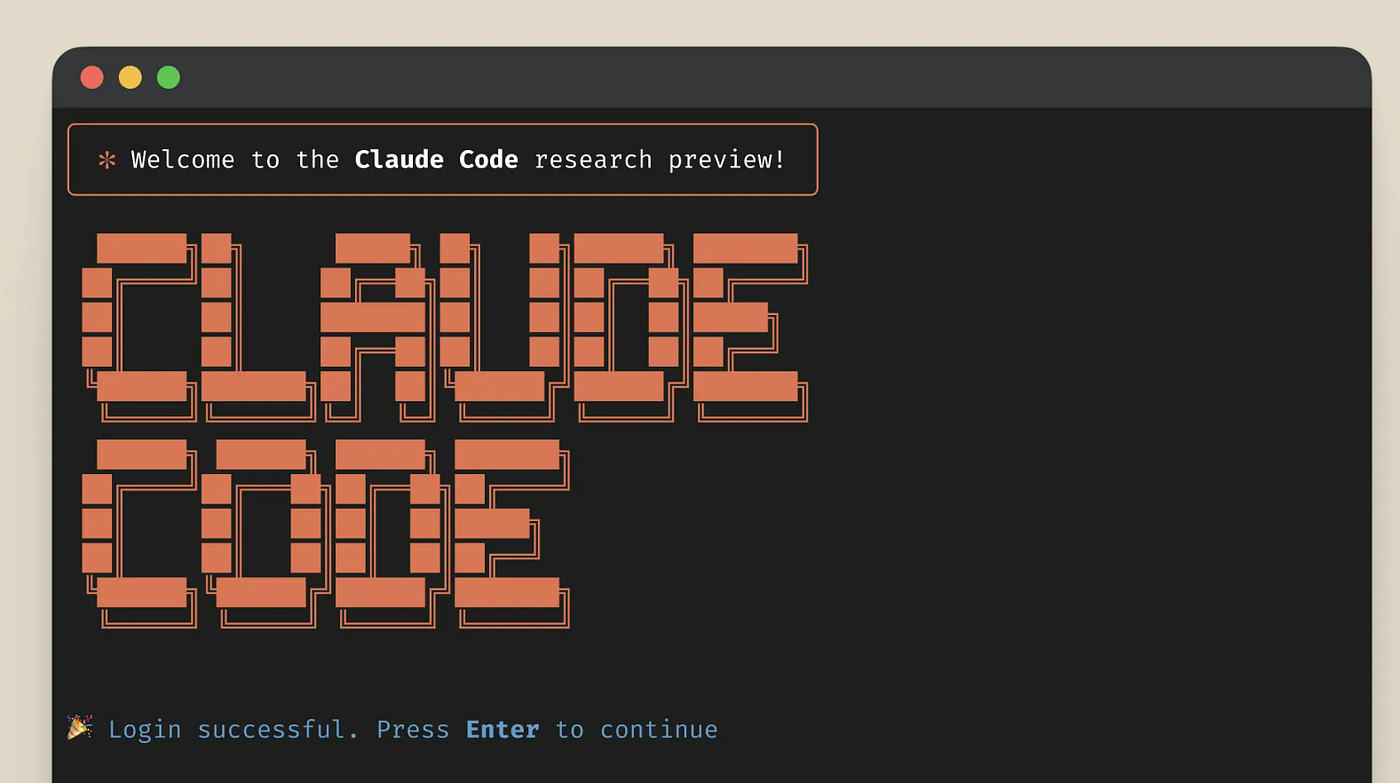
Setting up Claude Code, Anthropic’s AI-driven coding assistant, on a Windows system involves leveraging the Windows Subsystem for Linux (WSL). This approach ensures compatibility and a seamless development experience. Below is a comprehensive guide to installing and configuring Claude Code on your Windows machine
Before we proceed, let’s stay connected! Please consider following me on Medium, and don’t forget to connect with me on LinkedIn for a regular dose of data science and deep learning insights.” 🚀📊🤖
Prerequisites
Before proceeding, ensure your system meets the following requirements:
- Windows 10 or 11: Ensure your operating system is up to date.
- Windows Subsystem for Linux (WSL): WSL enables you to run a Linux distribution alongside your Windows installation.
- Node.js (version 18 or later): A JavaScript runtime required for running Claude Code.
- npm (Node Package Manager): Comes bundled with Node.js and is used to install packages.
- Git: A version control system for managing code repositories.
- Ripgrep: A line-oriented search tool that recursively searches directories for a regex pattern.
Step 1: Install Windows Subsystem for Linux (WSL)
Enable WSL:
Open PowerShell as Administrator and execute:
wsl --installThis command installs WSL with the default Linux distribution. If WSL is already installed, ensure it’s updated:
wsl --updateRestart Your Computer:
- A system restart may be required to complete the installation
Set Up a Linux Distribution:
- Upon restarting, launch the installed Linux distribution (e.g., Ubuntu) from the Start menu.
- Create a new user account and password when prompted.
Step 2: Install Node.js and npm on WSL
Update Package Lists:
In your WSL terminal, run:
sudo apt update && sudo apt upgrade -yInstall Node.js and npm:
Execute
sudo apt install -y nodejs npmVerify the installations
node -v
npm -v
Step 3: Install Git and Ripgrep
Install Git:
In the WSL terminal, run:
sudo apt install -y gitVerify the installation:
git --versionInstall Ripgrep:
Execute:
sudo apt install -y ripgrepVerify the installation:
rg --versionStep 4: Install Claude Code
Install the Claude Code Package:
Run:
sudo npm install -g @anthropic-ai/claude-codeThis command installs Claude Code globally on your system.
Authenticate with Anthropic:
After installation, start Claude Code by typing:
claudeFollow the prompts to complete the OAuth authentication process, linking Claude Code to your Anthropic account.
Step 5: Using Claude Code in Your Projects
Navigate to Your Project Directory:
- Use the
cdcommand to move to your project's root directory:
cd /mnt/c/Users/YourUsername/YourProject- The
/mnt/c/prefix accesses the C: drive from WSL.
Initialize Claude Code:
- Within your project directory, start Claude Code:
claudeClaude Code will now have access to your project’s files and can assist with various coding tasks.
Common Commands and Usage
- Clear Conversation History:
/clearShow Session Cost and Duration:
/costCheck Installation Health:
/doctorExit Claude Code:
/exitBest Practices
- Be Specific in Prompts: Clearly articulate your requests to get more accurate assistance from Claude Code.
- Monitor Usage: Use the
/costcommand to keep track of your session's duration and associated costs. - Regular Updates: Periodically update Node.js, npm, and Claude Code to benefit from the latest features and security patches.
Conclusion
Integrating Claude Code into your Windows development environment via WSL enhances your coding workflow by providing AI-powered assistance directly in your terminal. By following the steps outlined above, you can set up and utilize Claude Code effectively, leveraging its capabilities to streamline tasks such as code generation, debugging, and refactoring
메타데이터
- post_id
- d3a3f3b5a128
- slug
- comprehensive-guide-to-setting-up-claude-code-on-windows-using-wsl-d3a3f3b5a128
- url
- https://medium.com/ai-insights-cobet/comprehensive-guide-to-setting-up-claude-code-on-windows-using-wsl-d3a3f3b5a128
- canonical_url
- https://medium.com/ai-insights-cobet/comprehensive-guide-to-setting-up-claude-code-on-windows-using-wsl-d3a3f3b5a128
- author_url
- https://medium.com/@moazharu
- status
- ok
- fetched_at
- 2026-06-13 16:00:06