ChEMBL DB Connection: A Gateway to Unlocking ChEMBL in KNIME Workflows
Step-by-Step Setup with PostgreSQL and SQLite
Stories I KNIME Analytics Platform I Drug Discovery
ChEMBL DB Connection: A Gateway to Unlocking ChEMBL in KNIME Workflows
Step-by-Step Setup with PostgreSQL and SQLite

Table of Contents
· Introduction · How to set up ChEMBL ∘ Using PostgreSQL ∘ Using SQLite · How to set up the ChEMBL DB Connection component ∘ Using PostgreSQL ∘ Using SQLite · Acknowledgments
Introduction
At Healx, we recently launched a blog series to share practical insights and publicly release some of our workflows. In this series, we demonstrate how to effectively use public data sources to maximise the potential of existing datasets in drug discovery.
This initiative addresses the challenge of limited and costly data by making the most of available resources.
So far, we have published two workflows: one to identify biological targets for sets of compounds with common features, and another to assess biological target tractability.
After publishing these first two blog posts, we received some requests from readers for guidance on setting up and configuring ChEMBL for use with our workflows. In response, we have dedicated this post to that topic.
To set the context, our workflows use data sources such as ChEMBL, UniProt, Open Targets, and the PDBe. To make our workflows as user-friendly as possible, we access these resources mainly through their web services, which are invaluable for drug discovery research. ChEMBL, however, stands out as an exception. While it offers excellent web services, it also provides its data in several relational database formats (PostgreSQL, SQLite, MySQL), allowing for more powerful, flexible, and efficient data access. The trade-off is that these workflows require access to a working ChEMBL database instance, which involves some initial setup rather than functioning straight out of the box.
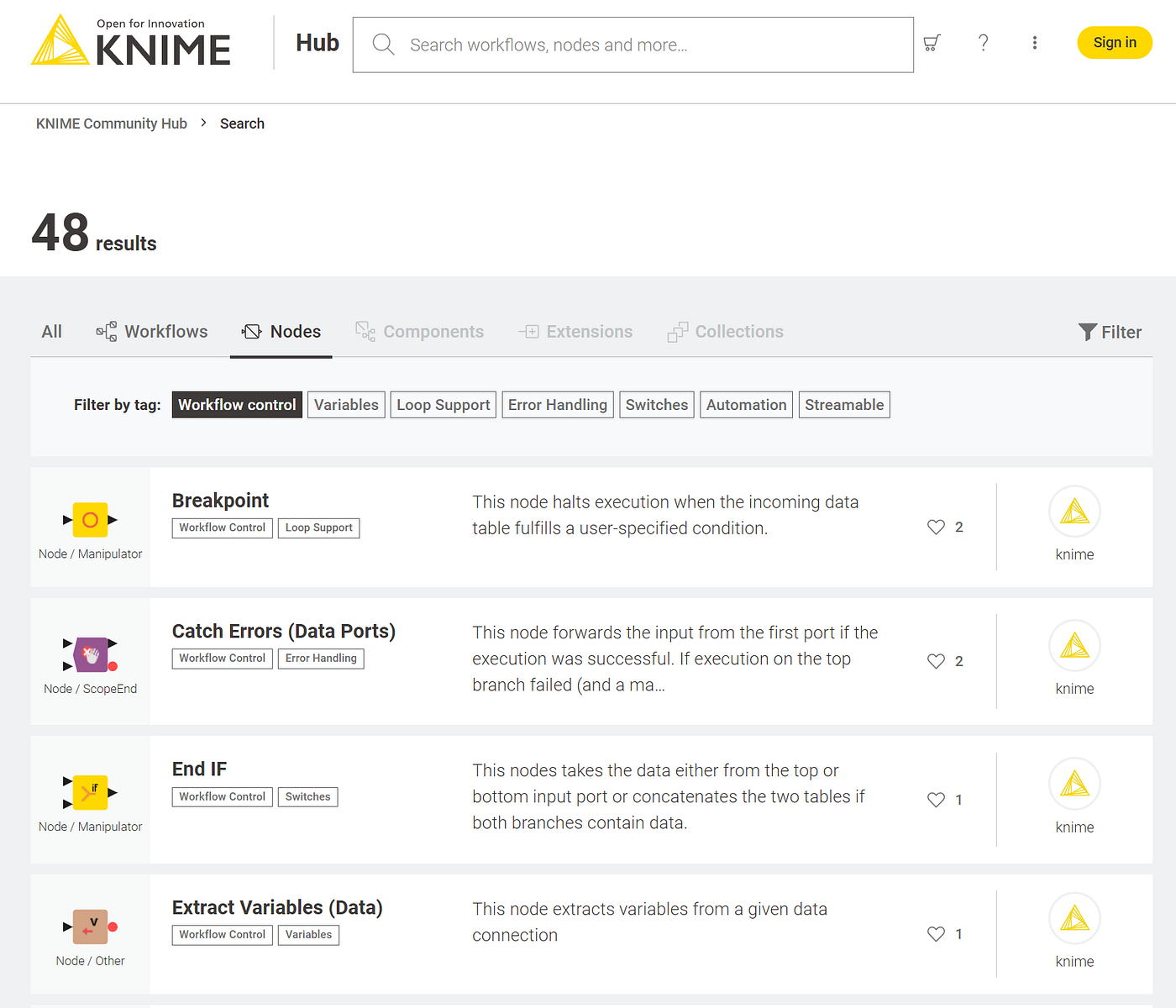
To enable this enhanced data access, we have developed a suite of dedicated ChEMBL components for KNIME (see Figure 1). These can be used independently in any workflow to simplify and enhance interactions with ChEMBL data.

Figure 1: List of publicly released ChEMBL components.
In this blog post, we explain in detail how to set up ChEMBL and connect it to KNIME via our ChEMBL DB Connection component, enabling you to use all our dedicated ChEMBL components in your own workflows. Previously, this required installing a PostgreSQL server and the ChEMBL database on a local or remote machine, which could be a barrier for non-technical users. To make things easier, we have now updated our ChEMBL components and workflows to support SQLite, which is much more straightforward to install; in most cases, you simply download a file and point the workflow to it.
Below, we provide step-by-step instructions for setting up the ChEMBL database using either PostgreSQL or SQLite. We then describe the ChEMBL DB Connection and explain how to configure it. By the end of this guide, you’ll be ready to use all our ChEMBL components in any of your KNIME workflows.
How to set up ChEMBL
As mentioned earlier, you can use ChEMBL with our workflows in two ways: via PostgreSQL or SQLite. PostgreSQL is significantly more efficient and robust, but the setup is a bit more complex for non-technical users. While SQLite is noticeably slower than PostgreSQL, it is much easier to set up. Below are step-by-step instructions for both options.
Using PostgreSQL
To use PostgreSQL with ChEMBL, follow these steps:
- Install a PostgreSQL server Set up a PostgreSQL server on your local machine or a remote server. You can use your operating system’s package manager or follow the official PostgreSQL installation instructions specific to your OS. Any currently supported version should work.
- Download the ChEMBL PostgreSQL Download the PostgreSQL version of the ChEMBL database from the ChEMBL FTP site. To get the latest version, go to the main directory for the most recent release and select the relevant chembl_XY_postgresql.tar.gz file (see Figure 2 below). If you need an earlier version, you can browse and select the desired version from the general releases page. At the time of writing this post, the latest version is chembl_36. You can also download it directly from this link.
- Extract the database files Extract the downloaded .tar.gz file to a suitable location.
- Review the extracted files You will find two files:
- chembl_XY_postgresql.dmp: the database dump file containing all the data
- INSTALL_postgresql: contains detailed instructions on how to create and load the ChEMBL database into your PostgreSQL server (one-time setup)
- Install the ChEMBL database Follow the instructions provided in the INSTALL_postgresql file to restore the database into your PostgreSQL server. During installation, you may be asked to provide your PostgreSQL username and password. Make a note of these, as you will need them later when configuring the ChEMBL DB Connection component.
- [Optional but recommended] Optimise for performance Run the following SQL commands to improve the performance of our ChEMBL components:
psql -U your_username -d chembl_XY- Replace your_username with your PostgreSQL username
- Replace chembl_XY with the actual database name, such as chembl_36
CREATE INDEX molecule_dictionary_pref_name_btree_idx ON molecule_dictionary (pref_name);

CREATE INDEX molecule_synonyms_synonyms_btree_idx ON molecule_synonyms (synonyms);

CREATE INDEX compound_records_compound_name_btree_idx ON compound_records (compound_name);

CREATE EXTENSION IF NOT EXISTS pg_trgm;

CREATE INDEX molecule_dictionary_pref_name_trgm_idx ON molecule_dictionary USING GIN (pref_name gin_trgm_ops);

CREATE INDEX molecule_synonyms_synonyms_trgm_idx ON molecule_synonyms USING GIN (synonyms gin_trgm_ops);

CREATE INDEX compound_records_compound_name_trgm_idx ON compound_records USING GIN (compound_name gin_trgm_ops);

CREATE INDEX assays_description_trgm_idx ON assays USING GIN (description gin_trgm_ops);
Figure 2: ChEMBL FTP server, highlighting the file you need to download to install a ChEMBL PostgreSQL database.
You are now ready to configure the ChEMBL DB Connection for PostgreSQL, as explained in this section.
Using SQLite
To use SQLite with ChEMBL, follow these steps:
- Download the ChEMBL SQLite database Download the SQLite version of the ChEMBL database from the ChEMBL FTP site. To get the latest version, go to the main directory for the most recent release and select the relevant chembl_XY_sqlite.tar.gz file (see Figure 3 below). If you need an earlier version, you can browse and select the desired version from the general releases page. At the time of writing this post, the latest version is chembl_36. You can also download it directly from this link.
- Extract the database file Extract the downloaded .tar.gz file to a convenient location on your computer.

Figure 3: ChEMBL FTP server, highlighting the file you need to download to install a ChEMBL SQLite database.
That’s it! You are now ready to configure the ChEMBL DB Connection component for SQLite, as explained in this section.
How to set up the ChEMBL DB Connection component
The *ChEMBL DB Connection* component is our KNIME tool that enables all our other ChEMBL components to operate within any workflow by connecting them to a ChEMBL database instance. All currently released ChEMBL components can be identified by the “ChEMBL” prefix in our component_template repository (Figure 1).

Figure 4: External view of the ChEMBL DB Connection component in KNIME.
It is important to note that the ChEMBL DB Connection gathers all the necessary information for connecting to a ChEMBL instance. Once run, it supplies these details as flow variables within the workflow. This component doesn’t connect to ChEMBL directly. Instead, it provides flow variables that the other ChEMBL components use to make the connection.

Figure 5: Internal logic (workflow) of the ChEMBL DB Connection component.
Currently, the ChEMBL components support the two database types discussed above:
- PostgreSQL: Offers much better performance (recommended).
- SQLite: Easier to set up (use if PostgreSQL is not an option).
Below are instructions on how to configure the component for both options.
Using PostgreSQL
If you are using a PostgreSQL version of ChEMBL, set the following parameters in the ChEMBL DB Connection configuration dialogue (see figure 6 below):

Figure 6: ChEMBL DB Connection configuration dialog for setting up the PostgreSQL version of ChEMBL.
- ChEMBL Database Type: select “PostgreSQL”
- Database credentials can be provided in two ways: A. Set directly in the component configuration dialogue — Choose “Set user and password” for the ChEMBL DB Credential Retrieval Mode — Enter the username and password you used during the ChEMBL database installation B. Retrieve securely from a connected KNIME Hub — Create a credential secret type on your KNIME Hub as follows: — — Access your workspace on the KNIME Hub — — Click your user or team name (depending on whether you use KNIME Business or Community Hub) — — Select “Secrets” → “Create secrets”, and create a secret of type credentials called chembl_credentials (see Figure 7 below). — — Enter the username and password used during the ChEMBL database setup and click “Create”. — — You should now see your chembl_credentials listed among your secrets in the KNIME Hub (see Figure 8 below). — In the ChEMBL DB Connection configuration dialogue (see Figure 6 above), set the ChEMBL DB Credential Retrieval Mode to “Retrieve from specified KNIME Hub instance”. — Insert your KNIME Hub mount point in the appropriate dialog (see Figure 6 above).
- Enter the host and port you used during the ChEMBL PostgreSQL installation. The host will be “localhost” if you are connecting to a local database, and the default port is “5432” unless you changed it during installation.

Figure 7: KNIME Hub dialog for creating credential-type secrets.

Figure 8: chembl_credentials secret shown in the KNIME Hub after creation.
Congratulations! Now you can run our workflows based on ChEMBL, as well as explore and use our current range of ChEMBL components, each specifically developed to streamline and enhance KNIME workflows. All currently available components are listed in this repository (look for the “ChEMBL” prefix), each with its own dedicated description (see Figure 1). More components will be added in the future.
If you have any questions or feedback, feel free to leave a comment below or get in touch. For more updates, tips, and new workflows, consider following our blog! Happy data mining!
Using SQLite
If you are using a SQLite version of ChEMBL, set the following options in the ChEMBL DB Connection configuration dialogue (see Figure 9 below):
- ChEMBL Database Type: select “SQLite”
- ChEMBL SQLite file: Browse to and select your local ChEMBL SQLite file (e.g. chembl_36.db).

Figure 9: ChEMBL DB Connection configuration dialog for setting up the SQLite version of ChEMBL.
Congratulations! Now you can run our workflows based on ChEMBL, as well as explore and use our current range of ChEMBL components, each specifically developed to streamline and enhance KNIME workflows. All currently available components are listed in this repository (look for the “ChEMBL” prefix), each with its own dedicated description (see Figure 1). More components will be added in the future.
If you have any questions or feedback, feel free to leave a comment below or get in touch with us. For more updates, tips, and new workflows, consider following our blog! Happy data mining!
Acknowledgments
Our sincere thanks to the teams behind KNIME and ChEMBL for their ongoing commitment to developing and maintaining these outstanding technologies, data, and services, which make resources like the workflows we implement possible.
메타데이터
- post_id
- d3f7bf1847c6
- slug
- chembl-db-connection-a-gateway-to-unlocking-chembl-in-knime-workflows-d3f7bf1847c6
- url
- https://medium.com/low-code-for-advanced-data-science/chembl-db-connection-a-gateway-to-unlocking-chembl-in-knime-workflows-d3f7bf1847c6
- canonical_url
- https://medium.com/low-code-for-advanced-data-science/chembl-db-connection-a-gateway-to-unlocking-chembl-in-knime-workflows-d3f7bf1847c6
- author_url
- https://medium.com/@giovanni_72624
- status
- ok
- fetched_at
- 2026-06-09 15:37:30