How to Play Black Myth with a Wireless Xbox Controller on Linux
With the recent release of the video game of Black Myth: Wukong, I am very tempted to give it a try. However, I am not gamer at all, and I…
How to Play Black Myth with a Wireless Xbox Controller on Linux
With the recent release of the video game of Black Myth: Wukong, I am very tempted to give it a try. However, I am not gamer at all, and I don’t own a PS5 or even a Windows PC. I have a MacBook M3 for work and an Ubuntu on Lenovo Legion for personal use, which has an NVIDIA GPU. Over a year ago, I participated in a work-social activity where a few colleagues got together to play Xbox online games. For that, I bought the cheapest possible Xbox controller from Temu — a 2.4GHz wireless X-One controller from a unknown manufacture. I immediately regretted that decision since it was difficult to get it to work without a Windows PC. Had I have a bluetooth or even a wired controller, it might have been easier for Mac or Linux. That said, I managed to get it working (details later) on my Ubuntu in March 2023, played maybe two games with my coworkers at the social event, and then completely forgot about it.
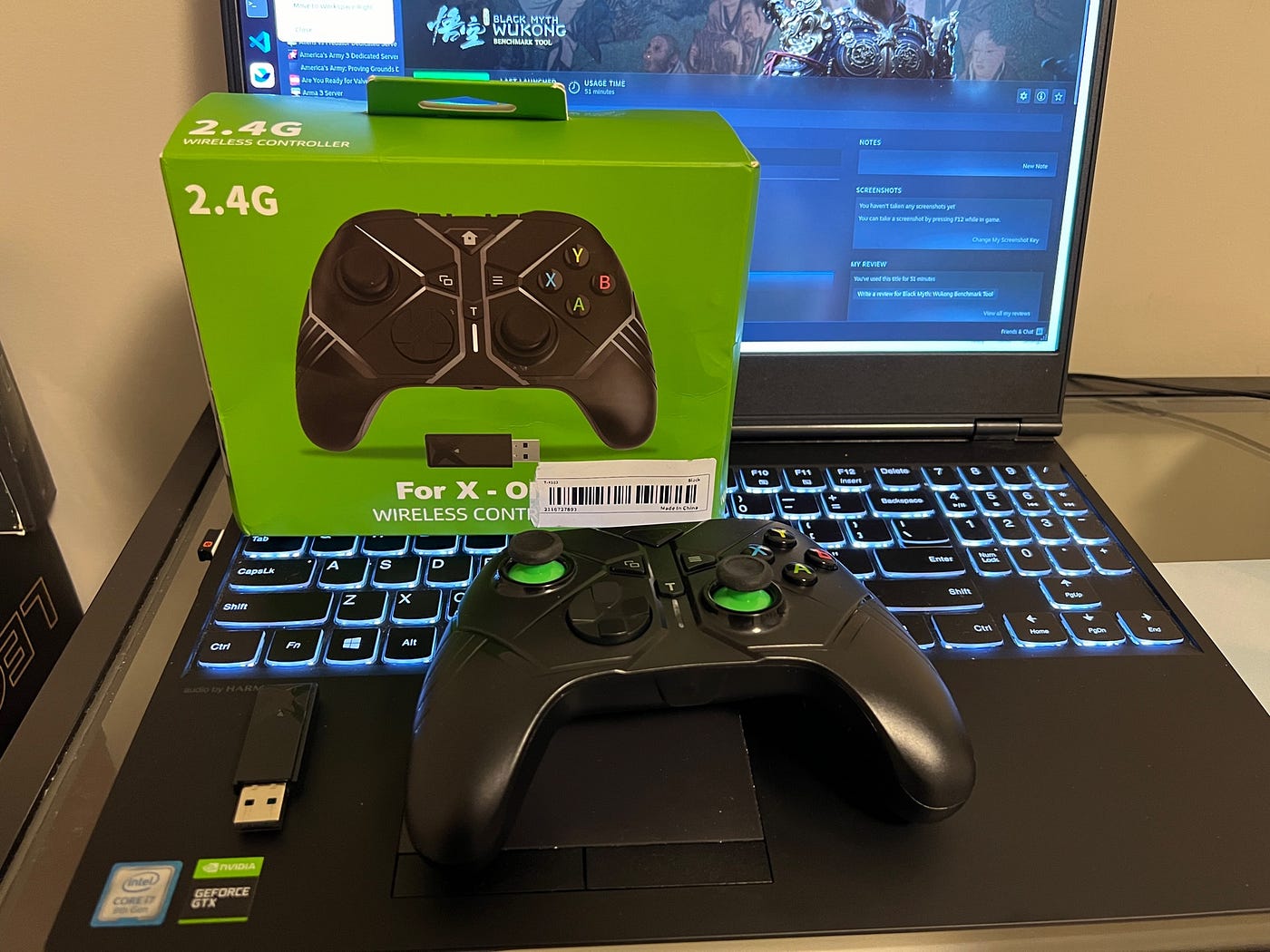
Run Steam on Linux
So about 18 months later, I am going to try this again. How hard could it be? The nice thing about Black Myth: Wukong is that it is available on Steam, and it has become so easy nowadays to get Steam working on Linux. There are many articles online about how to install Steam on Linux so I am going to skip that part.
What’s even better is that there is a free benchmark tool for Black Myth so that I can test my setup before spending CAD$80 to buy the real game. It is pretty straightfoward to launch the game on Ubuntu-22.04. The first problem I encountered was the “invalid platform” error.
The solution is very simple: go to Steam settings → Compatibility -> Turn on Enable Steam Play for all other titles and I chose to use the latest stable version of Proton 9.0-2
Then I got another error:
The problem was solved by installing the latest NVIDIA driver. The easist method is to use Ubuntu’s own “Additional Drivers” tool. You can also download the latest driver directly from NVIDIA.
Use Xbox Controller on Linux
At this point, the game works, with the keyboard and mouse of my laptop. But I want to use my Xbox controller and this is when my suffering started. About 18 months ago, I went through fairly elaborate research into the numerous tools available to get it to work. Here are a few that I tried:
- xpad: It should be included by most of the distributions automatically, and some controllers might just work out of box. Unfortunately mine is not one of them.
- xone: This is the one that eventually fully worked but it has been tricky. Later I’ll show the working setup.
- xboxdrv: A very old userland driver that didn’t work at all.
- xpadneo: It didn’t work for me since it is mostly for Bluetooth.
- xow: A very old user mode driver replaced by xone (same author). It didn’t work for me.
There are also quite a few tools to test/verify whether the controller is working properly:
- https://hardwaretester.com/: This is by far the easiest way to check if the driver is working.
- joystick: It includes the
fftestandjstestcommands. There is also a GUI called jstest-gtk. - evtest: Another command line tool.
- Steam can be used to test controllers in its settings, and it is the ultimate validator.
The New Problem
Unfornately, when I plugged in my x-one wireless controller in August 2024, the xone driver didn’t really work. I got the driver compiled, installed and properly loaded. The light on the USB dongle was even lit (no other driver was able to do that) and paired with my controller, but nothing happened when I pressed any button. I even had to borrow a Windows PC to confirm that my controller was not broken. The good news is that I took notes in my private github repo on what I did in March 2023 and I noticed a slight difference.
About 18 months ago, the drivers were loaded as
╰─❯ lsmod|grep xone
xone_gip_gamepad       16384  0
ff_memless             24576  1 xone_gip_gamepad
xone_wired             20480  0
xone_gip               40960  2 xone_gip_gamepad,xone_wired
while this time, I see
╰─❯ lsmod|grep xone
xone_gip_gamepad       12288  0
ff_memless             24576  1 xone_gip_gamepad
xone_wired             20480  0
xone_gip               57344  2 xone_gip_gamepad,xone_wired
ecdh_generic           16384  3 xone_gip,bluetooth
The last line is new! This prompted me to look at what was different. It turned out that over the course of the past 1.5 years, I had upgraded the Linux kernel twice, going from 5.15 to 6.8. I also saw a lot of changes in the xone driver code during this period. I ended up downgrading both Linux kernel and xone driver and eventually found a working combination.
The Working Combination
I’ll spare the readers the tedious process of checking different versions of Linux kernel and xone commits. This is what works for me:
- OS: Ubuntu-22.04, AMD64
- Linux Kernel:
5.15.0-119-generic: I had to update grub to always boot from this old kernel. - xone driver: medusalix/xone@2467407. Just follow the README and run
sudo ./install.sh. You might need to runsudo ./uninstall.shfirst if you have built it before. I actually don’t think there is anything wrong with Linux kernel 6.8 itself but the xone driver at this working commit hadn’t supported Linux kernel version 6 yet. The support was introduced later but likely along with something that broke the driver for my specific controller. - nvidia driver 550: Note that I had to manually install this driver from NVIDIA website instead of using the Ubuntu “Additional Drivers” app, which worked perfectly fine with the Linux-6.8 kernel. Other versions might work as well.
As long as I follow the above steps, my controller works! As to why the latest xone driver and Linux kernel don’t work properly, I have no clue at all. But one of the objectives for writing this blog is to share with the community, and hopefully someone will find out the real problem. This is why I love open source!
Play the Real Game
Finally, I felt confident enough to purchase the game and started playing it. It is quite amazing, although my computer is a bit slow and by no means the best experience possible. I want to share two more problems I encoutered. The first one is about disk storage. The game download needs 128GB of storage alone, plus more for temporary access. So make sure you plan for the disk capacity ahead of time.
The second problem is that it takes a long time to start the game. A significant amount of time is spent on “processing Volkan shaders”. I believe this can be skipped and even turned off completely in Steam settings, with some performance penalty. But it might be a one time issue.
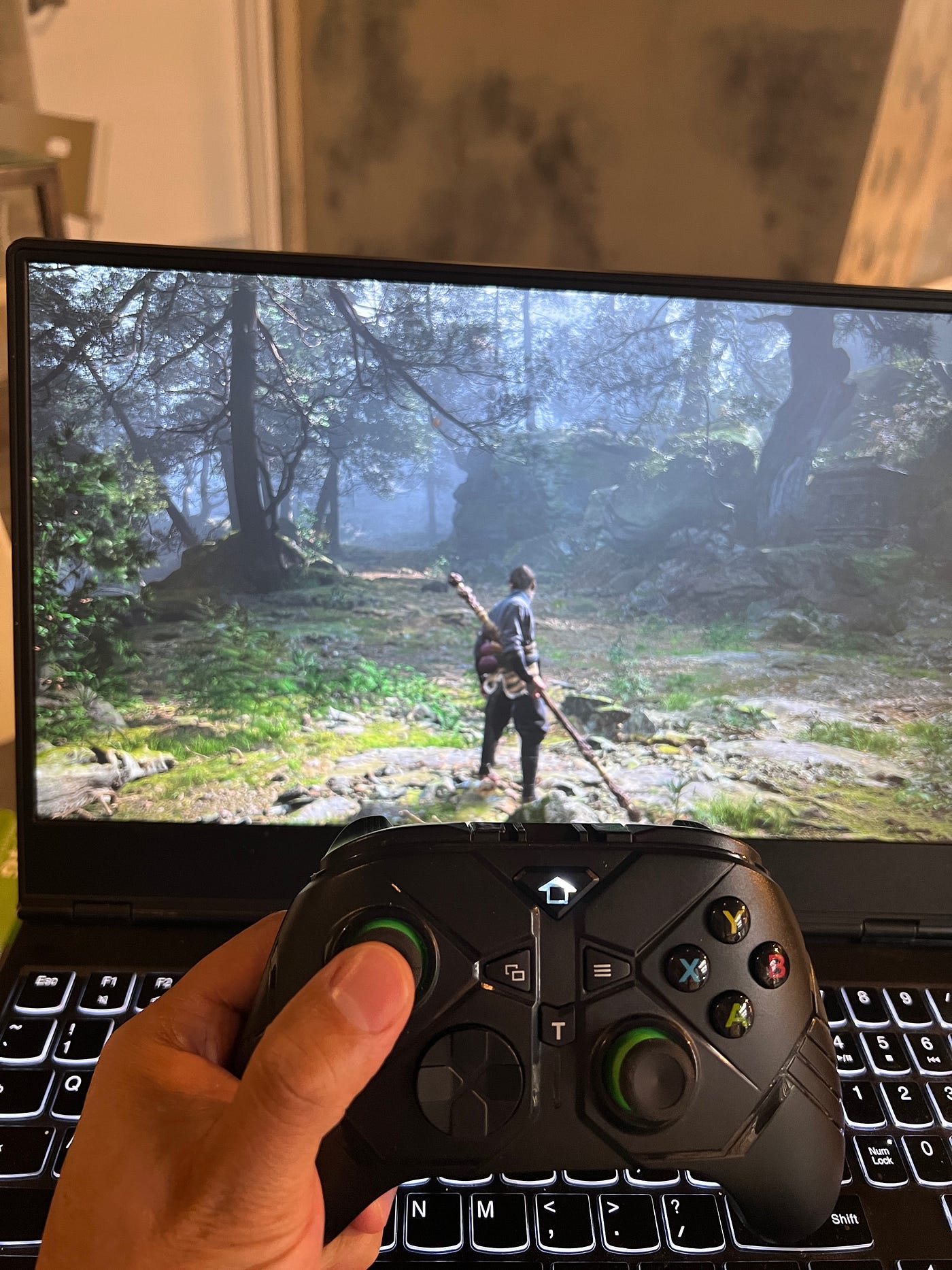
Finally, this is me playing the game and I have to admit, I suck at it. On the other hand, maybe getting this game to work on Linux was more fun for me 😀.
Update in September 2024
On Sept 13, 2024, I upgraded my laptop to Ubuntu-24.04 and I tried to build xone against the kernel
- kernel: 6.8.0–44-generic
- xone driver: 29ec3577e52a50f876440c81267f609575c5161e (latest master)
Interestingly, this time the led light on the USB dongle is lit up once plugged in and the xbox controller is easily paired, but still nothing happens when I play on the buttons.
Also a few days later, my old 5.15 kernel is automatically removed by Ubuntu-24.04 since it wants to use the 6.8 kernel now. I had to manually download 5.19 kernel from https://kernel.ubuntu.com/mainline/v5.19.17/amd64/
╭─ ~/Downloads ·················································································································································· base 22:20:16
╰─❯ ls linux-* -lh
-rw-rw-r-- 1 seki seki 13M Sep 17 22:19 linux-headers-5.19.17-051917_5.19.17-051917.202210240939_all.deb
-rw-rw-r-- 1 seki seki 3.2M Oct 24 2022 linux-headers-5.19.17-051917-generic_5.19.17-051917.202210240939_amd64.deb
-rw-rw-r-- 1 seki seki 12M Sep 17 22:19 linux-image-unsigned-5.19.17-051917-generic_5.19.17-051917.202210240939_amd64.deb
-rw-rw-r-- 1 seki seki 89M Sep 17 22:19 linux-modules-5.19.17-051917-generic_5.19.17-051917.202210240939_amd64.deband then install these packages manually with sudo dpkg -i linux-* .
Finally, don’t forget to rebuild the xone driver from the same commit of medusalix/xone@2467407.
메타데이터
- post_id
- d41cb0cbb03e
- slug
- how-to-play-black-myth-with-a-wireless-xbox-controller-on-linux-d41cb0cbb03e
- url
- https://medium.com/@shijin_35411/how-to-play-black-myth-with-a-wireless-xbox-controller-on-linux-d41cb0cbb03e
- canonical_url
- https://medium.com/@shijin_35411/how-to-play-black-myth-with-a-wireless-xbox-controller-on-linux-d41cb0cbb03e
- author_url
- https://medium.com/@shijin_35411
- status
- ok
- fetched_at
- 2026-08-05 08:35:33