(Comptia A+) Understanding Windows Processes: A Comprehensive Guide
Chapter 12 : Windows under the Hood
(Comptia A+) Understanding Windows Processes: A Comprehensive Guide
Chapter 12 : Windows under the Hood
Processes
In the world of computing, especially on Windows systems, processes play a pivotal role in the functioning of your computer. At any given moment, your Windows system might be running hundreds of processes simultaneously. These processes, while often invisible to the casual user, are the backbone of a system’s operation. In this guide, we will explore what processes are, how they function, and how to manage them effectively using tools like Task Manager and Process Explorer.
What Are Processes?
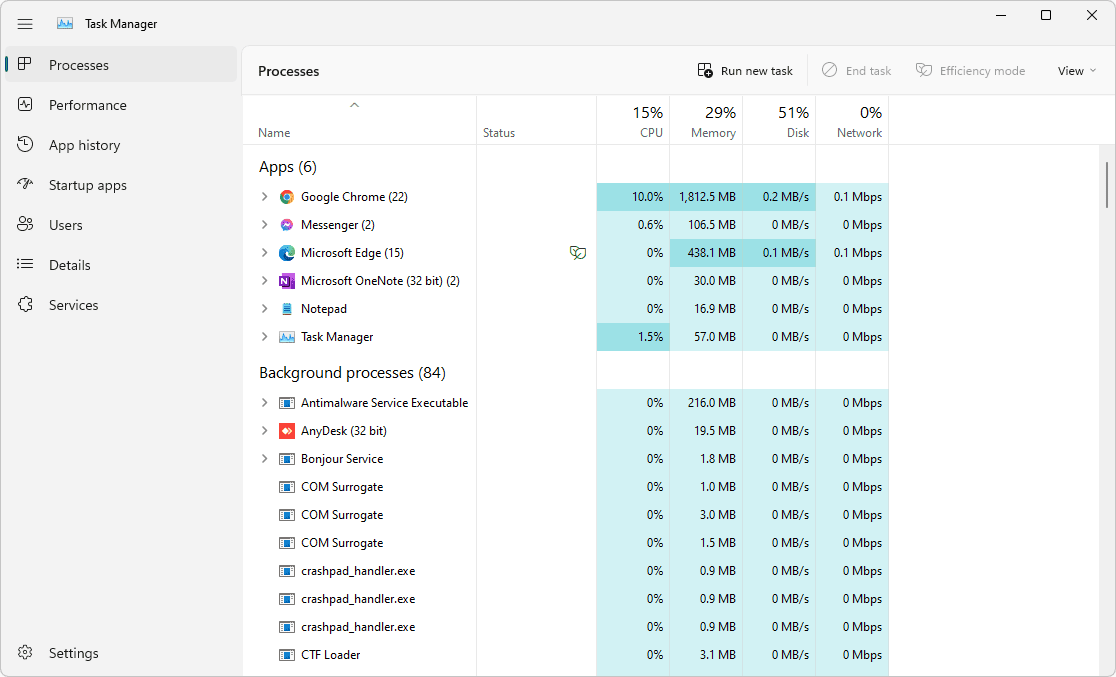
At its core, a process is a program actively running and consuming system resources, such as memory and CPU power. Windows organizes these running programs into two main categories:
- Applications: These are the visible programs users interact with directly. Examples include your web browser, word processor, or email client. Some applications may also appear as icons in the system tray (near the clock) for quick access, such as wireless network configuration tools.
- Services: These are programs running in the background, often without any direct user interface. Services handle tasks like maintaining network connections, updating applications, or managing system resources.
When combined, applications and services form what we call processes. Managing these processes efficiently ensures the smooth operation of your computer.
How Windows Manages Processes
Windows employs several mechanisms to ensure processes don’t interfere with each other and that sufficient resources are allocated to each. Processes are assigned a unique Process ID (PID), which serves as an identifier for the operating system to manage and track them. The PID is particularly useful for troubleshooting and advanced diagnostics.
Some of the most critical processes include system-level tasks such as “System Idle Process” and “System Interrupts,” which manage the system’s downtime and hardware communication, respectively.
Exploring Processes Using Task Manager
Windows Task Manager is a built-in tool that provides a detailed overview of all active processes. Here’s how to use it:
- Open Task Manager: Press
Ctrl + Shift + Escto launch Task Manager. - Navigate to the Details Tab: This tab lists all running processes along with their PIDs, status, memory usage, and other vital details.
Key Features:
- End Process: You can terminate a specific process if it’s causing issues. Be cautious; ending critical system processes can destabilize your computer.
- End Process Tree: This option terminates the selected process and all its dependent processes. While useful, it’s also risky as it may inadvertently shut down necessary programs.
Understanding Process Dependencies
Processes often rely on other processes or libraries to function. For example, when you run Microsoft Word, the primary executable (Winword.exe) depends on various Dynamic Link Libraries (DLLs) to display text, handle user inputs, and more. These dependencies form a hierarchical structure known as a process tree.
Ending a parent process can disrupt or terminate its child processes, which is why tools like End Process Tree should be used with caution.
Advanced Process Management with Process Explorer
For a more in-depth view of processes and their dependencies, Microsoft offers a tool called Process Explorer, developed by Mark Russinovich. This tool provides a detailed hierarchical view of processes, making it easier to understand their dependencies and manage them effectively.
Features of Process Explorer:
- Dependency Tree: Displays which processes rely on others, shown as nested entries.
- Kill Process and Kill Process Tree: Similar to Task Manager but with more context.
- System Control: Allows you to view and manage processes controlled by the operating system and user.
To use Process Explorer, download it from the Microsoft Sysinternals website.
Best Practices for Managing Processes
- Identify Unknown Processes: If you’re unsure about a process, research its name online before taking action.
- Avoid Arbitrary Termination: Ending processes without understanding their role can cause system instability or crashes.
- Use Tools Wisely: Task Manager and Process Explorer are powerful tools; use them to diagnose and resolve performance issues or to manage system resources.
- Monitor Performance: Regularly check your system’s performance to identify resource-heavy processes and take appropriate action.
Conclusion
Understanding and managing processes is a vital skill for any Windows user, especially for IT professionals and tech enthusiasts. By leveraging tools like Task Manager and Process Explorer, you can gain greater control over your system, ensuring it operates efficiently and securely. Remember, processes are the building blocks of your computer’s functionality — handle them with care and precision.
Explore your system, experiment with these tools, and build your confidence in process management. Your journey into understanding the intricacies of Windows processes has just begun!
메타데이터
- post_id
- d47e2c34c852
- slug
- comptia-a-understanding-windows-processes-a-comprehensive-guide-d47e2c34c852
- url
- https://medium.com/@vignesh.slm666/comptia-a-understanding-windows-processes-a-comprehensive-guide-d47e2c34c852
- canonical_url
- https://medium.com/@vignesh.slm666/comptia-a-understanding-windows-processes-a-comprehensive-guide-d47e2c34c852
- author_url
- https://medium.com/@vignesh.slm666
- status
- ok
- fetched_at
- 2026-07-30 03:08:15