How to Create a Stunning Canva Glow Text Effect for Your Designs
I used to spend hours inside heavy design software, wrestling with layers and blend modes, just to get a simple title to pop off the…
How to Create a Stunning Canva Glow Text Effect for Your Designs
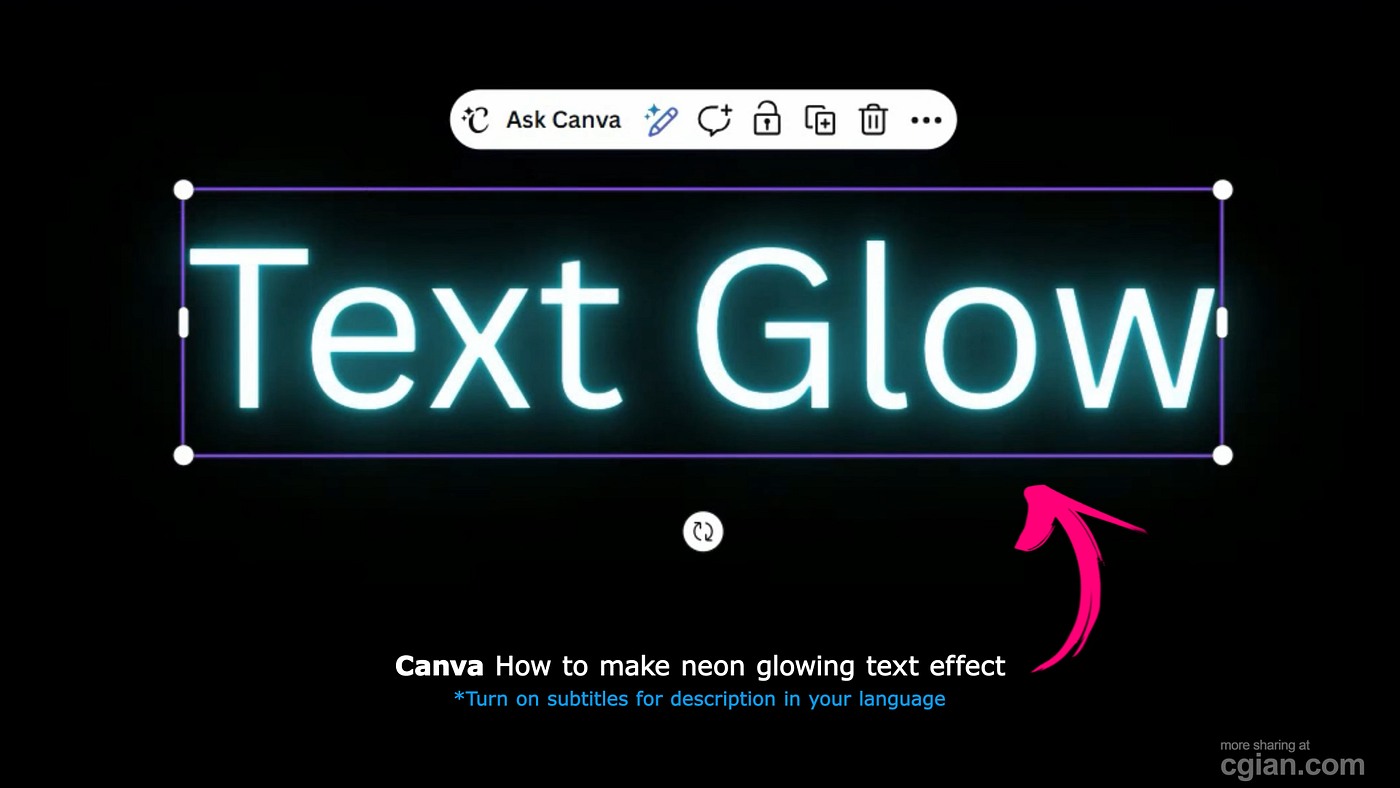
Canva Glow Text Effect
I used to spend hours inside heavy design software, wrestling with layers and blend modes, just to get a simple title to pop off the screen. For years, I convinced myself that if a design didn’t require a steep learning curve, it couldn’t possibly look professional. I remember the feeling vividly: the cold blue light of my monitor reflecting in my eyes, my hand cramping from constant clicking, all while my actual message — the content I was trying to share — was getting lost in a mess of over-complicated visuals.
The turning point was realizing that my audience didn’t care how “advanced” my software was; they cared about whether the headline was readable and exciting. When I finally started using the built-in effects in Canva, the transformation was instant. My designs looked sleeker, my headlines commanded attention, and I cut my design time by nearly 80%.
The Secret to “Electric” Typography
The magic happens when you stop fighting your tools and start working with them. The Canva glow text effect isn’t just a preset — it’s a powerful lever for controlling the hierarchy of your page.
When I first started playing with this, I noticed that most people make one critical mistake: they apply the effect to a light or cluttered background. It’s like trying to see a candle flame in a sun-drenched room. To get that true, buzzing neon aesthetic, you have to lean into the dark. By dropping a solid black or deep navy background, you create the perfect canvas for your text to actually radiate.
Quick Workflow Tips
- Proportional Scaling: Stop dragging the corners of your text boxes manually. Hold the
Altkey while resizing to keep your typography perfectly aligned and scaled. - Fine-Tune the Buzz: Don’t just click “Neon” and move on. Head into the
Effectsmenu and pull that intensity slider. A little goes a long way, and finding the sweet spot between "subtle shimmer" and "radioactive glow" is what separates a amateur graphic from a polished one. - Color Contrast: The glow color doesn’t have to match the text color perfectly. Experiment with a slightly lighter, desaturated version of your text color for the glow to give it a realistic, light-emitting feel.
You don’t need to be a designer to create visuals that stop the scroll. You just need to know which buttons to push.
[embed]
📽️ Design Tutorial: Master the Glow
- Title: How to Create a Neon Glowing Text Effect in Canva
- Instructor: CG Ian
- Core Topic: Graphic Design & Visual Effects for Beginners
- Watch Here: Click to view the tutorial
If you found this helpful, follow for more tips on streamlining your creative workflow and making your content stand out without the unnecessary complexity.
by CG Logs
Original Post, https://cglogs.com/how-to-create-a-stunning-canva-glow-text-effect-for-your-designs/
메타데이터
- post_id
- d482d3cdf1bf
- slug
- how-to-create-a-stunning-canva-glow-text-effect-for-your-designs-d482d3cdf1bf
- url
- https://medium.com/@graphician01/how-to-create-a-stunning-canva-glow-text-effect-for-your-designs-d482d3cdf1bf
- canonical_url
- https://medium.com/@graphician01/how-to-create-a-stunning-canva-glow-text-effect-for-your-designs-d482d3cdf1bf
- author_url
- https://medium.com/@graphician01
- status
- ok
- fetched_at
- 2026-07-08 16:17:31