How to Extract Text from Word in JavaScript: A React Guide
Extracting text from Word documents in JavaScript is a critical requirement for modern web applications. Whether you are building an online…
How to Extract Text from Word in JavaScript: A React Guide
Extracting text from Word documents in JavaScript is a critical requirement for modern web applications. Whether you are building an online document previewer, a content management system, or a data ingestion pipeline, parsing .doc and .docx files directly in the browser improves performance and enhances user privacy.
⚛️ In this comprehensive React tutorial, you will learn how to implement pure front-end Word text extraction using Spire.Doc for JavaScript and WebAssembly (WASM) — eliminating the need for backend file uploads entirely.
Why Choose Client-Side Word Text Extraction?
Traditional approaches require uploading sensitive files to a remote server, leading to increased bandwidth costs, higher server load, and potential data privacy risks. By leveraging JavaScript and React on the front end, you can process documents locally.
Spire.Doc for JavaScript offers a game-changing solution: a high-performance native engine compiled to WebAssembly that runs securely inside your browser’s sandbox. It supports all major Word formats (97–2003 up to 2019) and provides a seamless API for reading and converting content.
I. Core Technical Principles
1.1 How the WASM Runtime Works
Spire.Doc for JavaScript compiles a high‑performance native document processing engine into WebAssembly and runs it inside the browser sandbox. The initialization happens in three distinct phases:
- Load the JS glue layer —
spire.doc.jsmanages WASM instantiation and exposes the public API. - Compile the WASM binary — The browser downloads the
.wasmfile and compiles it to native machine code for maximum speed. - Initialize the runtime — A virtual file system (VFS) is set up to simulate a local environment.
1.2 The Virtual File System (VFS)
Because WASM runs in a restricted sandbox, it cannot access your operating system’s file system directly. The library uses Emscripten’s FS interface to manage files:
- Write files:
FS.writeFile()stores uploaded user files into the VFS. - Read files: The engine loads documents directly from this virtual space.
- Clean up:
FS.unlink()removes temporary files after processing to prevent memory leaks.
1.3 The Core Text Extraction API
The Document.GetText() method is the star of the library. It intelligently traverses sections, paragraphs, headers, footers, and text boxes, concatenating all editable content while preserving newline characters to maintain accurate paragraph structure.
II. Environment Setup and Project Initialization
2.1 Install the Required Dependencies
Start by installing the official Spire.Office npm package, which bundles all necessary components:
npm i spire.office✅ Note: This product offers a free Community Edition. Be sure to review its usage limitations if you are building a commercial application.
2.2 Move Core Runtime Files to the Public Directory
After installation, copy the following files from node_modules into your React project's public folder:
spire.doc.jsspire.doc.wasmspire.common.js&spire.common.wasm- The
_frameworkdirectory
📌 Why the
publicfolder? WebAssembly modules are loaded asynchronously viafetchorimport(). Placing these files in thepublicdirectory prevents Webpack from altering their names or paths, ensuring they are accessible viaprocess.env.PUBLIC_URL.
2.3 Preload Required Font Assets
The browser’s WASM runtime does not contain system fonts. If your Word document uses custom typefaces like Calibri, Times New Roman, or other fonts, the extracted text might appear garbled.
Best practice: Place your required .ttf or .ttc font files in public/font/ and preload them into the VFS before parsing the document.
III. Step-by-Step React Implementation
Below is a complete React functional component that handles the full lifecycle: file selection → WASM initialization → text extraction → file download.
3.1 Loading the WASM Module with useEffect
We use a dynamic import() to load the glue script. The locateFile callback ensures the engine finds the .wasm binary in the correct public path.
import React, { useState, useEffect } from 'react';

function App() {
  const [wasmModule, setWasmModule] = useState(null);
  const [selectedFile, setSelectedFile] = useState(null);
  const [isExtracting, setIsExtracting] = useState(false);
  const [error, setError] = useState(null);
  const [fontLoaded, setFontLoaded] = useState(false);
  // Load Spire.Doc WASM module on component mount
  useEffect(() => {
    (async () => {
      try {
        const publicUrl = process.env.PUBLIC_URL || '';
        const spireModule = await import(
          /* webpackIgnore: true */ `${publicUrl}/spire.doc.js`
        );
        const rawModule = spireModule.default || spireModule;
        window.wasmModule = typeof rawModule === 'function'
          ? await rawModule({
              locateFile: (p) =>
                p.endsWith('.wasm') ? `${publicUrl}/${p}` : p,
            })
          : rawModule;
        setWasmModule(window.wasmModule);
      } catch (err) {
        console.error('WASM loading failed:', err);
        setError('Unable to load the document processing engine. Please refresh and try again.');
      }
    })();
  }, []);
3.2 File Selection Handler
A simple onChange handler stores the selected file in state and clears any previous errors.
const handleFileChange = (event) => {
    const file = event.target.files[0];
    if (file) {
      setSelectedFile(file);
      setError(null);
    }
  };
3.3 Main Extraction and Download Logic
This asynchronous function contains the entire business logic. Notice how we preload fonts, write the file to the VFS, instantiate the document, extract the text, and trigger a download — all without ever touching a server.
const extractTextFromUploadedFile = async () => {
    if (!selectedFile) {
      setError('Please select a Word document first.');
      return;
    }

const wasmDoc = window.wasmModule?.spiredoc;
    if (!wasmDoc) {
      setError('The document engine is not yet loaded. Please wait.');
      return;
    }
    setIsExtracting(true);
    setError(null);
    try {
      // 1. Preload font (only once per session)
      if (!fontLoaded) {
        await window.spire.FetchFileToVFS(
          'Arial.ttf',
          '/Library/Fonts/',
          `${process.env.PUBLIC_URL}/static/font/`
        );
        setFontLoaded(true);
      }
      // 2. Read file and write to VFS
      const arrayBuffer = await selectedFile.arrayBuffer();
      const uint8Array = new Uint8Array(arrayBuffer);
      const fileName = selectedFile.name;
      window.dotnetRuntime.Module.FS.writeFile(fileName, uint8Array);
      // 3. Instantiate Document and load from VFS
      const doc = new wasmDoc.Document();
      doc.LoadFromFile(fileName);
      // 4. Extract all text
      const documentText = doc.GetText();
      // 5. Release native memory
      doc.Dispose();
      // 6. Generate and download the .txt file
      const blob = new Blob([documentText], { type: 'text/plain;charset=utf-8' });
      const url = URL.createObjectURL(blob);
      const a = document.createElement('a');
      a.href = url;
      a.download = `extracted_${selectedFile.name.replace(/\.[^.]+$/, '')}.txt`;
      document.body.appendChild(a);
      a.click();
      document.body.removeChild(a);
      URL.revokeObjectURL(url);
      // 7. Clean up VFS
      window.dotnetRuntime.Module.FS.unlink(fileName);
      // 8. Reset UI state
      setSelectedFile(null);
      document.getElementById('fileInput').value = '';
    } catch (err) {
      console.error('Extraction failed:', err);
      setError(`Extraction failed: ${err.message || 'Unknown error'}`);
    } finally {
      setIsExtracting(false);
    }
  };
3.4 Building the User Interface
The rendered UI provides clear feedback for file selection, loading states, and errors. It is designed to be accessible and mobile-friendly.
return (
    <div style={{ maxWidth: '600px', margin: '50px auto', textAlign: 'center' }}>
      <h1>📄 Extract Text from Word</h1>
      <p style={{ color: '#666' }}>Select a local .doc or .docx file to extract all text content</p>

<div style={{ margin: '30px 0' }}>
        <input
          id="fileInput"
          type="file"
          accept=".doc,.docx"
          onChange={handleFileChange}
          disabled={!wasmModule || isExtracting}
          style={{ display: 'none' }}
        />
        <label
          htmlFor="fileInput"
          style={{
            display: 'inline-block',
            padding: '10px 20px',
            background: '#f0f0f0',
            borderRadius: '4px',
            cursor: 'pointer',
            border: '1px solid #ccc',
          }}
        >
          {selectedFile ? `Selected: ${selectedFile.name}` : 'Choose Word document'}
        </label>
      </div>
      {selectedFile && (
        <button
          onClick={extractTextFromUploadedFile}
          disabled={!wasmModule || isExtracting}
          style={{
            padding: '12px 30px',
            fontSize: '16px',
            backgroundColor: '#007bff',
            color: '#fff',
            border: 'none',
            borderRadius: '4px',
            cursor: 'pointer',
            marginTop: '10px',
          }}
        >
          {isExtracting ? 'Extracting...' : 'Extract and download text'}
        </button>
      )}
      {error && (
        <div style={{ marginTop: '20px', color: '#d32f2f', background: '#ffebee', padding: '10px', borderRadius: '4px' }}>
          {error}
        </div>
      )}
      {!wasmModule && !error && (
        <div style={{ marginTop: '20px', color: '#888' }}>⏳ Loading document engine, please wait...</div>
      )}
    </div>
  );
}
export default App;
3.5 ▶️ Running the Development Server
Copy the complete code into src/App.js, save the file, and run the following command in your terminal:
npm startThis starts the React dev server at http://localhost:3000. Click "Choose Word document" to upload a .doc or .docx file.
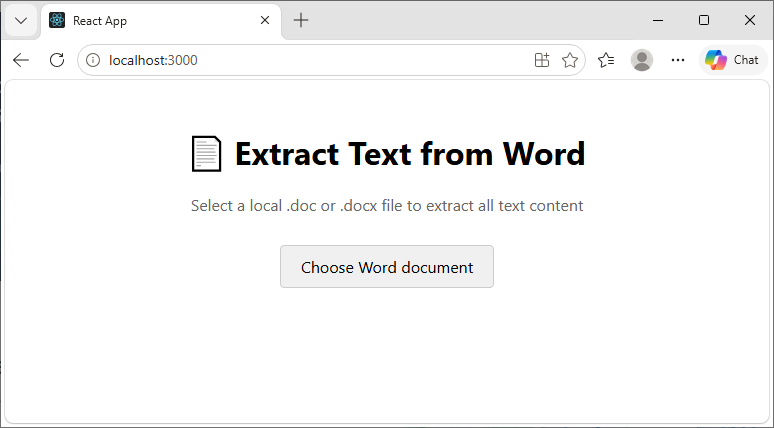
Then click "Extract and download text" – after a moment, the extracted .txt file will be downloaded automatically.

IV. Advanced - Extracting Specific Paragraphs or Sections
If your application only needs a snippet rather than the full document, you can target specific elements programmatically:
const doc = new wasmDoc.Document();
doc.LoadFromFile(fileName);

// Access the first section
const section = doc.Sections.get_Item(0);
// Access the first paragraph inside that section
const paragraph = section.Paragraphs.get_Item(0);
// Extract just that paragraph's text
const specificText = paragraph.Text;
V. Final Thoughts
This article provided a complete, production-ready guide for extracting text from Word documents in JavaScript using React and WebAssembly. By leveraging Spire.Doc for JavaScript, you can build a fully client-side document processing pipeline that prioritizes user privacy, reduces server infrastructure costs, and delivers instant feedback.
By implementing the techniques covered here, your React application can handle complex document workflows entirely on the front end, making it faster, more secure, and more scalable than traditional server-based solutions.
메타데이터
- post_id
- d6b78cbc9b44
- slug
- how-to-extract-text-from-word-in-javascript-a-react-guide-d6b78cbc9b44
- url
- https://medium.com/@andrewwil/how-to-extract-text-from-word-in-javascript-a-react-guide-d6b78cbc9b44
- canonical_url
- https://medium.com/@andrewwil/how-to-extract-text-from-word-in-javascript-a-react-guide-d6b78cbc9b44
- author_url
- https://medium.com/@andrewwil
- status
- ok
- fetched_at
- 2026-08-18 06:22:17