How to Install RTX 5090 / 5080 /5070 Ti / 5070 drivers on Linux — detailed guide
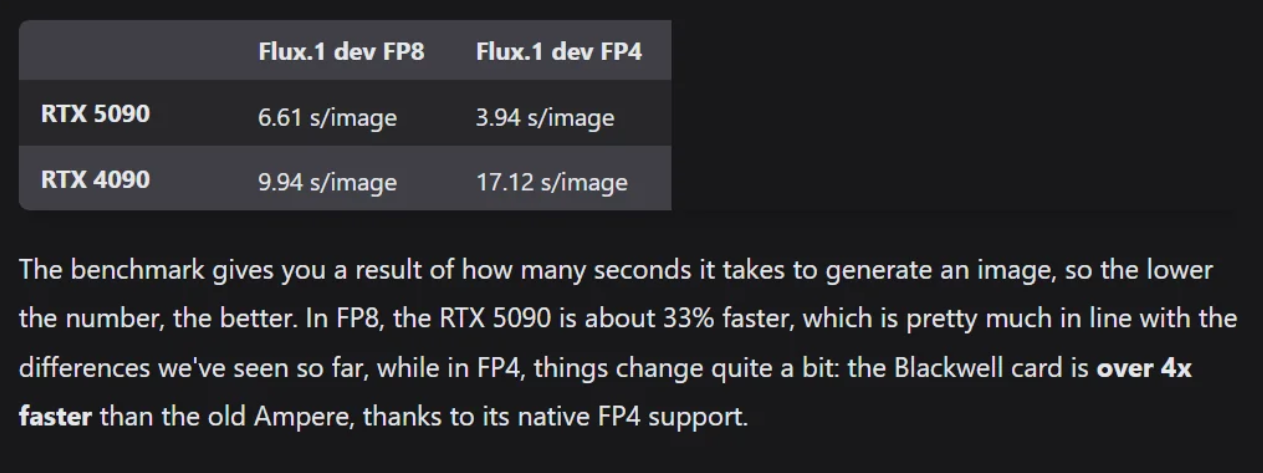
For best performance, you will need to run the 5090 / 5080 / 5070 Ti / 5070 or other 50 series GPU on Linux (or WSL on Windows). This…
How to Install Blackwell RTX 5090 / 5080 /5070 Ti / 5070 drivers on Linux — detailed guide
For best performance, you will need to run the 5090 / 5080 / 5070 Ti / 5070 or other 50 series GPU on Linux (or WSL on Windows). This post will include detailed guide on how to do it. A Journey Through Mainline Kernels and Driver Quirks
Update: a step by step tutorial is here (also include installing pythong and pytorch):
[embed]
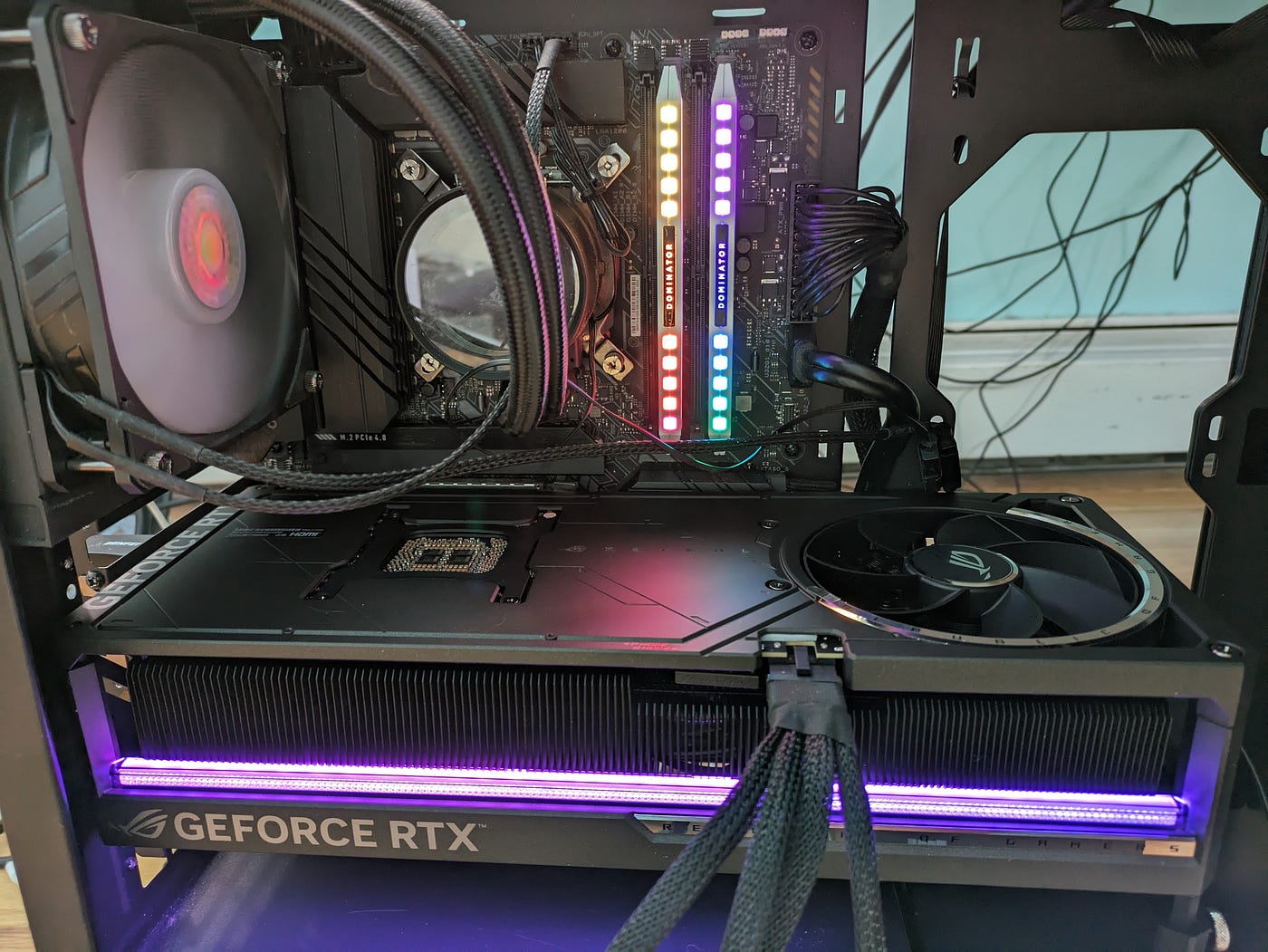
The Nvidia 50 series GPUs have the latest Nvidia technology. However, the new hardware requires some new softwares or updates, it takes some patience. If you’re here, you’ve likely hit a wall with Ubuntu’s default setup. Fear not! I recently navigated this labyrinth myself, combining a bleeding-edge mainline kernel, a few clever workarounds, and a dash of stubbornness. Here’s how I made it work. It is tested on my local RTX 5090.
If you are interested in seeing the 5090 unboxing, run AI apps, please check out my videos on my channel.
Why This Guide?
Ubuntu 24.04 LTS ships with Kernel 6.8, which is robust but lacks support for NVIDIA’s latest hardware. To unlock the 5090’s potential, you’ll need a newer kernel and precise driver configurations. Spoiler: GCC version mismatches and proprietary driver quirks will try to derail you — but we’ll outsmart them.
Prerequisites
-
A backup GPU (or iGPU) for initial setup. (optional)
-
Ubuntu 24.04 LTS installed (use BalenaEtcher to create a bootable USB). See my video guide on installing Ubuntu.
-
Patience.
Step 1: Install a Mainline Kernel
Ubuntu’s default 6.8 kernel won’t cut it. We’ll use the mainline tool to install Kernel 6.13:
sudo add-apt-repository ppa:cappelikan/ppa
sudo apt update && sudo apt full-upgrade
sudo apt install -y mainline
mainline list | less # List available kernels
mainline install 6.13 # Install the latest version
Reboot and verify with uname -a. If you see **6.13.0–061300-generic** (or your installed version), you’re golden.
Step 2: Prepare Build Tools and Dependencies
NVIDIA’s driver installer requires build-essential and specific GCC versions. Install them first:
sudo apt install build-essentialOptional but Helpful: Install Steam to pull in 32-bit libraries and dependencies (see steam official install page for details):
wget https://cdn.akamai.steamstatic.com/client/installer/steam.deb
sudo dpkg -i steam.deb
# then open it to complete the install
Step 3: Tackle the NVIDIA Driver Installer
Download the driver from NVIDIA’s site, use this link and search for it. For the 5090, I used NVIDIA-Linux-x86_64–570.86.16.run.
#after download
chmod +x NVIDIA-Linux-x86_64–570.86.16.run # Make it executable
The GCC Trap
The installer may complain about GCC version mismatches. Ubuntu 24.04 defaults to GCC-13, but Kernel 6.13 needs GCC-14. Fix this with:
sudo apt install gcc-14
sudo update-alternatives --install /usr/bin/gcc gcc /usr/bin/gcc-14 14
sudo update-alternatives --config gcc
#select the gcc 14
#confirm
gcc --version
Bonus: when upgrade GCC, you may also want to upgrade G++ as it will be needed for some compiling in future.
sudo apt install g++-14
sudo update-alternatives --install /usr/bin/g++ g++ /usr/bin/g++-14 100
sudo update-alternatives --config g++
# select the g++ 14
g++ --version
Step 4: Run the Installer (Carefully!)
Launch the installer with:
sudo ./NVIDIA-Linux-x86_64–570.86.16.runCritical Choice: When prompted, select the open-source (MIT) driver. Proprietary drivers caused instability for me, though your mileage may vary.
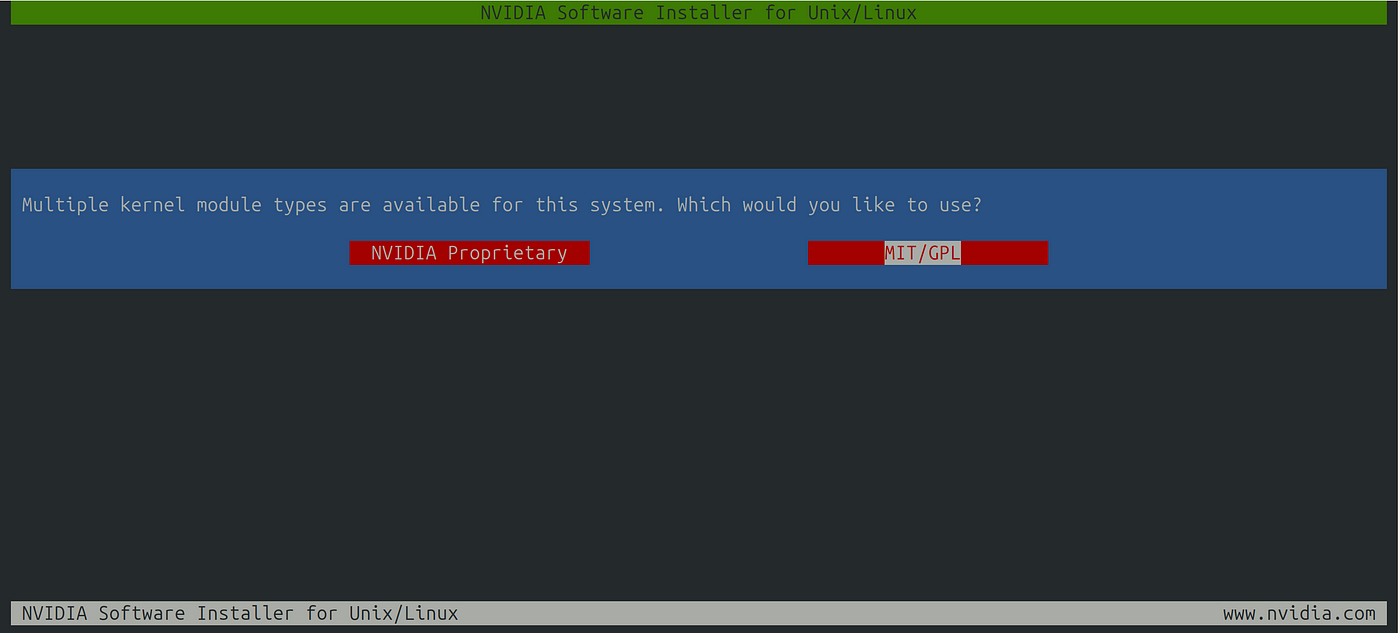
Reboot after installation.
Step 5: Verify Success
Post-reboot, confirm the GPU is recognized:
nvidia-smiYou should see the 5090 listed with driver version 570.86.16. Congrats if you can see it!

Troubleshooting Tips
-
Black Screen on Reboot? Use your backup GPU/iGPU to debug.
-
Driver Failures: Purge NVIDIA drivers with
sudo apt purge *nvidia*and retry the installer. -
Kernel Panics: Ensure
gcc-14is the default (check withgcc — version).
Why This Works
-
Kernel 6.13: Newer hardware support and compatibility fixes.
-
GCC-14 Sync: Aligns compiler versions with kernel expectations.
-
Open-Source Driver: Avoids proprietary driver conflicts (for now).
Final Thoughts
The NVIDIA 5090 on Linux is a powerhouse for AI, gaming, and rendering — but it demands patience. Stick to open-source drivers if stability is a priority, and monitor NVIDIA’s forums for future updates.
Questions or horror stories? Share them in the comments!
Credits
Like this guide? Smash that clap button and follow for more Linux deep dives! 🐧✨
메타데이터
- post_id
- d7069c7a0db7
- slug
- how-to-install-rtx-5090-5080-5070-ti-5070-drivers-on-linux-detailed-guide-d7069c7a0db7
- url
- https://medium.com/@ttio2tech_28094/how-to-install-rtx-5090-5080-5070-ti-5070-drivers-on-linux-detailed-guide-d7069c7a0db7
- canonical_url
- https://medium.com/@ttio2tech_28094/how-to-install-rtx-5090-5080-5070-ti-5070-drivers-on-linux-detailed-guide-d7069c7a0db7
- author_url
- https://medium.com/@ttio2tech_28094
- status
- ok
- fetched_at
- 2026-06-14 11:28:49