How to Fix Distorted Bullets and Shapes in HTML-to-PDF Conversions
While IronPDF is a powerful and versatile tool for converting HTML to PDF in C#, developers can sometimes encounter subtle rendering…
How to Fix Distorted Bullets and Shapes in HTML-to-PDF Conversions
While IronPDF is a powerful and versatile tool for converting HTML to PDF in C#, developers can sometimes encounter subtle rendering discrepancies between the source HTML viewed in a browser and the final PDF output. A common and frustrating example is the distortion of small graphical elements, such as custom bullet points or styled shapes, which can detract from the professional appearance of invoices, reports, and other critical documents. This article will walk through a real-world customer support case to diagnose the root cause of this issue and provide a clear, actionable solution. By understanding the underlying mechanics of how IronPDF’s rendering engine processes CSS, you can ensure your generated PDFs are consistently sharp and professional.
1. The Problem: Distorted Elements in the Generated PDF
In professional document generation, the faithful rendering of small details is paramount. A perfectly aligned layout can be undermined by something as simple as a misshapen bullet point. This section examines a specific issue encountered by a developer where such small but critical UI elements were appearing distorted in the final PDF.
The user submitted a support ticket detailing the problem:
Ticket name: Distorted bullet points when converting HTML to PDF
“We are using IronPDF to generate reports from HTML. In the generated PDF, the custom CSS bullet points, which should be small circles, are rendering as ovals or distorted shapes. Other elements styled with pt units also seem to have slight scaling issues. The same HTML looks correct when viewed in Chrome's print preview."
The issue occurred within the following technical environment:
• Product: IronPDF for C# (IronPdf.Native.Chrome.Windows 2025.11.8)
• Application Type: ASP.NET Core 8.0 Web API
• Operating System: Windows
Our first step in troubleshooting rendering issues like this is always to examine the source HTML and, more specifically, the CSS that styles the problematic elements.
2. Diagnosis: Analyzing the Problematic CSS
Rendering discrepancies in HTML-to-PDF conversions often originate in the source CSS, particularly with how measurement units are defined and interpreted by the rendering engine. Upon reviewing the user’s code, we identified that the styles for the bullets and other layout elements were defined using point (pt) units.
Here is a snippet of the problematic CSS that was causing the distortion:
Original CSS Snippet (for-pdf styles)
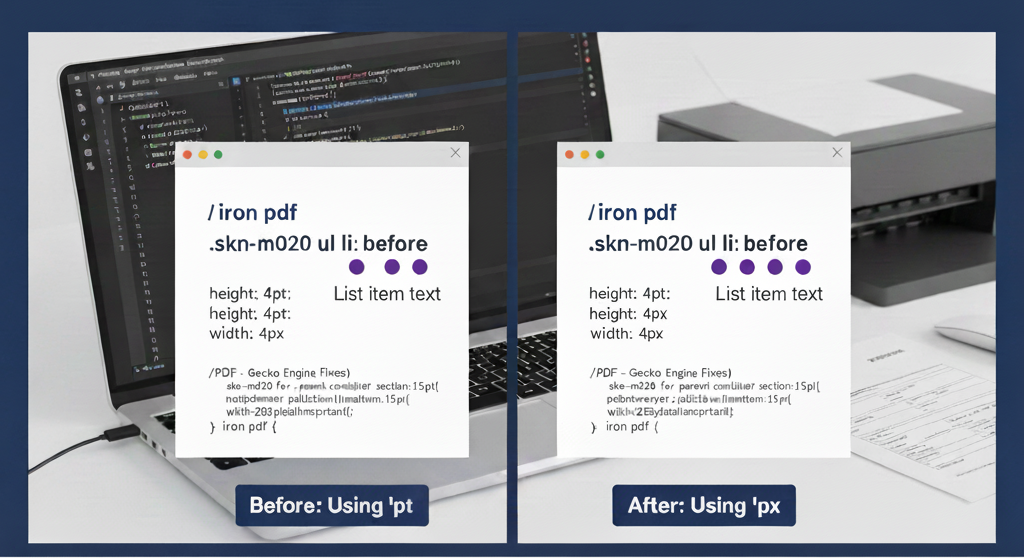
/* iron pdf */.skn-m020 ul li:before {
height: 4pt; /* Using points for small elements */
width: 4pt;
}/*PDF - Gecko Engine Fixes*/
.skn-m020.for-pdf .parent-container .section{margin-bottom:15pt}.skn-m020.for-pdf .pdet-sec .pdfpdwrapper .details-wrap{
width:283pt!important;
padding-bottom:5pt!important
}/* iron pdf */This code is problematic because pt is an absolute unit of measurement intended for print media. IronPDF utilizes an embedded Chromium browser engine to render HTML to PDF. This engine first interprets the HTML and CSS as if it were rendering for a screen, where the native unit is the pixel (px). When the engine encounters a print-specific unit like pt for a small screen element, it must convert it to pixels. This conversion can introduce rounding errors and scaling artifacts, leading to the observed distortion of the 4pt bullet points.
To understand why this happens, it’s crucial to grasp the fundamental difference between the measurement units at play.
3. The Root Cause: Understanding CSS Units in Browser Rendering
Choosing the right tool for the job is a core principle in software development, and the same applies to CSS measurement units. When creating HTML destined for PDF conversion via a browser engine, selecting the appropriate unit is critical for achieving a predictable, pixel-perfect result. The two units at the center of this issue are pixels (px) and points (pt).
IronPDF’s internal Chromium engine is designed to render content for a digital display before translating it into a PDF format. Because pixels (px) are the native language of screens, using them provides the engine with a direct and unambiguous instruction. There is no need for conversion or interpretation, which ensures that a 4px by 4px square is rendered as a 4px by 4px square.
Conversely, when the engine sees 4pt, it has to translate this physical print unit into a screen-based pixel value. This conversion depends on factors like the configured DPI (dots per inch) and can result in fractional pixel values. For large elements, this is rarely noticeable. However, for small, precise shapes like a 4pt bullet, the conversion to something like 5.33px forces the browser's anti-aliasing and rounding algorithms to make a "best guess" on how to display a fraction of a pixel. This is what leads to the distortion—the user experienced ovals instead of perfect circles because the rendering engine was struggling to represent these fractional values accurately.
Armed with this understanding, the solution becomes clear and straightforward.
4. The Solution: Switching to Pixel-Based Units
The most effective solution is to align the CSS with the rendering engine’s native behavior. By switching from points (pt) to pixels (px) for styling the UI elements, we provide the Chromium engine with the precise, screen-native units it expects, eliminating the conversion ambiguity that causes distortion.
The corrected CSS is a simple but powerful change:
Corrected CSS Snippet
/* iron pdf */.skn-m020 ul li:before {
/* Corrected to use pixels for consistent rendering */
height: 4px;
width: 4px;
}/*PDF - Gecko Engine Fixes*/
.skn-m020.for-pdf .parent-container .section{
margin-bottom:15px; /* Switched to pixels */
}.skn-m020.for-pdf .pdet-sec .pdfpdwrapper .details-wrap{
width:283px!important; /* Switched to pixels */
padding-bottom:5px!important; /* Switched to pixels */
}/* iron pdf */By changing the bullet’s height and width from 4pt to 4px, the developer ensures that the rendering engine has a consistent and integer-based unit to work with. This resolves the scaling ambiguity entirely, allowing the bullets and other styled components to be rendered crisply and accurately in the final PDF document. The distortion disappeared, and the document's professional appearance was restored.
5. Conclusion: A Best Practice for High-Fidelity PDFs
This case study highlights a subtle but important aspect of creating high-quality PDFs from HTML. The choice of CSS units can have a direct impact on the final visual fidelity of the document, especially when it comes to small, detailed elements.
The key takeaway is a simple best practice: When styling HTML for PDF conversion with IronPDF, prefer using pixels (px) for small UI elements and layout properties to ensure consistent and predictable rendering. While pt has its place in traditional print design, the browser-based rendering process used by modern libraries like IronPDF is optimized for screen-native units. Understanding and applying this principle is key to avoiding common rendering pitfalls and achieving professional, high-quality PDF output every time.
메타데이터
- post_id
- d7be7a6dcdaf
- slug
- how-to-fix-distorted-bullets-and-shapes-in-html-to-pdf-conversions-d7be7a6dcdaf
- url
- https://medium.com/@yeminkhaung993/how-to-fix-distorted-bullets-and-shapes-in-html-to-pdf-conversions-d7be7a6dcdaf
- canonical_url
- https://medium.com/@yeminkhaung993/how-to-fix-distorted-bullets-and-shapes-in-html-to-pdf-conversions-d7be7a6dcdaf
- author_url
- https://medium.com/@yeminkhaung993
- status
- ok
- fetched_at
- 2026-07-27 00:11:27