Auto-Color Your Power BI Matrix: How to Generate Dynamic RGB Palettes using DAX
A step-by-step guide to converting text strings into consistent, corporate-friendly pastel RGB values using a DAX hashing algorithm.
Auto-Color Your Power BI Matrix: How to Generate Dynamic RGB Palettes using DAX
A step-by-step guide to converting text strings into consistent, corporate-friendly pastel RGB values using a DAX hashing algorithm.
Generated with Gemini
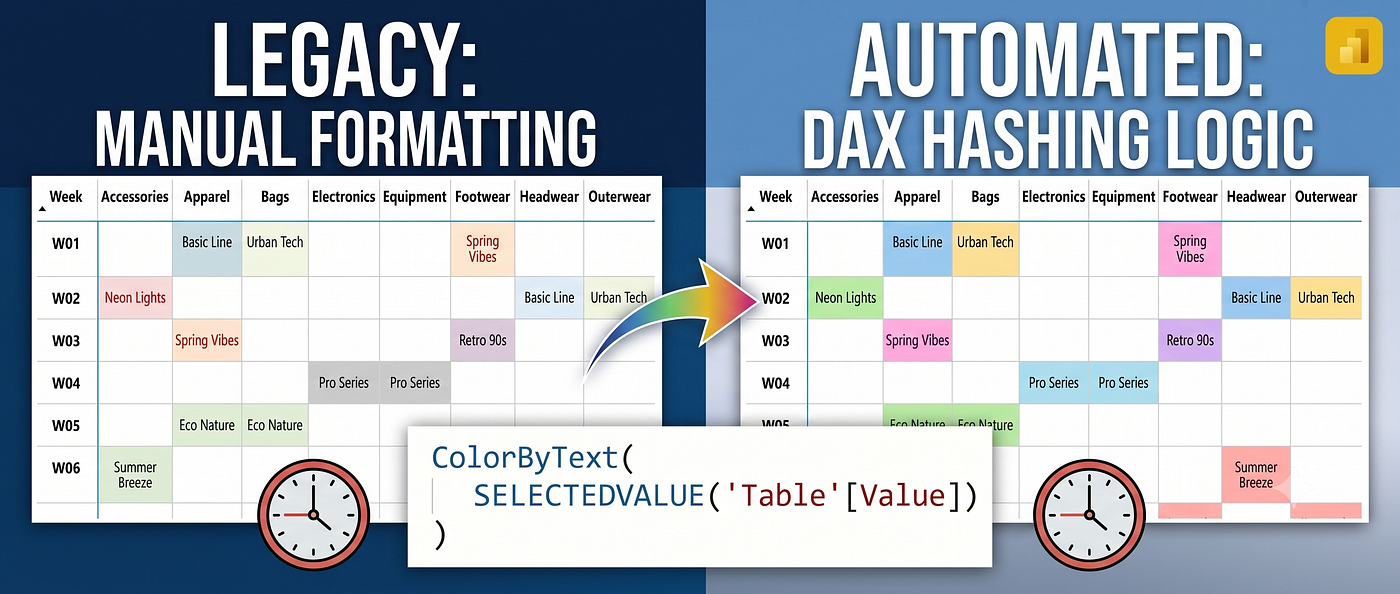
Every Power BI developer eventually runs into this formatting wall. You are building a beautiful project schedule, a release calendar, or a custom Matrix visual. You want every text category (like a product collection or status) to have its own unique background color.
The standard approach? You open the Conditional Formatting pane and manually create a list of Rules. If value is “Basic Line”, make background yellow. If “Spring Vibes”, make it pink. This works fine when you have 5 categories. But what if you have 50? Or worse — what if your dataset refreshes daily and a brand new category appears? Your carefully designed dashboard breaks, and the new category gets no color (or a random, jarring one).
It’s time to stop formatting reports manually. Here is how to force DAX to automatically generate beautiful, corporate-friendly pastel colors based entirely on the text string itself.
The DAX Magic: From Text to RGB Color
Instead of creating rigid formatting rules, we are going to write a single DAX measure that will:
- Read the text inside the Matrix cell.
- Convert the characters into a unique, mathematical identifier (a Hash).
- Use that identifier to determine the proportions of Red, Green, and Blue (RGB).
- Force those RGB values into high ranges (above 220) so the resulting color is always a clean pastel, never a dark or neon mess.
Here is the exact code. Just replace 'YourTable'[CategoryName] with your actual column.
Collection Color =
VAR CategoryName = SELECTEDVALUE('YourTable'[CategoryName])

IF(ISBLANK(CategoryName), BLANK(),

    // 1. Create a unique hash from the text characters
    VAR Hash =
    SUMX(
        GENERATESERIES(1, LEN(CategoryName)),
        UNICODE(MID(CategoryName, [Value], 1)) * [Value]
    )

    // 2. Pick a color sector (0-Pink, 1-Yellow, 2-Green, 3-Cyan, 4-Blue, 5-Purple)
    VAR Sector = MOD(Hash, 6)

    // 3. Force high RGB ranges to ensure the color is always a clean pastel
    VAR High = 245 + MOD(Hash * 2, 11)
    VAR Low  = 220 + MOD(Hash * 3, 11)
    VAR Mid  = 220 + MOD(Hash * 7, 36)

    // 4. Assign RGB based on the sector
    VAR R = SWITCH(Sector, 0, High, 1, Mid, 2, Low,  3, Low,  4, Mid,  5, High)
    VAR G = SWITCH(Sector, 0, Mid,  1, High, 2, High, 3, Mid,  4, Low,  5, Low)
    VAR B = SWITCH(Sector, 0, Low,  1, Low,  2, Mid,  3, High, 4, High, 5, Mid)

    RETURN
    "rgb(" & R & ", " & G & ", " & B & ")"
)
How to Implement This in Power BI
Once your measure is created, applying it to your Matrix is just a matter of a few clicks:
- Select your Matrix visual.
- Go to the Format pane and open the Cell elements section.
- Toggle on Background color and click the small fx button.
- In the dialog box, change the Format style from “Rules” to Field value.
- Search for your new DAX measure (e.g.,
Collection Color) and click OK.
The Result? Your black-and-white table instantly fills with consistent, beautiful pastel colors.
Why This Solution is a Game-Changer (Determinism)
The biggest advantage of this script isn’t just saving time during the initial setup. The real value shines when your data refreshes.
Because the RGB code is mathematically derived from the characters in the word, the text “Basic Line” will always generate the exact same color. Today, tomorrow, and next year. And when a brand new collection drops into your database, Power BI will automatically assign it a brand new pastel color without you lifting a finger. No more broken themes.
If you are a visual learner, check out my quick tutorial where I walk through exactly how to set this up on screen.
[embed]
Found this trick helpful? Save this article for your next project and follow thebitoolbox for more advanced Power BI and Excel workflows!
메타데이터
- post_id
- d9281b7f7b9f
- slug
- auto-color-your-power-bi-matrix-how-to-generate-dynamic-rgb-palettes-using-dax-d9281b7f7b9f
- url
- https://levelup.gitconnected.com/auto-color-your-power-bi-matrix-how-to-generate-dynamic-rgb-palettes-using-dax-d9281b7f7b9f
- canonical_url
- https://levelup.gitconnected.com/auto-color-your-power-bi-matrix-how-to-generate-dynamic-rgb-palettes-using-dax-d9281b7f7b9f
- author_url
- https://medium.com/@thebitoolbox
- status
- ok
- fetched_at
- 2026-07-15 18:46:35