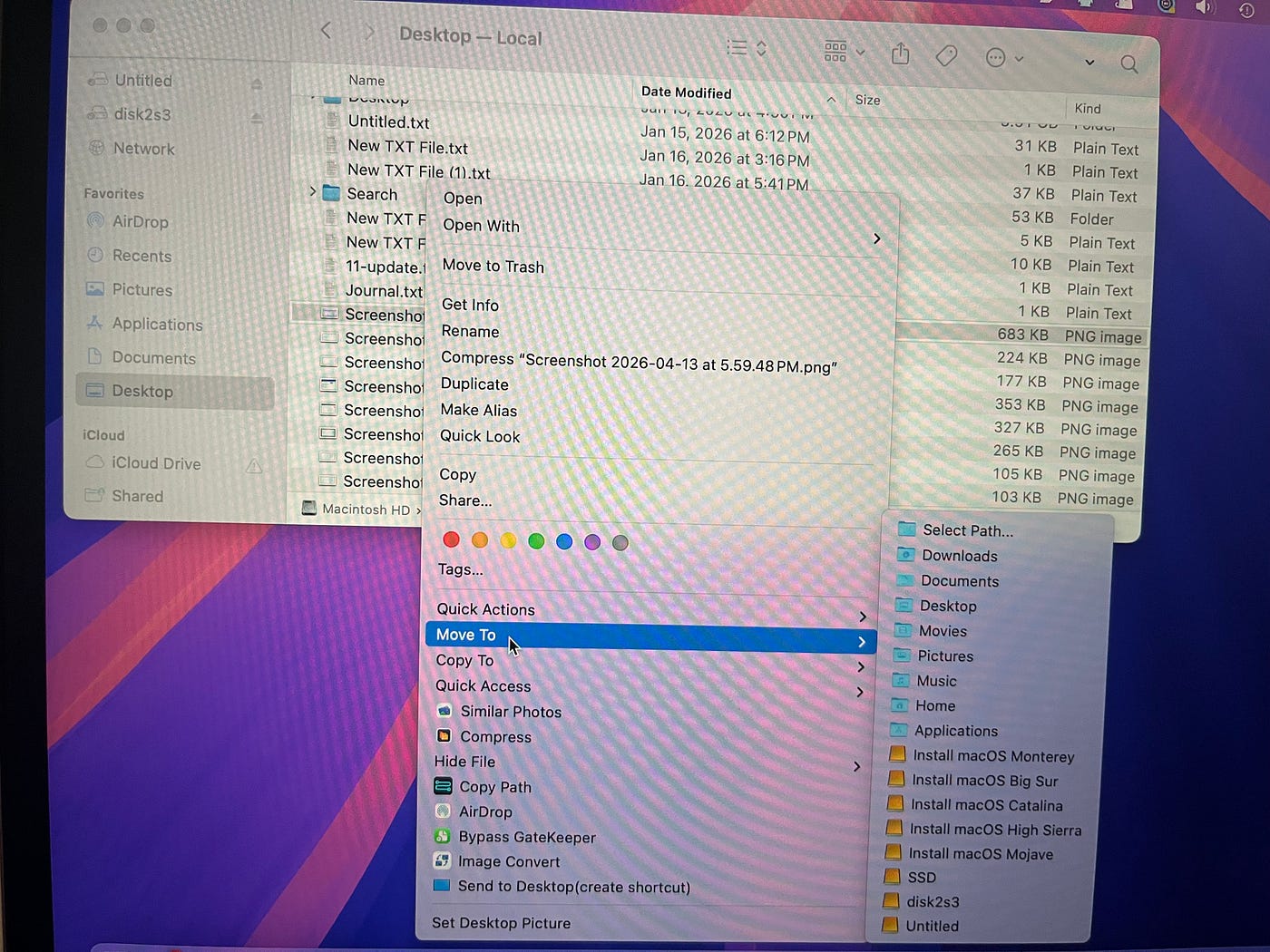
Why I Couldn’t Search Files on My External Hard Drive on Mac (And What Fixed It)
I thought I had lost files on my external hard drive.
Why I Couldn’t Search Files on My External Hard Drive on Mac (And What Fixed It)
I thought I had lost files on my external hard drive.
Finder kept showing nothing when I searched, even though I knew the files were there. At first, I assumed the drive was corrupted or the files had disappeared.
The actual problem turned out to be much less dramatic: Mac wasn’t searching the external drive correctly.
If your external drive suddenly becomes “unsearchable,” here’s what I learned and what I would check first.
Why this happens in the first place
This article is for Mac users who can still open an external drive but cannot find files through Finder or Spotlight search.
Before trying random fixes, I found it useful to understand what is actually happening.
Mac search usually depends on Spotlight indexing. Instead of reading every file one by one each time you search, macOS creates an index — essentially a catalog of your files.
If that catalog becomes incomplete or inaccessible, search results can appear empty even when the files still exist.
In my experience, the issue usually falls into one of these categories:
- Spotlight is not indexing the drive correctly
- The drive permissions prevent proper access
- The drive uses a file system that macOS handles differently
- Finder is searching the wrong location
Knowing this helped me avoid assuming the drive itself had failed.
The first thing I would try: Rebuild the search index
The most common cause I found was Spotlight indexing.
To force macOS to rebuild it:
For macOS Ventura and later:
- Open System Settings
- Go to Siri & Spotlight
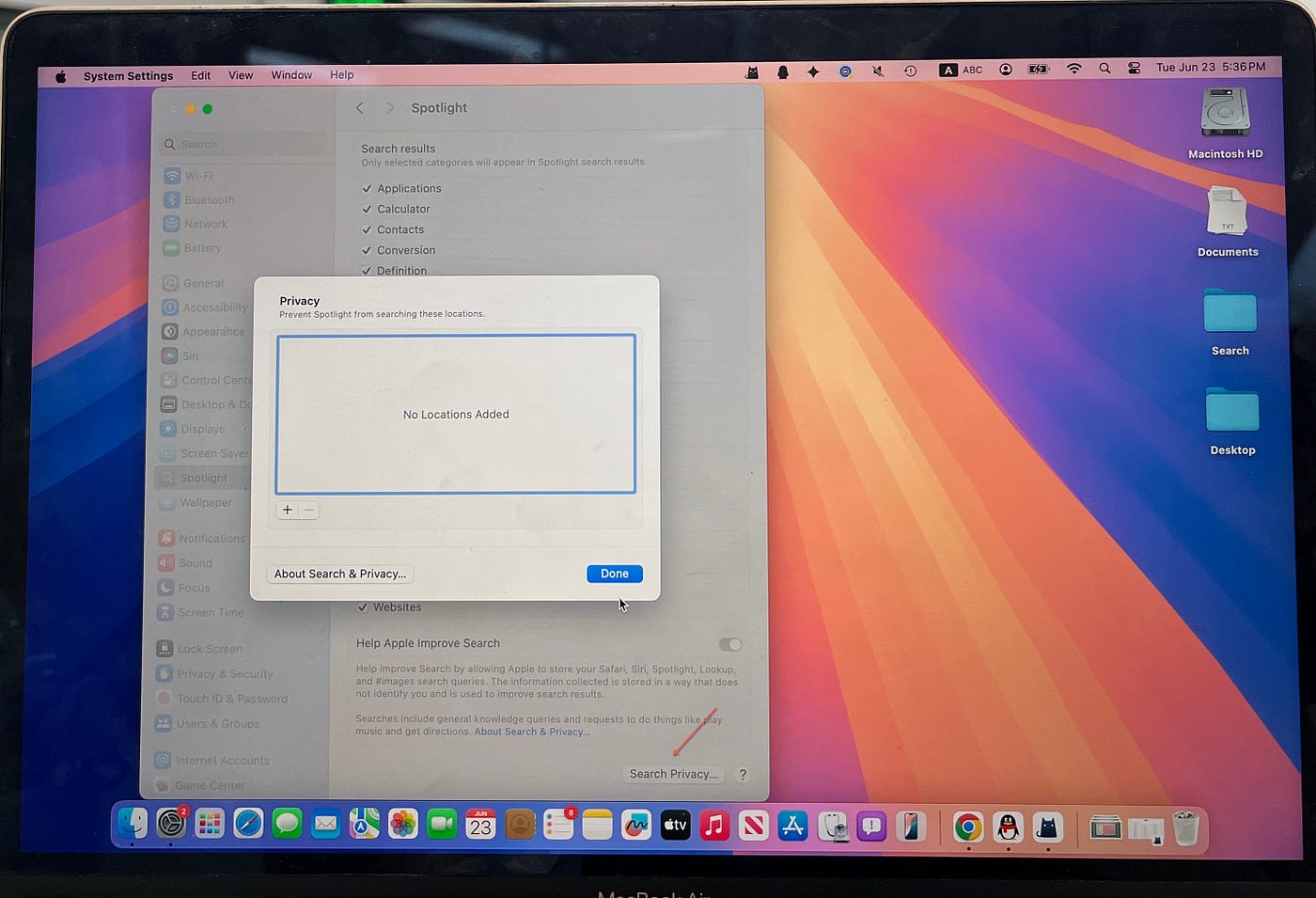
- Open Spotlight Privacy
- Drag your external drive into the privacy list
- Click Done
- Open Spotlight Privacy again
- Remove the drive from the list
For Monterey or earlier:
- Open System Preferences
- Select Spotlight
- Open Privacy
- Add the drive
- Remove it again
This essentially tells macOS to start indexing from scratch.
One thing I learned: don’t expect instant results.
Large drives with years of files may take quite a while to finish rebuilding.
You can press Command + Space and start typing to see whether Spotlight is still indexing.
If that doesn’t work, force reindexing through Terminal
If Finder still refuses to find files, I would move to Terminal.
Open:
Applications → Utilities → Terminal
Then run:
sudo mdutil -E [drive path]
You’ll be asked for your administrator password.
This manually clears and rebuilds Spotlight’s index.
I prefer trying the Settings method first because it’s easier, but Terminal sometimes succeeds when the graphical option doesn’t.
Check permissions before assuming the drive is broken
I also learned that files can technically exist while still being difficult for macOS to access correctly.
To check:
- Right-click the drive
- Select Get Info
- Open Sharing & Permissions

- Unlock the settings if necessary
- Verify your account has Read & Write access
If permissions are incorrect, Finder behavior can become inconsistent.
I would check this before jumping to more complicated fixes.
Don’t forget that Finder may be searching the wrong place
This one felt embarrassingly simple.
Finder searches “This Mac” by default in many situations.
So even if your drive is connected, Finder might not actually be searching inside it.
When searching:
- Open Finder
- Select the external drive first
- Enter your keyword
- Confirm the search scope is the drive itself
I spent more time troubleshooting than I want to admit before noticing this.
One thing worth knowing about NTFS drives
If your drive is formatted as NTFS, behavior on Mac can sometimes feel inconsistent.
macOS can generally read NTFS drives, but write support is limited by default.
That does not automatically mean NTFS causes search problems, but if none of the earlier fixes work, checking the file system type in Disk Utility is reasonable.
I would treat this as a later step, not the first thing to investigate.
Experience-based takeaways
After going through this process, I stopped assuming that “search isn’t working” meant “my files are gone.”
My troubleshooting order now looks like this:
- Confirm Finder is searching the correct location
- Rebuild Spotlight indexing
- Force indexing through Terminal
- Check permissions
- Verify the drive’s file system
Most of the time, the issue seems less about lost files and more about how macOS is locating them.
Closing
If you’ve ever stared at an external drive thinking your files disappeared, I know how frustrating that moment feels.
Sometimes the fix isn’t recovering the files at all — it’s simply helping Mac find them again.
If you’ve run into a different cause for this issue, I’d be interested in hearing what ended up fixing it.
메타데이터
- post_id
- d9e4355c56d9
- slug
- why-i-couldnt-search-files-on-my-external-hard-drive-on-mac-and-what-fixed-it-d9e4355c56d9
- url
- https://medium.com/@zeng2483613716/why-i-couldnt-search-files-on-my-external-hard-drive-on-mac-and-what-fixed-it-d9e4355c56d9
- canonical_url
- https://medium.com/@zeng2483613716/why-i-couldnt-search-files-on-my-external-hard-drive-on-mac-and-what-fixed-it-d9e4355c56d9
- author_url
- https://medium.com/@zeng2483613716
- status
- ok
- fetched_at
- 2026-07-09 20:10:33