How to Turn PriceCharting Pages Into Clean JSON: Prices, PSA/BGS/CGC Grades, History & Sold Comps
A step-by-step guide to exporting current prices, the full grading ladder, the price-history series, recent sold listings, and 1600px…
How to Turn PriceCharting Pages Into Clean JSON: Prices, PSA/BGS/CGC Grades, History & Sold Comps
A step-by-step guide to exporting current prices, the full grading ladder, the price-history series, recent sold listings, and 1600px images for any video game, trading card, comic, or coin — by URL or ID, with no scraping code required.
The problem: PriceCharting data is rich, but trapped one page at a time
PriceCharting is the reference price guide for collectibles — video games, Pokémon / Magic / Yu-Gi-Oh! cards, comics, coins, Funko Pops, LEGO sets. Every product page is dense: the current price for each condition, a full grading ladder (PSA, BGS, CGC, SGC, TAG, ACE), an interactive price-history chart, recent sold listings, and a population (POP) report.
The catch: you see it one product at a time, in a browser. If you’re:
- a reseller or game/card shop repricing inventory,
- a collector who wants their collection’s value and its trend,
- an eBay / marketplace seller checking comps before listing, or
- a developer or analyst who needs this in a database, sheet, or dashboard —
…then copy-pasting from the site is the bottleneck. Valuing a 1,000-item collection by hand at ~30 seconds per lookup is roughly eight hours of clicking. And PriceCharting’s official API requires the $49/month plan while still returning no price history, no images, and no graded ladder.
This tutorial shows a faster path: paste a list of product URLs or numeric IDs and get back one clean JSON (or CSV/Excel) record per item — every price, the full grade ladder, the complete history series, sold comps, the POP report, and full-resolution images — in a single run that takes minutes and costs a few dollars (with a free tier that covers ~1,000 products).
We’ll use the PriceCharting Product Scraper on Apify. No code is needed for the basic path; there’s an optional code/Sheets section at the end for automation.
What you’ll get (per product)
Each product comes back as one record containing:
- Current price for every condition slot — Loose/CIB/New/Graded/Box-only/Manual-only for games; Ungraded → PSA 10 tiers for cards.
fullPrices— the complete grading ladder, with PriceCharting's own labels:Ungraded,Grade 1…Grade 9.5, and the company-specific top grades —TAG 10,ACE 10,SGC 10,CGC 10,CGC 10 Pristine,PSA 10,BGS 10,BGS 10 Black. (Neither the official API nor most scrapers return these.)priceHistory— the entire time series behind the chart (often hundreds of dated points), per condition.recentSales(opt-in) — the actual recent sold listings per grade: date, title, final sale price, marketplace (eBay / TCGPlayer / Goldin / PWCC / Heritage), and a clean link — the raw comps behind every price.salesVolumeandpopulationReport— per-grade sold counts, and the PSA/CGC population chart for cards.- Full-resolution images — the cover plus every gallery photo as direct 1600px URLs.
- Catalog metadata — name, console/set, category, release date, UPC, and more.
Export it all as JSON, CSV, Excel, or via API.

The results table in Apify — one row per product, with image, prices per condition, and a link
What you’ll need
- A free Apify account — the free plan includes about $5/month of platform credit (roughly 1,000 products with this Actor), and you can start without a credit card.
- The Actor: PriceCharting Product Scraper.
- A list of PriceCharting product URLs or numeric IDs (we’ll cover how to get them).
Step 1 — Open the Actor
Open the PriceCharting Product Scraper and click Try for free. If you’re not signed in, Apify will prompt you to create a free account, then drop you on the Actor’s input screen.

The Actor page on Apify with the Try for free button
Step 2 — Add your products
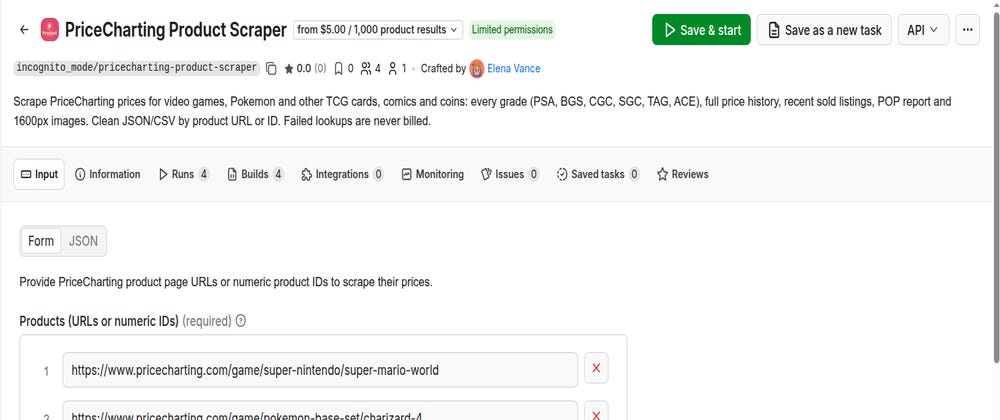
In the Products field, add one entry per line. Each entry is either a full product-page URL or a bare numeric product ID — you can mix them freely:
https://www.pricecharting.com/game/super-nintendo/super-mario-world
https://www.pricecharting.com/game/pokemon-base-set/charizard-4
7141
How to find a product URL or ID: search for the item on PriceCharting and open its page — the URL in your address bar is the first option. For the numeric ID, hover over the product title on its page and the ID appears (it’s also in
fullPrices/exports later). URLs are easiest; numeric IDs are the most stable for large, repeated runs.

Pasting product URLs and IDs into the Products input
Step 3 — Choose your options (defaults are fine)

Parameters description for running the actor.
If you prefer the JSON input tab, here’s the equivalent:
{
  "products": [
    "https://www.pricecharting.com/game/pokemon-base-set/charizard-4",
    "7141"
  ],
  "scrapeProductDetails": true,
  "includeRecentSales": false,
  "proxyConfiguration": { "useApifyProxy": true }
}
Step 4 — Run it
Click Save & Start. The run streams results as it goes; a small list finishes in seconds, larger lists in minutes. When it’s done, the status line tells you how many products succeeded.
One nice detail: failed lookups are free. A dead link, typo, or removed product isn’t written to your dataset and isn’t billed — it’s listed in the run’s SUMMARY record (in the Key-value store) so you can review and retry. You pay only for product records you actually receive.
Step 5 — Read the output (the important part)
Open the Dataset tab to see one row per product, or switch to the JSON view for the full structure. Here’s a trimmed example for a Charizard card:
{
  "productId": 630417,
  "productName": "Charizard #4",
  "consoleName": "Pokemon Base Set",
  "category": "pokemon-cards",
  "url": "https://www.pricecharting.com/game/pokemon-base-set/charizard-4",
  "imageUrl": "https://storage.googleapis.com/images.pricecharting.com/<hash>/1600.jpg",
  "images": ["…/1600.jpg", "…/1600.jpg"],
  "currency": "USD",
  "prices": {
    "loose": 338.42,       // Ungraded
    "cib": 749.50,         // Grade 7
    "new": 1199.03,        // Grade 8
    "graded": 3175.04,     // Grade 9
    "boxOnly": 3403.50,    // Grade 9.5
    "manualOnly": 30085.73 // PSA 10
  },
  "fullPrices": {          // the complete on-page ladder, labels verbatim
    "Ungraded": 338.42,
    "Grade 9": 3175.04, "Grade 9.5": 3403.50,
    "SGC 10": 18051.00, "CGC 10": 7605.63, "PSA 10": 30085.73,
    "BGS 10": 39111.00, "BGS 10 Black": 195555.00,
    "TAG 10": null        // grade tracked, no recorded sales yet
  },
  "salesVolume": { "Ungraded": 48, "PSA 10": 30, "Grade 9": 30 },
  "populationReport": {
    "PSA": { "9": 9, "10": 0 },
    "CGC": { "9": 2, "10": 4 }
  },
  "priceHistory": {
    "used":   [ { "date": "2020-09-01", "price": 180.00 }, { "date": "2020-10-01", "price": 210.50 } ],
    "graded": [ { "date": "2021-01-01", "price": 2600.00 } ]
  },
  "source": "scrape",
  "scrapedAt": "2026-06-11T04:24:21+00:00"
}
The one thing to understand — the six price slots are category-specific. PriceCharting reuses the same six columns with different labels depending on the product, so the Actor keeps stable keys and you read them per category:

key-mapping of the prices from PriceCharting
priceHistory mirrors these keys, with one quirk: the first slot's history key is **used (not loose); the other five match. So for a card, `priceHistory.manualOnlyis the PSA 10 price over time** andpriceHistory.usedis the Ungraded series. If the six slots aren't enough, readfullPrices` — it carries the complete labeled ladder (every grading company), no mapping needed. (History exists only for the six headline slots; the company-specific grades are current market values, because PriceCharting publishes no time series for them.)
Step 6 — Export and integrate
No code — spreadsheet users:
- In the Dataset tab, click Export and download CSV or Excel.
- Or pull results live into Google Sheets with the dataset’s CSV endpoint:
=IMPORTDATA("https://api.apify.com/v2/datasets/<DATASET_ID>/items?format=csv&clean=true&token=<YOUR_APIFY_TOKEN>")The token in that URL grants API access to your account — keep the Sheet private and, ideally, use a limited-scope token.
With code — Python (apify-client): run the Actor and read results in one script.
from apify_client import ApifyClient

client = ApifyClient("<YOUR_APIFY_TOKEN>")

run_input = {
    "products": [
        "https://www.pricecharting.com/game/pokemon-base-set/charizard-4",
        "7141",
    ],
    "scrapeProductDetails": True,
    "includeRecentSales": False,
}

run = client.actor("incognito_mode/pricecharting-product-scraper").call(run_input=run_input)

for item in client.dataset(run["defaultDatasetId"]).iterate_items():
    print(item["productName"], "→ PSA 10:", item["prices"]["manualOnly"])
With code — one-shot via the API (curl): run synchronously and get the dataset items back in the response.
curl -X POST \
  "https://api.apify.com/v2/acts/incognito_mode~pricecharting-product-scraper/run-sync-get-dataset-items?token=<YOUR_APIFY_TOKEN>" \
  -H "Content-Type: application/json" \
  -d '{"products":["https://www.pricecharting.com/game/pokemon-base-set/charizard-4","7141"]}'
Automate it: use Apify Schedules to re-run daily or weekly (build your own price-history dataset over time), and webhooks to push each finished run into your pipeline — Sheets, Slack, or your backend.
What it costs
The Actor uses transparent pay-per-result pricing with a built-in volume discount — no subscription, no minimums, and no charge for failures:
- $5.00 per 1,000 results for the first 10,000 of a run.
- $1.50 per 1,000 for everything beyond that (the discount resets per run, so one big run is cheaper than many small ones).
- A small Actor-start fee per run.
So valuing 50 cards ≈ $0.27, repricing a 500-item inventory ≈ $2.50, and 1,000 products with full history + images ≈ $5 — and the free plan’s ~$5/month credit covers about that first 1,000 before you pay anything. Compare that to the official API’s $49/month that still ships no history, no images, and no graded ladder. (Check the Actor page for current pricing.)
You can also set a maximum charge per run — the Actor stops gracefully at your cap and keeps everything already scraped.
Tips, limits & responsible use
- Bulk runs (10k+): input bare numeric IDs (hundreds of thousands fit in one run), raise concurrency to 10–15, set the timeout to unlimited, and export promptly — datasets get large with history on.
- Comps add size:
recentSalesroughly 5×'s each record; leave it off if you only need prices. - Scope: v1 takes individual product URLs/IDs; whole-set/console bulk mode is on the roadmap.
- Be respectful: keep concurrency low and delays reasonable. This project isn’t affiliated with PriceCharting; for high-volume commercial use, their official paid API (token mode) is the sanctioned source, and you’re responsible for complying with their Terms.
Wrap-up
That’s the whole loop: paste URLs or IDs → run → export clean JSON/CSV with every grade, the full history, comps, POP, and images. Whether you’re repricing inventory, tracking a collection’s trend, or feeding an app, it turns hours of manual lookups into a few-minute run.
Try it on a handful of your own products: **PriceCharting Product Scraper. Questions or a field you need? Open an issue from the Actor’s Issues** tab — feedback shapes the roadmap.
메타데이터
- post_id
- da9a2978c12f
- slug
- how-to-turn-pricecharting-pages-into-clean-json-prices-psa-bgs-cgc-grades-history-sold-comps-da9a2978c12f
- url
- https://medium.com/@armanhosen9/how-to-turn-pricecharting-pages-into-clean-json-prices-psa-bgs-cgc-grades-history-sold-comps-da9a2978c12f
- canonical_url
- https://medium.com/@armanhosen9/how-to-turn-pricecharting-pages-into-clean-json-prices-psa-bgs-cgc-grades-history-sold-comps-da9a2978c12f
- author_url
- https://medium.com/@armanhosen9
- status
- ok
- fetched_at
- 2026-06-21 19:25:17




