Video Ingest and Streaming on AWS: A Serverless Pipeline from Upload to HLS
Build an event-driven pipeline that turns a raw video upload into an adaptive HLS stream — with subtitles and thumbnails included.
Video Ingest and Streaming on AWS: A Serverless Pipeline from Upload to HLS
Build an event-driven pipeline that turns a raw video upload into an adaptive HLS stream — with subtitles and thumbnails included.
What Does It Mean to Stream Video over HTTP?
Serving a video file is not the same as streaming it. If you drop an MP4 into an S3 bucket and link to it, a browser will download and play it — but it will download the entire file, or at least a large contiguous chunk of it, before playback is reliable. For a 500 MB file over a slow connection, that means a long wait and a poor experience. More importantly, the server has no idea what the viewer’s actual bandwidth is, so it can’t adjust quality accordingly.
HTTP streaming solves this by breaking video into small, independently downloadable segments — typically two to six seconds each — and describing them in a plain-text manifest file. The player downloads the manifest first, then fetches segments one at a time just before playback. Because each segment is a separate HTTP request, the player can switch to a higher or lower quality rendition between segments, adapting to changing network conditions in real time. This is adaptive bitrate streaming (ABR).
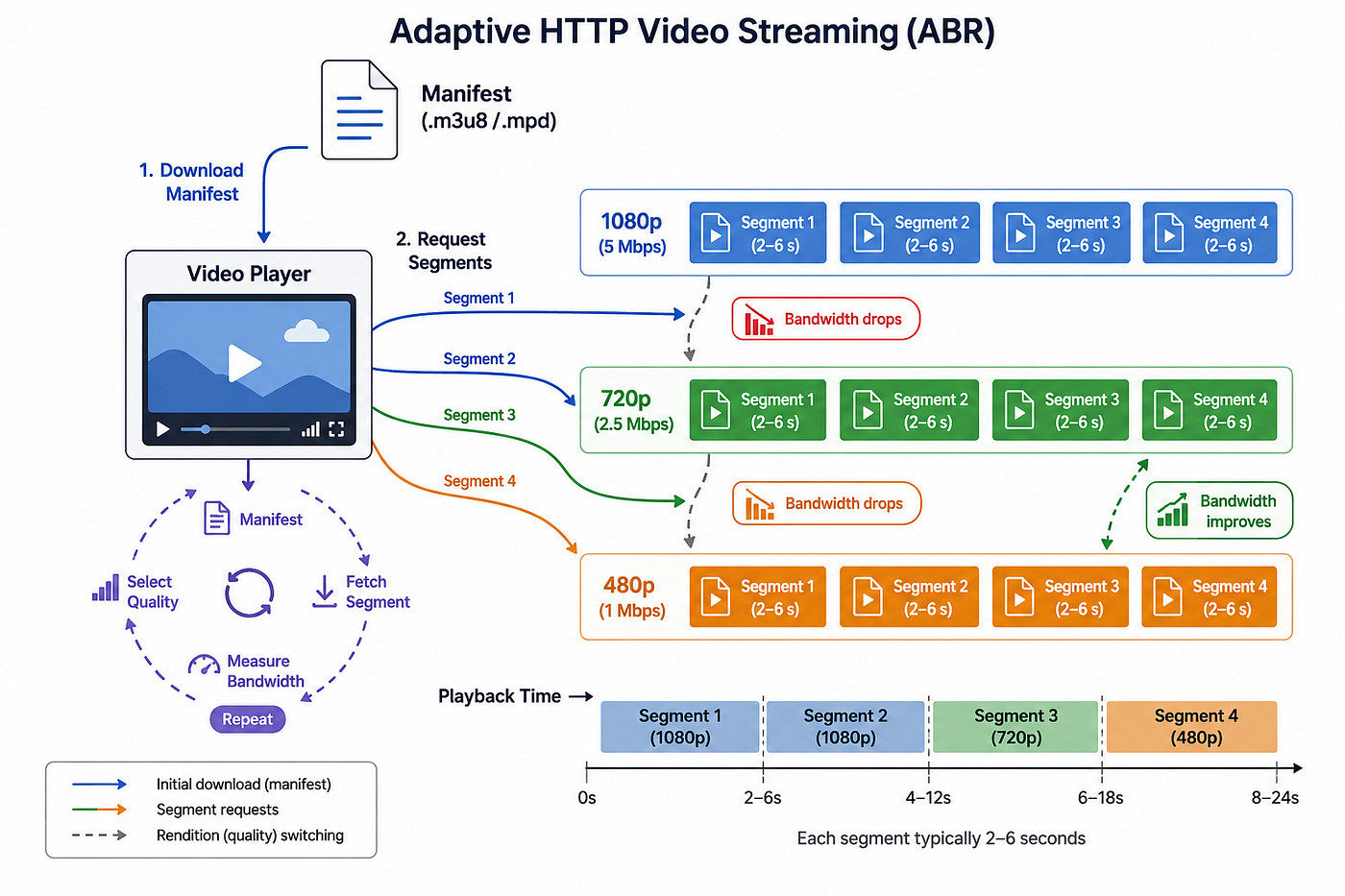
The two dominant ABR formats are HLS (HTTP Live Streaming, developed by Apple) and MPEG-DASH. HLS has broader native browser and device support and is what this pipeline produces. An HLS stream consists of:
- A master manifest (.m3u8) that lists available renditions — each a combination of resolution and bitrate.
- A rendition playlist (also .m3u8) for each quality level, listing the segment files in order.
- Segment files (.ts or .fmp4) containing a few seconds of audio and video, encoded for that rendition.
Because these are all static files served over plain HTTPS, the entire delivery infrastructure is a CDN and an object store. There is no media server, no persistent connection, no special protocol. The “streaming” is just a sequence of HTTP GET requests.
The practical consequence: you can host an HLS stream on S3 and CloudFront with no compute in the playback path. The work happens before delivery, in the transcoding pipeline that converts a raw upload into the set of segmented, manifest-described renditions a player can consume.
This article covers the full journey from a raw video file landing in S3 to a browser playing it back as a smooth adaptive stream. We’ll walk through a fully serverless pipeline built around AWS MediaConvert, Transcribe, SQS, and EventBridge, using Terraform for infrastructure and Node.js Lambdas for the glue.

Two Buckets, Two Concerns
The first structural decision is to keep uploads and streaming assets in separate S3 buckets with different access policies and lifecycle rules.
The uploads bucket is fully private. No public access, no CloudFront. It exists solely to receive raw video files and feed the transcoding pipeline. Once a video is processed, the original file has served its purpose.
The streaming bucket is also private — but it’s accessible via CloudFront using Origin Access Control (OAC). It holds the HLS segments, manifest files, subtitle tracks, and transcripts that MediaConvert and Transcribe produce. Nothing is served directly from S3; all playback traffic goes through CloudFront. This allows fine-grained control over caching policies and response headers for streaming assets, without affecting the upload flow.
Getting the File into S3: Presigned Uploads
Before the ingest pipeline can do anything, the raw video file needs to get into S3. The standard approach for large files is a presigned PUT URL — a time-limited, pre-authorized URL that lets a client upload directly to S3 without routing the file through a Lambda.

The flow is:
- The client sends a lightweight API request with the video metadata: filename, content type, title, language code.
- The API validates the request (allowed file types, well-formed language code), creates a video record in DynamoDB with status
UPLOADING, and generates a presigned URL for the target S3 key. - The API returns the presigned URL, the video ID, and the expected headers to the client.
- The client PUTs the file directly to S3 using that URL, with a matching
Content-Typeheader.
// API generates the presigned URL
const originalKey = `uploads/${videoId}/original/${filename}`

const uploadUrl = await getSignedUrl(
  s3Client,
  new PutObjectCommand({
    Bucket: uploadBucketName,
    Key: originalKey,
    ContentType: contentType,
  }),
  { expiresIn: 900 }, // 15 minutes
)
The key path uploads/{videoId}/original/{filename} is deliberate. You could also store videoIdas S3 user-defined metadata on the uploaded object, but ObjectCreatedevents do not include that metadata. That would force the ingest Lambda to make an extra HeadObjectcall to fetch x-amx-meta-video-id, and the client upload would also need to include the matching signed metadata header. Putting the ID in the object key keeps the event self-contained and avoids that extra S3 round trip.
A few other details worth noting:
- Write the DynamoDB record before generating the URL. If the URL is issued but the record never gets written, the upload event will arrive with no corresponding record to process. Writing the record first means the pipeline can always look it up.
- The URL expires. 15 minutes is enough for most video files on reasonable connections. If an upload doesn’t complete in time, the presigned URL simply stops working — the client would need to request a new one.
- The uploads bucket has CORS configured for PUT. The browser needs permission to send the file cross-origin directly to S3. The
ETagheader is exposed so the client can verify the upload completed successfully.
Once the PUT completes, S3 fires an ObjectCreatedevent. That’s where the ingest pipeline begins.
The Ingest Pipeline: From S3 Event to Transcoding Job
When a file lands in the uploads bucket, you want transcoding to start automatically. The cleanest way to wire this is through S3 event notifications to SQS, with a Lambda consuming the queue.

High-level processing flow: the upload enters through SQS and Lambda orchestration, MediaConvert produces the HLS assets, and EventBridge plus Transcribe complete the subtitle phase while the metadata table tracks progress.

S3 → SQS → Lambda
S3 sends an ObjectCreatedevent to an SQS queue. The queue has a dead-letter queue for messages that fail processing five times, and its visibility timeout is set to twice the Lambda timeout — this ensures a message stays invisible while the Lambda is working and only becomes available for retry if the Lambda crashes before completing.
resource "aws_sqs_queue" "ingest" {
  name                       = "video-stream-ingest"
  visibility_timeout_seconds = 60

  redrive_policy = jsonencode({
    deadLetterTargetArn = aws_sqs_queue.ingest_dlq.arn
    maxReceiveCount     = 5
  })
}
The Lambda event source mapping uses ReportBatchItemFailures, which lets the Lambda report individual message failures rather than treating the whole batch as a success or failure. This is essential for resilient batch processing — a transient error on one video shouldn’t block the others.
resource "aws_lambda_event_source_mapping" "callback_from_ingest" {
  event_source_arn        = aws_sqs_queue.ingest.arn
  function_name           = aws_lambda_function.callback.arn
  batch_size              = 5
  function_response_types = ["ReportBatchItemFailures"]

  scaling_config {
    maximum_concurrency = 2
  }
}
A maximum_concurrencycap on the event source mapping limits how many concurrent Lambda instances process the queue. This controls downstream pressure on MediaConvert and prevents accidental runaway scaling if a large number of uploads arrive simultaneously.
The Callback Lambda: Submitting the MediaConvert Job
The callback Lambda parses the S3 event from the SQS record, extracts the video ID from the object key (uploads/{videoId}/original/{filename}) and looks up the corresponding record in DynamoDB.
A few guard clauses prevent duplicate processing:
- If the video record has already been deleted, the message is silently skipped.
- If a MediaConvert job ID is already present on the record, the message is a duplicate and is skipped.
If all checks pass, the Lambda creates a MediaConvert job targeting the uploaded file and updates the DynamoDB record with processingStatus: PROCESSING_TRANSCODE.
MediaConvert Job Configuration
The job has two output groups: one HLS group producing two adaptive renditions, and one file group producing thumbnail still frames.
{
  OutputGroups: [
    {
      Name: 'HLS',
      OutputGroupSettings: {
        Type: 'HLS_GROUP_SETTINGS',
        HlsGroupSettings: {
          Destination: `s3://${streamBucketName}/videos/${videoId}/hls/master`,
          SegmentLength: 6,
        },
      },
      Outputs: [
        {
          NameModifier: '_720p',
          VideoDescription: {
            Width: 1280,
            Height: 720,
            CodecSettings: {
              Codec: 'H_264',
              H264Settings: {
                MaxBitrate: 3000000,
                RateControlMode: 'QVBR',
                GopSize: 2,
                GopSizeUnits: 'SECONDS',
                SceneChangeDetect: 'TRANSITION_DETECTION'
              }
            }
          }
        },
        {
          NameModifier: '_480p', VideoDescription: {
            Width: 854, Height: 480,
            CodecSettings: {
              Codec: 'H_264',
              H264Settings: {
                MaxBitrate: 1400000,
                RateControlMode: 'QVBR',
                GopSize: 2,
                GopSizeUnits: 'SECONDS',
                SceneChangeDetect: 'TRANSITION_DETECTION'
              }
            }
          }
        }
      ]
    },
    {
      Name: 'Thumbnails',
      OutputGroupSettings: {
        Type: 'FILE_GROUP_SETTINGS',
        FileGroupSettings: {
          Destination: `s3://${streamBucketName}/videos/${videoId}/thumbnails/`,
        },
      },
      Outputs: [{
        NameModifier: '_thumbnail',
        ContainerSettings: { Container: 'RAW' },
        VideoDescription: {
          Width: 480,
          Height: 270,
          CodecSettings: {
            Codec: 'FRAME_CAPTURE',
            FrameCaptureSettings: {
              FramerateNumerator: 1,
              FramerateDenominator: 2,
              MaxCaptures: 3,
              Quality: 80,
            }
          }
        }
      }]
    }
  ]
}
A few settings worth calling out:
**QVBRrate control**: Quality-defined variable bitrate. MediaConvert targets a quality level rather than a fixed bitrate, producing better quality at a lower average bitrate compared to CBR. Simpler scenes use fewer bits; complex scenes get more.- Multiple
Outputsin one HLS group: MediaConvert builds the master manifest from all outputs under the sameDestination. Both the 720p and 480p variants sharehls/masteras their destination, so MediaConvert writes a single master playlist that advertises both. The player loadsmaster.m3u8and switches between renditions based on bandwidth. **GopSize: 2seconds**: GOP stands for Group of Pictures — the span of frames between two keyframes. Only keyframes are fully self-contained; the frames between them are encoded as differences from their neighbours, so a player can only start decoding from a keyframe. Two-second GOPs mean a keyframe every two seconds, which allows HLS players to seek and start playback quickly. It also aligns with the six-second segment length (three GOPs per segment), ensuring every segment boundary falls on a keyframe — a requirement for seamless rendition switching.**SceneChangeDetect: TRANSITION_DETECTION**: Forces a keyframe on scene cuts, preventing visual artifacts at cuts and enabling cleaner segment boundaries.**FRAME_CAPTUREoutput group**: Captures JPEG still frames at 480×270 — one frame every two seconds, up to three captures. The output group usesFILE_GROUP_SETTINGS(not HLS), writing raw JPEG files directly to the thumbnails prefix.
The HLS Master Manifest
With two renditions, the master manifest MediaConvert produces looks like this:
#EXTM3U
#EXT-X-VERSION:3

#EXT-X-STREAM-INF:BANDWIDTH=3000000,RESOLUTION=1280x720,CODECS="avc1.64001f,mp4a.40.2"
master_720p.m3u8

#EXT-X-STREAM-INF:BANDWIDTH=1400000,RESOLUTION=854x480,CODECS="avc1.64001f,mp4a.40.2"
master_480p.m3u8
Each STREAM-INFentry advertises a bandwidth ceiling and resolution. When a player starts, it picks the rendition that fits its current estimated bandwidth, then re-evaluates every few segments. A viewer on a strong connection gets 720p; one on mobile or a congested network steps down to 480p automatically — without rebuffering, and without the player needing any knowledge of your encoding settings.
The Pipeline Lambda: Chaining Transcoding to Subtitle Generation
When MediaConvert finishes, it emits a state change event to EventBridge. The pipeline Lambda handles two event types: MediaConvert state changes and Transcribe state changes. This two-phase design keeps subtitle generation decoupled from transcoding — they’re separate async jobs, but the pipeline coordinates them into a single video record lifecycle.
Phase 1: MediaConvert Complete → Start Transcription
When a COMPLETEevent arrives for a MediaConvert job, the pipeline Lambda:
- Lists the
videos/{videoId}/thumbnails/prefix in S3 and picks the representative frame — specifically the third capture if available, falling back to the second, then the first. MediaConvert names frames numerically (test_thumbnail.0000001.jpg,.0000002.jpg, .0000003.jpg), so picking the middle or later frame avoids a common pitfall where the first few seconds are a black title card or a fade-in. - Updates the video record:
processingStatus: PROCESSING_SUBTITLES,assetInfo.thumbnailKey, MediaConvert completion time. - Submits an AWS Transcribe job against the original upload (not the HLS output — Transcribe prefers the original uncompressed audio for accuracy).
- Saves the Transcribe job ID to the video record.
await client.send(new StartTranscriptionJobCommand({
  TranscriptionJobName: `${video.videoId}__${video.languageCode}`,
  LanguageCode: video.languageCode,
  MediaFormat: detectMediaFormat(video.filename),
  Media: {
    MediaFileUri: `s3://${video.uploadBucket}/${video.originalKey}`,
  },
  OutputBucketName: config.streamBucketName,
  OutputKey: `videos/${videoId}/transcribe/`,
  Subtitles: {
    Formats: ['vtt', 'srt'],
    OutputStartIndex: 1,
  },
}))
The Transcribe job name encodes both the video ID and the language code ({videoId}__{languageCode}). This lets the Transcribe completion handler extract the video ID without a separate database lookup.
Subtitle output goes directly to the streaming bucket alongside the HLS assets — both WebVTT (for browser <track>elements) and SRT (for offline use) are produced.
Phase 2: Transcribe Complete → Mark READY
When a Transcribe COMPLETEDevent arrives, the pipeline Lambda:
- Retrieves the full transcription job details to get the subtitle file URIs.
- Converts the S3 URIs to relative object keys.
- Updates the video record with
processingStatus: READYand theassetInfokeys for the VTT, SRT, and transcript files.
At this point, the video is ready to serve. The DynamoDB record now holds the S3 keys for the HLS master manifest and subtitles, and the API can return playback URLs.
State Tracking with DynamoDB
By now, you’ve seen four different parts of the system — the API, the callback Lambda, MediaConvert, and the pipeline Lambda — all reach into the same place: a single DynamoDB item keyed on videoId. That item is the thread that ties the whole asynchronous pipeline together. The API creates it before upload, the callback Lambda advances it when transcoding starts, and the pipeline Lambda finalizes it as subtitles and thumbnails arrive.

Its processingStatusfield moves through a linear progression:
UPLOADING— Upload URL issued, file not yet in S3.UPLOADED— File confirmed received, transcode not yet submitted.PROCESSING_TRANSCODE— MediaConvert job running.PROCESSING_SUBTITLES— Transcoding complete, Transcribe job running.READY— All assets available, video is playable.FAILED— A job failed.jobInfocontains the error detail.
const videoSchema = item({
  videoId: string().key(),
  title: string(),
  description: string(),
  filename: string(),
  contentType: string().enum('video/mp4'),
  languageCode: string(),
  processingStatus: string().enum(...PROCESSING_STATUSES),
  durationSeconds: number().optional(),
  uploadBucket: string(),
  originalKey: string(),
  assetInfo: map({
    hlsMasterKey: string().optional(),
    subtitleVttKey: string().optional(),
    subtitleSrtKey: string().optional(),
    transcriptKey: string().optional(),
    thumbnailKey: string().optional(),
  }).optional(),
  jobInfo: map({
    mediaconvert: map({
      jobId: string().optional(),
      status: string().optional(),
      submittedAt: string().optional(),
      completedAt: string().optional(),
      errorMessage: string().optional(),
    }).optional(),
    transcribe: map({
      jobId: string().optional(),
      status: string().optional(),
      languageCode: string().optional(),
      submittedAt: string().optional(),
      completedAt: string().optional(),
      errorMessage: string().optional(),
    }).optional(),
  }).optional(),
  createdAt: string(),
  updatedAt: string(),
})
Each field on the item serves a specific role in the pipeline:
videoId— the partition key and the stable identifier used across S3 keys, job metadata, and API routes.title,description— user-supplied metadata returned by the API and shown in any frontend listing or detail view.filename,contentType— the original upload name and validated MIME type, used when submitting downstream processing jobs and for auditability.languageCode— the requested transcription language, passed directly into the Transcribe job.processingStatus— the current lifecycle state, which tells the API and operators whether the video is waiting, processing, ready, or failed.durationSeconds— optional runtime metadata that can be filled in later once media analysis is available.uploadBucket,originalKey— the exact S3 location of the raw uploaded file, which the pipeline uses as the source of truth for MediaConvert and Transcribe.assetInfo— object keys for derived outputs such as the HLS master manifest, subtitles, transcript JSON, and thumbnail image.jobInfo— the MediaConvert and Transcribe job identifiers, statuses, timestamps, and error messages needed for recovery, cancellation, and debugging.createdAt,updatedAt— timestamps for record creation and the latest state transition.
The jobInfo field stores MediaConvert and Transcribe job IDs and statuses. This is useful for debugging and for the API’s video deletion flow — before deleting a video, the API checks for active jobs and cancels them to avoid orphaned processing work and unexpected charges.
What the API Exposes
The API Lambda handles a small set of routes:
POST /api/uploads— creates a presigned PUT URL and registers the video record atUPLOADINGstatus.GET /api/videos— lists videos with thumbnail and HLS URLs (summary view).GET /api/videos/{videoId}— returns full video details, including playback URLs and job info.DELETE /api/videos/{videoId}— cancels active jobs, deletes S3 assets, and removes the DynamoDB record.
Playback URLs are assembled from a configurable base URL. A fully processed video record looks like this:
{
  "videoId": "40bd1f10-9de5-429b-8419-4a5d76c9a00e",
  "title": "Test Video",
  "processingStatus": "READY",
  "languageCode": "en-US",
  "playback": {
    "hlsUrl": "/videos/40bd1f10-9de5-429b-8419-4a5d76c9a00e/hls/master.m3u8",
    "subtitles": [
      {
        "languageCode": "en-US",
        "label": "English",
        "url": "/videos/40bd1f10-9de5-429b-8419-4a5d76c9a00e/transcribe/40bd1f10-9de5-429b-8419-4a5d76c9a00e__en-US.vtt"
      }
    ]
  },
  "assetInfo": {
    "hlsMasterKey": "videos/40bd1f10-9de5-429b-8419-4a5d76c9a00e/hls/master.m3u8",
    "thumbnailKey": "videos/40bd1f10-9de5-429b-8419-4a5d76c9a00e/thumbnails/test_thumbnail.0000002.jpg",
    "subtitleVttKey": "videos/40bd1f10-9de5-429b-8419-4a5d76c9a00e/transcribe/40bd1f10-9de5-429b-8419-4a5d76c9a00e__en-US.vtt",
    "subtitleSrtKey": "videos/40bd1f10-9de5-429b-8419-4a5d76c9a00e/transcribe/40bd1f10-9de5-429b-8419-4a5d76c9a00e__en-US.srt",
    "transcriptKey": "videos/40bd1f10-9de5-429b-8419-4a5d76c9a00e/transcribe/40bd1f10-9de5-429b-8419-4a5d76c9a00e__en-US.json"
  }
}
The playback object is what a frontend needs to start a player — HLS URL and subtitle tracks. The raw assetInfo keys are the underlying S3 object paths, useful for debugging or building additional tooling on top.
Streaming HLS in the Browser

By the time a video reaches aREADY state, playback is straightforward: load the master manifest at videos/{videoId}/hls/master.m3u8and, if transcription succeeded, the VTT subtitle file alongside it. If the frontend already knows videoIdand the playback base URL, it can request those CloudFront paths directly without doing an API lookup first. The player then fetches the master playlist, selects a rendition, and switches qualities as conditions change.
Native HLS playback is supported in Safari. For Chrome and Firefox, a JavaScript library like hls.js is needed to feed the HLS stream to an HTML5 <video> element via Media Source Extensions (MSE).
<video id="player" controls></video>
<track kind="subtitles" src="/videos/{videoId}/transcribe/{videoId}__en-US.vtt"
       srclang="en" label="English" default>

<script>
  const video = document.getElementById('player');
  const src = '/videos/{videoId}/hls/master.m3u8';

  if (video.canPlayType('application/vnd.apple.mpegurl')) {
    // Safari native HLS
    video.src = src;
  } else if (Hls.isSupported()) {
    const hls = new Hls();
    hls.loadSource(src);
    hls.attachMedia(video);
  }
</script>
The subtitle VTT file is served alongside the HLS assets from the streaming bucket, so the <track> element URL is just another CloudFront path.

Conclusion
The key insight in this architecture is that video processing is inherently asynchronous. A file upload does not produce a playable stream immediately; it kicks off a chain of events that prepares one. SQS decouples the trigger from the work, EventBridge chains the async phases together, DynamoDB tracks state across them, and CloudFront plus S3 handle delivery without any compute in the hot path.
The result is a fully serverless pipeline that turns a raw upload into an adaptive HLS stream with thumbnails and subtitles, while staying simple to operate and inexpensive when idle.
The complete project is available in GitLab.
Before you go
- Please take a moment to like the post and follow the writer!
- Did you know that over 400,000 developers share what they’re building, learning, and discovering across our platforms every month? Learn how you can contribute here
메타데이터
- post_id
- daea1fe842fc
- slug
- video-ingest-and-streaming-on-aws-a-serverless-pipeline-from-upload-to-hls-daea1fe842fc
- url
- https://aws.plainenglish.io/video-ingest-and-streaming-on-aws-a-serverless-pipeline-from-upload-to-hls-daea1fe842fc
- canonical_url
- https://aws.plainenglish.io/video-ingest-and-streaming-on-aws-a-serverless-pipeline-from-upload-to-hls-daea1fe842fc
- author_url
- https://medium.com/@benjamin_goodman
- status
- ok
- fetched_at
- 2026-07-14 12:43:20