Twelve CCTV Files. SharePoint Rejected Every One. Here’s Why.
A PowerShell tool that fixes the container problem your codec didn’t cause.
Twelve CCTV Files. SharePoint Rejected Every One. Here’s Why.
FFmpeg logo cover art — © xerolinux.xyz
A PowerShell tool that fixes the container problem your codec didn’t cause.
Security sent me twelve video files from an incident investigation. “These play fine locally,” they said. I uploaded the first one to SharePoint. Can’t play this video.
The file wasn’t corrupt. The container was lying about what it was.
The Diagnosis
MediaInfo revealed the problem immediately:
Complete name: D01_20251208072114.mp4
Format: MPEG-PS
FileExtension_Invalid: mpeg mpg m2p vob
Named .mp4. Wrapped in MPEG-PS — a legacy format from the DVD era that browser players have never supported. I confirmed with ffprobe:
Input #0, mpeg, from 'D01_20251208072114.mp4':
  Duration: 00:19:28.13, start: 8347.282822, bitrate: 509 kb/s
  Stream #0:0: Video: h264 (High), yuv420p, 1920x1080, 25 fps
The codec was H.264. Exactly what SharePoint requires. But the container signature (mpeg, not mov,mp4) and a start timestamp of 8347 seconds — over two hours into a non-existent timeline — meant the browser player couldn't initialize the stream. Microsoft's documentation is explicit: SharePoint and OneDrive require true MP4 containers with H.264 video for in-browser playback.
This wasn’t a codec problem. The codec was fine. CCTV DVRs routinely mislabel their output — they write MPEG-PS and call it MP4 because the extension travels with the file to the end user.
Why a One-Liner Isn’t Enough
The obvious fix is a single FFmpeg command:
ffmpeg -i input.mp4 -c:v copy -an -movflags +faststart output_fixed.mp4Stream-copy into a clean container, regenerate timestamps, done. But remuxing doesn’t always fix the problem. Some files have decode-level corruption that survives a container swap — timestamp discontinuities deep in the stream, damaged keyframes, bitstream errors that ffprobe only catches under a decode health check.
And remuxing twelve 20-minute files one at a time, then manually validating each output, then re-encoding the ones that still fail — that’s an hour of work you shouldn’t be doing manually.
Twelve files is a batch job. The fix needs to be as systematic as the problem.
Three Passes, One Decision Tree
The script runs each file through a structured pipeline:
Pass 1 — Remux. Stream-copy the primary video stream into a fresh MP4 container with regenerated timestamps. Near-instant. Lossless. For most files from this class of DVR, this is sufficient.
Verify. Two checks in sequence. First, ffprobe confirms the container signature is mov,mp4 — not mpeg, not avi, not anything else. Second, ffmpeg samples the first 30 seconds and runs a full decode health analysis, flagging errors like invalid data found or corrupt. If both pass: done.
Pass 2 — Re-encode (only on failure). Applies setpts=PTS-STARTPTS to normalize timestamps from scratch and forces a structurally clean MP4. Hardware encoder selection is automatic: NVENC (NVIDIA) → QSV (Intel) → AMF (AMD) → libx264 CPU fallback. If a GPU encoder claims compatibility but fails mid-encode — which happens with older drivers — the script catches the failure and retries on CPU without stopping the batch.
What It Looks Like Running
The script opens with encoder detection — a short probe that tests each hardware codec before processing begins so it doesn’t waste time discovering incompatibilities per-file.
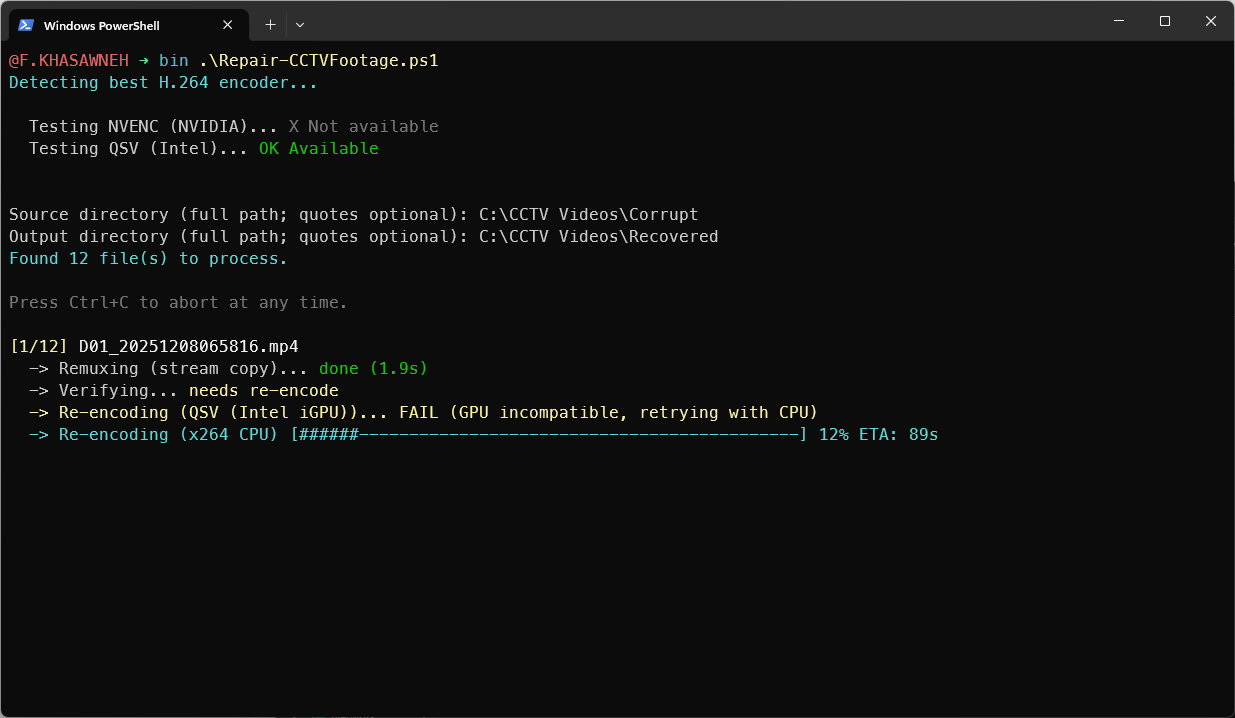
Script Running
Per-file output is intentionally verbose. You see the decision at each stage: whether remux passed verification, whether re-encode was triggered, which encoder handled it, and the ETA. On a modern laptop with an Intel iGPU using QSV, re-encoding runs 10–50× faster than CPU-only. Twelve 20-minute files that would take hours on CPU take under 30 minutes.
Corrupt files that cause FFmpeg to hang — more common than you’d expect with damaged CCTV exports — are handled by a watchdog: 90-second hard cap, 15-second stall detection on output file size growth. The batch continues.
The per-file verbosity isn’t noise — it’s the audit trail for files that are going into an incident investigation.
The Log
Every file produces a row in _verify_log.csv:
**input** — source file path**output** — final deliverable (authoritative)**status** — PASS / FAIL**action** — remux-only / re-encoded**decode_severity** — OK / WARN / FAIL**encoder** — libx264 / nvenc / qsv / amf**details** — FFmpeg error string, if any
Both _fixed.mp4 (remux output) and _fixed_reencode.mp4 (re-encode output) may exist for the same source file. The output column tells you which one passed verification — that's your deliverable list.
This matters when the files are going somewhere formal. You’re not handing over “the ones that look fine.” You’re handing over a CSV that documents exactly what was done to each file and what the verification result was.
Requirements
FFmpeg and ffprobe are the only dependencies. If they’re not in your PATH, the script offers to install them via winget — one command, handles its own UAC elevation. The script itself doesn’t require admin rights.
Everything — the script, a double-click batch launcher, and full documentation — is on GitHub:
→ github.com/5a9awneh/Repair-VideoFiles
If you’re working with CCTV exports that browsers won’t play, this is the systematic version of the fix.
메타데이터
- post_id
- daf55e64c13f
- slug
- fix-corrupt-cctv-footage-sharepoint-powershell-daf55e64c13f
- url
- https://medium.com/@5a9awneh/fix-corrupt-cctv-footage-sharepoint-powershell-daf55e64c13f
- canonical_url
- https://medium.com/@5a9awneh/fix-corrupt-cctv-footage-sharepoint-powershell-daf55e64c13f
- author_url
- https://medium.com/@5a9awneh
- status
- ok
- fetched_at
- 2026-06-16 19:09:56