Claude Code Hooks, Subagents, and Worktrees: The Power Features Nobody Explains
Hooks, subagents, and worktrees look like advanced settings. Used together, they turn Claude Code from a chat-based coding assistant into a…
Claude Code Hooks, Subagents, and Worktrees: The Power Features Nobody Explains
Hooks, subagents, and worktrees look like advanced settings. Used together, they turn Claude Code from a chat-based coding assistant into a controlled AI development workflow.
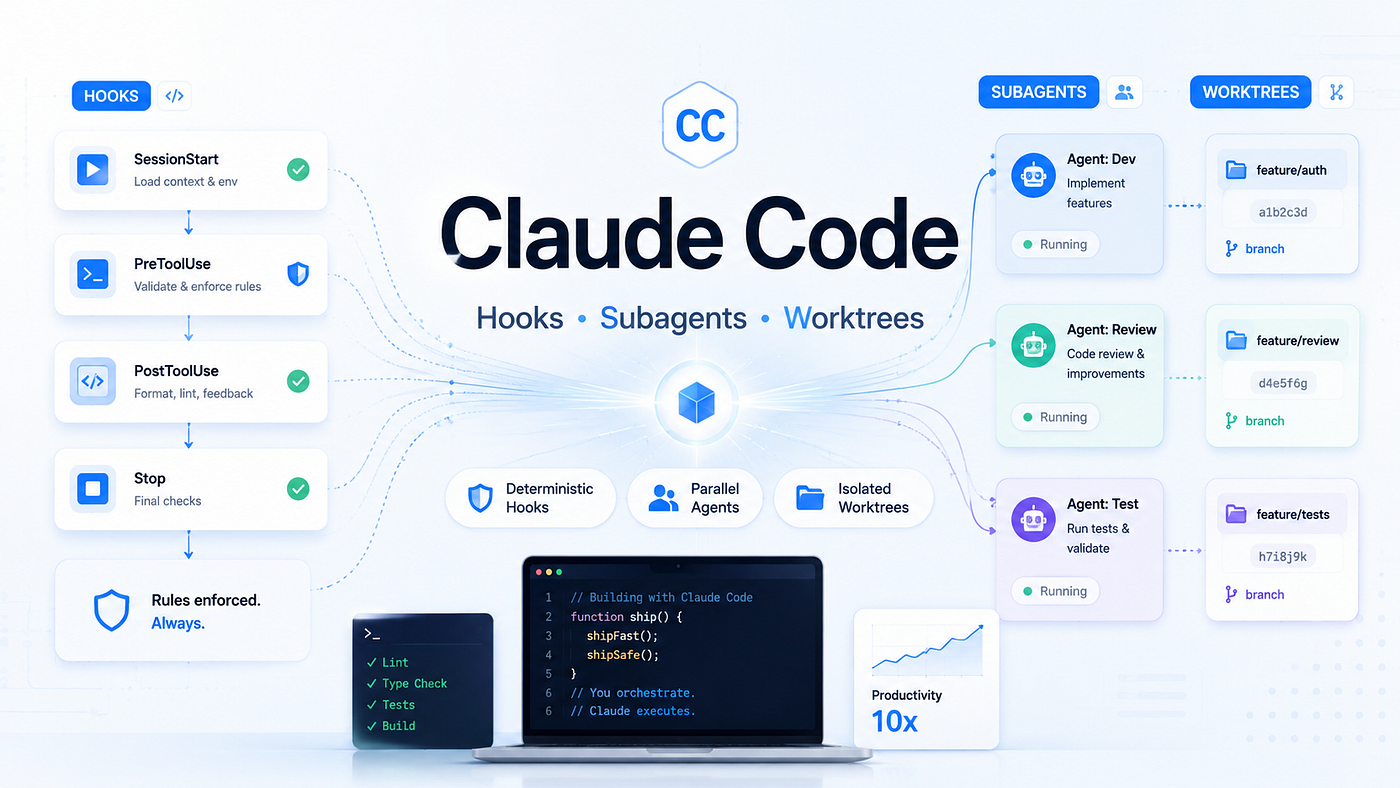
Image generated by ChatGPT Image 2.0
Read time: ~15 minutes, Level: Intermediate
The Problem With “Just Prompt Better”
Most Claude Code users start the same way.
They open a project, type a prompt, wait for Claude to inspect files, then ask it to build, fix, refactor, or test something.
That works for small tasks.
But after a few real coding sessions, problems show up.
Claude reads too many files.
The main chat gets filled with logs.
A rule from CLAUDE.md gets missed.
A test command is forgotten.
Two sessions edit the same file.
A long refactor becomes hard to track.
The first instinct is to write a better prompt.
That helps, but only up to a point.
At some stage, the issue is not the prompt. The issue is the workflow around the prompt.
Claude Code already has the pieces to solve this:
- Hooks for fixed rules
- Subagents for focused work
- Worktrees for isolated code changes
- Memory files for project instructions
Anthropic’s own docs describe Claude Code hooks as user-defined shell commands that run at specific lifecycle points, giving fixed control over actions instead of relying on the model to choose them.
That one line changes the mental model.
Beginners use Claude Code as a coding assistant. Advanced users turn Claude Code into a controlled development system.
Hooks, The Rules Claude Cannot Forget
A hook is a command that runs automatically when something happens inside Claude Code.
For example:
- Before Claude runs a shell command
- After Claude edits a file
- When Claude starts a session
- When Claude asks for permission
- When a tool fails
- When a worktree is created
The key point is this:
A prompt asks Claude to remember. A hook makes something happen.
That difference matters.
A line in CLAUDE.md might say:
Always run tests after editing files in src/payments.Claude may follow it. Claude may forget it. Claude may think the current task is small enough to skip it.
A hook can make the test command run automatically after an edit.
That is the real value of hooks.
They are not just automation. They are guardrails.
How Hooks Work

Image by Author
Anthropic’s hook reference says events run at different cadences: once per session, once per turn, or around every tool call inside the agent loop.
That makes hooks useful for three kinds of work:
- Before action: Should Claude be allowed to do this?
- After action: What should happen now that Claude did this?
- At session points: What context or setup should be loaded?
The Most Important Hook: PreToolUse
PreToolUse runs after Claude prepares a tool call but before the tool actually runs.
This is where you block risky actions.
For example, if Claude tries to run:
rm -rf /tmp/buildA PreToolUse hook can inspect the command and deny it before it executes.
Anthropic’s docs say PreToolUse can allow, deny, ask, or defer a tool call, and it can also modify tool input before execution.
That is powerful because it means you can enforce rules like:
- Do not run destructive commands.
- Do not edit migration files directly.
- Ask before touching production config.
- Block commands containing secrets.
- Require confirmation before running deploy scripts.
A simple example:
{
  "hooks": {
    "PreToolUse": [
      {
        "matcher": "Bash",
        "hooks": [
          {
            "type": "command",
            "command": "${CLAUDE_PROJECT_DIR}/.claude/hooks/block-dangerous-commands.sh"
          }
        ]
      }
    ]
  }
}
And the script:
#!/bin/bash

COMMAND=$(jq -r '.tool_input.command')

if echo "$COMMAND" | grep -E "rm -rf|sudo|chmod 777|git push --force"; then
  jq -n '{
    hookSpecificOutput: {
      hookEventName: "PreToolUse",
      permissionDecision: "deny",
      permissionDecisionReason: "Blocked because this command is risky."
    }
  }'
  exit 0
fi

jq -n '{
  hookSpecificOutput: {
    hookEventName: "PreToolUse",
    permissionDecision: "allow"
  }
}'
Use this for actions where you want control before damage can happen.
The Second Most Useful Hook: PostToolUse
PostToolUse runs after a tool completes successfully.
This is useful for actions that should happen after Claude edits or writes files.
Common examples:
- Format changed files
- Run lint
- Run a focused test
- Check TypeScript errors
- Scan for secrets
- Add feedback to Claude after the tool runs
Anthropic’s docs show PostToolUse matching tools like Write and Edit, and explain that it receives both the tool input and the tool response after execution.
Example:
{
  "hooks": {
    "PostToolUse": [
      {
        "matcher": "Write|Edit",
        "hooks": [
          {
            "type": "command",
            "command": "${CLAUDE_PROJECT_DIR}/.claude/hooks/format-changed-file.sh"
          }
        ]
      }
    ]
  }
}
Script:
#!/bin/bash

COMMAND=$(jq -r '.tool_input.command')

if echo "$COMMAND" | grep -E "rm -rf|sudo|chmod 777|git push --force"; then
  jq -n '{
    hookSpecificOutput: {
      hookEventName: "PreToolUse",
      permissionDecision: "deny",
      permissionDecisionReason: "Blocked because this command is risky."
    }
  }'
  exit 0
fi

jq -n '{
  hookSpecificOutput: {
    hookEventName: "PreToolUse",
    permissionDecision: "allow"
  }
}'
Now every time Claude edits a supported file, formatting runs automatically.
You do not need to remind it.
Important Hook Detail Most People Miss
For most hook events, exit code 2 is the one that blocks an action.
Exit code 1 does not always block. Claude Code may treat it as a non-blocking error and continue. Anthropic’s hook reference specifically says policy-enforcing hooks should use exit 2, except for WorktreeCreate, where any non-zero exit code aborts worktree creation.
This is easy to miss.
Bad hook:
exit 1Better policy-blocking hook:
echo "Blocked by project policy"
exit 2
For JSON-based hook outputs, use the documented permission decision format.
Hook Patterns That Are Actually Useful
1. Block Destructive Bash Commands
Use PreToolUse.
rm -rf
git push --force
sudo
chmod 777
These should not run casually inside an AI coding session.
2. Format After File Edits
Use PostToolUse.
This keeps the codebase consistent even when Claude creates messy spacing or import order.
3. Run Focused Tests After Important File Changes
Use PostToolUse.
Example:
if echo "$FILE_PATH" | grep -q "src/payments"; then
  npm run test:payments
fi
4. Add Context at Session Start
Use SessionStart.
Anthropic’s docs say SessionStart can add context when a new session starts or resumes, and it is useful for loading development context like recent changes or existing issues.
Example:
#!/bin/bash

echo "Current branch: $(git branch --show-current)"
echo "Recent commits:"
git log --oneline -5
5. Stop Claude From Finishing Too Early
Use Stop.
This can be useful when you want Claude to run a final checklist before ending.
Example:
Before stopping, check:
- Did tests run?
- Did lint pass?
- Did you update docs if API changed?
Be careful with this. Bad Stop hooks can create annoying loops.
Hooks Are Powerful, So Treat Them Like Code
Hooks run commands on your machine.
That means a bad hook can:
- Delete files
- Leak environment variables
- Run unsafe scripts
- Slow every Claude session
- Break your workflow
Do not copy hook configs blindly.
Use hooks for small, predictable, boring rules.
Good hook:
Run prettier on edited files.Risky hook:
Automatically commit and push everything Claude changes.The safer rule is simple:
If a hook can change files, delete files, send data, or affect production, review it like production code.
Subagents, The Context Isolation Trick
Subagents are specialized assistants inside Claude Code.
They run in their own context window. They can have their own instructions. They can have their own tool access. They return a summary to the main conversation.
Anthropic’s docs describe subagents as specialized AI assistants for task-specific workflows and improved context management. A subagent handles the side task in its own context and returns only the summary, which prevents the main conversation from being flooded with logs, search results, or file contents.
That is the real value.
Not “AI team” hype.
Subagents solve a very practical problem:
The main conversation should not hold every file read, every log line, and every dead end.
When To Use a Subagent
Use a subagent when the main session needs the result, not the full journey.
Good use cases:
- Explore how auth works across 20 files
- Review a diff for security issues
- Read logs and summarize the likely bug
- Find all places where a function is used
- Compare old and new API behavior
- Write tests based on an implementation
- Check if documentation needs updating
Bad use cases:
- A small one-file edit
- Something the main agent must deeply understand
- A task where every intermediate detail matters
- A vague request like “check everything”
The mental test is simple:
Do I need the full investigation later, or only the conclusion?
If only the conclusion matters, use a subagent.
Example: Code Reviewer Subagent
Create this file:
.claude/agents/code-reviewer.mdAdd:
---
name: code-reviewer
description: Reviews code for bugs, security risks, missing tests, and maintainability issues. Use before creating a PR.
tools: Read, Grep, Glob, Bash
model: sonnet
---

You are a senior engineer reviewing code.

Check for:
- Logic bugs
- Missing error handling
- Security risks
- Missing tests
- Weak naming
- Overly complex changes
- Changes that do not match existing project patterns

Return findings in this format:

1. File:
2. Issue:
3. Severity: critical, warning, suggestion
4. Suggested fix:

Do not edit files.
Now you can ask:
Use the code-reviewer subagent to review the current git diff before I create a PR.The subagent can inspect files and run commands, then return a compact review.
Your main chat does not fill with every file it read.
Example: Test Writer Subagent
---
name: test-writer
description: Writes focused tests for changed code. Use after implementation is mostly complete.
tools: Read, Grep, Glob, Bash, Edit, Write
model: sonnet
---

You write practical tests for the current code changes.

Rules:
- Reuse existing test patterns.
- Do not introduce a new test framework.
- Prefer focused tests over large rewrites.
- Run the smallest relevant test command after editing.
- Report what was added and what still needs manual review.
Use it like this:
Use the test-writer subagent to add tests for the payment retry change.This works better than asking the main agent to switch between implementation and testing in the same long conversation.
Example: Docs Subagent
---
name: docs-updater
description: Updates README, API docs, and changelog sections after code changes.
tools: Read, Grep, Glob, Edit, Write
model: haiku
---

You update documentation based on code changes.

Rules:
- Keep language simple.
- Do not over-document internal details.
- Only update docs that are actually affected.
- Mention changed commands, API parameters, config keys, or setup steps.
This is a good place to use a cheaper or faster model if the docs task is simple.
Subagents Also Help With Cost
Verbose tasks consume context.
Logs, documentation pages, test output, and search results can fill a session quickly. Anthropic’s cost-management docs recommend delegating verbose operations to subagents so the detailed output remains inside the subagent context and only the summary returns to the main conversation.
This matters in long sessions.
A subagent can read 50 files and return:
The auth flow starts in middleware.ts, passes through auth/session.ts, and validates tokens in auth/token.ts. The risky part is refreshToken(), which retries silently and does not log failure reasons.That summary is all the main chat needs.
Subagent Mistakes To Avoid
Mistake 1: Making Every Task a Subagent Task
Subagents are useful, but they are not free magic.
If the task is tiny, keep it in the main session.
Mistake 2: Giving Vague Descriptions
Bad:
Use a subagent to check the code.Better:
Use a subagent to review the current git diff for security issues, missing error handling, and missing tests. Return only findings with file paths and suggested fixes.Mistake 3: Giving Too Many Tools
A review agent probably does not need Write.
A docs agent may need Edit.
A security review agent may only need Read, Grep, Glob, and maybe Bash.
Tool limits are not decoration. They reduce the chance of unwanted changes.
Mistake 4: Forgetting That Subagents Have Separate Context
A subagent does not automatically know everything your main conversation knows unless it is passed enough context.
So give it:
- The goal
- The files or diff to inspect
- The output format
- What not to do
Worktrees, Parallel Coding Without File Collisions
Worktrees solve a different problem.
Subagents isolate context.
Worktrees isolate files.
A Git worktree lets you check out the same repository into another folder with its own branch and working directory. Claude Code supports this directly with the --worktree flag. The CLI reference says claude --worktree or claude -w starts Claude in an isolated Git worktree under .claude/worktrees/<name>, and if no name is given, one is generated automatically.
Example:
claude --worktree feature-author:
claude -w bugfix-loginNow Claude works in a separate folder and branch.
That matters when:
- You want two Claude sessions running at the same time
- One session builds a feature while another fixes a bug
- You want to test a risky refactor safely
- You want to inspect a GitHub PR without touching your current working tree
- You want subagent isolation that does not collide with main edits
The IDE docs explain the core benefit clearly: each worktree maintains independent file state while sharing Git history, preventing Claude instances from interfering with each other when working on different tasks.
Why Worktrees Matter More With AI Coding
Human developers usually work on one branch at a time.
AI agents make parallel work easier, so collision risk goes up.
Example:
You start one Claude session:
claude -w feature-checkoutIt edits:
src/cart.ts
src/payment.ts
src/order.ts
Then you start another session:
claude -w bugfix-discountIt edits:
src/discount.ts
src/cart.ts
Without worktrees, both sessions could touch src/cart.ts in the same working folder.
With worktrees, each session has its own copy.
You can compare, test, merge, or discard each branch separately.
This is one of the most practical upgrades for serious Claude Code usage.
Basic Worktree Commands
Start a named worktree:
claude --worktree feature-authStart with short flag:
claude -w feature-authLet Claude generate a name:
claude --worktreeUse manual Git worktree if needed:
git worktree add ../my-project-feature-auth -b feature-auth
cd ../my-project-feature-auth
claude
Check worktrees:
git worktree listRemove a worktree manually:
git worktree remove ../my-project-feature-authPrune stale records:
git worktree pruneWorktree Settings Worth Knowing
Claude Code has settings for worktree behavior.
The settings docs say worktree.baseRef controls whether new worktrees branch from a fresh remote default branch or from your current local HEAD. The same section also lists settings for symlinking large directories, sparse checkouts for monorepos, and background isolation.
Useful settings:
{
  "worktree.baseRef": "fresh",
  "worktree.symlinkDirectories": ["node_modules", ".cache"],
  "worktree.sparsePaths": ["packages/app", "packages/shared"]
}
Simple meaning:
fresh: start from the remote default branchhead: start from your current local statesymlinkDirectories: avoid copying large folderssparsePaths: only check out parts of a large repo
For most teams, fresh is safer.
For personal experiments where your local branch has unpushed setup work, head may be useful.
The .worktreeinclude Problem
Worktrees do not always copy gitignored files.
That can be a problem because local files are often ignored:
.env
.env.local
config/secrets.json
If a new worktree does not have these, Claude may fail to run the app or tests.
Claude Code supports .worktreeinclude for copying selected gitignored files into new worktrees. The docs say it uses .gitignore syntax and copies only matching gitignored files into new worktrees.
Example:
# .worktreeinclude

.env.local
.env.test
config/local.json
Be careful.
Do not copy secrets into places where they should not exist.
Do not commit .worktreeinclude casually if it names sensitive files.
Review it with the same care as .gitignore.
The Real Power Is Combining All Three
Hooks, subagents, and worktrees are useful separately.
But the strongest workflow comes from using them together.
Here is a practical example.
Workflow: Build a Feature Safely
Step 1: Start in an Isolated Worktree
claude -w feature-payment-retryNow this feature has its own working folder and branch.
Your main checkout stays clean.
Step 2: Ask a Subagent To Map the Existing System
Use a subagent to inspect the current payment flow.

Return:
- Key files
- Current retry behavior
- Risks
- Suggested implementation path

Do not edit files.
The subagent reads the code and returns a summary.
Your main context gets the conclusion, not 40 file reads.
Step 3: Implement in the Main Session
Implement payment retry using the existing project patterns. Keep the change small. Do not introduce a new dependency.Claude edits files in the worktree.
Step 4: Hooks Format Files Automatically
A PostToolUse hook runs after each file edit.
Edit happens → formatter runs → Claude sees clean filesNo reminder needed.
Step 5: Hooks Run Focused Tests
After changes in src/payments, a hook runs:
npm run test:paymentsIf tests fail, Claude sees the failure and fixes it.
Step 6: Use a Review Subagent
Use the code-reviewer subagent to review the current diff for logic bugs, missing tests, and risky edge cases.The review happens in a separate context.
Step 7: Merge Only After Checks Pass
Now you have:
- Isolated branch
- Clean formatting
- Focused tests
- Review findings
- Main checkout untouched
That is a real workflow.
Not just a better prompt.
Hooks vs Subagents vs Worktrees

Image by Author
This distinction is important.
Do not use CLAUDE.md for things that must always happen.
Claude Code’s memory docs say CLAUDE.md and auto memory are loaded as context, not enforced configuration. The same docs recommend using a hook when an instruction must run at a specific point, such as after each file edit or before every commit.
Use the right tool:
- Want Claude to know something? Use
CLAUDE.md. - Want something to always run? Use a hook.
- Want a focused worker? Use a subagent.
- Want safe parallel edits? Use a worktree.
A Practical Setup for Most Developers
You do not need a complex setup on day one.
Start with this.
Beginner Power Setup
1. Keep CLAUDE.md Short
# Project Notes

## Commands
- Install: npm install
- Dev: npm run dev
- Test: npm test
- Lint: npm run lint

## Rules
- Use existing patterns before adding new ones.
- Do not add dependencies without asking.
- Run relevant tests after changing business logic.
- Do not edit generated files.
Keep it factual.
Do not turn it into a 2,000-line rulebook.
2. Add One Formatter Hook
{
  "hooks": {
    "PostToolUse": [
      {
        "matcher": "Write|Edit",
        "hooks": [
          {
            "type": "command",
            "command": "${CLAUDE_PROJECT_DIR}/.claude/hooks/format.sh"
          }
        ]
      }
    ]
  }
}format.sh:
#!/bin/bash

FILE_PATH=$(jq -r '.tool_input.file_path')

if [ -f "$FILE_PATH" ]; then
  case "$FILE_PATH" in
    *.js|*.jsx|*.ts|*.tsx|*.json|*.css|*.md)
      npx prettier --write "$FILE_PATH"
      ;;
  esac
fi
3. Add One Code Review Subagent
---
name: code-reviewer
description: Reviews the current diff before PR creation.
tools: Read, Grep, Glob, Bash
model: sonnet
---

Review the current git diff.

Check:
- Bugs
- Missing tests
- Security concerns
- Unclear code
- Changes that do not match existing patterns

Return only actionable findings.
Do not edit files.
4. Use Worktrees for Bigger Tasks
claude -w feature-nameDo this for:
- Refactors
- New features
- Risky changes
- Parallel sessions
Skip it for:
- Tiny copy changes
- One-line fixes
- Quick local experiments
Serious Project Setup
For a professional codebase, use a stronger setup.
Hooks
PreToolUseblocks risky shell commandsPostToolUseformats edited filesPostToolUseruns targeted lint or testsSessionStartloads branch and issue contextStopreminds Claude to summarize changes and test status
Subagents
code-reviewertest-writersecurity-reviewerdocs-updatermigration-reviewerdebugger
Worktrees
- Use
claude -w <task-name>for all feature work - Use
.worktreeincludefor required local env files - Use
worktree.symlinkDirectoriesfor heavy folders likenode_modules - Use
worktree.sparsePathsin monorepos
Memory
- Keep
CLAUDE.mdshort - Use
.claude/rules/for path-specific instructions - Use
CLAUDE.local.mdfor personal notes - Run
/memoryto audit what Claude is loading
What Not To Do
Do Not Put Everything in Hooks
Hooks are not a replacement for judgment.
Bad hook idea:
Automatically commit, push, and deploy after Claude finishes.Better:
Run tests and report results before Claude stops.Keep humans in the loop for irreversible actions.
Do Not Create Too Many Subagents
A few strong subagents are better than 20 vague ones.
Good:
code-reviewer
test-writer
security-reviewer
docs-updater
Bad:
smart-helper
super-coder
best-agent
fix-everything-agent
Subagents work best when their job is narrow.
Do Not Use Worktrees Without Understanding Git
Worktrees are simple once you learn them, but they are still Git.
Before using them heavily, know:
git branch
git status
git worktree list
git worktree remove
git merge
Also remember that each worktree has its own working files, but they share the same Git history.
Do Not Trust CLAUDE.md as Enforcement
CLAUDE.md is useful, but it is not a hard rule engine.
Use it for:
This project uses pnpm.Use hooks for:
Block npm install.That distinction saves a lot of frustration.
The Clean Mental Model
Here is the simplest way to remember everything.
CLAUDE.md tells Claude what matters.
Hooks enforce what must happen.
Subagents decide who should do the side work.
Worktrees decide where the work should happen.
That is the whole system.
A normal Claude Code session looks like this:
Prompt → Claude reads files → Claude edits files → You reviewA stronger Claude Code workflow looks like this:
Worktree creates isolated branch
→ Subagent investigates
→ Main Claude implements
→ Hooks format and test
→ Review subagent checks diff
→ Human reviews and merges
That is a different level of control.
You are no longer hoping the assistant remembers every rule.
You are building a workflow where rules, context, and file isolation are part of the system.
Quick Reference

Image by Author
Example Final Setup
Directory structure:
my-project/
├── CLAUDE.md
├── .claude/
│   ├── settings.json
│   ├── hooks/
│   │   ├── block-dangerous-commands.sh
│   │   ├── format.sh
│   │   └── run-focused-tests.sh
│   └── agents/
│       ├── code-reviewer.md
│       ├── test-writer.md
│       └── docs-updater.md
├── .worktreeinclude
└── package.jsonCLAUDE.md:
# Project Notes

## Commands
- Install: pnpm install
- Dev: pnpm dev
- Test: pnpm test
- Lint: pnpm lint

## Rules
- Use pnpm, not npm.
- Do not add new dependencies without asking.
- Follow existing file patterns before creating new ones.
- Run focused tests after business logic changes..worktreeinclude:
.env.local
.env.test
Start a feature:
claude -w feature-checkout-flowAsk for investigation:
Use a subagent to map the checkout flow. Return key files, current behavior, and risks. Do not edit files.Implement:
Implement the checkout validation change using existing patterns.Review:
Use the code-reviewer subagent to review the current git diff before PR.This is the workflow most users should build toward.
The Bottom Line
Claude Code is not just a coding chatbot.
It is an agentic coding tool that can read files, edit files, run commands, and work across your development environment. Anthropic’s overview describes it as a tool that reads your codebase, edits files, runs commands, and integrates with development tools.
That means serious usage needs serious structure.
Hooks give you fixed control. Subagents keep the main session focused. Worktrees make parallel changes safer. Memory gives Claude the project context it should carry.
Used separately, these are useful features.
Used together, they change how Claude Code fits into real development work.
Most people try to get better results by writing better prompts.
That still matters.
But the bigger shift is this:
Stop relying only on prompts. Build the workflow around Claude.
That is where Claude Code starts feeling less like a chat window and more like a real development system.
Resources
- Claude Code Hooks Documentation (Official)
- Claude Code Subagents Documentation (Official)
- Claude Code Worktrees Guide (Claude Directory)
- Claude Code Hooks, Subagents and Power Features (Vibehackers)
- Claude Code Full Stack Explained (AlexOp.dev)
- Claude Code Advanced Patterns: Skills, Fork, Subagents (Ranket AI)
- Claude Code Agent Teams and MCP Playbook (Developers Digest)
- Claude Code Features and Settings Reference 2026 (Hidekazu Konishi)
If this was useful, give claps & follow me here on Medium. I cover AI tools, workflows, and the stuff that actually changes how you work. New piece in every 2–3 days.
메타데이터
- post_id
- db5e24c811c4
- slug
- claude-code-hooks-subagents-and-worktrees-the-power-features-nobody-explains-db5e24c811c4
- url
- https://pub.towardsai.net/claude-code-hooks-subagents-and-worktrees-the-power-features-nobody-explains-db5e24c811c4
- canonical_url
- https://pub.towardsai.net/claude-code-hooks-subagents-and-worktrees-the-power-features-nobody-explains-db5e24c811c4
- author_url
- https://medium.com/@pavandhake02
- status
- ok
- fetched_at
- 2026-06-09 15:37:30