Rebasing and Cherry-Picking
How Git replays commits to reshape history and move specific changes
Rebasing and Cherry-Picking
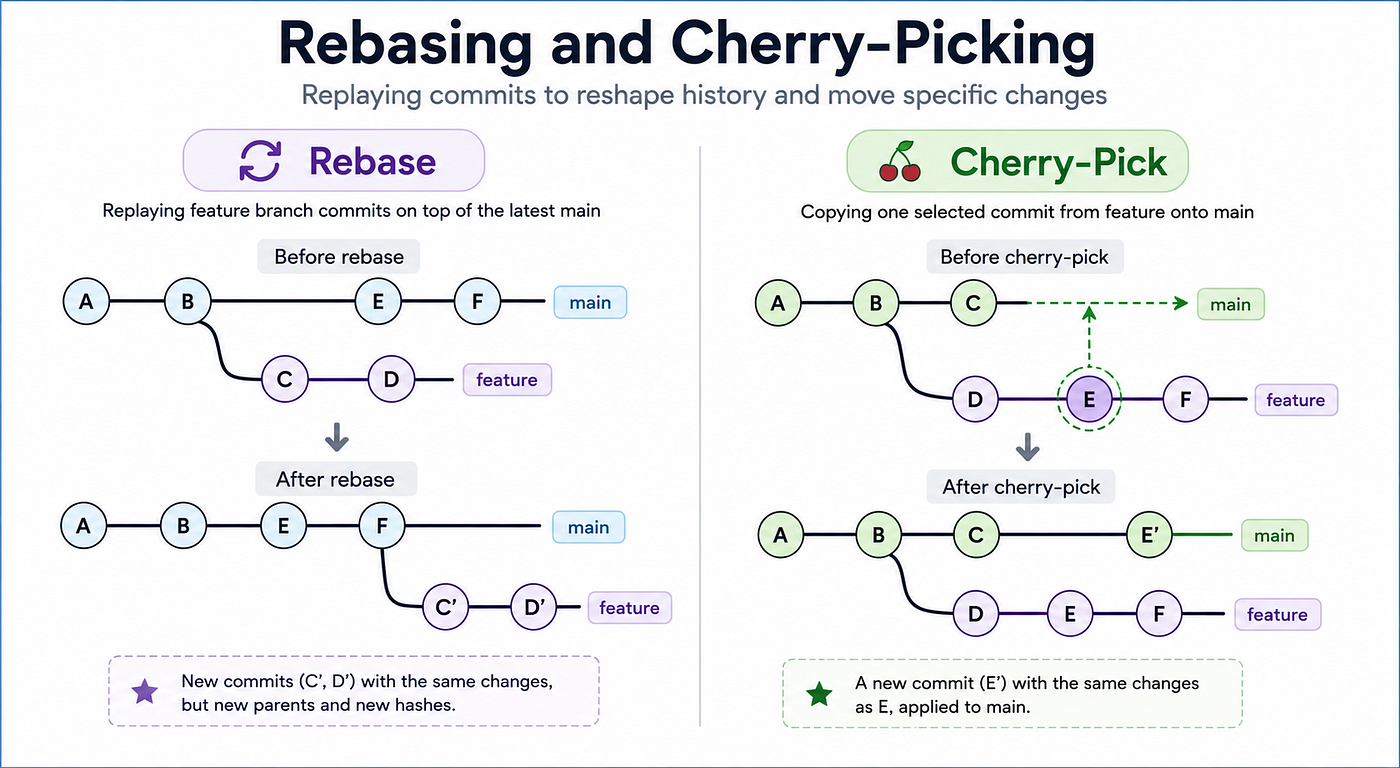
Rebasing and Cherry-Picking: Replaying Changes in Git History
How Git replays commits to reshape history and move specific changes
In the previous article, we looked at branching, merge commits, and fast-forward merges.
That article focused on one important idea:
Git history is not just a list of commits.
It is a graph.
Branches can split apart. Branches can move forward. Branches can come back together. Sometimes Git can merge by simply moving a branch pointer. Sometimes Git needs a merge commit to connect two lines of work.
Now we are going to look at two commands that feel a little more advanced:
git rebase
git cherry-pick
These commands are powerful because they let Git take changes from one place and apply them somewhere else.
But they can also feel confusing because they seem to change history.
And in some cases, they actually do.
At first, rebase and cherry-pick may look like commands that “move commits.”
But that is not exactly what happens.
The better mental model is this:
Rebase and cherry-pick replay changes.
That one sentence will make both commands much easier to understand.
Rebase replays a sequence of commits on top of a new base.
Cherry-pick replays one selected commit, or a few selected commits, onto another branch.
Both commands create new commits.
They do not move the original commits.
That detail matters a lot.
Why We Need More Than Merge
Before learning rebase, let’s start with a normal branching situation.
Imagine your project has this history:
A---B mainYou create a feature branch from commit B.
Then you make two commits on your feature branch:
A---B  main
     \
      C---D  feature
While you are working, someone else updates main.
Now the history looks like this:
A---B---E---F  main
     \
      C---D  feature
Your feature branch started from commit B, but main has moved forward to F.
So your branch is now behind main.
This is very common.
It happens all the time in real projects.
Now you need to bring your feature branch up to date.
One option is merge.
You can merge main into your feature branch:
A---B---E---F  main
     \       \
      C---D---M  feature
This creates a merge commit M.
That merge commit says:
Combine the latest
mainchanges with my feature branch changes.
This is perfectly valid.
It preserves the true history of what happened.
Your branch really did start from B.
main really did move forward separately.
Then you really did merge the two histories.
But sometimes you may want a cleaner, more linear history.
Instead of showing that your branch split from B, you may want your feature commits to appear as if they started from the latest main.
That is where rebase comes in.

A feature branch can fall behind as main continues to move forward.
What Rebase Means
The word “rebase” sounds technical, but the idea is simple.
To rebase means:
Change the base commit of a branch.
In our example, the feature branch is based on commit B.
A---B---E---F  main
     \
      C---D  feature
After rebasing feature onto main, Git makes it look like the feature branch started from F instead of B.
The result looks like this:
A---B---E---F  main
             \
              C'---D'  feature
Now your feature commits are on top of the latest main.
The history is linear.
There is no merge commit.
The feature branch looks cleaner.
But notice the commit names:
Before rebase, the feature commits were:
C---DAfter rebase, they are:
C'---D'They are not the same commits anymore.
That is the key.
Git did not move commits C and D.
Git created new commits C' and D'.
These new commits introduce the same changes, but they have different parents.
Before rebase:
C parent = B
D parent = C
After rebase:
C' parent = F
D' parent = C'
Because the parent changed, the commit changed.
And because the commit changed, the hash changed.
That is why rebasing rewrites history.
Rebase Does Not Move Commits
This is one of the most important points in the article.
A Git commit is immutable.
Once a commit exists, Git does not edit it.
A commit stores information such as:
- the project snapshot
- the parent commit
- the author
- the commit message
- timestamps and metadata
The parent commit is part of the commit’s identity.
So if Git changed the parent of commit C from B to F, it would no longer be the same commit.
The hash would change.
So Git does not do that.
Instead, Git creates a new commit.
That new commit introduces the same change as C, but it has a new parent.
That is why we write it as C'.
It is like Git is saying:
I will take the change introduced by
Cand apply it again on top ofF.
Then it does the same for D.
That is the heart of rebase.
Rebase replays commits.
It does not move them.

Rebase creates new commits by replaying changes on a new base.
What Happens When You Run Git Rebase
Suppose you are on your feature branch:
git switch featureThen you run:
git rebase mainConceptually, Git does four things.
First, it finds the common ancestor of main and feature.
In our example, that is commit B.
A---B---E---F  main
     \
      C---D  feature
Second, Git finds the commits that are on feature but not on main.
Those commits are:
C, DThird, Git temporarily removes those commits from the feature branch and moves the branch base to the latest main.
Fourth, Git replays the changes from C and D one by one.
It creates C'.
Then it creates D'.
The final result is:
A---B---E---F---C'---D' featureNow the feature branch contains your work, but based on the latest version of main.
This is why rebase is often used before opening a pull request.
It makes your feature branch look as if it was built on top of the latest main branch all along.
Merge vs Rebase
Merge and rebase can sometimes produce the same final code.
But they create different histories.
A merge preserves the branch structure.
It says:
These two lines of work happened separately, and now they are being joined.
A rebase rewrites the feature branch history.
It says:
Replay my work on top of this newer commit.
Here is the difference visually.
Merge:
A---B---E---F  main
     \       \
      C---D---M  feature
Rebase:
A---B---E---F---C'---D' featureBoth can result in the same files.
But the story is different.
Merge shows that the branch diverged and came back together.
Rebase gives you a straight line.
That is why some teams like rebase.
It keeps the history cleaner.
But that does not mean rebase is always better.
Merge is honest about how collaboration happened.
Rebase is useful when you want a cleaner local feature branch.
A good practical rule is:
Use merge when you want to preserve the real shape of history.
Use rebase when you want to clean up your own local branch before sharing it.

Merge preserves branch history, while rebase creates a linear history.
The Golden Rule of Rebase
There is one rule that every Git user should remember:
Do not rebase commits that other people are already using.
This matters because rebase creates new commits.
Imagine you push your feature branch to GitHub.
Your teammate pulls it and starts working on top of your commit D.
Then you rebase your branch.
Your old commits become new commits:
C---Dbecomes:
C'---D'Your teammate is still based on old D.
You are now using new D'.
Even if the code changes look the same, Git sees different commits.
That can create confusing history, duplicate commits, and painful conflicts.
This is why rebase is safest when the commits are still local.
If the commits exist only on your machine, rewriting them is usually fine.
If the commits are already shared with others, be careful.
Private history is flexible.
Shared history should be treated carefully.
What About Force Push?
After rebasing a branch that has already been pushed, Git may reject a normal push.
That happens because your local branch history no longer matches the remote branch history.
You may see advice to use:
git push --forceBut plain force push can be dangerous.
It can overwrite remote work without checking whether someone else pushed new commits.
A safer option is:
git push --force-with-leaseThis still updates the remote branch, but it first checks that the remote branch is in the state you expect.
If someone else pushed new work, the command refuses to overwrite it.
That said, the safest habit is not just using a safer command.
The safest habit is understanding whether anyone else depends on the history you are rewriting.
Interactive Rebase
Rebase is not only used to move a branch onto a new base.
It can also be used to clean up commits.
This is called interactive rebase.
For example:
git rebase -i HEAD~3This means:
Let me edit the last three commits.
Git opens a list of commits and lets you choose what to do with them.
You can:
- rename commit messages
- squash multiple commits together
- reorder commits
- delete a commit
- split messy work into cleaner commits
This is useful because real development is messy.
While working, your commit history might look like this:
Add login page
fix typo
fix login bug
try validation
final fix
That is normal.
You are experimenting. You are testing. You are fixing mistakes. You are figuring things out.
But before opening a pull request, you may want the history to be easier to review:
Add login page
Add login validation
Handle login errors
Interactive rebase lets you turn messy local progress into a clearer story.
The goal is not to pretend development was perfect.
The goal is to make the final history useful.
Good commits help reviewers understand your work.
They also help future developers understand why changes happened.
And sometimes, that future developer is you.
What Cherry-Picking Means
Now let’s talk about cherry-picking.
Cherry-picking is related to rebase because it also replays changes.
But the purpose is different.
Rebase usually works with a sequence of commits from a branch.
Cherry-pick is used when you want one specific commit.
Imagine this history:
A---B---C  main
     \
      D---E---F  feature
Now suppose commit E contains a bug fix.
You need that bug fix on main.
But the rest of the feature branch is not ready.
You do not want commits D and F.
You only want E.
That is exactly what cherry-pick is for.
You switch to main:
git switch mainThen you cherry-pick commit E:
git cherry-pick EGit takes the change introduced by E and applies it to main.
The result looks like this:
A---B---C---E'  main
     \
      D---E---F  feature
Again, notice the name.
It is not the original E.
It is E'.
Cherry-pick does not move the original commit.
It creates a new commit that introduces the same change.
The original commit still exists on the feature branch.

Cherry-pick applies one specific commit without merging the entire branch.
Cherry-Pick Is Not a Merge
Cherry-pick can feel like a small merge, but it is not a merge.
A merge combines branches.
Cherry-pick applies selected changes.
When you merge a feature branch, Git brings the branch history together.
When you cherry-pick a commit, Git does not connect the histories.
It just creates a new commit on your current branch with the same change.
This makes cherry-pick useful when you need precision.
For example:
- You fixed a bug on a feature branch and need that fix on
main. - You need to backport a fix from
mainto a release branch. - You want one useful commit but not the rest of the branch.
- You accidentally committed something on the wrong branch and want to apply it somewhere else.
But cherry-pick should be used carefully.
If a commit depends on earlier commits, cherry-picking it alone may not work.
For example, commit E might use a helper function that was introduced in commit D.
If you cherry-pick only E, the code may not compile.
Git can replay the text changes.
But Git does not fully understand whether the application logic still makes sense.
That part is your responsibility.
Rebase vs Cherry-Pick
Rebase and cherry-pick are similar because both replay changes.
But they solve different problems.
Rebase says:
Take my branch commits and replay them from a new starting point.
Cherry-pick says:
Take this specific commit and apply it here.
Merge says:
Bring these two histories together.
Here is the simplest comparison:
git merge
What it does: Connects two histories Best use case: When you want to preserve branch history
git rebase
What it does: Replays a branch onto a new base Best use case: When you want a cleaner feature branch
git cherry-pick
What it does: Replays selected commits Best use case: When you need one specific change
A useful way to remember it:
Merge connects.
Rebase replays a branch.
Cherry-pick replays a commit.
Conflicts During Rebase and Cherry-Pick
Both rebase and cherry-pick can create conflicts.
That does not mean something went wrong.
It means Git tried to apply a change, but the files changed in a way Git could not automatically resolve.
During a rebase, Git replays commits one by one.
If one commit conflicts, Git pauses.
You fix the conflict, stage the resolved files, and continue:
git add .
git rebase --continue
If you want to cancel the rebase and return to where you started:
git rebase --abortCherry-pick works similarly.
If a cherry-pick conflicts, Git pauses.
After fixing the conflict:
git add .
git cherry-pick --continue
To cancel:
git cherry-pick --abortThis is important because Git is not asking you to solve the entire history at once.
It pauses at the commit that caused the problem.
Then you decide how that change should apply in the new location.
Why Replayed Commits Get New Hashes
This is the technical detail that ties everything together.
A commit hash is based on the commit’s contents.
Those contents include the parent commit.
So if the parent changes, the commit changes.
If the commit changes, the hash changes.
This is why rebased commits get new hashes.
It is also why cherry-picked commits get new hashes.
Suppose commit E originally had parent D.
When you cherry-pick it onto main, the new commit E' might have parent C.
That means E and E' are not the same commit.
They may introduce the same change.
But they live in different places in the graph.
Different parent. Different commit object. Different hash.
This is not a problem.
It is how Git preserves the identity of commits.
Commits are not just patches.
They are snapshots connected to previous snapshots.
The parent link is part of the commit.

Use merge, rebase, or cherry-pick depending on the problem you are solving.
A Practical Rebase Workflow
Here is a common situation.
You are working on a feature branch.
Your branch is a few days old.
Meanwhile, main has moved forward.
Before opening a pull request, you want your branch to be based on the latest main.
A common workflow is:
git switch main
git pull
git switch feature
git rebase main
This does four things:
First, you switch to main.
Then you update main.
Then you switch back to your feature branch.
Then you replay your feature branch commits on top of the latest main.
If there are no conflicts, Git finishes the rebase.
If there are conflicts, Git pauses and lets you resolve them.
After the rebase, your branch history is cleaner.
Instead of this:
A---B---E---F  main
     \
      C---D  feature
You get this:
A---B---E---F---C'---D' featureYour work is now based on the latest main branch.
This makes the pull request easier to review because the branch does not contain an extra merge commit just for updating from main.
But again, this depends on team preference.
Some teams prefer merge commits.
Some teams prefer rebase.
Some teams squash commits when merging pull requests.
Some teams care more about preserving exact history.
Some teams care more about a clean linear history.
Git gives you the tools.
Your team decides the workflow.
A Practical Cherry-Pick Workflow
Now imagine a different situation.
You are working on a large feature branch.
Inside that branch, you make a small bug fix.
The bug fix is useful immediately.
But the rest of the feature is not ready.
You do not want to merge the whole branch.
You only want that one bug fix.
This is a good cherry-pick use case.
First, find the commit hash of the bug fix.
Then switch to the branch that needs it:
git switch mainThen cherry-pick the commit:
git cherry-pick <commit-hash>Git applies that change to main and creates a new commit.
This is especially useful for release branches.
For example, suppose your team has:
main
release/v1.0
A bug gets fixed on main.
But users on release/v1.0 also need that fix.
You may cherry-pick the fix from main into release/v1.0.
That way, the release branch gets the bug fix without receiving unrelated new features.
Cherry-pick is useful because it is precise.
But precision also means responsibility.
You need to know whether the commit can stand on its own.
When Rebase Is Useful
Rebase is useful when you want to clean up or update your branch.
Good rebase situations include:
- You are working on a local feature branch.
mainmoved forward and you want your work on top of it.- You want a cleaner commit history before opening a pull request.
- You want to squash or reorder messy local commits.
- You want reviewers to see a simple linear sequence of changes.
Rebase is especially helpful when your commits are not shared yet.
If only you have those commits, rewriting them is usually safe.
You are editing your own local story before publishing it.
That is normal.
When Rebase Can Be Dangerous
Rebase becomes risky when other people already depend on the commits.
If you rebase shared commits, you create new versions of those commits.
Other people may still have the old versions.
That can create confusion.
It can also make pull requests harder to understand.
You may see duplicate commits or unexpected conflicts.
So before rebasing a branch that has been pushed, ask:
Has anyone else pulled this branch? Is anyone else building work on top of it? Is this branch used in an open pull request? Does my team expect this branch history to stay stable?
If the answer is yes, be careful.
Rebasing is not bad.
Rebasing shared history without coordination is the problem.
When Cherry-Pick Is Useful
Cherry-pick is useful when you want one specific change.
Good cherry-pick situations include:
- applying a hotfix to another branch
- backporting a bug fix to a release branch
- moving one commit from the wrong branch to the right branch
- applying a small useful change without merging unfinished work
Cherry-pick is not ideal when you need many commits from the same branch.
If you find yourself cherry-picking commit after commit after commit, you may actually need a merge or a rebase.
Cherry-pick is a precise tool.
It is best when the change is small, isolated, and understandable.
The Common Mental Model
By now, the pattern should be clear.
Git is not moving commits around like files on a desktop.
Git is creating new commits based on existing changes.
A branch is just a pointer to a commit.
A commit is immutable.
A commit points to its parent.
The commit hash depends on the commit’s contents, including that parent.
So when Git replays work somewhere else, it must create a new commit.
That is why rebase and cherry-pick produce new hashes.
This is the mental model:
Merge connects histories.
Rebase replays a branch from a new base.
Cherry-pick replays selected commits onto the current branch.
Once you understand that, these commands stop feeling magical.
They become graph operations.
You are changing how commits relate to each other.
Final Thoughts
Rebasing and cherry-picking are two of the most useful Git commands once you understand Git’s commit graph.
Rebase helps you take a branch and replay it on top of a newer base.
That can make your history cleaner and easier to review.
Cherry-pick helps you take one specific commit and apply its change somewhere else.
That can be useful for hotfixes, release branches, and moving isolated changes.
But both commands create new commits.
They do not move the original commits.
That is the most important idea.
If you remember only one thing from this article, remember this:
Rebase and cherry-pick replay changes, and replayed changes become new commits.
Once that clicks, the rest becomes much easier.
In the next article, we will move from local history manipulation to collaboration with remote repositories.
We will look at remotes, fetch, pull, push, and upstream branches, and understand how your local Git repository connects to GitHub.
메타데이터
- post_id
- db7567ab9bf1
- slug
- rebasing-and-cherry-picking-db7567ab9bf1
- url
- https://medium.com/@prathamesh.hire18/rebasing-and-cherry-picking-db7567ab9bf1
- canonical_url
- https://medium.com/@prathamesh.hire18/rebasing-and-cherry-picking-db7567ab9bf1
- author_url
- https://medium.com/@prathamesh.hire18
- status
- ok
- fetched_at
- 2026-06-15 20:49:13




