pgBackRest + Azure Blob Storage Setup for PostgreSQL Backup
A practical guide to storing PostgreSQL backups in Azure Blob Storage using pgBackRest
pgBackRest + Azure Blob Storage Setup for PostgreSQL Backup
A practical guide to storing PostgreSQL backups in Azure Blob Storage using pgBackRest
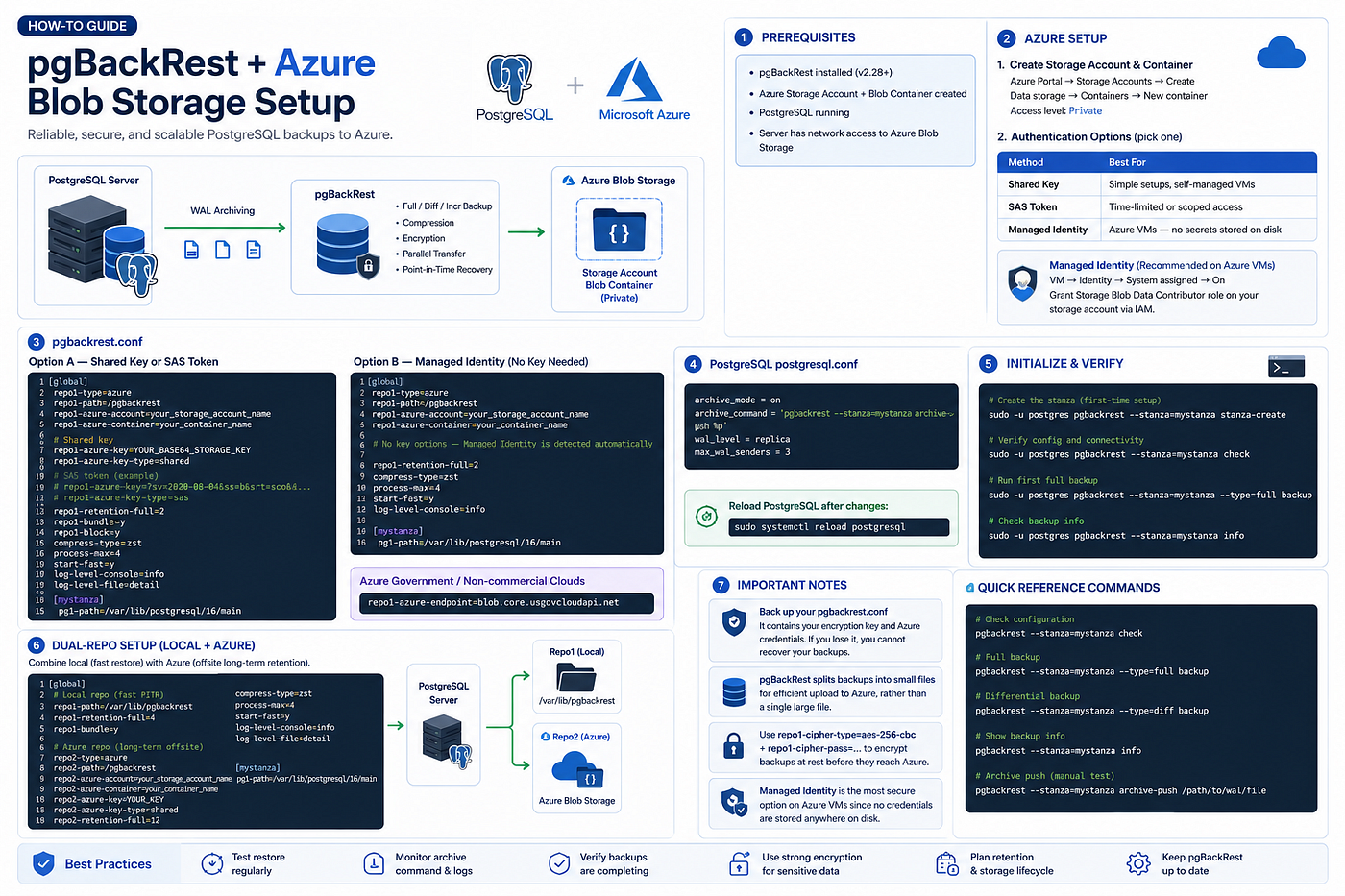
Database backup is one of the most important parts of running PostgreSQL in production.
A good backup strategy should not only create backups. It should also make sure backups are reliable, secure, restorable, and stored outside the main database server.
For PostgreSQL, pgBackRest is one of the most powerful backup and restore tools. It supports full, differential, and incremental backups, point-in-time recovery, compression, encryption, parallel processing, and cloud storage repositories.
In this guide, we will set up pgBackRest with Azure Blob Storage so PostgreSQL backups can be stored safely in Azure.
This setup is useful for:
Production PostgreSQL servers
Disaster recovery planning
Offsite backup storage
Point-in-time recovery
Cloud backup retention
Hybrid local + cloud backup strategy
1. Prerequisites
Before starting, make sure the following requirements are ready:
PostgreSQL is installed and running
pgBackRest is installed
Azure Storage Account is created
Azure Blob Container is created
PostgreSQL archive mode can be enabled
Server has network access to Azure Blob Storage
Recommended pgBackRest version:
pgBackRest 2.28 or laterYou can check the installed version:
pgbackrest version2. Azure Storage Setup
First, create an Azure Storage Account and Blob Container.
In Azure Portal:
Azure Portal
→ Storage Accounts
→ Create
After the storage account is created:
Storage Account
→ Data storage
→ Containers
→ Create new container
Use Private access level for the container.
Example container name:
pgbackrest-backupPrivate access is recommended because database backups may contain sensitive business data.
3. Choose Azure Authentication Method
pgBackRest supports different authentication methods for Azure Blob Storage.
Common options are:
MethodBest ForShared KeySimple self-managed VM setupSAS TokenTime-limited or scoped accessManaged IdentityAzure VM with no secrets stored on disk
Option 1: Shared Key
Shared Key is simple to configure.
You copy the storage account key from Azure and put it in pgbackrest.conf.
This is easy, but you must protect the configuration file carefully because it contains credentials.
Option 2: SAS Token
A SAS token is more secure than a full storage key because it can be limited by:
Permission
Container
Time period
IP range
Protocol
This is useful when you want scoped or temporary access.
Option 3: Managed Identity
Managed Identity is recommended when PostgreSQL is running on an Azure VM.
With Managed Identity, you do not need to store Azure keys or SAS tokens on disk.
To enable Managed Identity:
Azure Portal
→ Virtual Machine
→ Identity
→ System assigned
→ On
Then grant the VM permission to access the storage account:
Storage Account
→ Access Control IAM
→ Add role assignment
→ Storage Blob Data Contributor
→ Select the VM managed identity
This is usually the best option for Azure-based production servers.
4. Configure pgBackRest with Azure Blob Storage
The main pgBackRest configuration file is usually located at:
/etc/pgbackrest/pgbackrest.confCreate or edit the file:
sudo nano /etc/pgbackrest/pgbackrest.confOption A: Shared Key or SAS Token Configuration
Use this configuration if you are using a storage account key or SAS token.
[global]
repo1-type=azure
repo1-path=/pgbackrest
repo1-azure-account=your_storage_account_name
repo1-azure-container=your_container_name
# Shared key authentication
repo1-azure-key=YOUR_BASE64_STORAGE_KEY
repo1-azure-key-type=shared# SAS token authentication example
# repo1-azure-key=?sv=2020-08-04&ss=b&srt=sco&...
# repo1-azure-key-type=sasrepo1-retention-full=2
repo1-bundle=y
repo1-block=y
compress-type=zst
process-max=4
start-fast=y
log-level-console=info
log-level-file=detail[mystanza]
pg1-path=/var/lib/postgresql/16/mainReplace these values:
your_storage_account_name
your_container_name
YOUR_BASE64_STORAGE_KEY
/var/lib/postgresql/16/main
with your real environment values.
Option B: Managed Identity Configuration
Use this option if PostgreSQL is running on an Azure VM with Managed Identity enabled.
[global]
repo1-type=azure
repo1-path=/pgbackrest
repo1-azure-account=your_storage_account_name
repo1-azure-container=your_container_name
# No key is required when using Managed Identityrepo1-retention-full=2
compress-type=zst
process-max=4
start-fast=y
log-level-console=info
log-level-file=detail[mystanza]
pg1-path=/var/lib/postgresql/16/mainManaged Identity is cleaner because there is no Azure key stored inside the server configuration file.
5. Azure Government or Non-Commercial Cloud Endpoint
If you are using Azure Government or another non-commercial Azure cloud, you may need to specify the Azure endpoint.
Example for Azure Government:
repo1-azure-endpoint=blob.core.usgovcloudapi.netFor normal Azure commercial cloud, you usually do not need to set this manually.
6. PostgreSQL Configuration
Next, enable WAL archiving in PostgreSQL.
Edit postgresql.conf.
Common path:
sudo nano /etc/postgresql/16/main/postgresql.confAdd or update these settings:
archive_mode = on
archive_command = 'pgbackrest --stanza=mystanza archive-push %p'
wal_level = replica
max_wal_senders = 3
Explanation:
SettingPurposearchive_mode = onEnables WAL archivingarchive_commandSends WAL files to pgBackRestwal_level = replicaRequired for replication and archivingmax_wal_sendersAllows WAL sender processes
After changing PostgreSQL configuration, reload PostgreSQL:
sudo systemctl reload postgresqlIn some cases, changing archive_mode may require a restart:
sudo systemctl restart postgresql7. Create the pgBackRest Stanza
A stanza is a pgBackRest configuration section that represents a PostgreSQL cluster.
In this example, the stanza name is:
mystanzaCreate the stanza:
sudo -u postgres pgbackrest --stanza=mystanza stanza-createThen verify the configuration and connectivity:
sudo -u postgres pgbackrest --stanza=mystanza checkIf the check is successful, pgBackRest can communicate with PostgreSQL and Azure Blob Storage.
8. Run the First Full Backup
Now run the first full backup:
sudo -u postgres pgbackrest --stanza=mystanza --type=full backupAfter the backup completes, check backup information:
sudo -u postgres pgbackrest --stanza=mystanza infoYou should see the backup details, including:
Backup type
Backup size
Start time
Stop time
WAL archive information
Repository information
9. Dual Repository Setup: Local + Azure
For production systems, it is useful to keep both local and cloud backups.
A dual-repository setup gives you:
Fast local restore
Offsite disaster recovery
Better backup resilience
Flexible retention strategy
Example:
[global]
# Local repository for fast restore
repo1-path=/var/lib/pgbackrest
repo1-retention-full=4
repo1-bundle=y
# Azure repository for offsite backup
repo2-type=azure
repo2-path=/pgbackrest
repo2-azure-account=your_storage_account_name
repo2-azure-container=your_container_name
repo2-azure-key=YOUR_KEY
repo2-azure-key-type=shared
repo2-retention-full=12compress-type=zst
process-max=4
start-fast=y
log-level-console=info
log-level-file=detail[mystanza]
pg1-path=/var/lib/postgresql/16/mainIn this setup:
repo1 = local backup repository
repo2 = Azure Blob Storage repository
This is useful when you want fast local Point-in-Time Recovery and long-term offsite retention in Azure.
10. Backup Encryption
Database backups may contain sensitive information.
For better security, enable encryption before backups are uploaded to Azure.
Example:
repo1-cipher-type=aes-256-cbc
repo1-cipher-pass=your_strong_encryption_password
If using Azure as repo2, configure encryption for that repository:
repo2-cipher-type=aes-256-cbc
repo2-cipher-pass=your_strong_encryption_password
Important:
Keep the encryption password safe.
If you lose the encryption password, you cannot restore encrypted backups.
Store the encryption password in a secure password manager or secret management system.
11. Protect pgBackRest Configuration
The pgbackrest.conf file may contain sensitive information, including:
Azure storage keys
SAS tokens
Encryption passwords
Repository configuration
Backup paths
Set secure permissions:
sudo chown postgres:postgres /etc/pgbackrest/pgbackrest.conf
sudo chmod 640 /etc/pgbackrest/pgbackrest.conf
If possible, use Managed Identity instead of storing Azure credentials in the file.
12. Schedule Backups with Cron
You can schedule regular backups using cron.
Edit the postgres user crontab:
sudo -u postgres crontab -eExample schedule:
# Full backup every Sunday at 1:00 AM
0 1 * * 0 pgbackrest --stanza=mystanza --type=full backup
# Differential backup Monday to Saturday at 1:00 AM
0 1 * * 1-6 pgbackrest --stanza=mystanza --type=diff backupThis gives you one full backup per week and differential backups on other days.
13. Useful Commands
Check pgBackRest configuration:
sudo -u postgres pgbackrest --stanza=mystanza checkRun full backup:
sudo -u postgres pgbackrest --stanza=mystanza --type=full backupRun differential backup:
sudo -u postgres pgbackrest --stanza=mystanza --type=diff backupRun incremental backup:
sudo -u postgres pgbackrest --stanza=mystanza --type=incr backupView backup info:
sudo -u postgres pgbackrest --stanza=mystanza infoView detailed backup info:
sudo -u postgres pgbackrest --stanza=mystanza info --output=jsonCheck archive push manually:
sudo -u postgres pgbackrest --stanza=mystanza archive-push /path/to/wal/file14. Important Production Notes
Use Managed Identity on Azure VMs
If PostgreSQL runs on an Azure VM, Managed Identity is the most secure option.
It avoids storing storage keys or SAS tokens on disk.
Do Not Lose the Configuration File
Back up your pgbackrest.conf securely.
If you use encryption and lose the cipher password, you will not be able to restore your backups.
Test Restore Regularly
A backup is only useful if it can be restored.
You should regularly test restore procedures in a non-production environment.
Recommended restore test frequency:
Monthly for critical systems
After major PostgreSQL upgrades
After backup configuration changes
After migration to new storage
Monitor WAL Archiving
If WAL archiving fails, Point-in-Time Recovery may be incomplete.
Check PostgreSQL logs and pgBackRest logs regularly.
Common log locations:
/var/log/pgbackrest/
/var/log/postgresql/
Monitor Azure Storage Cost
Azure Blob Storage cost depends on:
Storage size
Retention period
Access tier
Read/write operations
Data transfer
Backup frequency
Use lifecycle management if needed to move old backups to cooler storage tiers.
15. Production Checklist
Before using this setup in production, verify:
Azure Storage Account created
Private Blob Container created
Authentication method selected
Managed Identity or credentials configured
pgBackRest installed
pgbackrest.conf configured
PostgreSQL archive_mode enabled
archive_command configured
Stanza created successfully
pgBackRest check passed
First full backup completed
Backup info verified
Cron schedule configured
Encryption enabled if required
Configuration file protected
Restore test planned
Monitoring enabled
Final Thoughts
pgBackRest with Azure Blob Storage is a strong backup strategy for PostgreSQL production systems.
It provides:
Reliable PostgreSQL backups
Cloud-based offsite storage
Compression
Retention control
Point-in-time recovery support
Encryption support
Local + cloud repository options
Better disaster recovery readiness
For simple setups, Shared Key or SAS Token authentication can work well.
For Azure VMs, Managed Identity is the better option because it avoids storing secrets on the server.
메타데이터
- post_id
- dc4781a6b397
- slug
- pgbackrest-azure-blob-storage-setup-for-postgresql-backup-dc4781a6b397
- url
- https://medium.com/@vitchum/pgbackrest-azure-blob-storage-setup-for-postgresql-backup-dc4781a6b397
- canonical_url
- https://medium.com/@vitchum/pgbackrest-azure-blob-storage-setup-for-postgresql-backup-dc4781a6b397
- author_url
- https://medium.com/@vitchum
- status
- ok
- fetched_at
- 2026-06-16 19:09:56