Why “Moving to Trash” is a Lie: The Hidden Cost of Uninstalling Mac Apps.
We’ve all done it. You’re looking at that “Disk Almost Full” warning for the third time today, and you finally snap. You head to your…
Why “Moving to Trash” is a Lie: The Hidden Cost of Uninstalling Mac Apps.
We’ve all done it. You’re looking at that “Disk Almost Full” warning for the third time today, and you finally snap. You head to your Applications folder, grab that 2GB game or that bulky video editor you haven’t touched since 2023, and you drag it to the Trash.
Crunch.
That little sound effect — the digital crumpling of paper — is one of the most satisfying things in the macOS user experience. It feels final. It feels like you’ve just done some serious spring cleaning.
But I’m here to tell you that it’s a lie. A total, complete, psychological trick.
When you drag an app to the Trash, you aren’t actually uninstalling it. You’re just removing the “face” of the app. Meanwhile, the “body” of that app — the gigabytes of caches, support files, old login data, and temporary assets — is still sitting right where it was, haunting your SSD like a digital ghost.
If you’ve been a Mac user for more than a year, your drive is likely a graveyard of these ghosts. Today, we’re going to talk about why this happens, why Apple doesn’t “fix” it, and how much it’s actually costing you.
The Architecture of the “Leftover”
To understand why dragging to the Trash fails, you have to understand how macOS apps are built.
Apple tells developers that a Mac app should be a “bundle” — a neat little folder that looks like a single icon. In a perfect world, everything that app needs would be inside that bundle. You delete the bundle, you delete the app. Simple.
But we don’t live in a perfect world. We live in a world of Sandboxing and Library folders.
The moment you open an app for the first time, it starts “nesting.” It realizes it needs to save your preferences. It needs to store your login token so you don’t have to type your password every time. It needs a place to download updates or store a cache so it loads faster tomorrow.
Because of Apple’s security rules, an app can’t just store all this “dirty” data inside its own neat little bundle in the Applications folder. If it did, an app update might wipe out all your personal settings. So, the app stays in the Applications folder, but it scatters its data all across your system — specifically in a hidden place called the ~/Library.
When you drag that icon to the Trash, macOS only deletes the launcher. It doesn’t touch the ~/Library. It leaves the keys, the furniture, and the half-eaten pizza in the apartment, even though the tenant has moved out.
A Tour of the Digital Graveyard
If you want to see the ghosts for yourself, you have to go hunting. Most of these files are hidden. You can’t even see the Library folder in your Home directory unless you hold down the Option key while clicking the "Go" menu in Finder.
Once you’re in there, you’ll find the four main places where “dead” apps hide their weight:
1. Application Support (~/Library/Application Support)
This is the big one. This is where apps store their “heavy” lifting data.
- The Horror Story: I once uninstalled a popular local AI tool. The app was 300MB. I dragged it to the Trash. A week later, I found 45GB of “models” and “weights” still sitting in
Application Support. 45GB! That’s nearly 10% of a standard 512GB MacBook Pro.
2. Caches (~/Library/Caches)
Caches are supposed to be temporary. They’re like short-term memory for your apps. In theory, macOS is supposed to prune them. In reality? Apps are hoarders. They create cache folders and then forget they exist. When you delete the app, the cache becomes “orphaned.” It has no parent app to tell it to go away. It just stays there, taking up space that could be used for your actual photos or work files.
3. Containers (~/Library/Containers)
If you download an app from the Mac App Store, it’s required to be “sandboxed.” This means it gets its own little isolated room to play in. These folders are named with weird IDs like com.developer.coolapp. When you delete a sandboxed app, these containers often stay behind. Because the names are so cryptic, you’ll never find them manually unless you’re a professional system administrator.
4. Preferences (~/Library/Preferences)
These are usually small — tiny .plist files that remember things like your custom keyboard shortcuts or whether you like "Dark Mode." But it’s the "death by a thousand cuts" problem. Over three years, you might have 2,000 of these files. It makes your system search slower and adds a layer of "digital grime" to your Mac that eventually makes it feel sluggish.
The “Apple Storage Tax” is Real
You might be thinking, “Okay, so I have some ghosts on my drive. Who cares? Storage is cheap.”
Is it, though?
If this were 2012 and we were using thick MacBooks with upgradeable hard drives, I’d agree with you. You could swap in a 1TB drive for $60. But this is 2026. Everything is soldered to the motherboard.
Apple’s storage pricing is famously… let’s call it “premium.” Jumping from a 256GB model to a 512GB model usually costs $200. That’s about $0.78 per Gigabyte.
When you have 50GB of “System Data” (which is mostly just these orphaned leftovers and caches), you are essentially paying Apple $40 for the privilege of hosting garbage you don’t even want. You are paying a “Storage Tax” on your own digital ghosts.
The Manual Hunt: Why You’ll Hate It
You can clean this up yourself. I’ve done it. It involves opening Finder, hitting Cmd+Shift+G, and typing in paths like a hacker from a 90s movie. You go to ~/Library/Application Support, you find the folder for the app you deleted, and you trash it. Then you repeat for Caches. Then for Logs. Then for Containers.
It takes about 10 to 15 minutes per app if you’re being thorough. And here’s the kicker: if you delete the wrong folder — maybe you see a folder named “System” and think it’s part of the app you’re deleting — you could break your entire OS or lose important data.
It’s tedious, it’s risky, and frankly, life is too short to spend your Saturday afternoon acting as a digital janitor for your own computer.
A Better Way: Meet CleanDiskGo
I used to be a “manual-only” guy. I didn’t trust “cleaning apps.” Most of them felt like scams — full of flashing red warnings, fake “antivirus” scans, and annoying subscriptions that cost $50 a year just to delete some files.
Then I found CleanDiskGo, and it changed my mind for one simple reason: It’s transparent.
CleanDiskGo isn’t a “magic optimizer.” It’s a precision tool. It’s a digital scalpel for your Mac. And the best part? It’s available directly on the Mac App Store. That means it has passed Apple’s strict security and privacy reviews. It doesn’t snoop on your data; it just helps you manage it.
The App Uninstaller: The Ghost Hunter
My favorite feature is the App Uninstaller. Instead of dragging to the Trash and hoping for the best, you open CleanDiskGo. It shows you a list of every app on your Mac, but it does something Finder can’t: it calculates the real size.
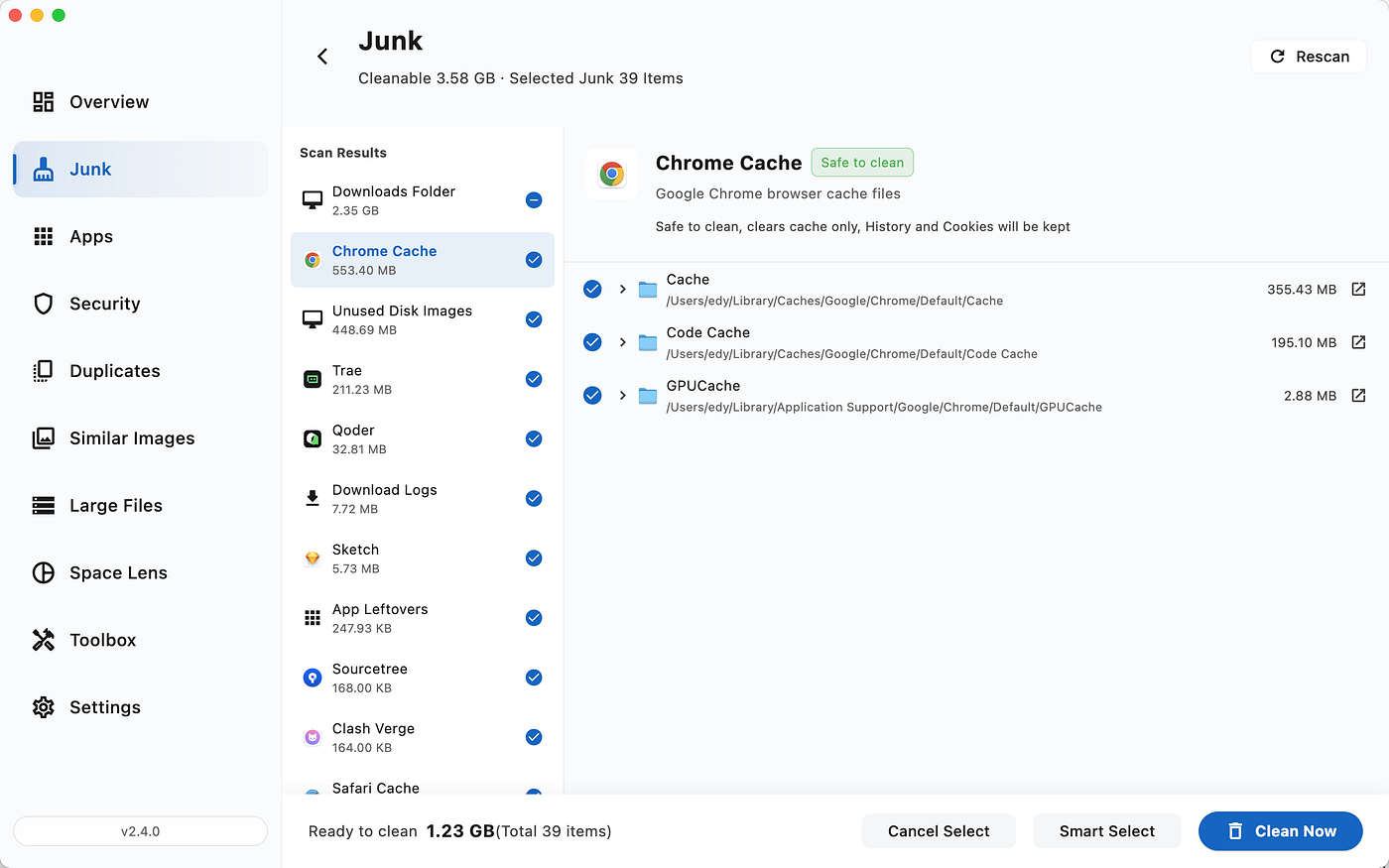
It shows you that “App X” isn’t just 200MB — it’s actually 4GB because of the hidden support files in your Library. With one click, it gathers all those “ghosts” from Application Support, Caches, and Preferences and shows them to you. You see exactly what is being deleted and where it’s located.
It turns a 15-minute manual hunt into a 5-second “Yes, delete that” moment.
Beyond Just Uninstalling
CleanDiskGo doesn’t stop at apps. It handles the other big storage hogs too:
- Space Lens: This is like a “X-ray” for your hard drive. It shows you your folders as visual bubbles. You can instantly see that your “Downloads” folder is huge not because of files, but because of a forgotten 20GB zip file buried three levels deep.
- Duplicates & Similar Photos: We all have three copies of that one vacation photo or that “Final_v2_Final_Fixed.pdf.” CleanDiskGo finds them in seconds.
- System Junk: It safely clears those orphaned caches and logs we talked about, but it draws a very clear “Safety Line.” It tells you exactly what is safe to delete and what it’s leaving alone to keep your system stable.
No Subscriptions. No Nonsense.
The biggest reason I recommend CleanDiskGo over the “big name” competitors? The business model.
I am tired of every single utility app wanting a monthly subscription. I don’t want to pay $4.99 a month to keep my hard drive clean. CleanDiskGo is a one-time purchase. You buy it, you own it, you use it.
It feels like the kind of software we used to have — simple, powerful, and honest.
The Verdict
Your Mac is a world-class tool. It’s built to help you create, code, design, and explore. It shouldn’t be a source of anxiety because of a “Disk Full” bar.
Stop believing the “Move to Trash” lie. Take ten minutes to actually see what’s on your drive. If you want to do it the hard way, the ~/Library folder is waiting for you. But if you value your time and your sanity, do what I did.
Go to the Mac App Store and search for “CleanDiskGo”.
Download it, run a scan, and see how many “ghosts” are currently living in your expensive Apple SSD. You might be surprised to find that you have a lot more space than you thought — you just needed a better way to find it.
CleanDiskGo is available now on the Mac App Store. Safe, transparent, and built for people who actually care about how their Mac works.
메타데이터
- post_id
- dc65e4029c1d
- slug
- why-moving-to-trash-is-a-lie-the-hidden-cost-of-uninstalling-mac-apps-dc65e4029c1d
- url
- https://medium.com/@zhouwei_21561/why-moving-to-trash-is-a-lie-the-hidden-cost-of-uninstalling-mac-apps-dc65e4029c1d
- canonical_url
- https://medium.com/@zhouwei_21561/why-moving-to-trash-is-a-lie-the-hidden-cost-of-uninstalling-mac-apps-dc65e4029c1d
- author_url
- https://medium.com/@zhouwei_21561
- status
- ok
- fetched_at
- 2026-08-19 01:47:33