A Practical macOS Guide to Token2 Molto2-v2 Profile Provisioning
Update Update : Token2 also made an important point about authentication security: TOTP remains useful for compatibility, legacy systems…
A Practical macOS Guide to Token2 Molto2-v2 Profile Provisioning
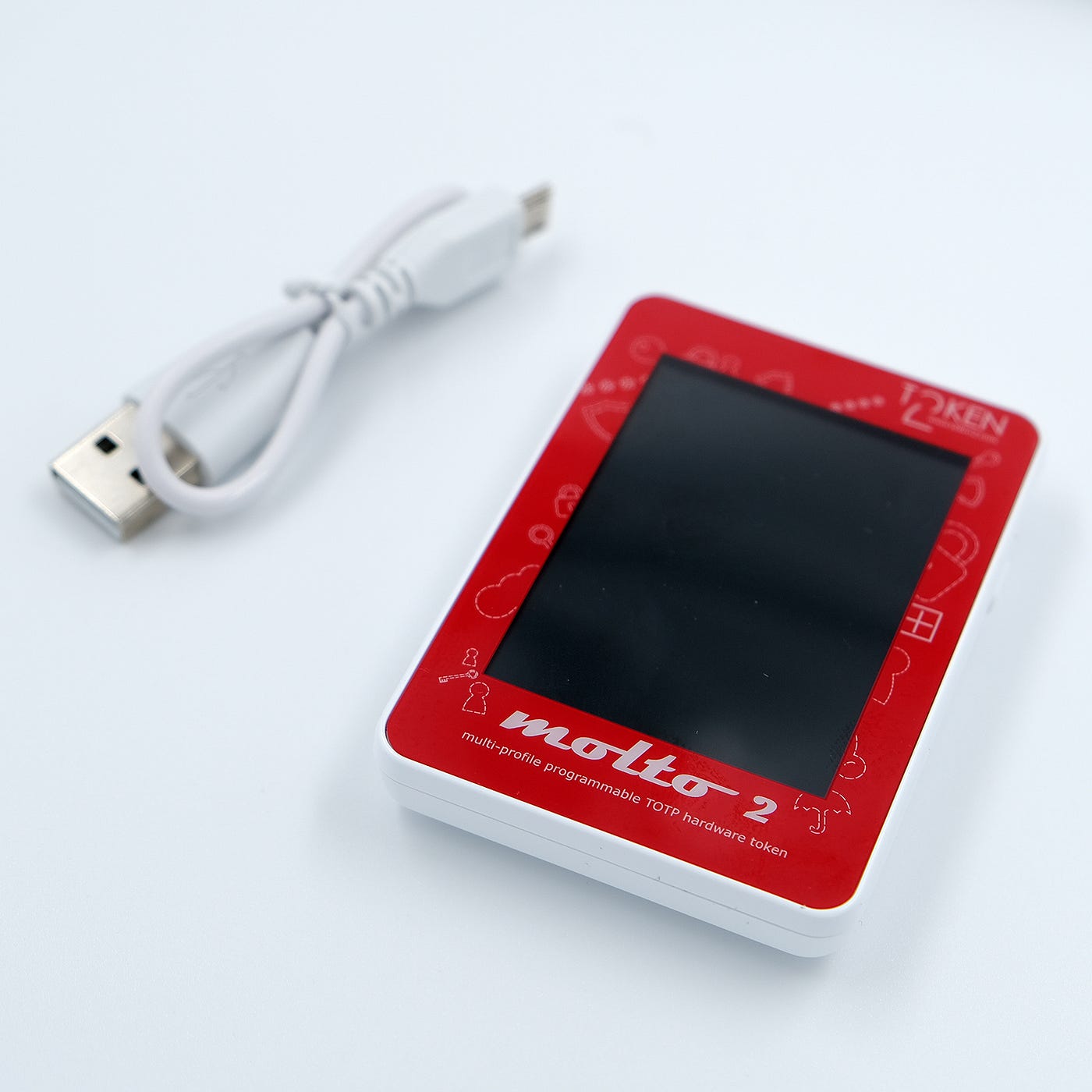
Molto2 Hardware — Credit https://www.token2.com/shop/product/molto-2-v2-multi-profile-totp-programmable-hardware-token
Update Update : Token2 also made an important point about authentication security: TOTP remains useful for compatibility, legacy systems, offline workflows, and environments where mobile authenticator apps are not preferred. However, TOTP should not be presented as the strongest modern MFA option. Where supported, FIDO2 security keys and passkeys provide stronger phishing-resistant authentication.or that reason, this guide should be understood as a practical hardware-TOTP provisioning guide, not as a recommendation to prefer TOTP over FIDO2. For new systems, FIDO2/WebAuthn should be considered first where the application and organization can support it. TOTP hardware tokens remain useful when compatibility, portability, or operational constraints require OTP-based MFA.
I purchased the Token2 Molto2-v2 because I wanted a dedicated hardware-based option for configuring secure TOTP authentication without relying on a mobile phone or software authenticator app.Hardware TOTP tokens are useful when an organization wants multi-factor authentication without depending on a mobile authenticator app. The Token2 Molto2-v2 is a programmable, multi-profile TOTP hardware token that can store multiple accounts on one device.The product page also lists an RTC battery life of 8 years 100 profiles configuration and a rechargeable LCD screen battery lasting approximately 3–4 months.
Instead of scanning a QR code into a phone, the administrator writes the TOTP secret seed into a profile slot on the Molto2-v2. After provisioning, the device generates one-time passwords directly from the stored seed and its internal clock. This guide explains how to configure the Token2 Molto2-v2 on macOS using both available approaches:
- the graphical Molto2 USB Config Tool;
- the Python-based command-line tools,
molto2.py , gui.py.
The GUI is easier for normal profile provisioning, especially when screenshots or QR-code scanning are involved. The command line is better for repeatable configuration, testing, scripting, and advanced operations.
I’m not affiliated with Token2 I was just looking for a good “affordable” solution as TOTP Hardware. I also spent time improving the open-source molto2-tools project because I found it genuinely useful and wanted to make it easier for other users to configure their devices.I published my updated version here:
[https://github.com/allamiro/molto2-tools](https://github.com/allamiro/molto2-tools)
Security note: never publish real TOTP seeds, QR codes, customer keys, serial numbers, or production account names in screenshots. Blur them before sharing.
Requirements
Before configuring the device, prepare the following:
- Token2 Molto2-v2 hardware token;
- USB cable or USB-C adapter if needed;
- macOS system
- Python 3 if using the command-line method;
- the Token2 Molto2 tools repository
The factory default customer key is commonly used unless you have changed it. If you change the customer key, store it securely. Losing it can prevent later management operations unless the device is reset.
Configure Molto2-v2 Using the macOS GUI tool
Download and launch the GUI tool
Download the official Token2 Molto2 USB Config Tool for macOS. Open the .dmg, drag the application into the Applications folder, and launch it.
Connect the Molto2-v2 token over USB. When the application detects the token, the status indicator should turn green and show the device connection state.
The GUI is organized around the following areas:
- Device status: shows whether the token is connected.
- Customer key bar: authenticates write operations.
- Provisioning tab: creates or updates a TOTP profile.
- Time Sync tab: synchronizes the token clock.
- Customer Key tab: changes the device customer key.
- Device tab: lock, unlock, or reset the device.
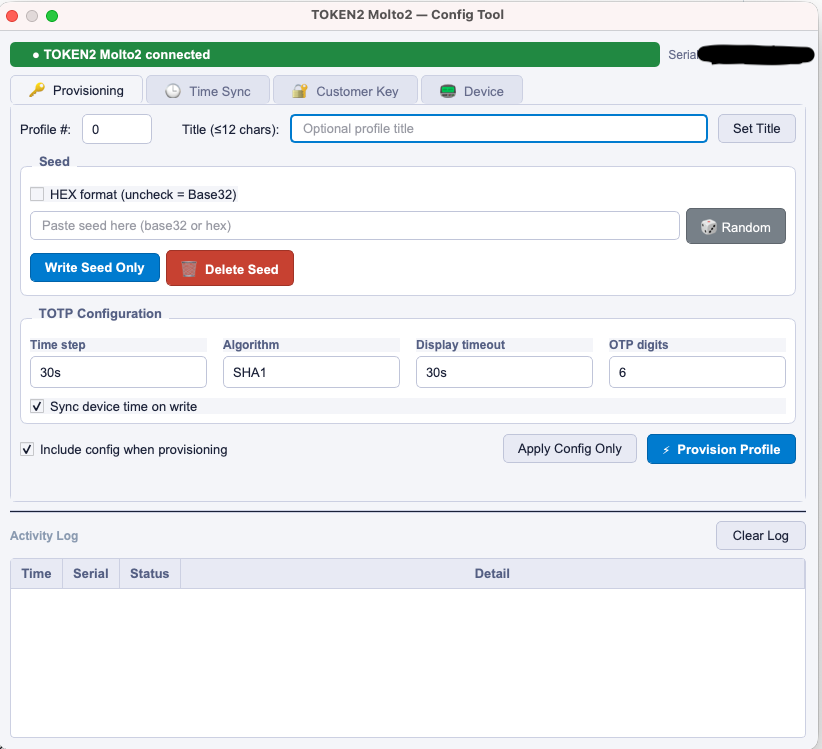
Figure 1 — Molto2 USB Config Tool opened on macOS with device detected
Provision a TOTP profile
To provision a profile:
- Select a free profile number, for example profile
2. - Enter a short title, such as
Google,Github, orVPN. - Paste the TOTP seed in Base32 format which is obtained from the application.
- Select the expected algorithm, usually
SHA1. - Select the OTP digit count, usually
6. - Select the time step, usually
30s. - Select the display timeout.
- Enable time synchronization during write if available.
- Click Provision Profile.
If the profile already contains a seed, delete the existing seed first. The tool blocks overwriting an existing seed to reduce the risk of accidental replacement.
Example: Provisioning a GitHub TOTP Profile
- Log in to GitHub.
- Go to Settings → Password and authentication.
- Under Two-factor authentication, choose the authenticator app setup option.
- GitHub displays a QR code and a manual setup key.
- Copy the setup key. This is the TOTP seed.
- Open the TOKEN2 Molto2 Config Tool on macOS.
- Connect the Molto2-v2 token by USB and confirm that the tool shows the device as connected.
- Select a free Profile #, for example
1. - Enter a short title, for example
GITHUB. - Paste the GitHub setup key into the Seed field.
- Leave HEX format unchecked because GitHub provides the seed in Base32 format.
- Set the TOTP configuration:
- Time step:
30s - Algorithm:
SHA1 - Display timeout:
30sor your preferred value - OTP digits:
6
Keep Sync device time on write enabled and keep Include config when provisioning enabled.
- Click Provision Profile.
Under activity log you should see the following messages:
[+] Time was set successfully for profile [#1]
[+] Title was set successfully
Once you did that
Enter the TOTP code generated from the Molto Device in to GITHUB Authentication App Sections verify the code from the app field to confirm and click Save.

GITHUB Verification Page — Authenticator App — Image by the Author
Final Thoughts
The Token2 Molto2-v2 is a useful option when you want TOTP-based multi-factor authentication without relying on a phone or mobile authenticator app. The macOS GUI tool is the easiest way to provision normal profiles because it makes profile selection, seed entry, title configuration, OTP settings, and time synchronization straightforward.
For repeatable work, testing, or automation, the Python tools are still important. That is why I also spent time improving the open-source molto2-tools project. I found the tool useful, and I wanted to make the setup and provisioning experience easier for other users who may be experimenting with hardware TOTP tokens for personal accounts, labs, or small organizational environments.
The main lesson is simple: the hardware token is only one part of the security model.
Protect the TOTP seed, customer key, QR code, and recovery codes carefully. Do not publish real secrets in screenshots, and always keep recovery codes stored separately before making the hardware token your primary MFA method.
Overall, the Molto2-v2 provides a practical and affordable path for hardware-based TOTP authentication on macOS, especially for users who want more control than a mobile authenticator app provides.
Sources:

Thank you for being a part of the community
Before you go:
- Be sure to clap and follow the writer ️👏️️
- Follow us: LinkedIn | Medium | GitHub 🐙
- Join our Developers Global Community on Discord 🧑🏻💻
메타데이터
- post_id
- dded2ce4dedc
- slug
- a-practical-macos-guide-to-token2-molto2-v2-profile-provisioning-dded2ce4dedc
- url
- https://medium.com/developersglobal/a-practical-macos-guide-to-token2-molto2-v2-profile-provisioning-dded2ce4dedc
- canonical_url
- https://medium.com/developersglobal/a-practical-macos-guide-to-token2-molto2-v2-profile-provisioning-dded2ce4dedc
- author_url
- https://medium.com/@tamirsuliman
- status
- ok
- fetched_at
- 2026-06-28 10:39:35