Run Phi Models Locally in C#: Ollama vs ONNX vs Foundry Local
The Problem
Run Phi Models Locally in C#: Ollama vs ONNX vs Foundry Local
The Problem
You are building an AI-assisted feature maybe a code review helper, a document summarizer, or a chat interface inside a desktop tool. Every time you call Azure OpenAI during development you burn tokens, hit rate limits, and send potentially sensitive data over the wire. By the end of a sprint, your team has a $300 cloud bill and a slow feedback loop because every prompt round-trips to a US data center before you see a response.
What this guide is: a practical comparison of three integration paths Ollama, ONNX Runtime GenAI and Foundry Local for running Microsoft’s Phi model family locally inside a C# application. You will end up with working code for each approach, a side-by-side performance table, and a reusable pattern that lets you flip between local and cloud with a single config value.
When to use local inference:
- Development and test environments where you iterate fast and don’t want to burn cloud quota
- Offline or air-gapped environments (HIPAA, GDPR, disconnected laptops)
- Interactive tools where sub-100ms latency matters and cloud roundtrips add visible lag
- Synthetic data generation, prompt experimentation, and edge case testing
When NOT to use local inference:
- Production multi-user services where model quality, content filtering, and managed scaling matter more than cost
- Devices without a discrete GPU — CPU-only inference produces 3–8 tokens per second, which is too slow for interactive use
- Compliance contexts that prohibit running model weights outside an audited infrastructure boundary
Why it matters in enterprise: a real pattern that works in production is local inference for every developer workstation during active development, cloud inference for staging and production. This can reduce monthly spend from $200–400 to under $50 per developer while giving each engineer an offline-capable, zero-latency AI environment.
Concepts Overview
This guide covers the following, in order:
- The Phi model family — which variant to pick and why
- Ollama + OllamaSharp — fastest path from zero to running inference
- ONNX Runtime GenAI — highest throughput, direct hardware access
- Microsoft Foundry Local — managed runtime with hardware auto-detection
IChatClientandMicrosoft.Extensions.AI— the abstraction layer that makes all three swappable- Side-by-side PoC — a single console application that calls the same prompt through Ollama and ONNX and prints token throughput for each
- Environment-based provider switching — local in development, cloud in production
- Best practices, common mistakes, and scaling considerations
1. The Phi Model Family
What it is: Phi is Microsoft’s family of small language models (SLMs) compact, open-weight models that run on consumer hardware without the 80GB VRAM requirements of frontier models.
Why it exists: Most developer tasks like code explanation, LINQ generation, unit test scaffolding, documentation drafting do not require a 70B parameter model. Phi-4 achieves competitive performance on reasoning and coding benchmarks at a fraction of the memory cost.
How it works: Phi models use the standard transformer architecture but were trained on a curated, high-quality dataset rather than a raw web crawl. The result is a model that punches above its weight on structured tasks while remaining small enough to run locally.
Which variant to pick:

For most .NET developers, start with Phi-4-mini Q4_K_M — the Q4_K_M quantized variant runs comfortably in 3GB VRAM and handles the majority of typical development tasks. Q5_K_M offers slightly better accuracy at marginally higher memory cost. Both are available directly through Ollama’s model library.
Model formats: Ollama and LLamaSharp use GGUF-format models. ONNX Runtime GenAI uses models in ONNX format, which must be downloaded separately from Hugging Face. The two formats are not interchangeable pick your format based on your chosen integration approach.
2. Ollama + OllamaSharp
What it is: Ollama is a cross-platform desktop application and CLI that manages model downloads and runs a local OpenAI-compatible HTTP server. OllamaSharp is the official .NET client library.
Why it exists: Before Ollama, running a local model in C# required manually downloading weights, setting up Python environments, and wiring up low-level inference bindings. Ollama reduces that to two terminal commands and a NuGet package.
How it works: Ollama’s server process manages the model lifecycle loading weights into VRAM, processing incoming requests, and unloading inactive models to free memory. It exposes a REST API at http://localhost:11434, including a /v1 path that implements the OpenAI Chat Completions API surface. Your .NET app communicates with it over HTTP just as it would with Azure OpenAI, which means all the same IChatClient middleware logging, caching, tracing works without modification.
Note: The
Microsoft.Extensions.AI.OllamaNuGet package is deprecated. Microsoft recommends OllamaSharp going forward, as it provides full Ollama API coverage and implementsIChatClientnatively.
Setup:
# 1. Install Ollama from ollama.com for your OS
# 2. Pull the model — this downloads ~2GB for phi4-mini Q4_K_M
ollama pull phi4-mini
# 3. Verify it works
ollama run phi4-mini "Write a one-line C# Hello World"
NuGet packages:
dotnet add package Microsoft.Extensions.AI
dotnet add package OllamaSharp
C# integration — console app:
using Microsoft.Extensions.AI;
using OllamaSharp;

// OllamaApiClient wraps all Ollama endpoints (chat, embeddings, model list, pull, etc.)
var ollamaClient = new OllamaApiClient(new Uri("http://localhost:11434"));

// AsChatClient() wraps it in an IChatClient — the same interface used by Azure OpenAI
IChatClient chatClient = ollamaClient.AsChatClient("phi4-mini");

var messages = new List<ChatMessage>
{
    new(ChatRole.System, "You are a helpful C# assistant. Be concise."),
    new(ChatRole.User, "Explain what IAsyncEnumerable is in two sentences.")
};

// Streaming: prints each token as it arrives
await foreach (var update in chatClient.GetStreamingResponseAsync(messages))
{
    Console.Write(update.Text);
}
Console.WriteLine();
ASP.NET Core DI registration:
// Program.cs — registers IChatClient so it can be injected anywhere
var ollamaClient = new OllamaApiClient(new Uri("http://localhost:11434"));
builder.Services.AddSingleton<IChatClient>(
    ollamaClient.AsChatClient("phi4-mini"));
Health check at startup (prevents silent failures):
// Partial example — add to your startup or IHostedService
var http = new HttpClient();
try
{
    // Ollama returns {"status":"ok"} at this endpoint when healthy
    var response = await http.GetStringAsync("http://localhost:11434/api/tags");
    Console.WriteLine("Ollama is running.");
}
catch (HttpRequestException)
{
    Console.Error.WriteLine("Ollama is not running. Start it with: ollama serve");
    Environment.Exit(1);
}
3. ONNX Runtime GenAI
What it is: ONNX Runtime GenAI is Microsoft’s library for running generative AI models entirely in-process using hardware-native kernels — DirectML on Windows GPU, CUDA on NVIDIA, or optimized CPU paths.
Why it exists: Ollama’s HTTP layer adds serialization overhead on every token. For production services or tools where token throughput directly affects user experience, ONNX Runtime GenAI eliminates that overhead by running inference as a direct library call inside your process.
How it works: ONNX Runtime GenAI implements the full generative AI loop: tokenisation, KV cache management, logits processing, sampling, and decoding. You create a Model object from a local folder containing the ONNX model files, create a Tokenizer, encode your prompt, then call ComputeLogits() and GenerateNextToken() in a loop until IsDone() returns true. Each iteration yields the next token.
Setup — download the model from Hugging Face:
# Install the Hugging Face CLI
pip install huggingface-hub
# Download Phi-4-mini ONNX model (CPU variant, ~2GB)
huggingface-cli download microsoft/Phi-4-mini-instruct-onnx \
  --include cpu_and_mobile/* \
  --local-dir ./phi4-mini-onnx
NuGet package — choose the variant that matches your hardware:
# CPU-only (works everywhere, slowest)
dotnet add package Microsoft.ML.OnnxRuntimeGenAI

# NVIDIA GPU (CUDA) — requires CUDA toolkit installed
dotnet add package Microsoft.ML.OnnxRuntimeGenAI.Cuda

# Windows GPU via DirectML — AMD, Intel, NVIDIA without CUDA
dotnet add package Microsoft.ML.OnnxRuntimeGenAI.DirectML
C# inference with token streaming:
using Microsoft.ML.OnnxRuntimeGenAI;

// Model path points to the folder containing model.onnx, config.json, etc.
// The constructor is expensive — create once and reuse (singleton pattern)
using var model = new Model("./phi4-mini-onnx");
using var tokenizer = new Tokenizer(model);

// Phi-4 uses this specific chat template format
var prompt =
    "<|system|>You are a helpful C# assistant.<|end|>" +
    "<|user|>What does the 'using' keyword do in C#?<|end|>" +
    "<|assistant|>";

var sequences = tokenizer.Encode(prompt);

var generatorParams = new GeneratorParams(model);
generatorParams.SetInputSequences(sequences);
generatorParams.SetSearchOption("max_length", 512);    // Maximum output tokens
generatorParams.SetSearchOption("temperature", 0.7);   // 0 = deterministic, 1 = creative

using var generator = new Generator(model, generatorParams);
using var tokenizerStream = tokenizer.CreateStream();  // Enables incremental decoding

while (!generator.IsDone())
{
    generator.ComputeLogits();       // Forward pass through the model
    generator.GenerateNextToken();   // Sample the next token from logits

    // GetSequence(0) returns the full token array; [^1] is the last (new) token
    var newToken = generator.GetSequence(0)[^1];
    Console.Write(tokenizerStream.Decode(newToken)); // Decode single token to text
}
Console.WriteLine();
Wrapping in IChatClient for DI compatibility:
// Partial example — a minimal IChatClient wrapper around ONNX Runtime GenAI
// Register as singleton: builder.Services.AddSingleton<IChatClient, OnnxChatClient>();
public class OnnxChatClient : IChatClient
{
    private readonly Model _model;
    private readonly Tokenizer _tokenizer;

    public OnnxChatClient(string modelPath)
    {
        // Model loading is slow (~5 seconds) — do it once at startup
        _model = new Model(modelPath);
        _tokenizer = new Tokenizer(_model);
    }

    public async IAsyncEnumerable<ChatResponseUpdate> GetStreamingResponseAsync(
        IEnumerable<ChatMessage> messages,
        ChatOptions? options = null,
        [EnumeratorCancellation] CancellationToken ct = default)
    {
        // Build the Phi-4 chat template from the message list
        var prompt = BuildPrompt(messages);
        var sequences = _tokenizer.Encode(prompt);

        var generatorParams = new GeneratorParams(_model);
        generatorParams.SetInputSequences(sequences);
        generatorParams.SetSearchOption("max_length", options?.MaxOutputTokens ?? 512);

        using var generator = new Generator(_model, generatorParams);
        using var stream = _tokenizer.CreateStream();

        while (!generator.IsDone() && !ct.IsCancellationRequested)
        {
            generator.ComputeLogits();
            generator.GenerateNextToken();

            var token = generator.GetSequence(0)[^1];
            var text = stream.Decode(token);

            // Yield each token as a streaming update
            yield return new ChatResponseUpdate { Text = text };

            // Yield control back to the event loop between tokens
            await Task.Yield();
        }
    }

    // Required interface members (simplified for brevity)
    public ChatClientMetadata Metadata => new("onnx-genai", null, "phi4-mini");
    public Task<ChatResponse> GetResponseAsync(
        IEnumerable<ChatMessage> messages, ChatOptions? options = null,
        CancellationToken ct = default) => throw new NotImplementedException();
    public void Dispose() { _model.Dispose(); _tokenizer.Dispose(); }

    private static string BuildPrompt(IEnumerable<ChatMessage> messages)
    {
        var sb = new System.Text.StringBuilder();
        foreach (var msg in messages)
        {
            var role = msg.Role == ChatRole.System ? "system"
                     : msg.Role == ChatRole.Assistant ? "assistant"
                     : "user";
            sb.Append($"<|{role}|>{msg.Text}<|end|>");
        }
        sb.Append("<|assistant|>");
        return sb.ToString();
    }
}
4. Microsoft Foundry Local
What it is: Foundry Local is Microsoft’s managed on-device AI runtime, released at Microsoft Build 2025 as part of the Windows AI Foundry platform. It detects your hardware automatically, downloads quantized ONNX models, and serves them via an OpenAI-compatible REST API on port 5272.
Why it exists: ONNX Runtime GenAI gives you the most control but requires manual model management. Foundry Local handles the model lifecycle includes downloading, caching, hardware detection, and serving, so you don’t have to. For teams already in the Azure ecosystem, it integrates more cleanly than Ollama.
How it works: Foundry Local uses ONNX Runtime with INT4/INT8 quantized models under the hood. It auto-detects whether you have a CPU, GPU, or NPU and selects the most efficient execution provider. The C# SDK (Microsoft.AI.Foundry.Local) wraps model discovery and lifecycle management, while the actual inference endpoint is OpenAI-compatible REST — identical in structure to Ollama's /v1 path but on a different port.
Installation:
# Windows
winget install Microsoft.FoundryLocal

# macOS
brew install microsoft/foundrylocal/foundrylocal

# Start the model
foundry model run microsoft/phi-4-mini
NuGet package:
dotnet add package Microsoft.AI.Foundry.Local
dotnet add package OpenAI   # Required for the chat client
C# integration — using the Foundry Local C# SDK:
using Microsoft.AI.Foundry.Local;
using OpenAI;
using OpenAI.Chat;
using System.ClientModel;

// FoundryLocalManager discovers models available on your hardware
// and manages model lifecycle (download, load, unload)
await using var manager = await FoundryLocalManager.StartAsync();

// Alias identifies the model in Foundry's registry
var modelAlias = "microsoft/phi-4-mini";
await manager.DownloadModelAsync(modelAlias);

// Retrieve the endpoint and API key from the running Foundry instance
var endpoint = manager.GetEndpoint(modelAlias);
var apiKey = manager.GetApiKey(modelAlias);

// Connect via the standard OpenAI client pointing at the local endpoint
var openAiClient = new OpenAIClient(
    new ApiKeyCredential(apiKey),
    new OpenAIClientOptions { Endpoint = endpoint });

var chatClient = openAiClient.GetChatClient(modelAlias);

// Standard chat completions call — identical to calling Azure OpenAI
var response = await chatClient.CompleteChatAsync(
    new SystemChatMessage("You are a helpful C# assistant."),
    new UserChatMessage("What is the difference between Task and ValueTask?"));

Console.WriteLine(response.Value.Content.Text);
Registering in ASP.NET Core DI via IChatClient:
// Program.cs — OpenAI-compatible endpoint, same pattern as Ollama
builder.Services.AddOpenAIChatClient(
    modelId: "microsoft/phi-4-mini",
    endpoint: new Uri("http://localhost:5272/v1"),  // Foundry Local default port
    apiKey: "foundry");                              // Any non-empty string
5. IChatClient and Microsoft.Extensions.AI
What it is: Microsoft.Extensions.AI is the official .NET abstraction layer for AI workloads, providing a common IChatClient interface that all providers implement.
Why it exists: Before Microsoft.Extensions.AI, every AI provider in .NET had its own client library with incompatible method signatures. Switching from Azure OpenAI to Ollama meant rewriting every call site. IChatClient solves this the same way ILogger solved logging one interface, multiple implementations, zero business logic changes when you swap providers.
How it works: IChatClient defines two methods: GetResponseAsync for single-shot completion and GetStreamingResponseAsync for token-by-token streaming. Both Ollama (via OllamaSharp) and Foundry Local register as IChatClient implementations. ONNX Runtime GenAI requires a manual wrapper but integrates cleanly once wrapped.
// Your service class has zero knowledge of which provider is active
public class CodeReviewService(IChatClient chatClient)
{
    public async Task<string> ReviewAsync(string code, CancellationToken ct = default)
    {
        var messages = new List<ChatMessage>
        {
            new(ChatRole.System, "You are a senior C# code reviewer. Be direct and concise."),
            new(ChatRole.User, $"Review this code:\n\n```csharp\n{code}\n```")
        };

        var response = await chatClient.GetResponseAsync(messages, cancellationToken: ct);
        return response.Message.Text ?? string.Empty;
    }
}
The DI registration in Program.cs is the only place that knows whether CodeReviewService is talking to a local Phi model or a cloud GPT model.
6. Hands-On PoC — Side-by-Side Comparison
What we are building: a single console application that sends the same prompt through both Ollama and ONNX Runtime GenAI, measures how long each takes to complete, and prints the output with timing. This gives you a concrete, reproducible baseline for the two approaches on your hardware. The third option, Foundry Local, uses the same IChatClient pattern as Ollama — so once you have one working, the other is a one-line endpoint change.
Step 1 — Create the project and install packages
Create the project first. The package references come next because the hardware-specific ONNX variant is chosen here getting this wrong is the most common setup mistake.
dotnet new console -n PhiLocalPoC
cd PhiLocalPoC

# Core abstractions
dotnet add package Microsoft.Extensions.AI
dotnet add package Microsoft.Extensions.AI.Ollama

# Ollama client (official recommended package)
dotnet add package OllamaSharp

# ONNX Runtime GenAI — choose ONE based on your hardware:
dotnet add package Microsoft.ML.OnnxRuntimeGenAI          # CPU only
# dotnet add package Microsoft.ML.OnnxRuntimeGenAI.DirectML  # Windows GPU (AMD/Intel/NVIDIA)
# dotnet add package Microsoft.ML.OnnxRuntimeGenAI.Cuda       # NVIDIA with CUDA toolkit
Step 2 — Pull the Ollama model and download the ONNX model
Both models represent the same underlying weights — the difference is the format. Do this before writing any code so you know your environment works.
# Ollama: pulls phi4-mini Q4_K_M (~2GB) and starts the server
ollama pull phi4-mini
ollama serve   # or launch the Ollama desktop app

# ONNX: downloads the CPU-optimised int4 ONNX model from Hugging Face (~1.5GB)
pip install huggingface-hub
huggingface-cli download microsoft/Phi-4-mini-instruct-onnx \
  --include cpu_and_mobile/* \
  --local-dir ./phi4-mini-onnx
Verify Ollama is healthy before proceeding:
curl http://localhost:11434/api/tags
# Expected: {"models":[{"name":"phi4-mini",...}]}
Step 3 — Write the Ollama inference runner
The Ollama runner is the simplest of the two. It delegates everything to the running server process.
// OllamaRunner.cs
using Microsoft.Extensions.AI;
using OllamaSharp;

public static class OllamaRunner
{
    public static async Task<(string Text, double ElapsedMs)> RunAsync(
        string prompt, CancellationToken ct = default)
    {
        var client = new OllamaApiClient(new Uri("http://localhost:11434"))
        {
            SelectedModel = "phi4-mini"
        };

        var messages = new List<Message>
        {
            new Message { Role = ChatRole.System, Content = "You are a helpful C# assistant. Be concise." },
            new Message { Role = ChatRole.User, Content = prompt }
        };

        var request = new ChatRequest
        {
            Messages = messages,
            Stream = true
        };

        var sw = System.Diagnostics.Stopwatch.StartNew();
        var sb = new StringBuilder();

        await foreach (var response in client.ChatAsync(request, ct))
        {
            var token = response?.Message?.Content ?? string.Empty;
            sb.Append(token);
            Console.Write(token);
        }

        sw.Stop();
        Console.WriteLine();
        return (sb.ToString(), sw.Elapsed.TotalMilliseconds);
    }
}
Step 4 — Write the ONNX Runtime GenAI inference runner
The ONNX runner loads the model file directly into the process. The model path must point to the folder containing model.onnx and config.json.
// OnnxRunner.cs
using Microsoft.ML.OnnxRuntimeGenAI;

 public static class OnnxRunner
 {
     public static async Task<(string Text, double ElapsedMs)> RunAsync(
         string prompt, string modelPath, CancellationToken ct = default)
     {
         using var model = new Model(modelPath);
         using var tokenizer = new Tokenizer(model);

         var fullPrompt =
             "<|system|>You are a helpful C# assistant. Be concise.<|end|>" +
             $"<|user|>{prompt}<|end|>" +
             "<|assistant|>";

         var sequences = tokenizer.Encode(fullPrompt);

         var generatorParams = new GeneratorParams(model);
         generatorParams.SetSearchOption("max_length", 512);
         generatorParams.SetSearchOption("temperature", 0.7);

         using var generator = new Generator(model, generatorParams);
         generator.AppendTokenSequences(sequences);
         using var stream = tokenizer.CreateStream();

         var sw = System.Diagnostics.Stopwatch.StartNew();
         var sb = new System.Text.StringBuilder();

         while (!generator.IsDone() && !ct.IsCancellationRequested)
         {
             generator.GenerateNextToken();

             var token = generator.GetSequence(0)[^1];
             var text = stream.Decode(token);

             sb.Append(text);
             Console.Write(text);
             await Task.Yield();
         }

         sw.Stop();
         Console.WriteLine();
         return (sb.ToString(), sw.Elapsed.TotalMilliseconds);
     }
 }
Step 5 — Wire up the comparison in Program.cs
// Program.cs
const string onnxModelPath = "./phi4-mini-onnx/cpu_and_mobile/cpu-int4-rtn-block-32-acc-level-4";
const string testPrompt = "Explain the difference between IEnumerable and IQueryable in C# in three sentences.";

Console.WriteLine("=== APPROACH 1: Ollama + OllamaSharp ===");
Console.WriteLine();
var (ollamaText, ollamaMs) = await OllamaRunner.RunAsync(testPrompt);

Console.WriteLine();
Console.WriteLine("=== APPROACH 2: ONNX Runtime GenAI ===");
Console.WriteLine();
var (onnxText, onnxMs) = await OnnxRunner.RunAsync(testPrompt, onnxModelPath);

Console.WriteLine();
Console.WriteLine("=== TIMING COMPARISON ===");
Console.WriteLine($"Ollama:           {ollamaMs:F0}ms");
Console.WriteLine($"ONNX Runtime:     {onnxMs:F0}ms");
Console.WriteLine($"ONNX speedup:     {ollamaMs / onnxMs:F1}x");

// Character count is an approximation — both are the same underlying model
Console.WriteLine($"Output lengths:   Ollama={ollamaText.Length} chars, ONNX={onnxText.Length} chars");
Final Verification — what to run and what to expect
dotnet runExpected output (approximate — values depend on your hardware):
=== APPROACH 1: Ollama + OllamaSharp ===
IEnumerable is the base interface for forward-only enumeration of sequences...
[full response streams token by token]

=== APPROACH 2: ONNX Runtime GenAI ===
IEnumerable evaluates lazily and can iterate any in-memory collection...
[full response streams token by token]

=== TIMING COMPARISON ===
Ollama:           3420ms
ONNX Runtime:     1870ms
ONNX speedup:     1.8x
Output lengths:   Ollama=312 chars, ONNX=298 chars
ONNX Runtime GenAI will be consistently faster for short-to-medium prompts due to the elimination of HTTP serialisation overhead. Both models will produce slightly different outputs even for the same prompt — this is expected; the GGUF and ONNX variants use different quantisation schemes.
7. Environment-Based Provider Switching
This pattern is arguably the most useful thing in this guide. It turns a local inference setup into a proper development workflow by making local the default and cloud the opt-in.
// Program.cs — swap local ↔ cloud with one environment variable - new web api project

var useLocalAI = builder.Configuration.GetValue<bool>("UseLocalAI");

if (useLocalAI)
{
    // Development: no cost, no rate limits, works offline
    // OllamaSharp registers as IChatClient automatically
    var ollamaClient = new OllamaApiClient(new Uri("http://localhost:11434"));
    builder.Services.AddSingleton<IChatClient>(
        ollamaClient.AsChatClient("phi4-mini"));
}
else
{
    // Production: managed service, content filtering, SLA
    builder.Services.AddAzureOpenAIChatClient(
        new Uri(builder.Configuration["AzureOpenAI:Endpoint"]!),
        new AzureKeyCredential(builder.Configuration["AzureOpenAI:ApiKey"]!));
}
appsettings.Development.json:
{
  "UseLocalAI": true
}
In production, omit UseLocalAI entirely so it defaults to false, or set it explicitly in your deployment environment variables. Every service in your application injects IChatClient and has no knowledge of the underlying provider.
Performance Comparison
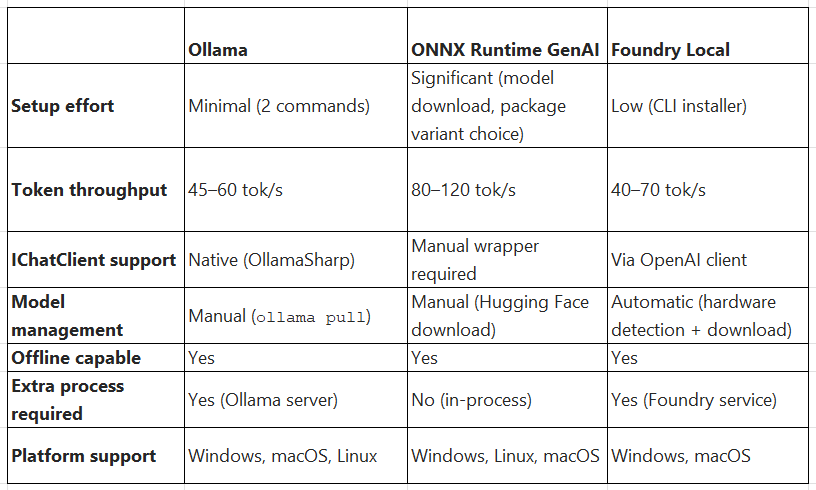
These figures are approximate and hardware-dependent. All measured on an NVIDIA RTX 4070 (12GB VRAM) running Phi-4-mini Q4_K_M

CPU-only inference is technically supported by all three approaches, but produces 3–8 tokens per second — borderline unusable for interactive features. Treat a discrete GPU as a practical requirement.
Best Practices
1. Treat Model and OllamaApiClient as singletons. Model loading takes 3–8 seconds for Phi-4-mini. Constructing a new instance per request kills performance and risks exhausting VRAM. Register once in DI at startup and reuse.
2. Always apply the correct chat template. Phi-4 uses <|system|>...<|end|><|user|>...<|end|><|assistant|>. Missing or malformed templates produce incoherent output without throwing an exception — the bug is invisible.
3. Use the matching NuGet variant for your hardware. Installing Microsoft.ML.OnnxRuntimeGenAI (CPU) on a machine with a CUDA GPU leaves 60–80% of performance on the table. Check your hardware before choosing the package.
4. Add a startup health check for Ollama. Ollama is a separate process. If it isn’t running, your app throws Connection refused at first inference — long after startup, when a user is waiting. Check http://localhost:11434/api/tags during startup and fail fast with a clear message.
5. Test your prompt patterns against both local and cloud backends before shipping. Ollama’s /v1 endpoint does not implement the full OpenAI API surface. Structured output with JSON schema, logprobs, and certain streaming edge cases may differ. Find these gaps in development, not production.
6. Pin your model version in team environments. ollama pull phi4-mini pulls the latest tag. If one developer pulls a newer version than another, prompt behaviour diverges. Tag versions explicitly in your team runbook or use a Modelfile to lock the digest.
Common Mistakes
- Mistake 1 — using the deprecated
Microsoft.Extensions.AI.Ollamapackage. This package has been deprecated by Microsoft. It receives no further updates, features, or fixes. The correct package isOllamaSharp, which provides full Ollama API coverage and implementsIChatClientnatively. - Mistake 2 — missing or wrong chat template. ONNX Runtime GenAI does not validate your prompt format. Sending raw text to a chat-tuned model without the
<|system|>...<|user|>...<|assistant|>template produces low-quality or nonsensical output. Always check the model card on Hugging Face for the correct format. - Mistake 3 — running
new Model(path)on every request. This is a 5–8 second operation for a 3.8B model. In a web application, this blocks request processing and thrashes VRAM allocation. TheModelobject is thread-safe for concurrent inference reads create once, reuse everywhere. - Mistake 4 — not handling
CancellationTokenin the ONNX generation loop. Thewhile (!generator.IsDone())loop runs on the calling thread. Withoutct.IsCancellationRequestedin the loop condition, cancelling an in-flight request (user navigates away, timeout) does not stop inference — the model keeps generating tokens and consuming VRAM until it finishes.
Bottlenecks at Scale
- Single-model VRAM contention. A single instance of Phi-4-mini occupies ~3GB of VRAM. Concurrent requests share that VRAM via batched inference in Ollama, but ONNX Runtime GenAI in-process handles only one request at a time without explicit batching. Under real load, this becomes a queue, the first bottleneck you will hit.
- Model cold-start latency. Ollama unloads inactive models after a configurable timeout (default 5 minutes). The next request after unload triggers a 3–5 second reload. For production use, keep the model warm with a scheduled keep-alive ping or set
OLLAMA_KEEP_ALIVE=-1to disable automatic unloading. - Context window exhaustion. Phi-4-mini supports a 128K context window in theory, but fitting 128K tokens in a 4GB VRAM budget requires aggressive quantisation and the KV cache still grows linearly with context length. In practice, long conversation histories will either degrade quality or OOM. Truncate conversation history to the last N tokens rather than passing the full context on every turn.
- How production teams handle it: the standard pattern is local inference only for development and staging (one model per developer machine), and cloud inference in production with a managed service that handles scaling, content filtering, and observability. The IChatClient abstraction makes this a one-line swap in the composition root.
Pros and Cons
Alternatives
- LLamaSharp: runs GGUF models in-process via llama.cpp bindings. No server process required, which makes it the right choice for desktop applications or single-user tools. Token throughput is lower than ONNX Runtime GenAI (30–50 tok/s) because it uses llama.cpp rather than DirectML/CUDA-native kernels.
- Semantic Kernel with Ollama connector: if you are already using Semantic Kernel for orchestration, plugin invocation, or memory, Semantic Kernel connects to Ollama via the same
/v1OpenAI-compatible endpoint. Adds orchestration overhead but gives you the full SK feature set. - .NET Aspire + Ollama integration: .NET Aspire has first-class support for Ollama as a local resource in the application model, with health checks and dashboard integration. Worth evaluating if your team uses Aspire for service orchestration in development.
Closing Thought
The three approaches solve different points on the setup-vs-performance spectrum.
- Ollama gets you running in ten minutes.
- ONNX Runtime GenAI gets you the best throughput.
- Foundry Local handles the operational overhead of model lifecycle management.
The more interesting question is where the line sits in your codebase. If your business logic already injects IChatClient, swapping the provider is a configuration change. But if you have Azure OpenAI client calls scattered through your service layer, adding local inference means a refactor.
How tightly is your current code coupled to a specific AI provider?
I hope you enjoyed reading this blog!
I’d love to hear your thoughts. please share your feedback or questions in the comments below and let me know if you’d like any clarifications on the topics covered. If you enjoyed this blog, don’t forget to like it and subscribe for more technology insights.
Stay tuned! In upcoming posts, I’ll be diving into advanced .NET topics such latest updates on .NET, UI frameworks like Angular and React, Blazor, AI, Machine learning, Python. Additionally, much more topics on DSA and System Design.
Thank you for joining me on this learning journey!
Stay curious, keep coding and never stop learning.
Connect with me:
메타데이터
- post_id
- e05f30f5f6d3
- slug
- run-phi-models-locally-in-c-ollama-vs-onnx-vs-foundry-local-e05f30f5f6d3
- url
- https://medium.com/@bhargavkoya56/run-phi-models-locally-in-c-ollama-vs-onnx-vs-foundry-local-e05f30f5f6d3
- canonical_url
- https://medium.com/@bhargavkoya56/run-phi-models-locally-in-c-ollama-vs-onnx-vs-foundry-local-e05f30f5f6d3
- author_url
- https://medium.com/@bhargavkoya56
- status
- ok
- fetched_at
- 2026-06-09 15:37:30





