How I Used Oracle Redwood’s Phone Number Component in Visual Builder
A practical walkthrough of <oj-sp-input-phone-number> — what it does, how to wire it up, and the one mistake you need to avoid.
How I Used Oracle Redwood’s Phone Number Component in Visual Builder
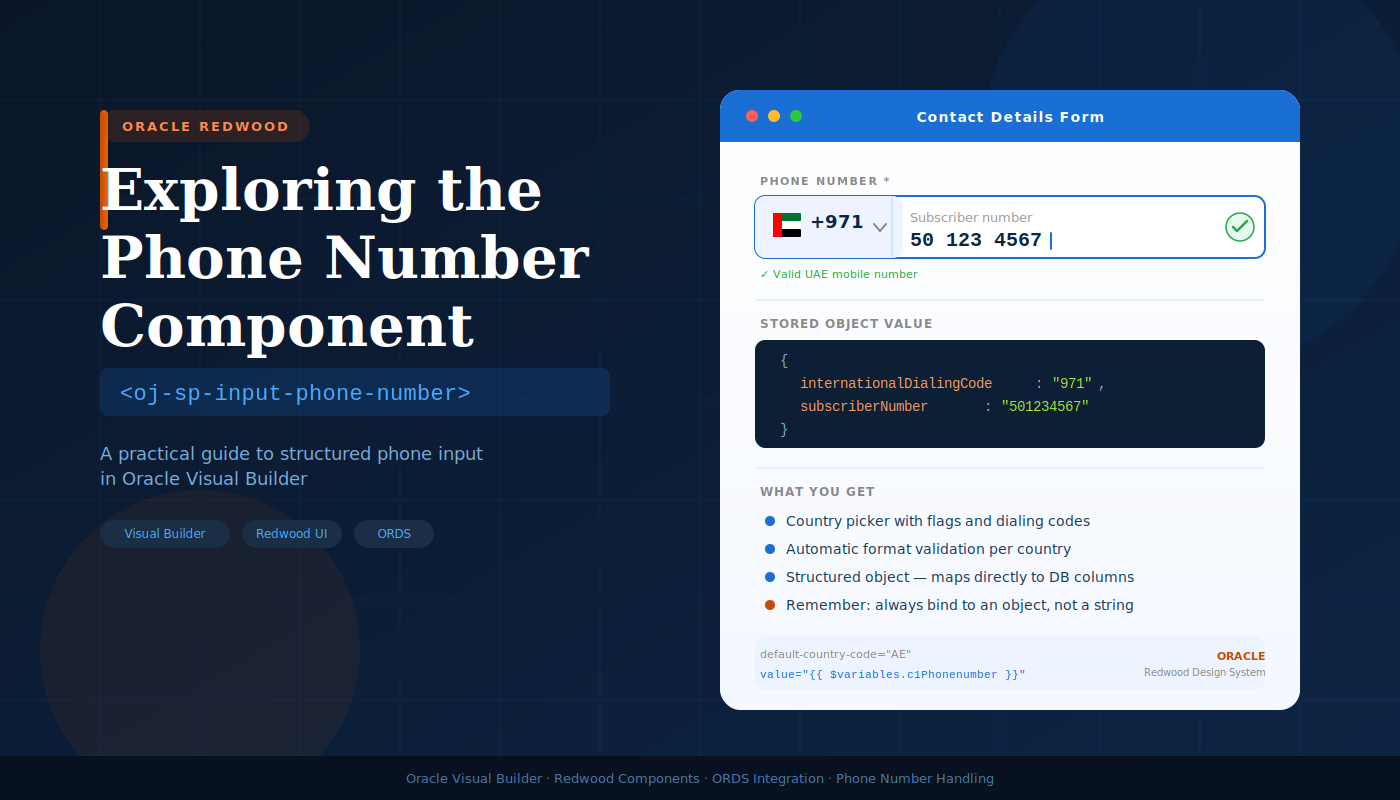
A practical walkthrough of <oj-sp-input-phone-number> — what it does, how to wire it up, and the one mistake you need to avoid.
Why Not Just Use a Text Field?
When you need to capture a phone number in an Oracle Visual Builder app, the easy route is a plain text input. But that leaves you writing your own validation logic, dealing with inconsistent country code formats, and hoping users know how to type an international number correctly.
The Redwood component <oj-sp-input-phone-number> solves all of that out of the box. Here's what it gives you for free:
- A built-in country picker with dialing codes and country names
- Automatic phone number validation based on the selected country
- A structured object value that maps cleanly to database columns
- A polished Redwood-style UI — no extra styling needed
I recently used this component while building a contacts page, and this post covers everything I learned.
Adding the Component
Drop this into your Visual Builder page:
<oj-sp-input-phone-number
  default-country-code="AE"
  label-hint-international-dial-code="Country Code"
  label-hint="Phone Number"
  required="true"
  value="{{ $variables.c1Phonenumber }}">
</oj-sp-input-phone-number>
A few things to note:
default-country-code="AE"pre-selects UAE. Swap this for whatever country makes sense for your users.- The
valuebinding must point to an object variable, not a plain string. This is the most important thing to get right (more on this below).
What the Component Actually Stores
Once a user fills in the field, the bound variable looks like this:
$variables.c1Phonenumber = {
  internationalDialingCode: "971",
  subscriberNumber: "501234567"
};
It splits the input into two parts:
Field What it holds Example internationalDialingCode The country dialing code 971 subscriberNumber The local phone number 501234567
This is handy because most database tables store these as separate columns anyway.
Saving to the Database
Before calling your ORDS API, map the object fields to your API variables:
$variables.postPkgContacts_Details.phoneCountryCode =
  $variables.c1Phonenumber.internationalDialingCode;
$variables.postPkgContacts_Details.phoneNumber =
$variables.c1Phonenumber.subscriberNumber;That’s it. The component does the hard work; you just unpack the object before the save call.
What about extension numbers? The component doesn’t handle those. If you need an extension field, add a separate plain text input alongside it:
<oj-input-text
  label-hint="Extension Number"
  value="{{ $variables.postPkgContactsEmergency.extnumber }}">
</oj-input-text>
Displaying Saved Data Back in the UI
This is where many people get tripped up. When you load existing data from ORDS, the API returns the country code and phone number as separate plain values. But the component only displays correctly when it receives them as an object.
So before binding to the component, rebuild the object:
$variables.c2Phonenumber = {
  internationalDialingCode: $variables.postPkgContactsEmergency.phoneCountryCode,
  subscriberNumber: $variables.postPkgContactsEmergency.phoneNumber
};
Then bind c2Phonenumber to the component's value. It will render the country flag, dialing code, and number correctly.
The One Mistake to Avoid
❌ Don’t do this:
$variables.c2Phonenumber = $variables.postPkgContactsEmergency.phoneNumber;Assigning just the phone number string directly to the component won’t display properly. The component needs both parts of the object.
✅ Do this instead:
$variables.c2Phonenumber = {
  internationalDialingCode: $variables.postPkgContactsEmergency.phoneCountryCode,
  subscriberNumber: $variables.postPkgContactsEmergency.phoneNumber
};
The Full Flow at a Glance
User enters phone number
        ↓
Component stores { internationalDialingCode, subscriberNumber }
        ↓
You split object → assign to API fields → call ORDS to save
        ↓
ORDS returns phoneCountryCode + phoneNumber as separate values
        ↓
You rebuild the object → bind to component → displays correctly
A Note on Validation
The component handles frontend validation well — it checks that the number format matches the selected country. But don’t skip backend validation. Your API should still check for required fields, valid formats, duplicate numbers, and any business rules specific to your application.
Summary
<oj-sp-input-phone-number> is a solid Redwood component that makes phone number capture significantly better than a plain text field. The key things to remember:
- Bind to an object variable, never a plain string.
- Split the object when saving to the database.
- Rebuild the object when loading saved data back into the UI.
- Handle extension numbers separately with
<oj-input-text>if needed. - Always add backend validation regardless of frontend checks.
If you’ve used this component in a different way or have a cleaner pattern for the object mapping, I’d love to hear about it — there’s always room to improve the approach.
메타데이터
- post_id
- e069819d30fc
- slug
- how-i-used-oracle-redwoods-phone-number-component-in-visual-builder-e069819d30fc
- url
- https://medium.com/@bakthajana.be/how-i-used-oracle-redwoods-phone-number-component-in-visual-builder-e069819d30fc
- canonical_url
- https://medium.com/@bakthajana.be/how-i-used-oracle-redwoods-phone-number-component-in-visual-builder-e069819d30fc
- author_url
- https://medium.com/@bakthajana.be
- status
- ok
- fetched_at
- 2026-06-24 11:06:28
