PostgreSQL, pgAdmin, and Python inside Docker
In this article, I will explain the following topics in simple steps:
PostgreSQL, pgAdmin, and Python inside Docker
In this article, I will explain the following topics in simple steps:
- Launching a PostgreSQL database server application inside a docker container (with some SQL scripts already being executed by the time PostgreSQL is available).
- Launching a pgAdmin application inside a docker container and visualize the data inside the PostgreSQL database.
- Writing a simple Python script to insert records using SQLAlchemy into the PostgreSQL database running inside the docker container.
- Creating a docker image for the above Python script and launching it inside a separate docker container.
All the above applications will communicate with each other through the docker network.
Prerequisite
Before proceeding, ensure that the following requirements are in place:
- Docker is installed in your system.
- Python is available in your system (preferably version 3.6 or 3.9).
- Create a project repository to save the code components of all the applications within the same project folder.
Docker compose
For the illustration, we will use docker compose to streamline the deployment of all three applications under a single file. As the initial step, the docker compose file looks like the one below.

docker-compose .yaml— version, networks and services
- Create a file docker-compose.yaml and start configuring it with the properties listed in the subsequent steps below.
- version: Use version number equal to or greater than 3 for improved reliability.
- networks: This is a very important property since all the applications running inside different docker containers must belong to the same network to communicate with each other purely via docker end points. In our case, we will create a network called “dem”.
- services: Create a placeholder for the property called services. Under this section, we will configure each of the required applications.
PostgreSQL database inside docker
The first application that needs to be added to the docker-compose under services is the PostgreSQL database server application. The configuration for the same looks like the one below (lines 5–17).

docker-compose.yaml — PostgreSQL
- postgres: Name of the service that hosts the PostgreSQL database server application. Please note that we can provide any name for the service.
- image: The docker image for PostgreSQL database. In this illustration, we configure it as postgres:latest to stick with the latest PostgreSQL version. However, we can choose any version that is available on docker hub.
- restart: The restart policy that we want to choose for the docker container. We choose “always” assuming the fact that a PostgreSQL database is not going to be intervened manually often by the administrators (in which case we can also choose “unless-stopped”).
- environment: We pass three environment variables for database, user and password that is required for launching the PostgreSQL server application inside the docker container. This also creates a new database named oltp_db inside the PostgreSQL server.
- ports: By default, the PostgreSQL application will be launched on the port 5432. The docker port is mapped to the host machine port as 5432:5432 so that we can also access the service on the host machine (for example, localhost in case of local machine) via 5432. In case we want to access on a different port on the host machine, for example — 4000, then we can map it as 4000:5432.
- volumes: For this illustration, we mount some SQL scripts as volume on the container under the directory /docker-entrypoint-initdb.d. This will enable the execution the SQL scripts upon the initialization of the container. This is explained in detail in the next section.
- networks: As mentioned earlier, all the applications that we launch as part of the docker compose need to part of the same network. Hence, we configure it as dem, the network that we created previously.
Please note — For simplicity, the password for the database is hard-coded inside the compose file. There are several ways to pass this variable securely in docker container and it is not discussed here in detail.
SQL initialization scripts
As part of this illustration, we will create a new schema named oltp and a table named oltp.user_transactions to the oltp_db database, to which the Python application will insert the records.
In order to ensure that the schema and the table are ready by the time the PostgreSQL container is launched, we need to place the necessary SQL scripts under the directory /docker-entrypoint-initdb.d of the container. In our case, we will create a file named init.sql and mount it as a volume in the aforementioned container directory. The init.sql file should contain the below SQL scripts for creating the schema and the table.

SQL scripts for schema and table
Launching the PostgreSQL service
By now, we are ready to launch the PostgreSQL database server application inside docker. In order to launch this in detached mode, execute the docker-compose command as below.
docker-compose -f docker-compose.yaml up -dUpon executing the above command, check for the docker image as well as the status of the docker container.
- For docker image, execute the command docker images. This should display an image named postgres:latest.
- For the status of the container, execute the command docker ps. This should display the status of the container running the postgres service as below.

pgAdmin inside docker
The next application that needs to be added to the docker-compose is the pgAdmin application. This application can be used to interact with PostgreSQL via a user-friendly interface for managing the database, executing queries, and visualizing the contents of the tables, etc.
The docker-compose configuration for pgAdmin looks like the one below.

docker-compose.yaml — pgAdmin
- pgadmin: Name of the service that hosts the pgAdmin application.
- The explanation for image, restart, environment, ports and networks are the same as we explained in the PostgreSQL section above.
- depends_on: Specifying postgres for this property ensures that the docker container for pgAdmin is started only after the docker container for PostgreSQL is started.
Launching the pgAdmin service
We are now ready to launch the pgAdmin application inside docker. To launch this in detached mode, execute the same docker-compose command as below.
docker-compose -f docker-compose.yaml up -dThe docker-compose command, this time, will skip the execution of the postgres service (since we already launched the PostgreSQL database) and hence, execute only the pgadmin service. Upon executing the above command, check for the docker image as well as the status of the docker container.
- For docker image, execute the command docker images. This should display an image named dpage/pgadmin4:latest.
- For the status of the container, execute the command docker ps.
Connecting to pgAdmin locally
We can now connect to the pgAdmin application locally and explore the contents of the PostgreSQL database. To do this, please follow the below steps.
- Open any web browser and type localhost:5000 (since the service pgadmin mentioned in docker-compose is forwarded to the port 5000 on the local machine).
- This will prompt for an email address and a password, which should be admin@admin.com and pgadmin, respectively as we mentioned inside the docker-compose file.
- Now, on the left hand side, click “Servers->Register->Server” as below.

- Then, choose a custom name under the “General” tab.

- Under the “Connections” tab, enter the relevant details for our PostgreSQL database. The “Hostname” should be postgres (same as the service name in docker-compose). Similarly, enter all the other relevant details.

- Upon saving the above connection, we can see the database oltp as well as the schema and the table that we created previously inside the docker-compose already being available.

Python application for PostgreSQL
As mentioned in the introduction section, we will now write a simple python script that uses SQLAlchemy to interact with the PostgreSQL database for inserting records into a table.
requirements.txt
- Create a file requirements.txt.
- Inside the file, we need to mention three different python libraries that we will use in this illustration —psycopg2, sqlalchemy, and faker.
- We install psycopg2 since SQLAlchemy is dependent on this library.
- We use faker for creating mock records to insert into the database table.
The file looks like below.

requirements.txt file
Python Script
As a first step, we need to create an engine for our PostgreSQL database server and then connect to the database. An engine is an object that provides a source of connectivity to any database. It represents a connection pool and a Dialect object, which is responsible for translating SQLAlchemy’s SQL expressions into the specific SQL syntax of the target database.
While connecting to the database, we also implement a simple retry mechanism for the connection. This is because both the PostgreSQL and the Python application will be launched as part of the same docker-compose and as a result, it is highly possible that the PostgreSQL container will not be ready before the container for Python. In this case, if we don’t implement the retry mechanism, the application will attempt to connect to the database and will experience a connection failure. Furthermore, this will also cause the docker container to shutdown and restart repeatedly (in case the retry mechanism for the docker container of Python is configured as “always” or “unless-stopped”).
We will write this script inside a file named postgres.py.
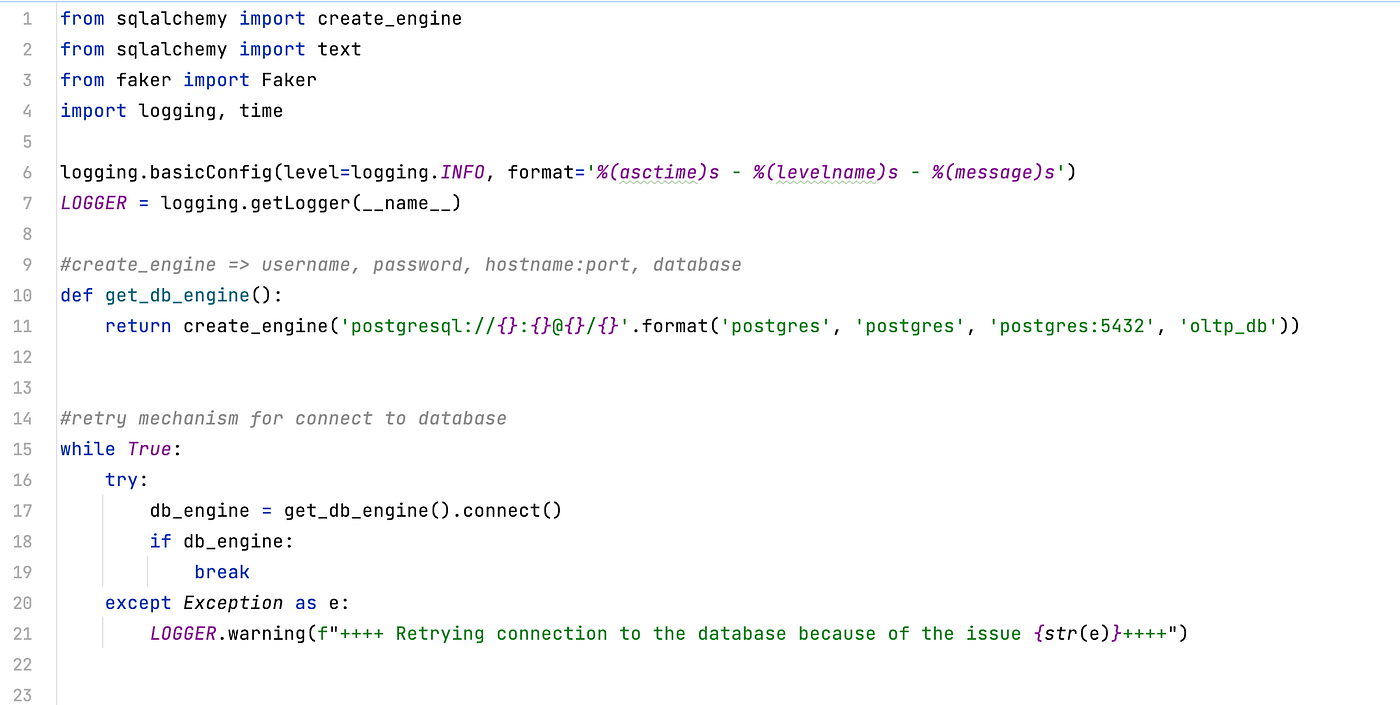
Python script — engine and retry mechanism
- Lines 10 and 11 show the creation of the database engine.
- On line 17, we attempt to connect to the database.
- Lines 15–21 show the logic for retry mechanism while connecting to the database. We use an infinite while loop and keep retrying until connection to the database is established (connection object is stored inside the variable named db_engine). We catch the exception in case of a connection unavailability to prevent the script from failing, and instead, return to the while loop.
- Please note that on line 11, we connect to the database by means of its docker service name and port as postgres:5432.
In the next step, we will write a simple logic for creating some mock records using faker and then insert the records into the table oltp.user_transactions (that we created earlier when we launched the PostgreSQL database) as below.

Logic to insert records into the table — oltp.user_transactions
- We create an infinite while loop and insert 10 records every 10 seconds.
- The table has two integer columns — user_id and amount. On line 25, we create an object for Faker, and then on line 28 and 29, we use the random_int() function of the object to create integer values for the columns.
- On line 30 and 31, we create an INSERT SQL statement and execute it using the function db_engine.execute(). This further utilizes another function called text() since SQLAlchemy requires the use of this function for passing any SQL statements.
- We also set the autocommit as True.
In our Python script, on line 6 and 7, we also enable logging at INFO level, which allows us to capture basic logging information, errors and warnings. This is very useful if we want to retrieve the logs of our script after it is launched inside the docker container.
Dockerizing the Python application
Now, we have to dockerize our Python application, i.e., we need to create a docker image for our Python application in order to use the image inside the docker-compose file and launch the docker container for the same. For this, create a file named Dockerfile_app with below contents.

Docker File for Python
- On line 1, we pull the docker image for Python directly instead of pulling the image for ubuntu and installing Python.
- On line 6 and 8, we copy the contents of our project folder into the docker container and set it as the working directory when the container is launched.
- On line 11, we install all the required python libraries specified inside the file requirements.txt.
- On line 13, we pass the Python command for the script to be executed when the container is launched.
Add Python application to the docker compose
Finally, we need to add the Python application as a separate service inside docker-compose.yaml as below.

docker-compose.yaml — Python
- The service for the Python application is named as app.
- build: configuration to build a docker image for the Python application.
- context: We provide the value dot (.) since the input docker file is in the same location as docker-compose.yaml.
- dockerfile: The name of the docker file that we created earlier to dockerize the Python application.
Please note that setting depends_on:postgres only ensures that the container for Python is started after the container for PostgreSQL is started but does not ensure the readiness of the database service before launching the Python container. Hence, for this reason, we implemented the retry mechanism previously in our Python script.
Launching the Python service
As before, perform the necessary steps as below.
- Launch the docker container for Python using the same docker-compose command.
- Check the docker image via the command docker images. This should display an image named postgres_python-app. Here, postgres_python is the name of the project directory.
- Check the status of the docker container via the command docker ps. Note down the container ID.
- We can also inspect the logs of the Python container via the command docker logs <container ID> which returns an output like below.

Output of docker logs <container ID>
- Please note that the application is attempting the retry before connecting to the database while inserting the records. This happens because the PostgreSQL service is not ready yet, even though its docker container has started, by the time the Python container is launched (This is occurring in my example because I launched all the 3 services at the same time via docker-compose command).
- We can also check the table records via pgAdmin, which was launched earlier.
Conclusion
To conclude, by following the step-by-step guide explained above, you can seamlessly deploy a PostgreSQL database and pgAdmin within Docker containers, while effectively managing data through a Python script. Dockerization simplifies the process, enabling efficient application deployment.
Thanks for reading !! நன்றி /\
Please Note:
You can also find the practical demonstration of each and every step explained in this blog on my YouTube video and the code components can be found on my GitHub repository.
메타데이터
- post_id
- e1b9bbc5b617
- slug
- postgresql-pgadmin-and-python-inside-docker-e1b9bbc5b617
- url
- https://medium.com/@vinod.chelladuraiv/postgresql-pgadmin-and-python-inside-docker-e1b9bbc5b617
- canonical_url
- https://medium.com/@vinod.chelladuraiv/postgresql-pgadmin-and-python-inside-docker-e1b9bbc5b617
- author_url
- https://medium.com/@vinod.chelladuraiv
- status
- ok
- fetched_at
- 2026-07-24 14:41:54


