Databricks Lakeflow Jobs Workflow Backfill
In modern data pipelines, incremental processing is the standard approach for efficiency. However, when issues arise (whether from system…
Databricks Lakeflow Jobs Workflow Backfill
In modern data pipelines, incremental processing is the standard approach for efficiency. However, when issues arise (whether from system outages, data quality problems, or late-arriving data), you need a reliable way to reprocess historical intervals. That’s where Databricks Workflow backfill jobs come in.
If you are not yet a member of Medium, you can access the extended version on the SunnyData blog for free.
When something goes wrong, and your pattern involves daily MERGE operations in your jobs, backfill jobs enable you to reload multiple days in a single execution without writing custom scripts or manually triggering runs.
Common data engineering patterns
One of the most popular data engineering patterns is:
MERGE INTO sales AS t
USING (SELECT * FROM source WHERE date = :date) AS s
ON  t.business_key = s.business_key
AND t.date = s.date
WHEN MATCHED THEN UPDATE SET *
WHEN NOT MATCHED THEN INSERT *
WHEN NOT MATCHED BY SOURCE AND t.date = :date THEN DELETE;
Or when using classic partitions:
INSERT INTO TABLE sales
REPLACE USING (date)
SELECT * FROM source WHERE date = :date;
When to Use Backfill Jobs Backfill jobs in Azure Databricks allow you to reprocess historical data or missed data intervals using your existing scheduled jobs.
For example, you might run a backfill if an error or outage caused data to be missed over a period of time:
- Recovering from Data Gaps (Outages or Errors): When outages or errors cause missed processing windows.
- Late-Arriving or Corrected Data: When source systems delay data delivery or provide corrections.
- Historical Reprocessing & Business Changes: When logic updates require reprocessing past data.
Example scenario

Today is the 29th, so we process data for the 28th. The 29th and 30th will be processed in the future. We discovered missing records due to a POS malfunction in one of our shops, so we need to reload data from the 8th to the 16th.
Step-by-Step: How to Configure a Backfill
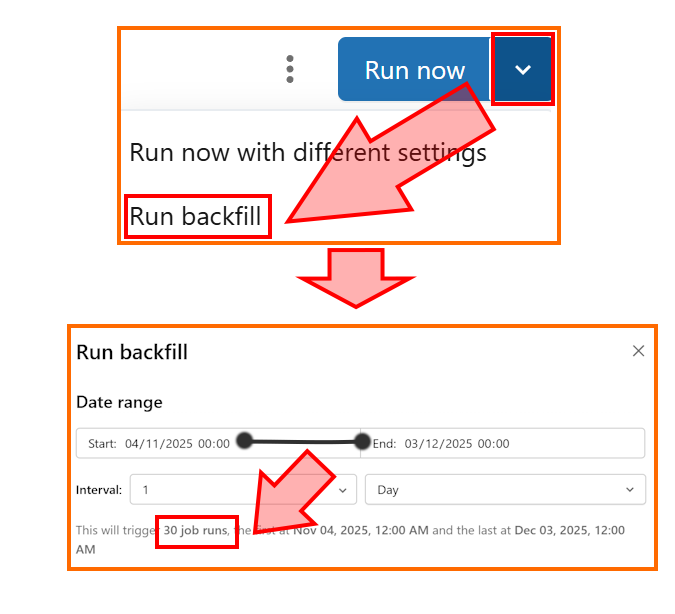
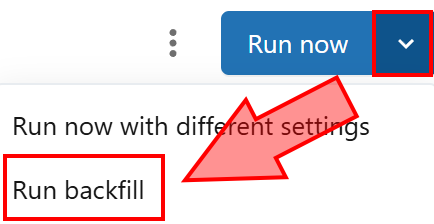
- Step 1. Navigate to your job and click the arrow next to “Run now.”
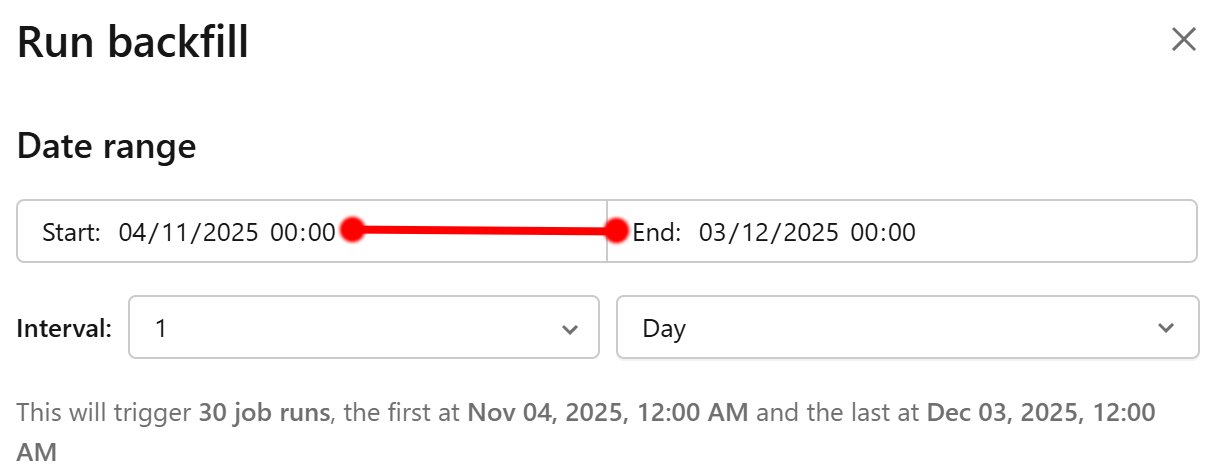
- Step 2. Select the start and end times. You can choose not only the date but also the timestamp, as you can use parameters beyond just the date. In the typical date-parameter use case, you can ignore the timestamp.
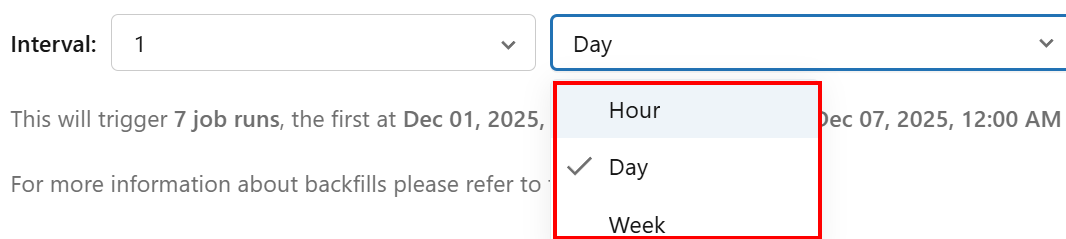
- Step 3. Create an interval within that timestamp range. The classic interval is 1 day, so the parameter uses midnight of each day. For hourly intervals, it runs at the top of each hour.
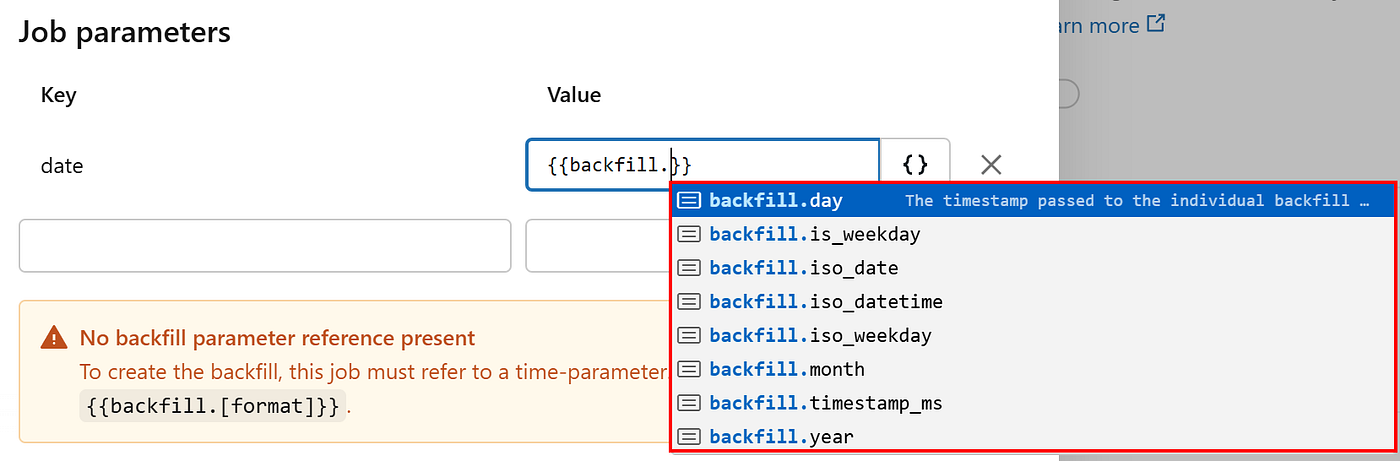
- Step 4. Pass the interval to your job. The timestamp can be automatically converted to the desired format. The most common format is
backfill.iso_date. You may also have separate parameters for year, month, and day, in which case you would passbackfill.year,backfill.month, andbackfill.dayaccordingly.
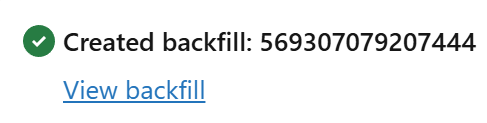
- Step 5. Click “Run.” You’ll receive a notification that the backfilling jobs were created.
- Step 6. Monitor progress as each date is processed one by one.

Some performance considerations
In the screenshot above, you can see that four dates are processed in parallel. This behavior is controlled in the advanced settings, and you can adjust these settings to speed up backfilling.

You can currently process up to 100 intervals at once. For daily intervals, this is typically sufficient; however, for smaller intervals, such as hours, it may be insufficient. This limit should be increased in the near future.

Conclusion
Backfill jobs are a powerful feature in Databricks Workflows that simplify data recovery and reprocessing. By leveraging your existing job configurations, you can quickly address data gaps without writing custom scripts or manually triggering multiple runs. Whether you’re recovering from an outage, processing late-arriving data, or implementing business logic changes, backfill jobs streamline the process and reduce operational overhead.
Pro tip: Always test your backfill configuration on a small date range first to ensure your parameters are correctly configured before processing larger intervals.

Hubert Dudek (author)
If you like this blog post, consider buying me a coffee :-) https://ko-fi.com/hubertdudek
메타데이터
- post_id
- e2bfa55a4eb3
- slug
- databricks-lakeflow-jobs-workflow-backfill-e2bfa55a4eb3
- url
- https://medium.com/@databrickster/databricks-lakeflow-jobs-workflow-backfill-e2bfa55a4eb3
- canonical_url
- https://medium.com/@databrickster/databricks-lakeflow-jobs-workflow-backfill-e2bfa55a4eb3
- author_url
- https://medium.com/@databrickster
- status
- ok
- fetched_at
- 2026-06-27 07:40:21