Reflows & Repaints — The Hidden Performance Killers in Your Frontend
Your app looks simple, but scrolls like it’s underwater. You minified everything, optimized images… yet something feels laggy. What’s…
Reflows & Repaints — The Hidden Performance Killers in Your Frontend
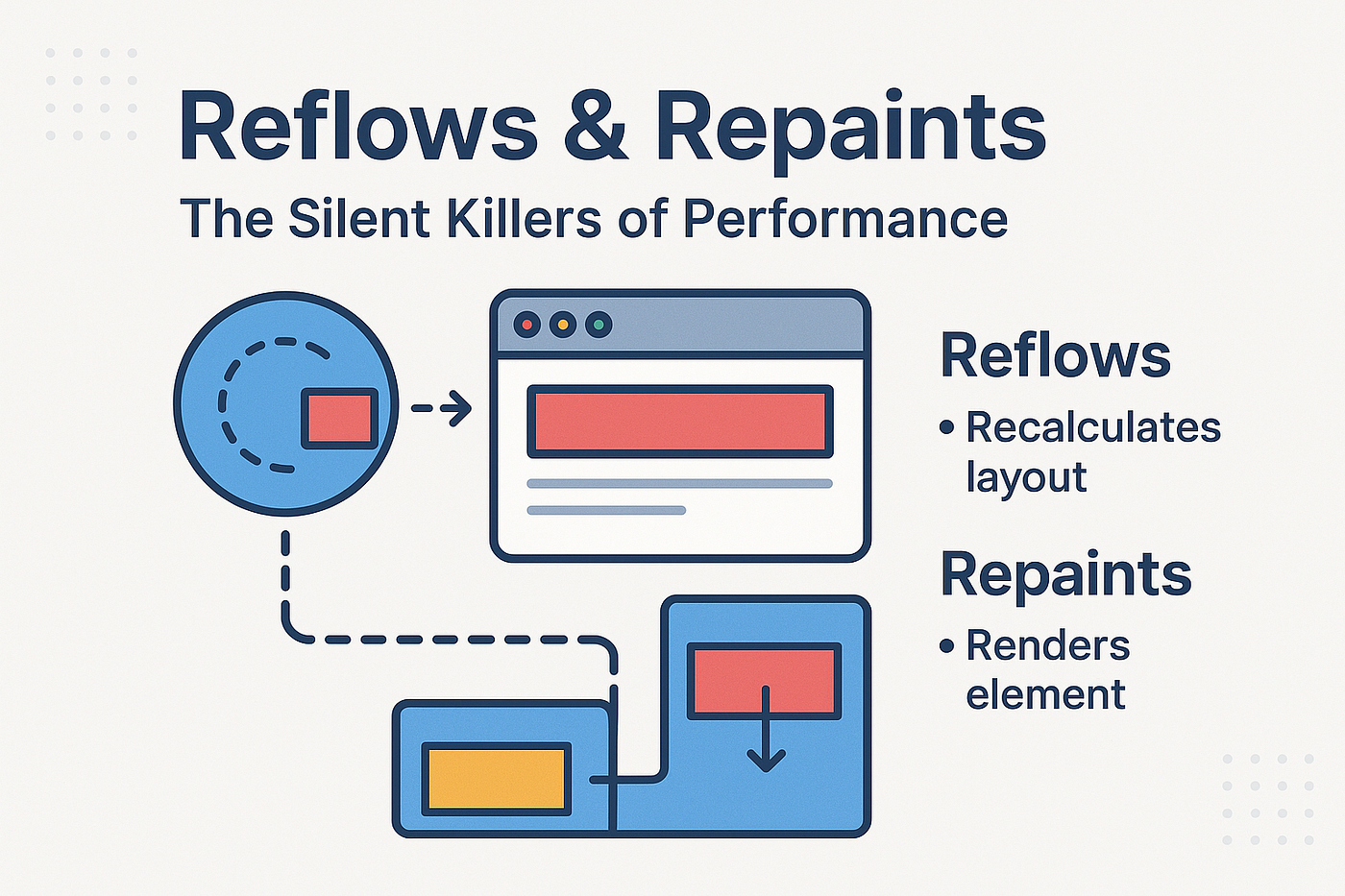
Your app looks simple, but scrolls like it’s underwater. You minified everything, optimized images… yet something feels laggy. What’s happening?
The answer often lies deep inside the browser rendering pipeline — in two invisible but expensive processes called Reflows and Repaints.
In this article, you’ll learn what they are, how they happen, and most importantly — how to reduce them for buttery-smooth performance.
- How Browsers Render Your Page
When your browser loads a page, it doesn’t magically draw it. It goes through several steps:
- Parse HTML → Create DOM (Document Object Model)
- Parse CSS → Create CSSOM (CSS Object Model)
- Combine them → Render Tree
- Layout (Reflow) — Calculate size and position of each element
- Paint (Repaint) — Fill pixels (colors, borders, shadows)
- Composite Layers — Combine everything on screen
2. What is a Reflow?
A Reflow (or Layout) happens whenever the browser needs to recalculate where elements should appear and how big they are.
It’s like rearranging furniture in a room — move one item, and everything else shifts.
Example:
<div id="box"></div>

<script>
  const box = document.getElementById('box');
  box.style.width = "300px"; // triggers reflow
  box.style.height = "300px"; // triggers another reflow
</script>

<style>
  #box {
    width: 100px;
    height: 100px;
    background: lightblue;
  }
</style>
Here, each style change causes a new layout calculation. The browser must re-measure the entire element tree to determine positions — which is expensive.
3. What is a Repaint?
A Repaint happens when visual styles change without affecting layout, like color or visibility.
Think of repainting a wall — the structure doesn’t move, but you still need time to change the color.
Example:
box.style.backgroundColor = "red"; // triggers repaint only4. Reflows vs Repaints — Quick Comparison

Rule of thumb:
Reflows are more expensive because they force the browser to recompute layout for many nodes.
5. Real-World Problem: Layout Thrashing
This happens when you alternate reading and writing layout properties in a tight loop — causing the browser to constantly recalculate.
❌Bad Example
const box = document.getElementById('box');

for (let i = 0; i < 1000; i++) {
  box.style.left = box.offsetLeft + 1 + 'px'; // read + write in same loop
}
Each iteration forces a reflow, tanking your FPS. You can see this in Chrome DevTools → Performance tab → CPU spikes + layout recalculations.
✅Fixed Example
const box = document.getElementById('box');
let left = box.offsetLeft; // read once

for (let i = 0; i < 1000; i++) {
  left += 1;
}

box.style.left = left + 'px'; // write once
By batching reads and writes, you avoid layout thrashing.
6. Best Practices to Minimize Reflows & Repaints
- Batch DOM changes
Instead of multiple inline style edits:
// ❌ multiple reflows
box.style.width = "200px";
box.style.height = "200px";

// ✅ one reflow
box.style.cssText = "width:200px;height:200px;";- Use
classListinstead of multiple style changes
box.classList.add("expanded");- Use
documentFragmentfor bulk DOM operations
const fragment = document.createDocumentFragment();

for (let i = 0; i < 1000; i++) {
  const div = document.createElement("div");
  fragment.appendChild(div);
}

document.body.appendChild(fragment); // 1 reflow, not 1000- Use CSS transforms & opacity for animations
Modern browsers handle these on the GPU, avoiding reflows.
/* ✅ performant animation */
.animate {
  transform: translateX(100px);
  opacity: 0.5;
  transition: all 0.3s ease;
}
Avoid animating properties like width, height, or top — they trigger reflows.
- Minimize Forced Synchronous Layouts
Avoid reading layout properties (offsetWidth, offsetHeight, getBoundingClientRect()) right after writing styles — this forces the browser to flush layout.
7. Debugging Reflows & Repaints
Chrome DevTools
- Open DevTools → Rendering Tab
- Enable “Paint Flashing” — areas that repaint will blink green
- Check Performance tab → “Recalculate Style” & “Layout” events
Tools
- Lighthouse → Performance score
- PerformanceObserver API (advanced profiling)
8. Real Example: Animation Optimization
❌ Bad Animation (Triggers Reflows)
.moving {
  position: absolute;
  left: 0;
  transition: left 0.5s;
}

.moving.move {
  left: 200px;
}
This animation triggers reflows on each frame.
✅ Optimized Animation (GPU-based)
.moving {
  transform: translateX(0);
  transition: transform 0.5s;
}

.moving.move {
  transform: translateX(200px);
}
This uses transform, so no layout recalculation — only compositing. Result → smoother FPS, less CPU.
9. Key Takeaways
✅ Reflows = layout recalculation ✅ Repaints = visual update ✅ Reflows are costlier than repaints ✅ Batch your DOM updates ✅ Use transforms & opacity for animations ✅ Profile with DevTools
If you can control reflows and repaints — you can control perceived performance.
10. Final Thoughts
Reflows and repaints are invisible — until they make your app feel slow. They’re the hidden tax on every style change you make.
But once you understand and manage them, you can create UIs that feel snappy, smooth, and professional — even on low-end devices.
메타데이터
- post_id
- e2cdb1be5d76
- slug
- reflows-repaints-the-hidden-performance-killers-in-your-frontend-e2cdb1be5d76
- url
- https://medium.com/@emadaaltiti/reflows-repaints-the-hidden-performance-killers-in-your-frontend-e2cdb1be5d76
- canonical_url
- https://medium.com/@emadaaltiti/reflows-repaints-the-hidden-performance-killers-in-your-frontend-e2cdb1be5d76
- author_url
- https://medium.com/@emadaaltiti
- status
- ok
- fetched_at
- 2026-07-17 01:39:05




